Granting Access to Intelligence and Repository
Last updated: September 8, 2026
To give a user access to Repository and Intelligence, there are two steps:
Provision the appropriate Repository role
Grant Specific Room-level permissions
Step 1: Provision Repository Access
The process depends on whether the user already exists in Review or is being added as a new user.
For existing Review users
If the user already has Review access and now needs Repository or Intelligence access:
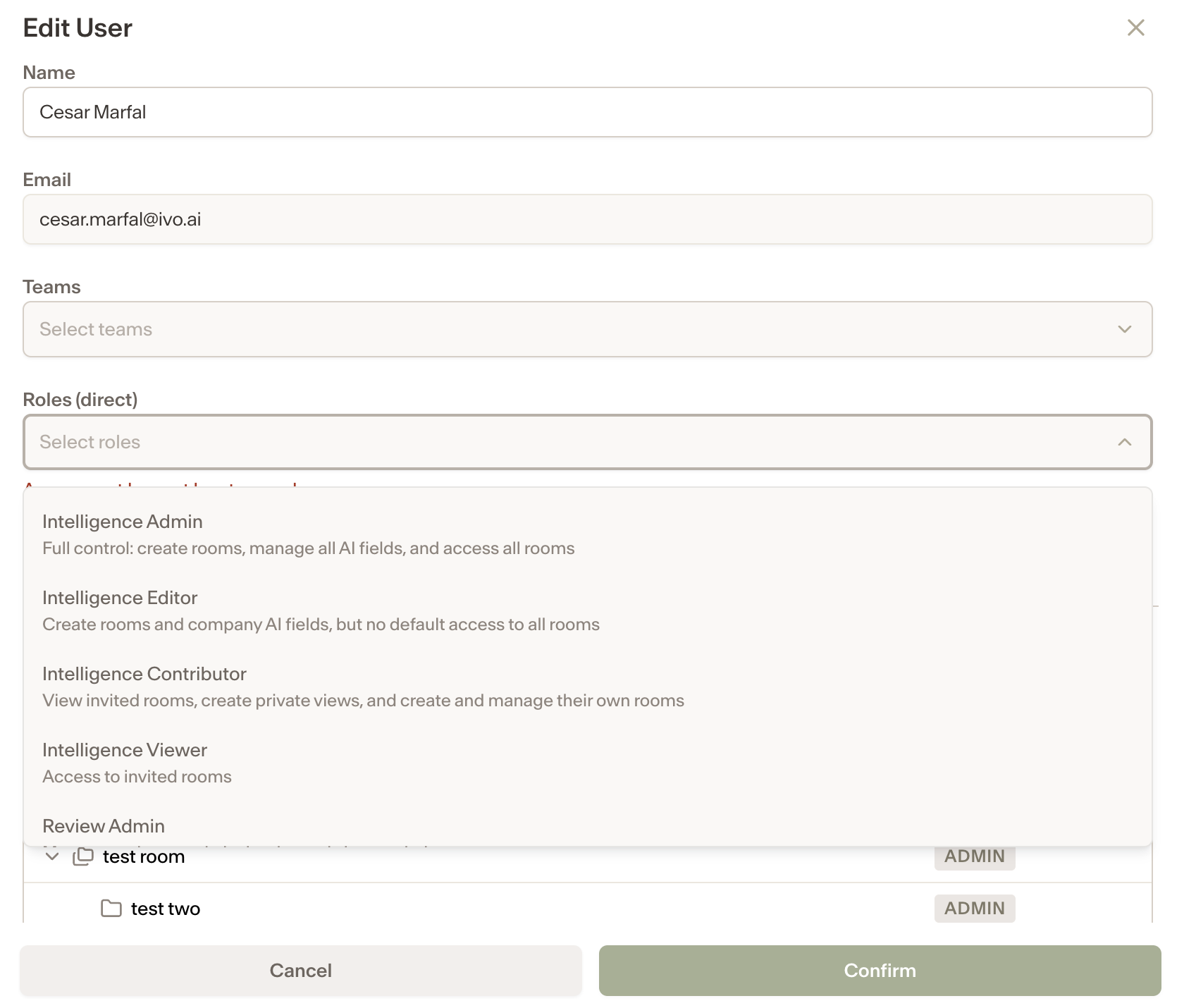
Go to Settings > Workspace > Users
Select the user
Under Roles, choose one of the following:
Intelligence Viewer
Intelligence Contributor
Intelligence Editor
Intelligence Admin
Click Confirm
For new users who only need Intelligence access
If the user is new and will only need access to Intelligence, not Review:
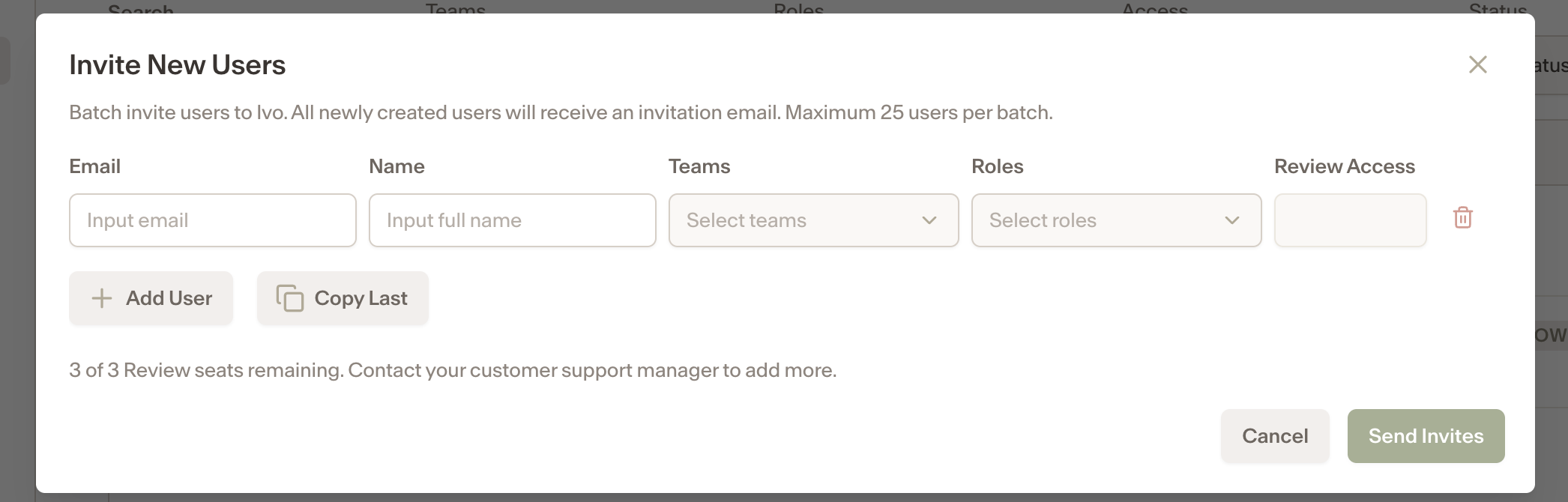
Go to Settings > Workspace > Users
Click Invite New User in the top-right corner
Enter the user’s details
Leave Review set to No
Under Roles, select one of the following:
Intelligence Viewer
Intelligence Contributor
Intelligence Editor
Intelligence Admin
Click Send Invites
Step 2: Grant Room-Level Permissions
After assigning the appropriate Repository role, you’ll also need to grant access to the relevant Room.
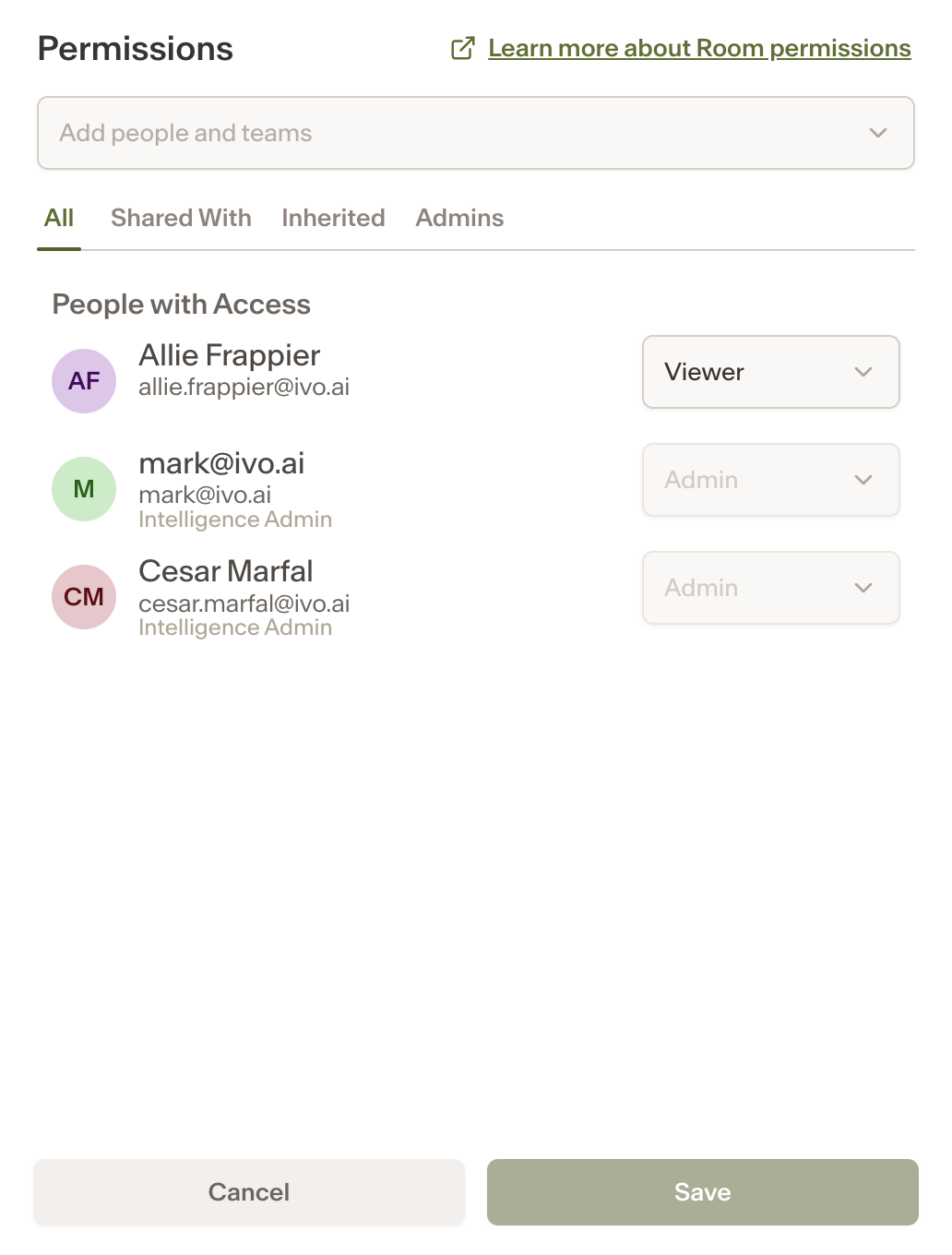
Open the appropriate Room in Repository
Click Permissions in the top-right corner
Add the user
Assign the appropriate Room-level permission:
Admin
Editor
Viewer
Default Access to All Rooms
By Default, Intelligence Admins have access to all Rooms by default.
Users with one of this role do not need additional Room-level permissions assigned individually.