Creating Custom Roles for Users and Teams
Last updated: October 21, 2025
You can create custom roles to assign to your users and/or teams within your Ivo workspace. This is useful for specifying which permissions and playbooks certain users can access.
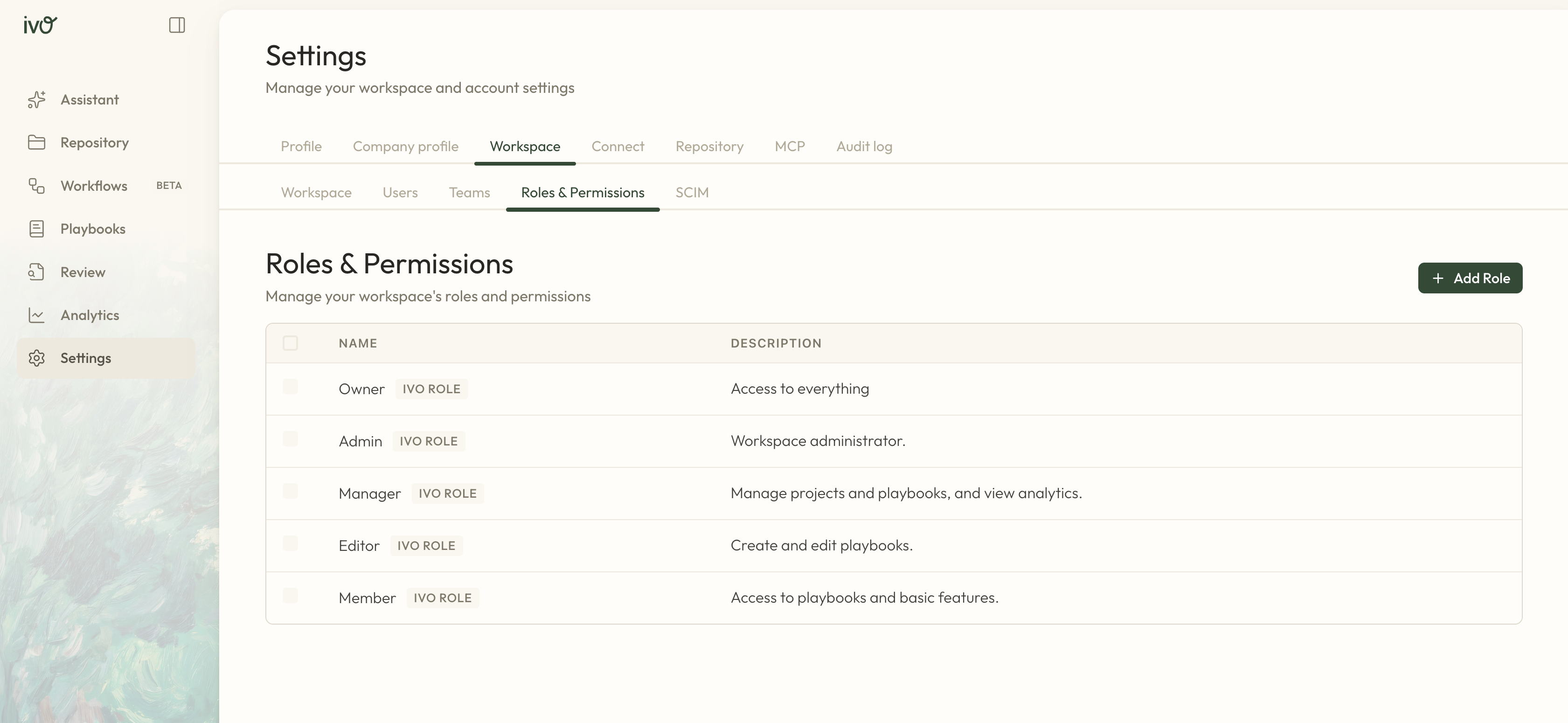
To add a new Role to your workspace:
Log into the web application at app.ivo.ai
Click Settings on the left-hand sidebar.
Go to the Workspace tab and select Roles & Permissions.
Click + Add Role.
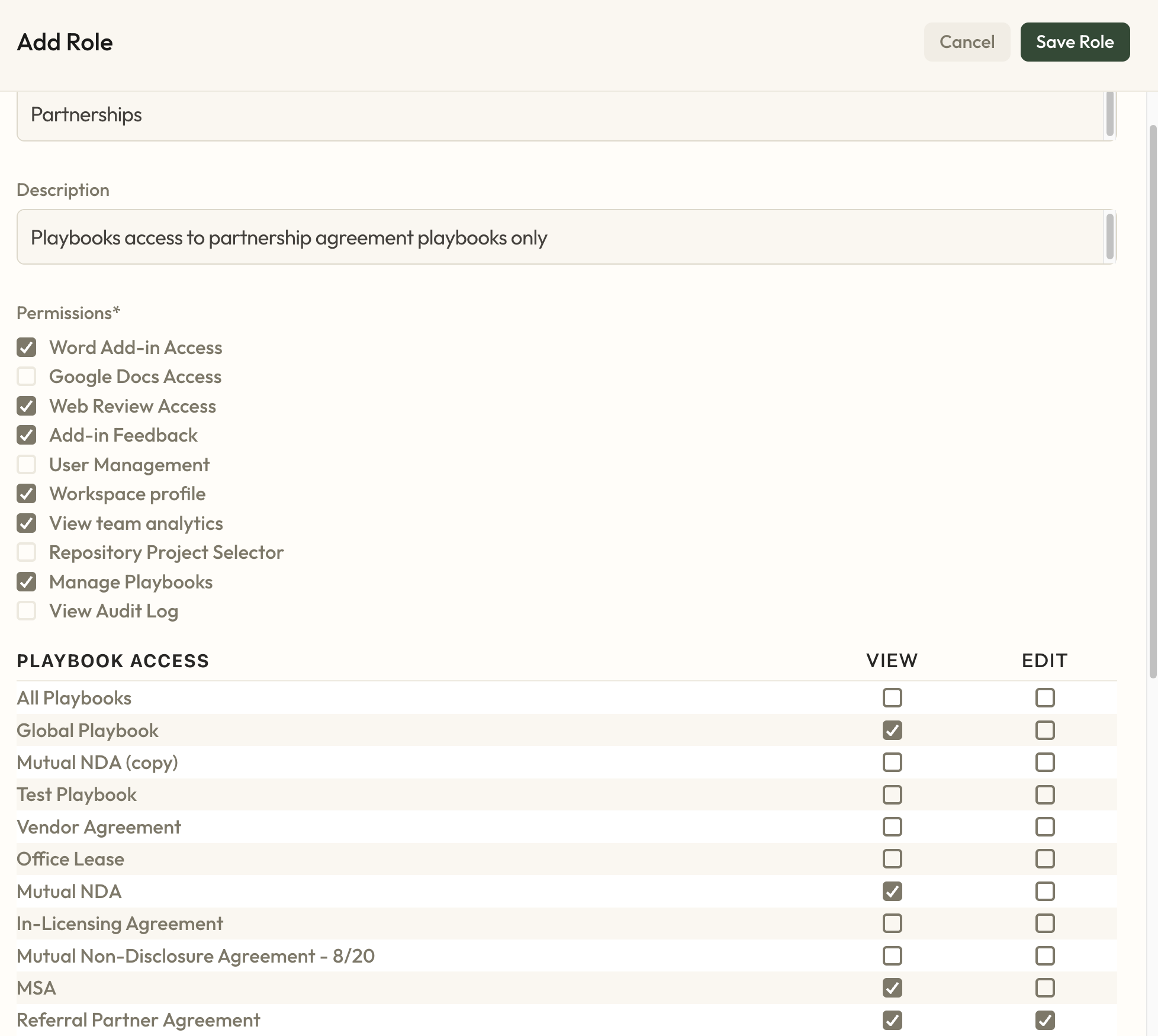
Name your new role and add a short description if needed.
Under Permissions, choose what this role can do — such as view team analytics and manage users.
In the Playbook Access section, select which playbooks users with this role can view or edit.
Click Save Role
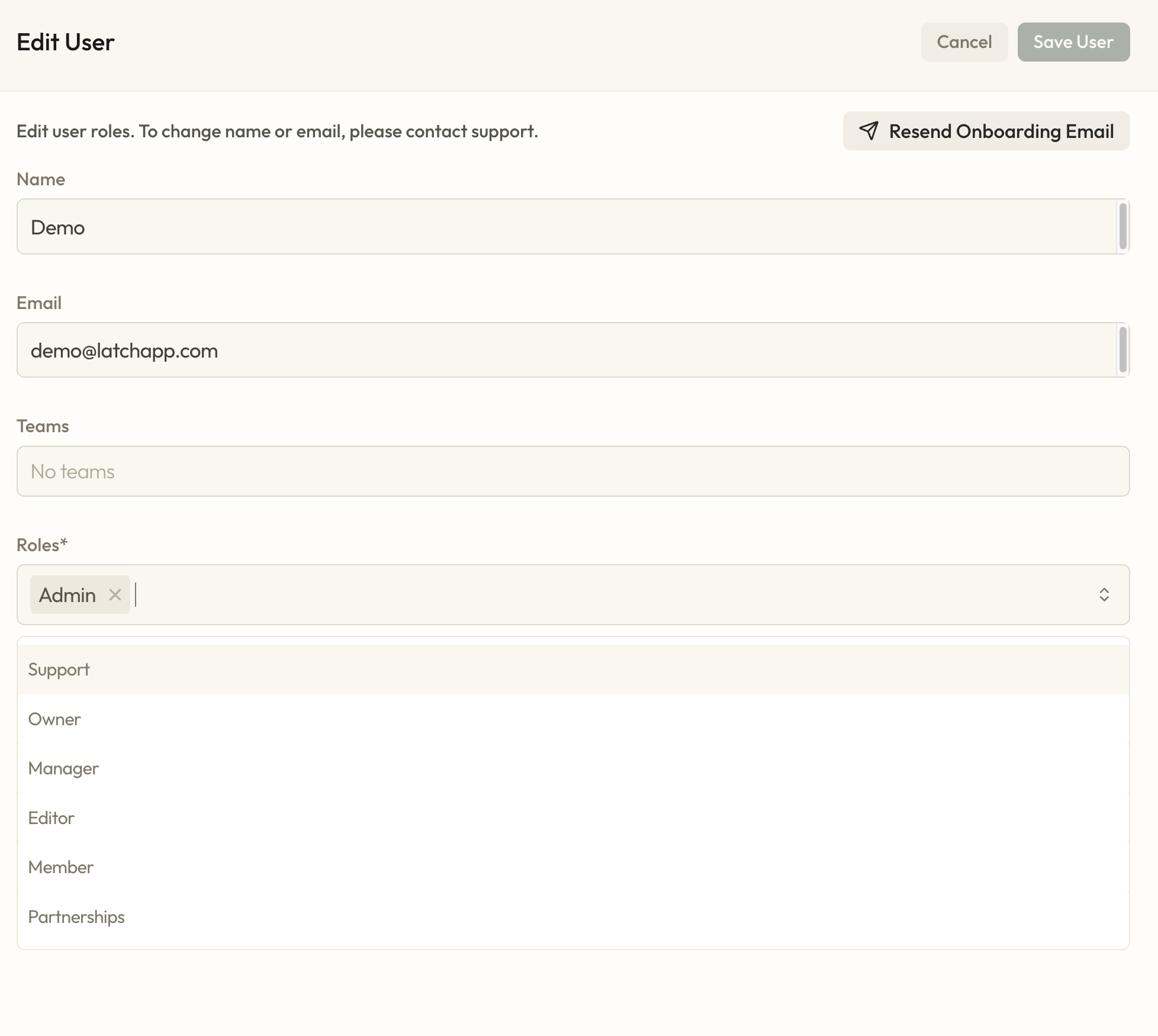
Now when you click on an individual user or team within the Workspace Settings, you'll have the option to assign them this role.
***Note: If users/teams are given any of the Ivo default roles in addition to custom roles, they might be able to access additional playbooks and permissions outside of this custom role. See more information here.