Google Drive
Last updated: September 24, 2026
Create the workflow from a template
Click + Create Workflow to open the template gallery, which shows the workflow templates available to your team: for example, “Sync Google Drive folder to room.”
Connect the integrations first
Each template lists the integrations it uses. If you haven't connected them yet, the template shows “Connect Required Integrations to Install” and can't be used until you set up those connections on the Integrations page.
Once ready, click Install to create your own workflow with the template as its base.
Set up triggers
Workflows are started by triggers. Your new workflow comes with the template's default trigger; click Add Trigger to add other starting points (recurring schedule, manual, and so on) and edit each trigger to fit your needs.
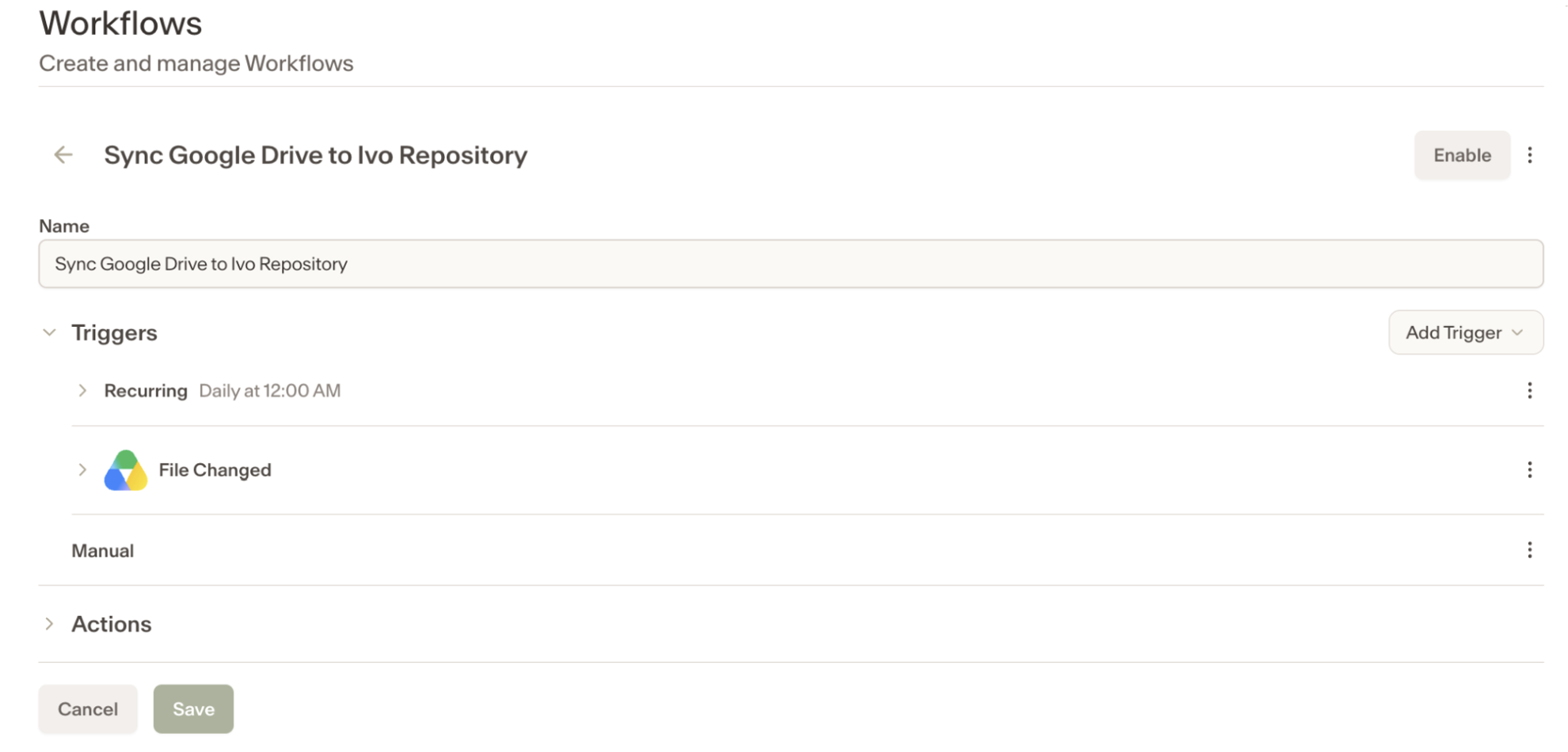
Screen of creating a workflow
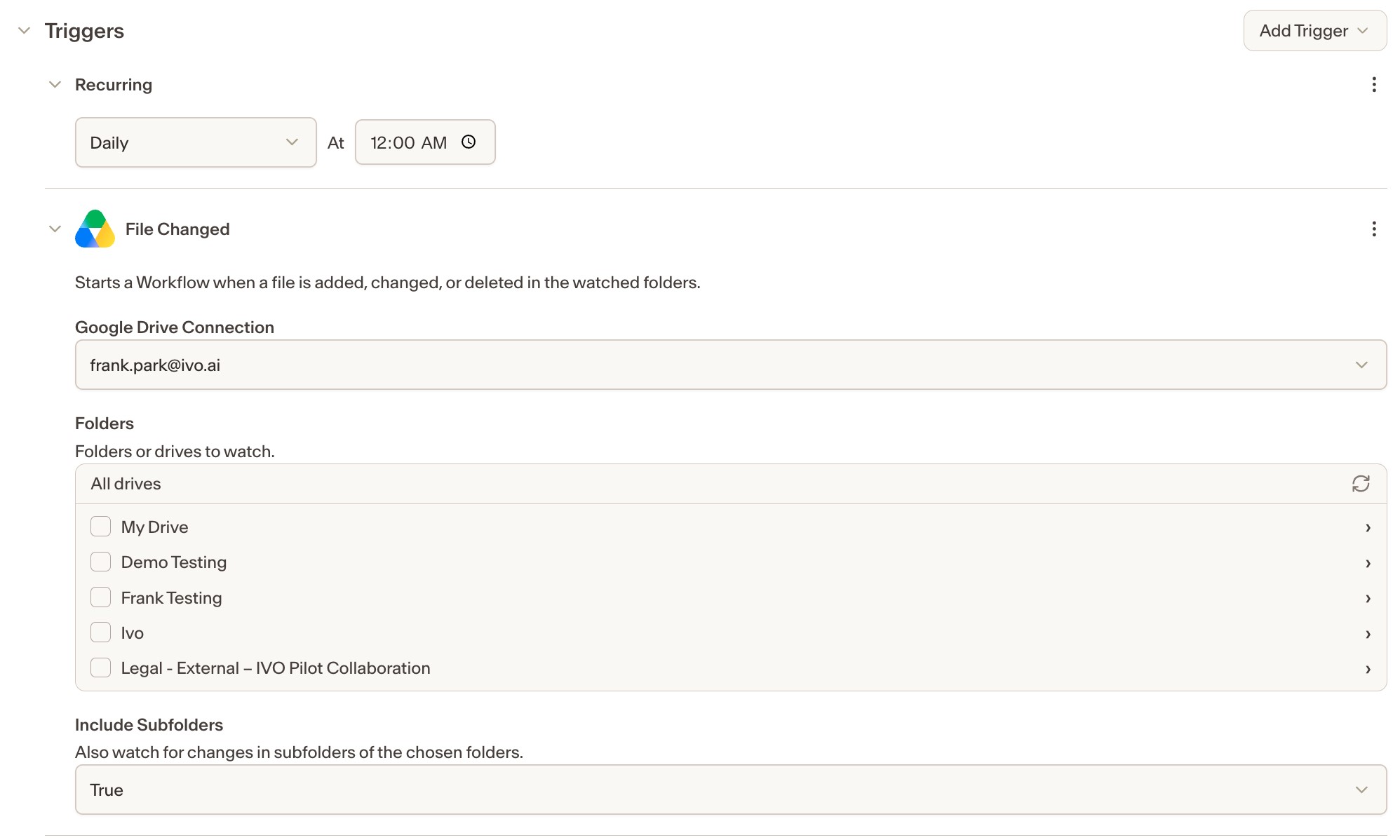
Triggers are added by default
Configure the Google Drive step
Actions are where the work happens. Each action has its own settings, which differ by integration: a Google Drive step and an SFTP step ask for different things. Using the Google Drive sync template as our example:
In the Connection field, choose the installation you created earlier. Flow then lists the Drives that connected account can access; selecting a Drive drills into its folders. Optional settings tailor the sync to your needs. For example, enable Include Subfolders to bring in files from every folder nested under the one you selected.
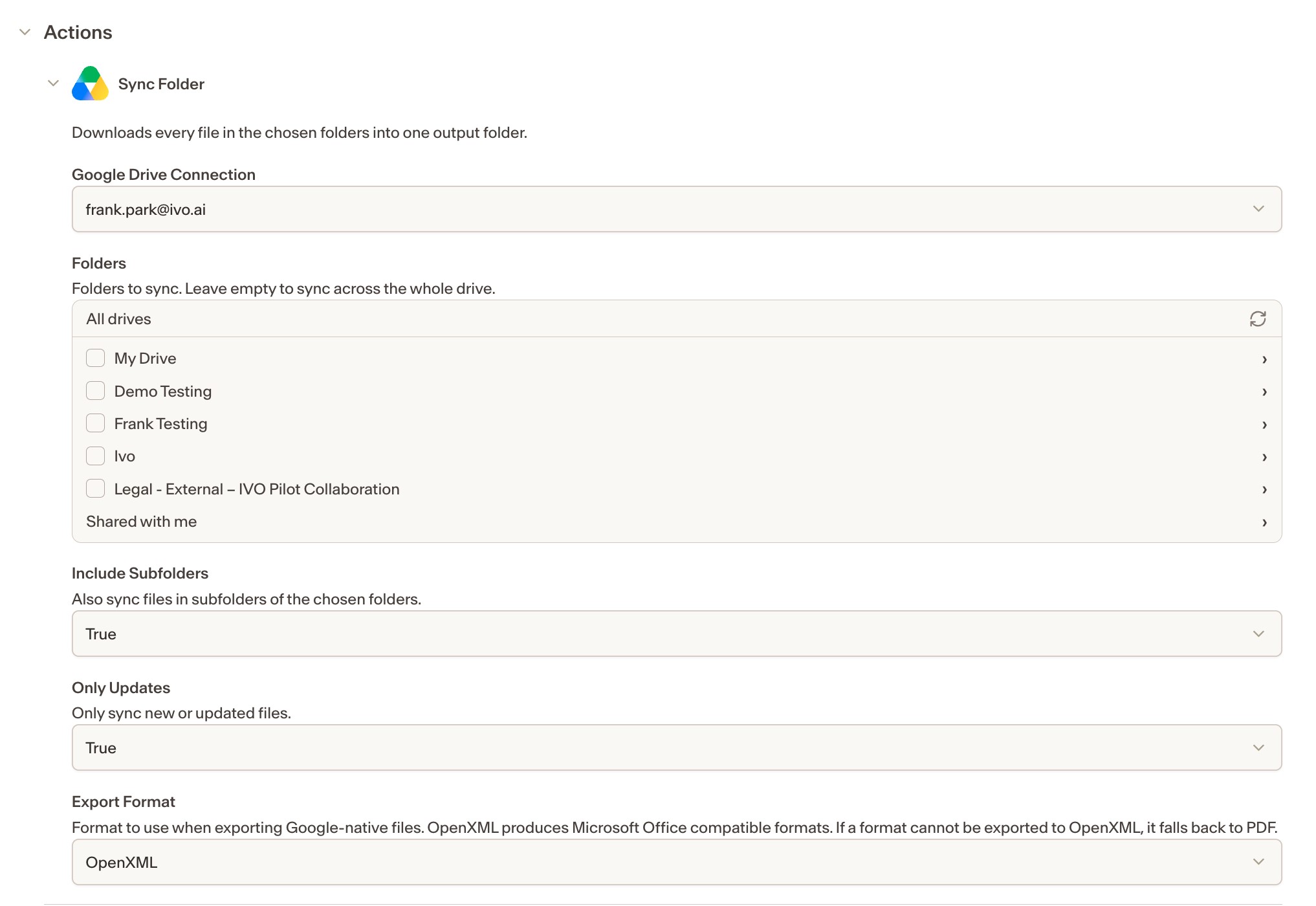
Missing a Drive or folder?
If a Drive or folder you expect is missing, it means the connected account hasn't been granted access to it. Fix the sharing on the Google side.
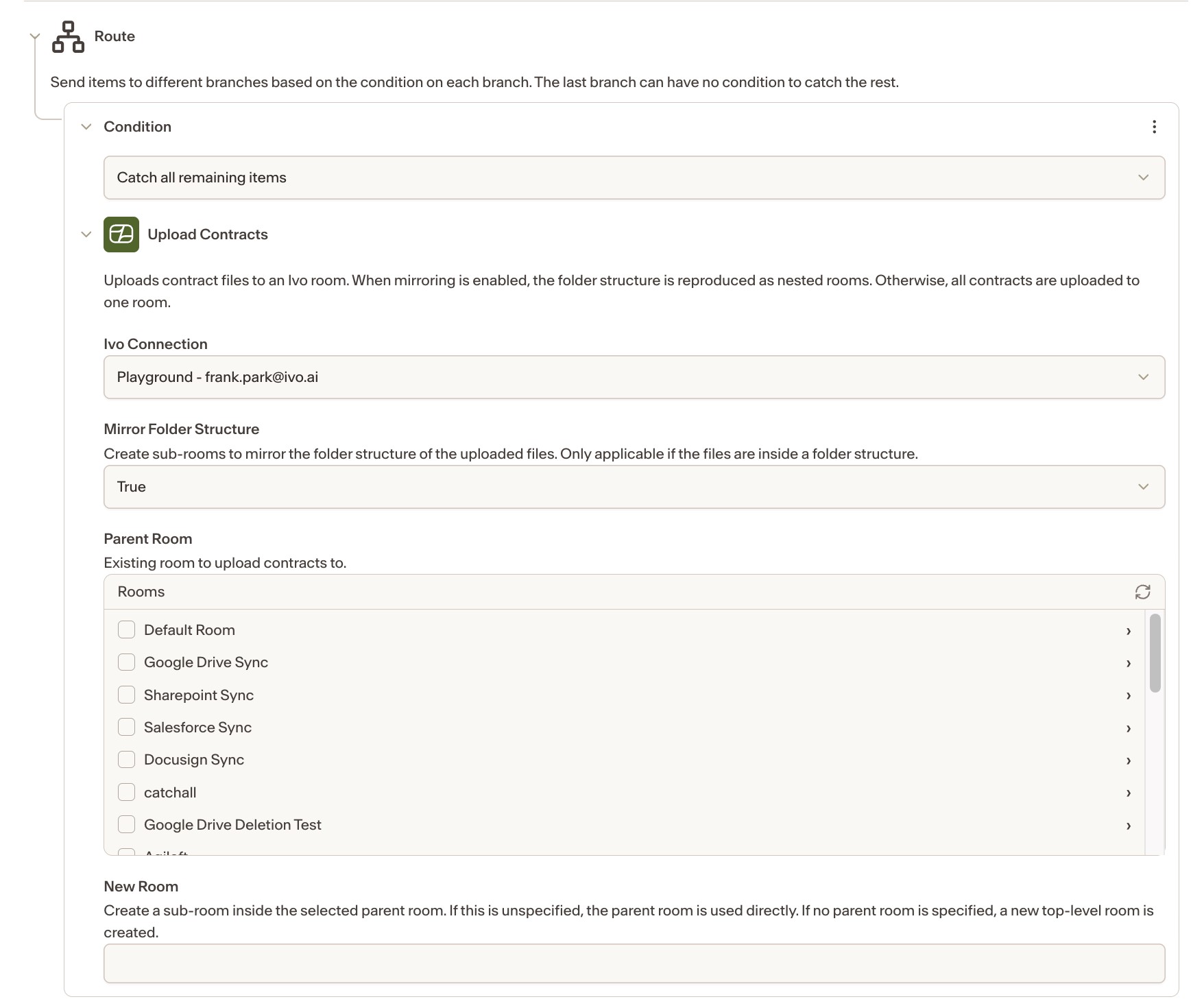
Configure the Ivo and Route step
The template's Route action filters the files you need based on the conditions you set, and the Ivo action uploads the files from the previous step into your workspace. As with any action, select your Ivo connection, adjust the settings as needed, and choose the destination room, or create a new room to receive the files.