SFTP
Last updated: September 25, 2026
Flow supports SFTP in both directions, and which one you use comes down to who hosts the server.
Approach | How it works, and when to use it |
SFTP trigger (Ivo-hosted drop point) | Flow creates a dedicated SFTP location for a single workflow and generates the host, username, and password when you save it. Your system delivers files to that location, and each delivery starts a run. Use this when you’d rather not stand up, expose, or maintain a server of your own. |
SFTP Client integration (Your own SFTP server) | Flow connects out to a server you already run, such as a managed file transfer platform or file gateway, collects files from an agreed folder, and uploads them into Ivo. Use this when your exports already land somewhere Flow can reach. |
Which one should I use?
If your systems already drop exports onto an existing file gateway, use the SFTP Client integration and point Flow at the folder. If there’s no server in place, use the Ivo-hosted drop point.
Either way, the shape is the same: a folder of documents, optionally with an index file describing them, that Flow uploads into an Ivo room.
Approve the SFTP Connection
A Flow admin (Workspace Owner or Workspace Admin) goes to Settings > Flow > Admin and approves the SFTP Connection
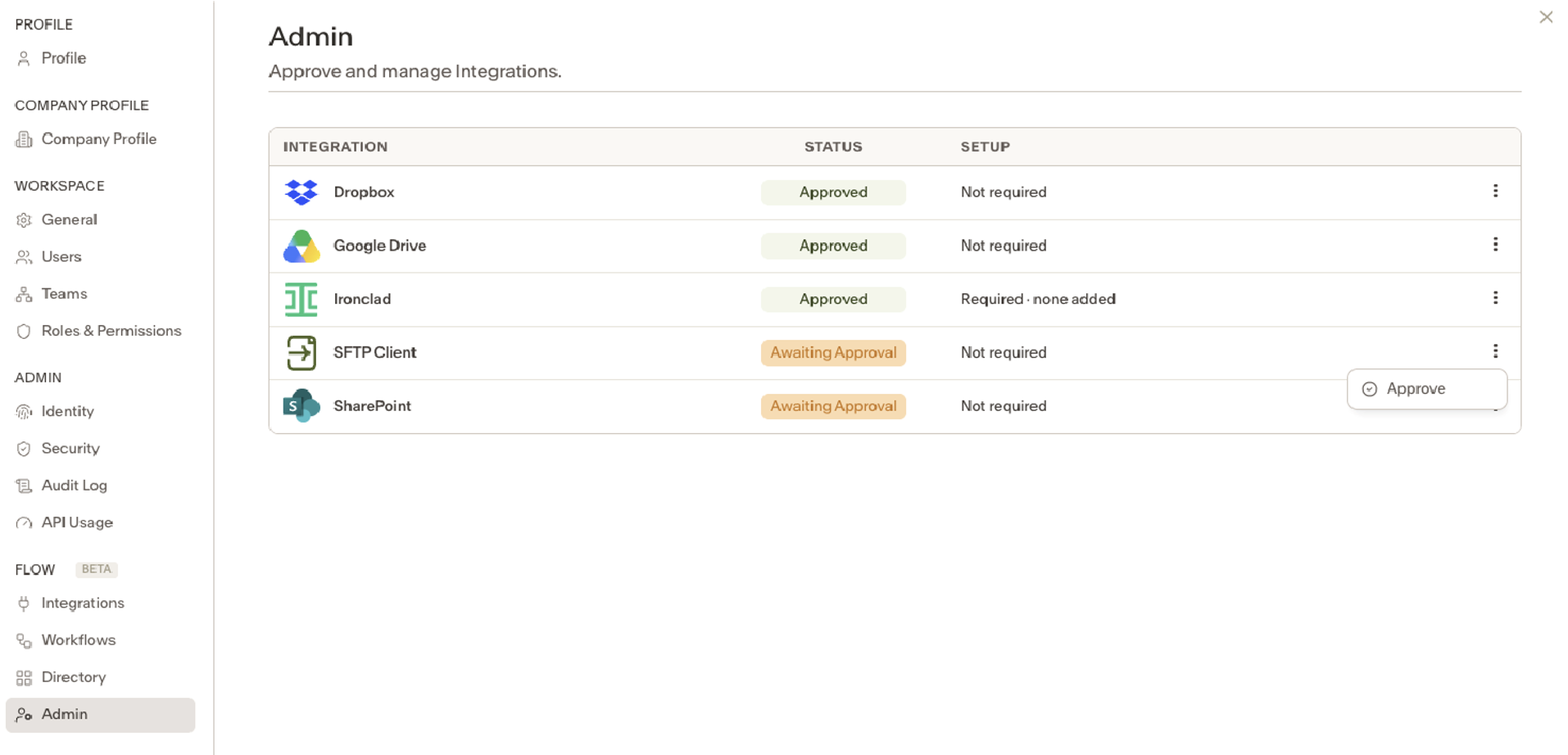
Approving and Setting Up SFTP
Option 1: Have your system deliver files to Flow
In this setup Flow is the destination. The sending system needs three things - a host, a username, and a password.
# | Step | Details |
1 | Create the workflow | Click + Create Workflow and install an SFTP template if one is available to your team. If the structure you need isn’t there, talk to the Ivo team: workflow structures are built by Ivo for now |
2 | Add the SFTP trigger | Click Add Trigger and choose SFTP. The drop point this creates belongs to this workflow only. |
3 | Save and collect the credentials | Flow generates the SFTP host, username, and password when you save the workflow. |
4 | Configure the Ivo step | Choose the Ivo connection and the destination room, or create a new room to receive the files. Connect Ivo through a service account rather than a personal account so the workflow doesn’t depend on one person. |
6 | Upload files | Deliver files on schedule, for example a batch early each morning. |
Each drop point belongs to one workflow
The credentials Flow generates are tied to the workflow that created them. Deleting or rebuilding the workflow means new credentials and a change on the sender’s side, so avoid recreating a workflow that an external system is already delivering to.
If several systems will send files that need to land in different rooms, give each one its own workflow and drop point.
Option 2: Have Flow collect files from your server (Client)
Step 1: Install the Connection
Go to Settings > Flow > Integrations and install the SFTP Connection by providing your SFTP credentials.
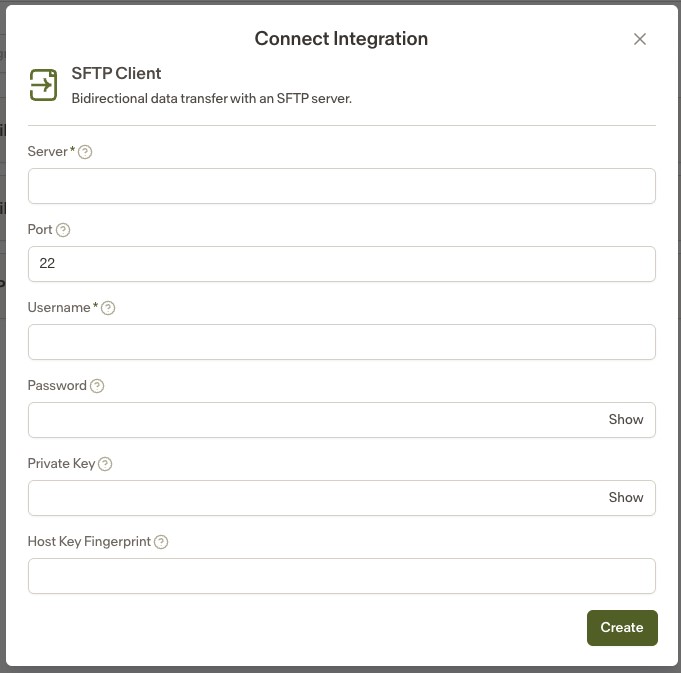
The above is an additional step for Option 2. Please then follow the steps in option 1.