Flow via Assistant
Last updated: October 26, 2026
Ivo Flow connects Ivo to the other apps your team uses, such as Slack, DocuSign, Google Drive and email. It can run tasks in those apps and run workflows for you automatically. You don't have to build these in the Flow editor yourself. You can describe what you want to the Assistant in plain language, and it will look things up in your connected apps, take one-off actions, and create or manage workflows for you.
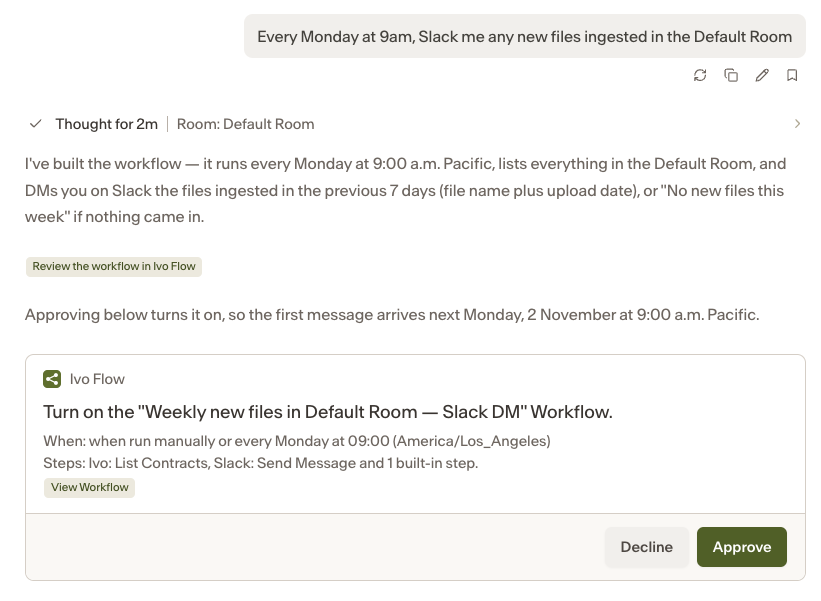
What the Assistant can do
Work in connected apps: The Assistant can read from or act in your apps. For example, it can search a Google Drive folder, download documents from SharePoint, Ironclad, Icertis or Salesforce, post to Slack, send an email, send a DocuSign envelope, or update an Ironclad record. It can combine these with Ivo Intelligence: “Summarize the contracts in our Vendor room and post the summary to #legal in Slack.”
Build workflows: Anything that should happen later, repeat, or react to an event can become a workflow. A workflow can start:
Once, at a set time: “Email me Friday at 9am to review the Acme renewal.”
On a schedule: “Every night, ingest new files from SharePoint into our Vendor room.”
When something happens in a connected app: a completed DocuSign envelope, a new or changed file in Drive or SharePoint, Ironclad activity, a , or an Ivo mention in Slack.
When an email arrives at a dedicated inbox address.
From a webhook
On demand
Workflows can include conditions and branches, and the Assistant can start one from an Ivo template. Inside Ivo, workflows can upload contracts to rooms (optionally mirroring folder structure), list and download contracts, and review Word documents against your playbooks to return a redline.
Manage workflows: Ask the Assistant to list, explain, edit, turn on or off, or delete your workflows. You can also ask about past runs: “Did my DocuSign workflow run last night?”
Connect apps: You can connect Slack, email, DocuSign, Google Drive, SharePoint, Ironclad, Icertis, Salesforce and Ivo yourself. The Assistant gives you the link. Some apps need admin approval. Never share passwords or API keys in chat. Ask your Ivo team about other integrations.
How you stay in control
New workflows are saved turned off. You review them in Ivo Flow and approve them before they turn on.
An Approve/Decline card appears before any action that sends or changes something. It also appears before running, turning on or off, or deleting a workflow, and before editing a workflow that's turned on. Looking things up doesn't need approval.
The Assistant only uses connections and workflows you have access to. Slack posts come from the Ivo app, and emails come from the sender address set in Ivo Flow.
Be careful with
Content sent to another system leaves Ivo's access controls. Anyone with access to that Slack channel, inbox or folder can see it, so read the approval card before approving.
Workflows that are on keep running until you turn them off. If two workflows react to the same event, both run. Approved edits to a live workflow take effect immediately.
Keep webhook URLs private. Anyone who has a workflow's webhook URL can start that workflow, so share it only with the system that needs it. If a URL is exposed, ask the Assistant to replace
Some actions can't be undone, such as sending an email, voiding a DocuSign envelope or overwriting Ironclad fields. Deleting a workflow also deletes its run history.
Walkthrough: setting up Flow integration from Google Drive
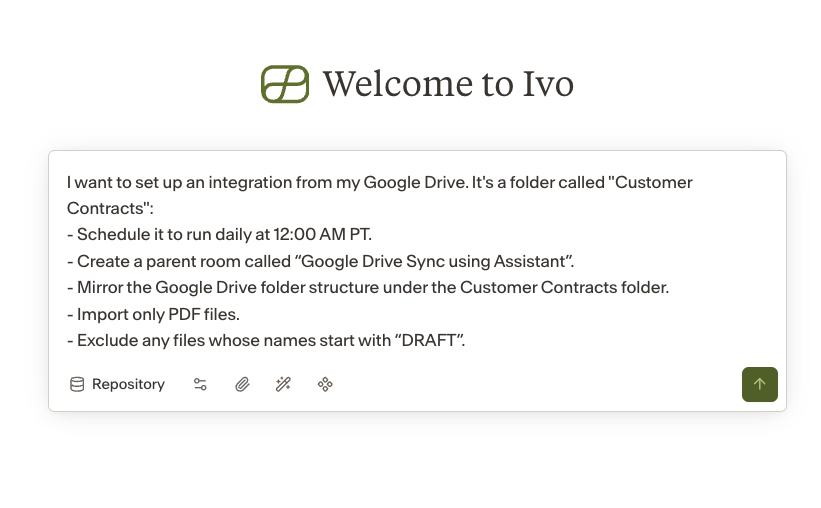
The user asks the Assistant to set up a Google Drive workflow with the conditions shown.
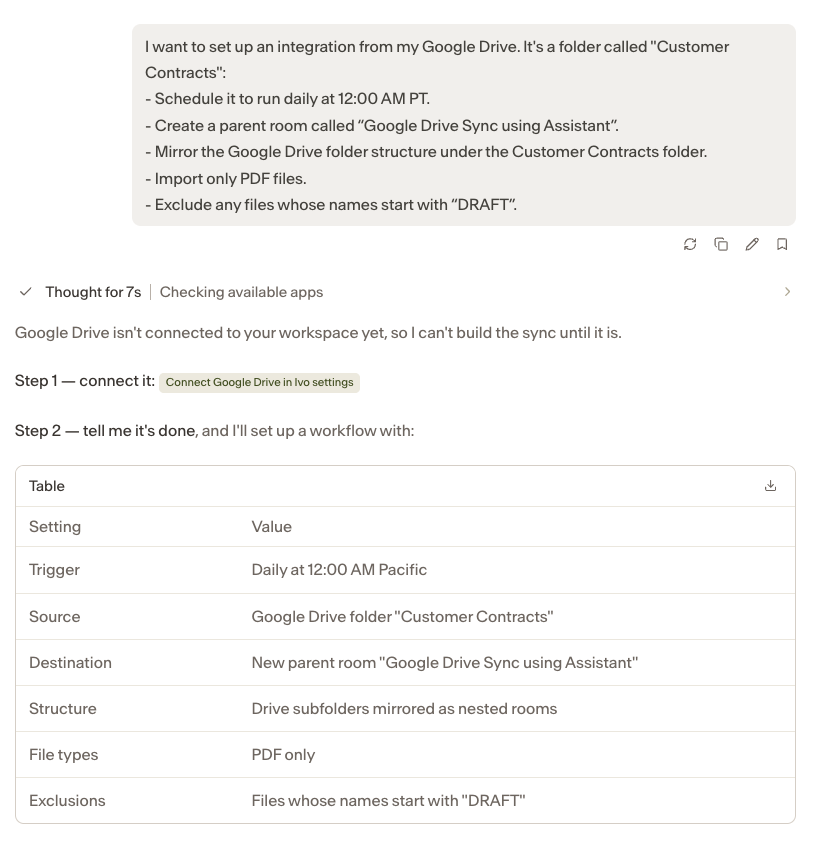
The Assistant walks the user through the steps to set up the workflow.
After connecting Google Drive in Ivo's settings, the user decides to add another requirement to the workflow being set up:
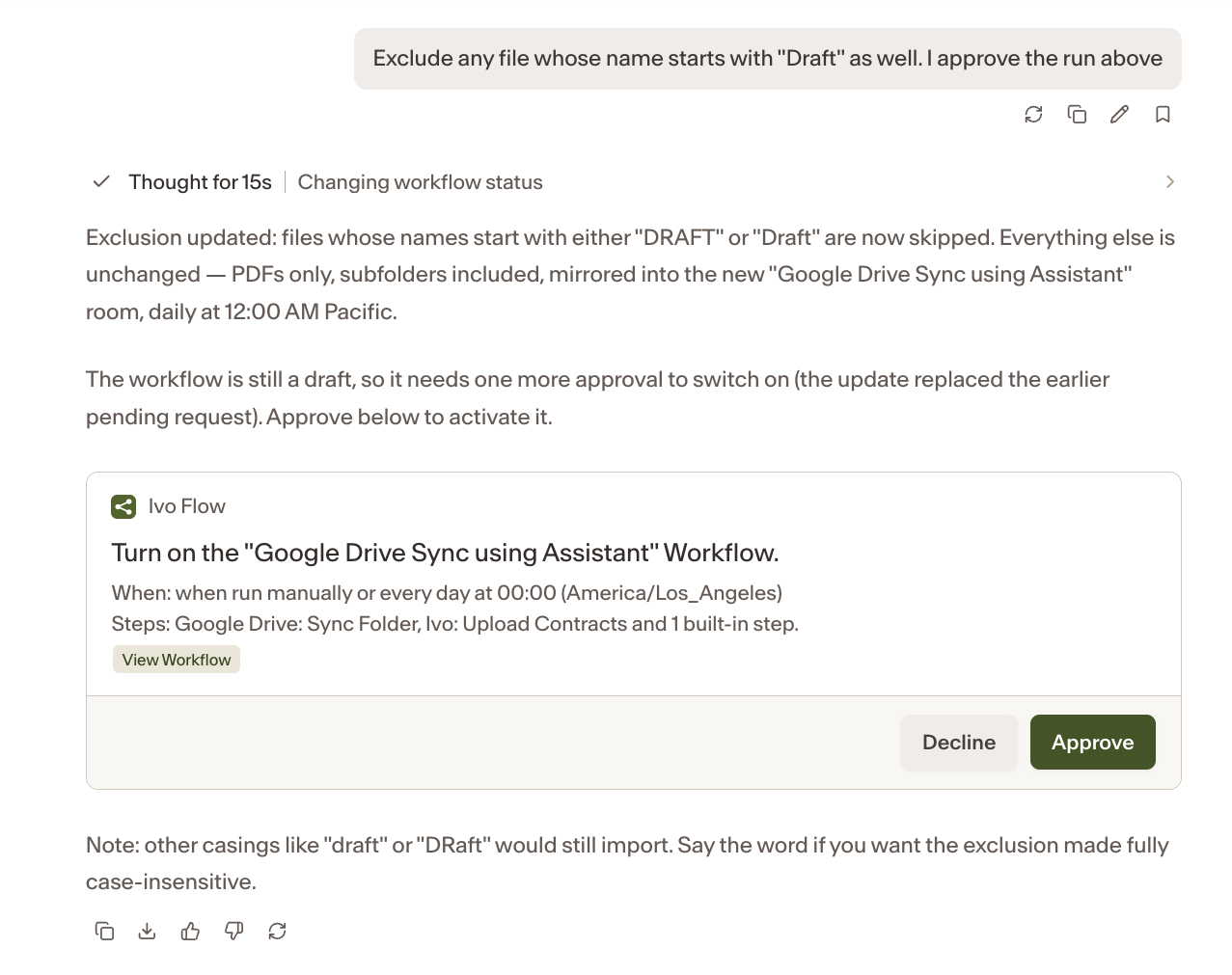
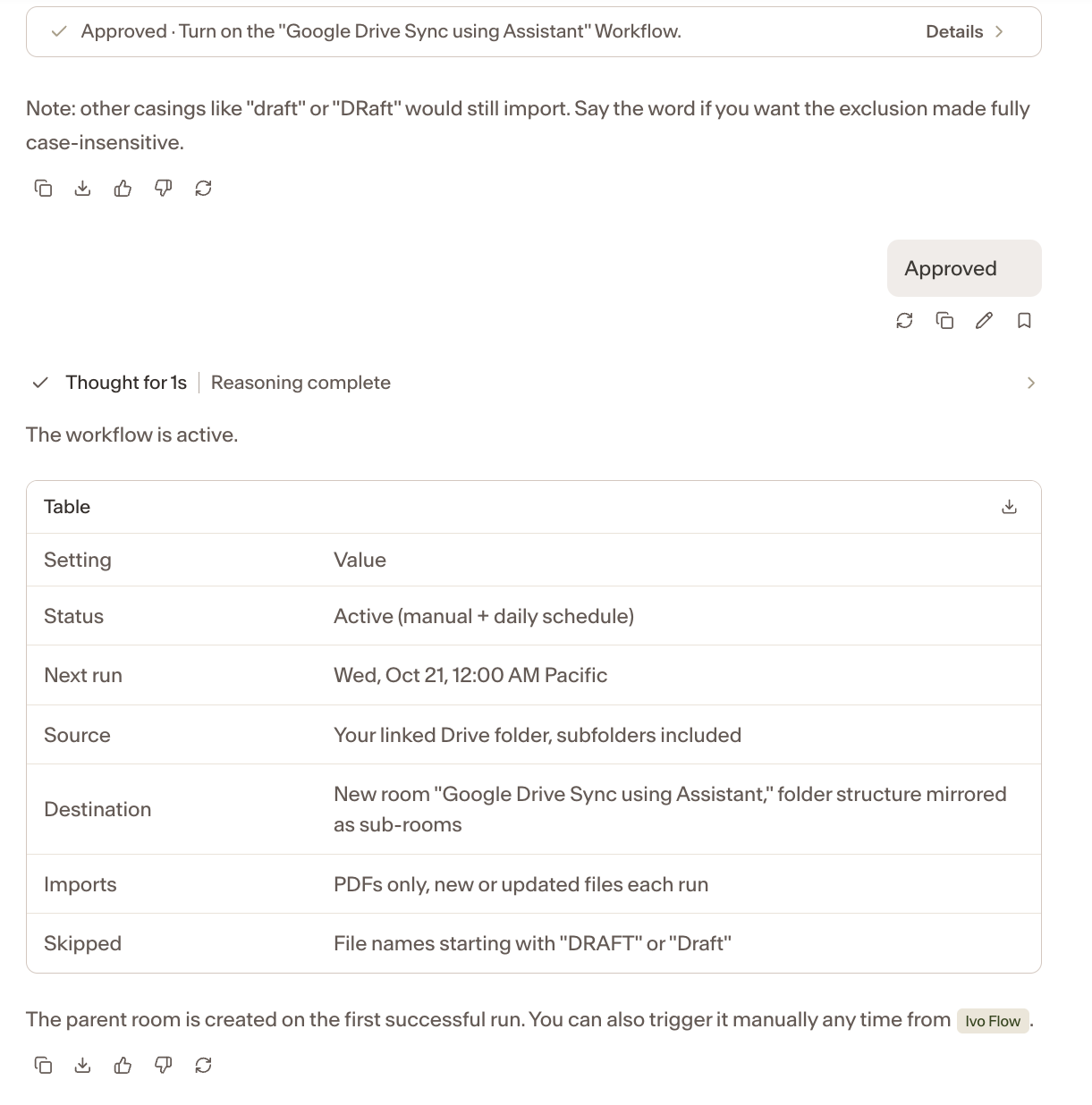
The user approves, and the Assistant summarizes the workflow.
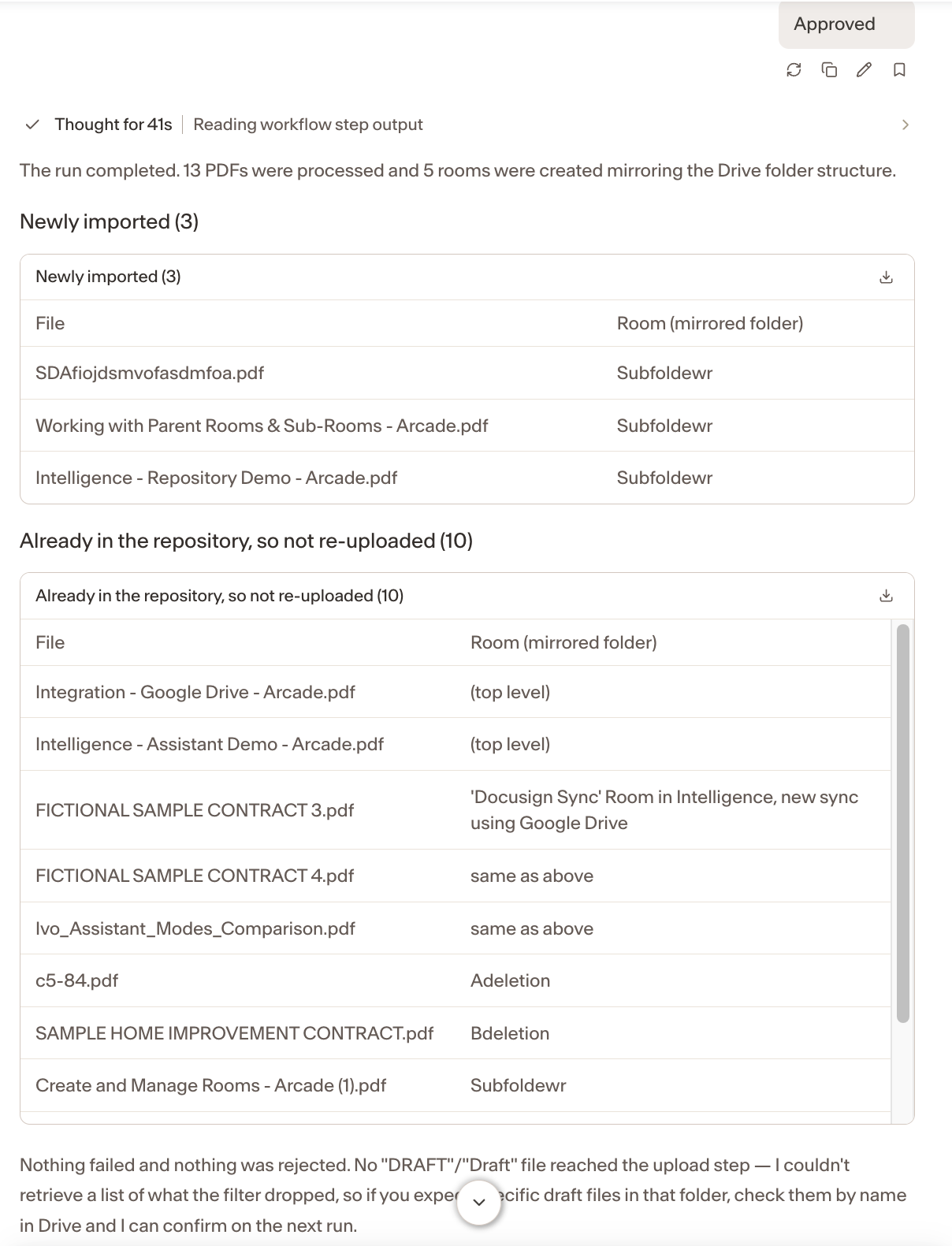
The user approves, and the Assistant runs the workflow and summarizes what was uploaded to Ivo.
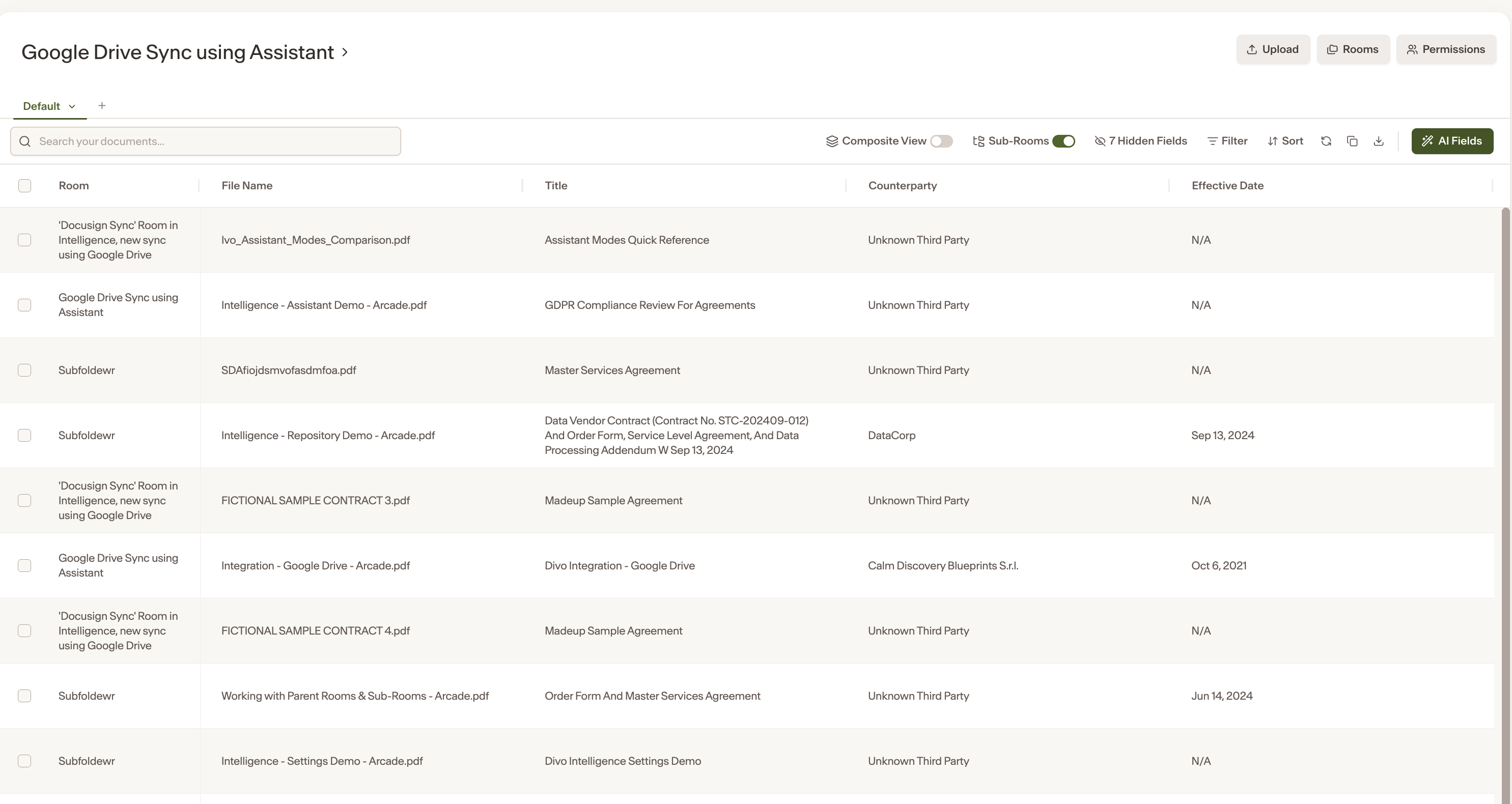
The rooms and documents created in Ivo by the workflow.
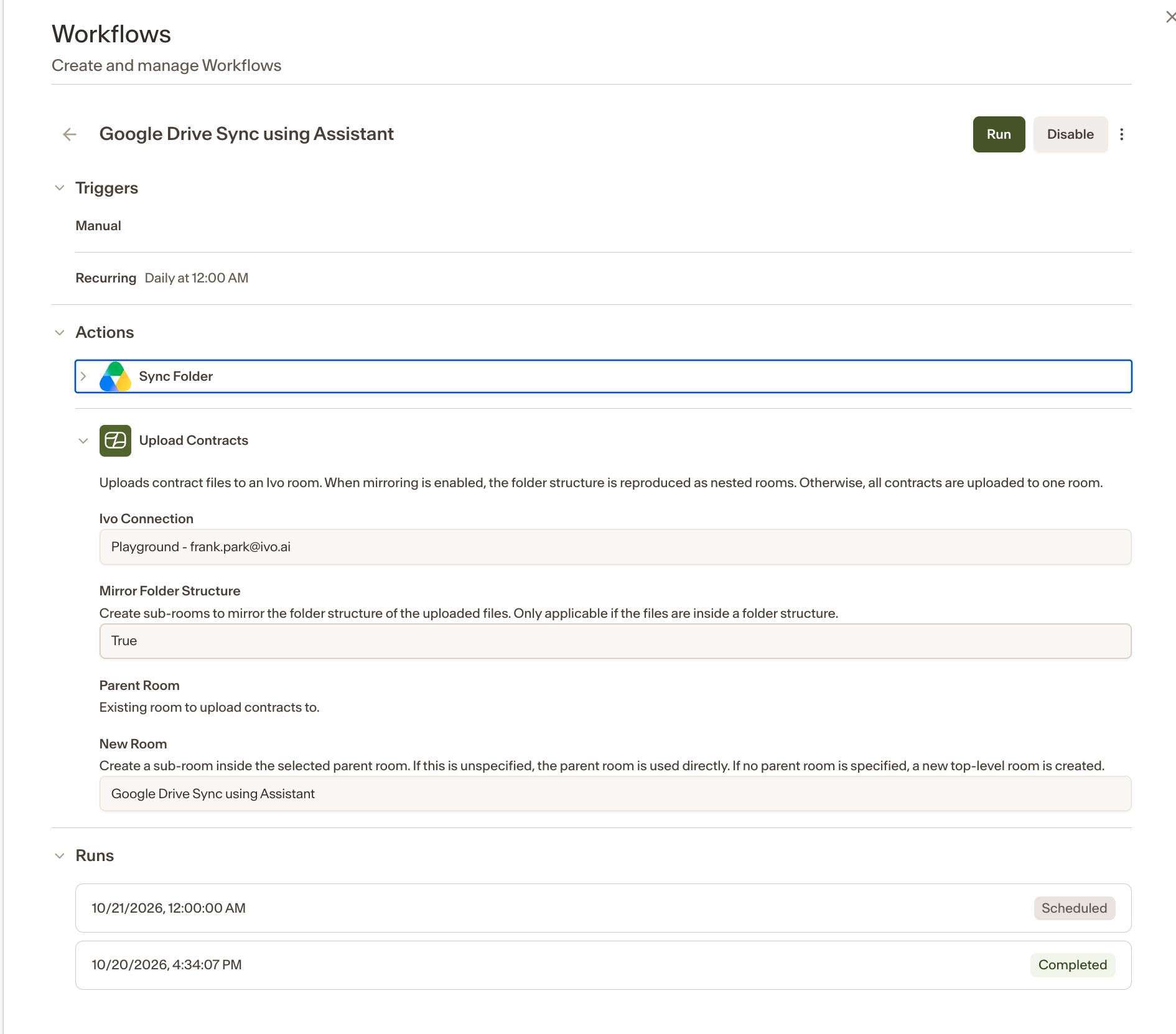
The new workflow appears in Settings under Flow > Workflows, where the user can review it and edit it by hand.