Feedback Tracker
Last updated: September 22, 2026
The Feedback Tracker gives Review Admins a centralized place to view, manage, and act on thumbs-down feedback submitted by users in their workspace. With the feedback tracker, Review Admins have visibility into the feedback submitted, can track its status, and work with the Ivo team to address it.
Who can access the Feedback Tracker
The Feedback Tracker is visible to Review Admins only.
How to access it
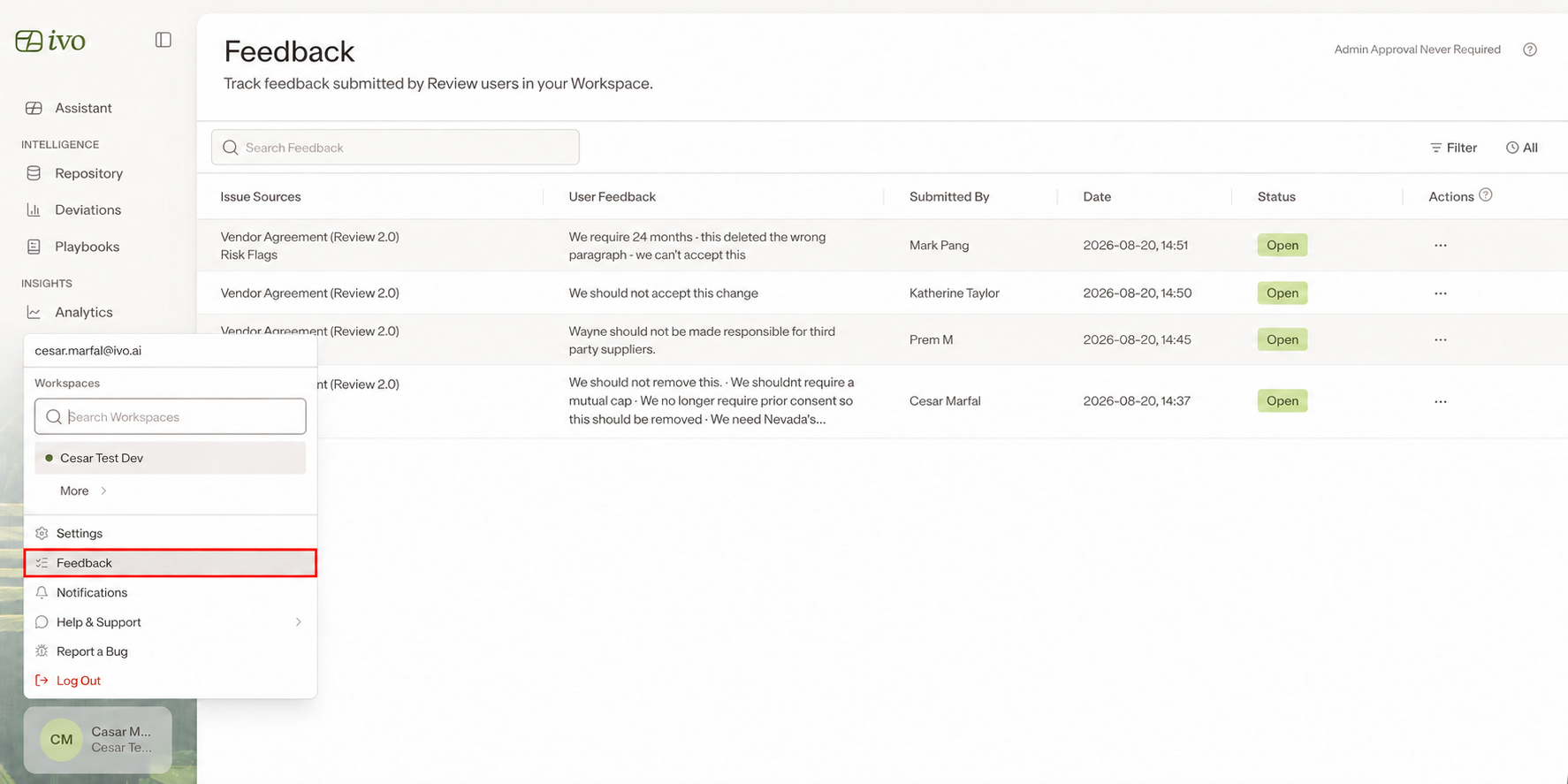
Click you name then navigate to the Feedback page on app.ivo.ai. The page displays a table of thumbs-down feedback submitted by users in your workspace, including the issue source, the user's feedback, who submitted it, the date, and the current status of each item.
Feedback tracking begins on August 20, 2026. Feedback submitted before that date does not appear in the Feedback Tracker.
Editing Admin Approval settings
Navigate to Settings → Security → Review Feedback to configure this. Workspace Owners and Workspace Admins can manage this setting.
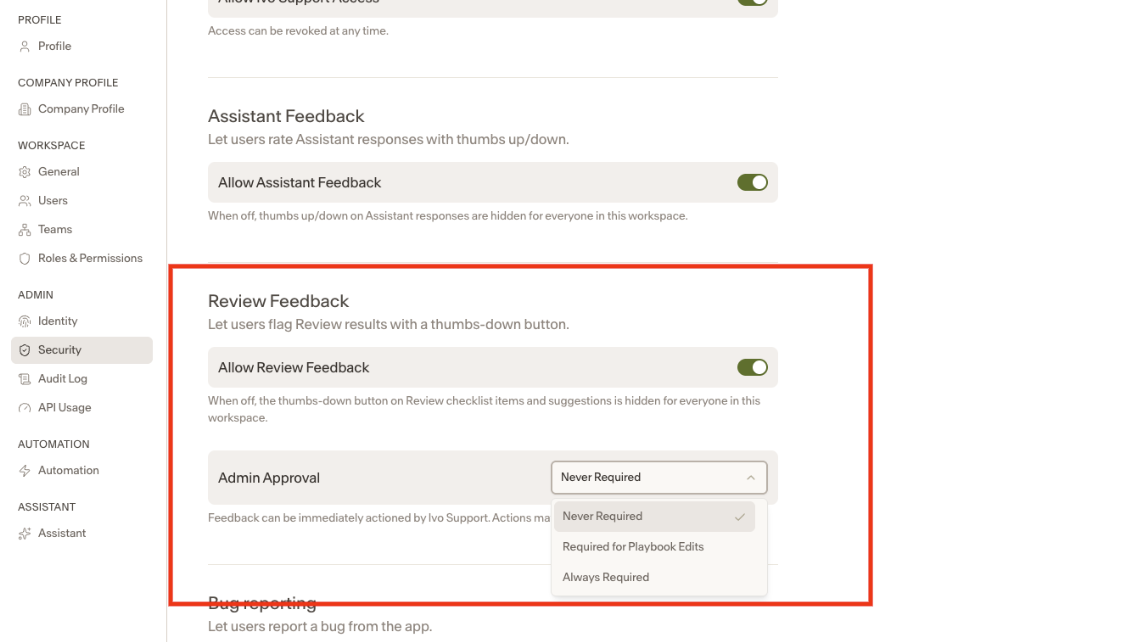
Never required (default) — Ivo can action any feedback items directly without needing approval from your team first.
Required for playbook edits — Ivo can action some feedback freely (bugs), but must get your approval before making any edits to your playbooks. When a playbook edit is requested, you will receive an email with a link to approve or decline with one click.
Always required — Ivo must get your approval before actioning any feedback at all, including bug reports. Nothing will be acted on until you have explicitly approved it.
The Feedback Process
1. Feedback is submitted
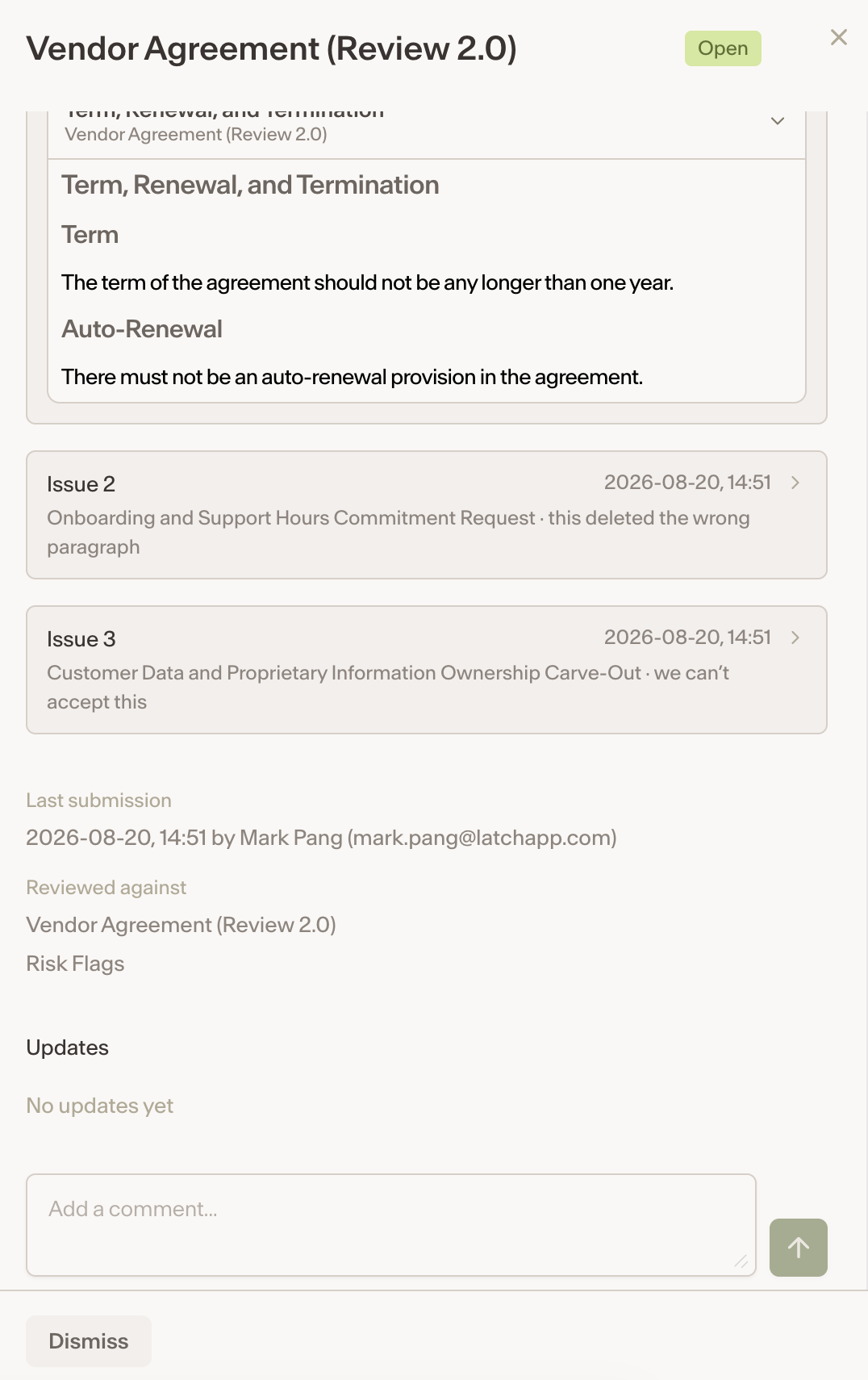
When a user submits thumbs-down feedback during a review, it appears in the Feedback Tracker. Before the Ivo team has taken any action, you have three options:
Leave it — if you are happy for the Ivo team to proceed on your behalf, you can leave the item and we will action it directly.
Add additional notes — provide more context to help the Ivo team understand what action you would like taken.
Dismiss — if no action is needed, dismiss the item entirely. Its status will change to Closed.
2. Ivo team reviews the item and requests approval
If your Admin Approval setting requires it, the Ivo team will submit a request for your approval before addressing it. The item will show a Pending Approval badge in the Status column, along with an update count showing how many actions have been taken on it.
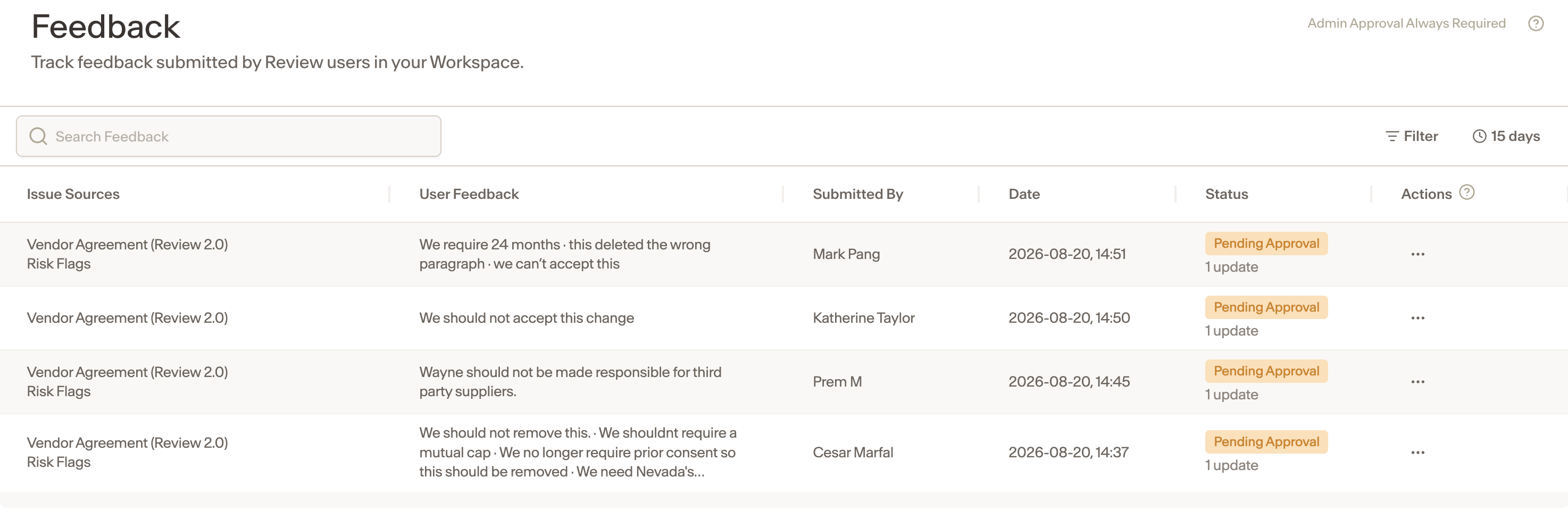
Click into the item to see the full details, including the specific issues raised, the issue type, the relevant playbook positions, and who submitted the feedback. From here you can:
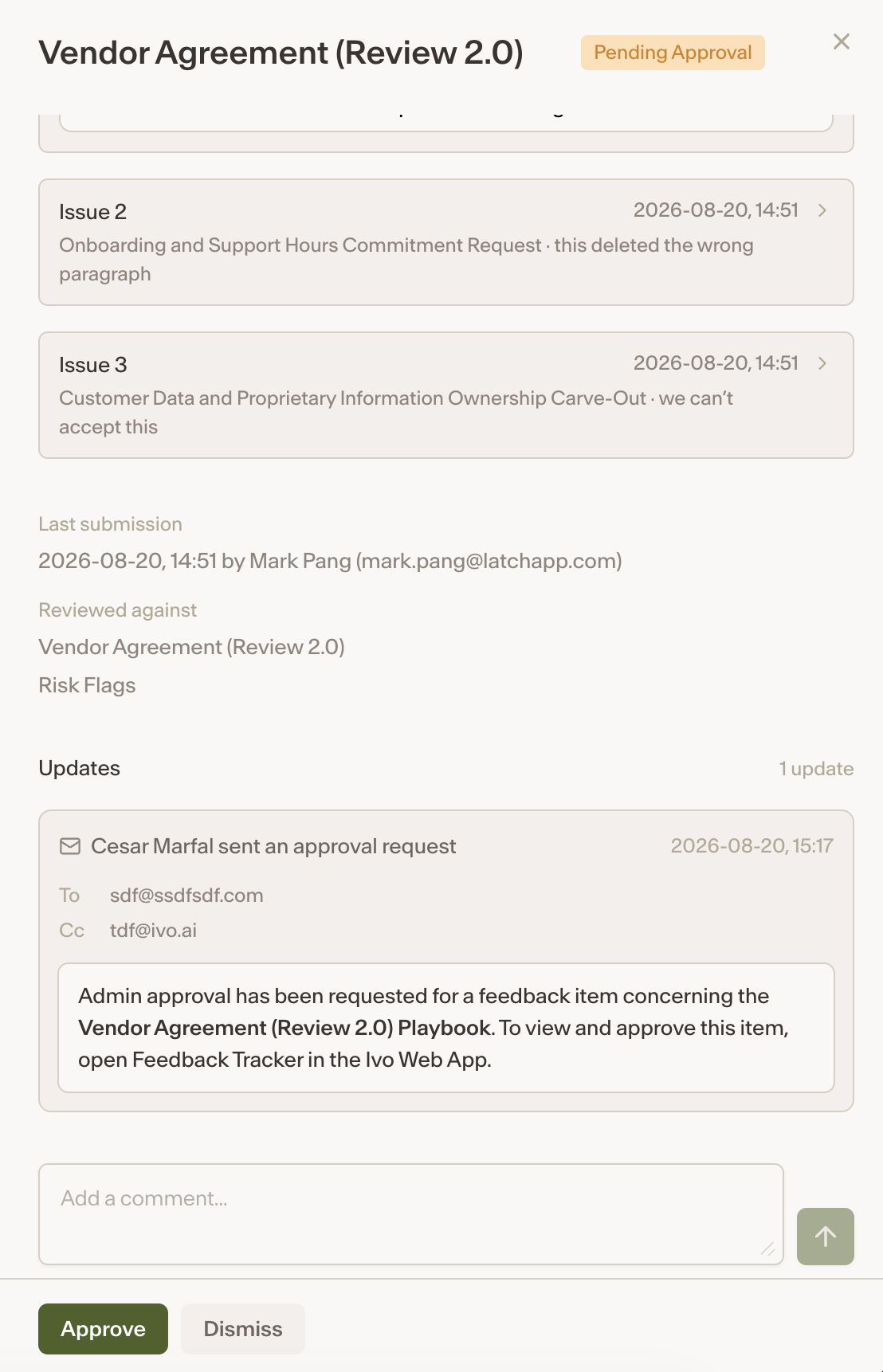
Approve — confirm the Ivo team's proposed action. The item status will update to Open (Approved) and the Ivo team will proceed.
Approve with notes — approve the action but include additional context or clarification for the Ivo team before they proceed.
Dismiss — decline the proposed action. The item status will change to Closed and no further action will be taken.
3. Ivo actions the item and follows up
After an item has been approved, the Ivo team will make the agreed change and follow up with the user who submitted the feedback. Once this is complete, the item will be marked as Closed in the Feedback Tracker. The update count will reflect all actions taken on the item throughout the process.
Notes
Feedback submitted by users continues to flow through existing channels (for example, workspace-specific spreadsheet trackers) in addition to appearing in the Feedback Tracker.
When an admin approves a request, the Ivo team is notified automatically.