Pinning and Exporting Assistant Chat History
Last updated: June 22, 2026
Your Assistant conversations are saved automatically so you can return to them at any time. You can also pin important conversations for quick access and export them to keep a record outside of Ivo.
Accessing your chat history
Your past Assistant conversations are listed in the right panel on the Assistant page in the web app. Click on any conversation to reopen it and continue where you left off.
Pinning a conversation
Pinning a conversation keeps it at the top of your chat history so it is easy to find.
Select the three dots next to the conversation you want to pin in the left panel.
Click the pin icon that appears.
The conversation will move to a pinned section at the top of your history.
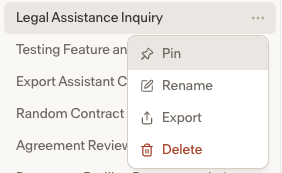
To unpin a conversation, click the pin icon again.
Exporting a conversation
You can export any Assistant conversation to save a record of it outside of Ivo.
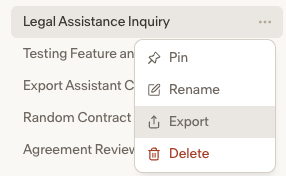
Select the three dots next to the conversation you want to pin in the left panel.
Click the export icon that appears.
The conversation will be downloaded as a file to your device.
Notes
Chat history is personal to you and is not visible to other users in your workspace.
Pinned conversations remain pinned until you unpin them manually.