How to Deploy the Ivo Word Add-in in Office 365
Last updated: March 18, 2026
This guide explains how to deploy the Ivo Word add-in across your organization using Office 365. There are two available deployment methods depending on your level of administrative control.
Deployment Options
Word add-ins can be distributed in two ways:
Option 1: Microsoft AppSource (User Self-Install)
This method is appropriate if users in your organization have permission to install Word add-ins themselves.
Users can install Ivo directly from Microsoft AppSource within Microsoft Word. This is the simplest and fastest way to access Ivo.
Installation instructions are available here
Option 2: Office 365 Admin Center (Integrated Apps)
If you prefer centralized control over which add-ins are available to employees, you can deploy Ivo through the Office 365 Admin Center using Integrated Apps.
This method allows you to:
Control which users or groups receive access
Manage permissions centrally
Standardize deployment across the organization
Requirements
Before deploying through Integrated Apps, confirm the following:
All users have valid Office 365 licenses
All users have valid Exchange licenses
Deployment is stored in Exchange, so Exchange licensing is required
Deploying Ivo Through the Office 365 Admin Center
Follow these steps to deploy the Ivo Word add-in organization-wide or to specific users.
Step 1: Access Integrated Apps
Log in to the Microsoft 365 Admin Center.
Navigate to Settings.
Select Integrated apps.
Click Get apps.
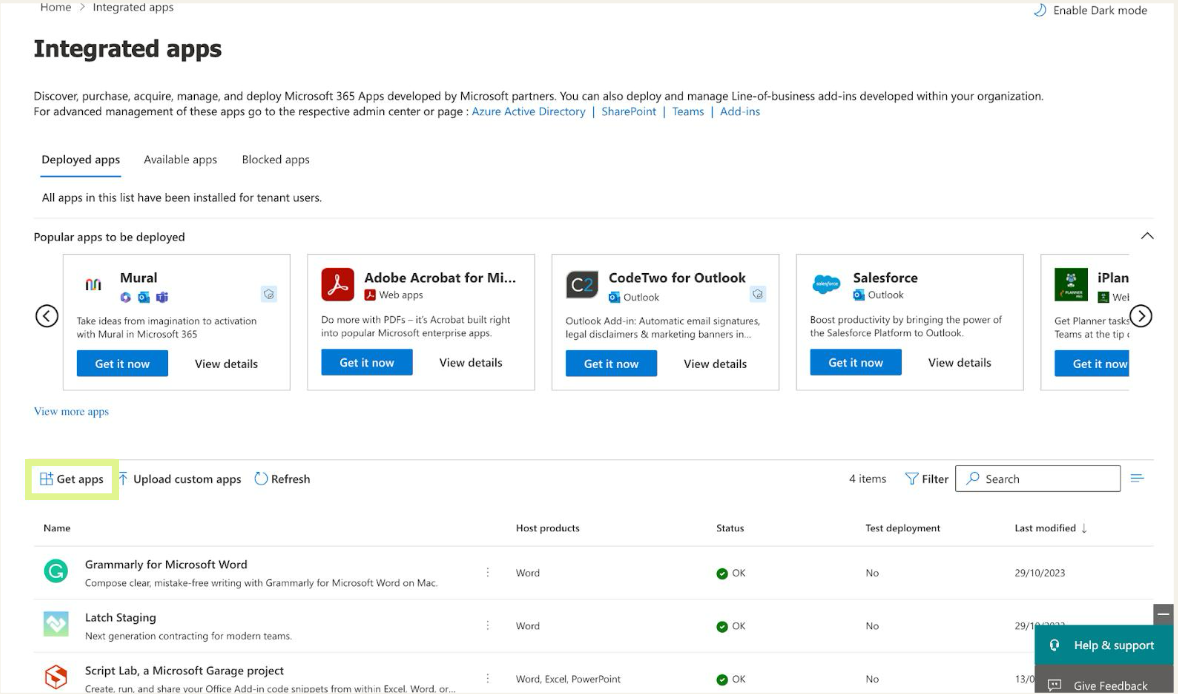
Step 2: Find Ivo
In the app search bar, search for Ivo.
Click Get it now.
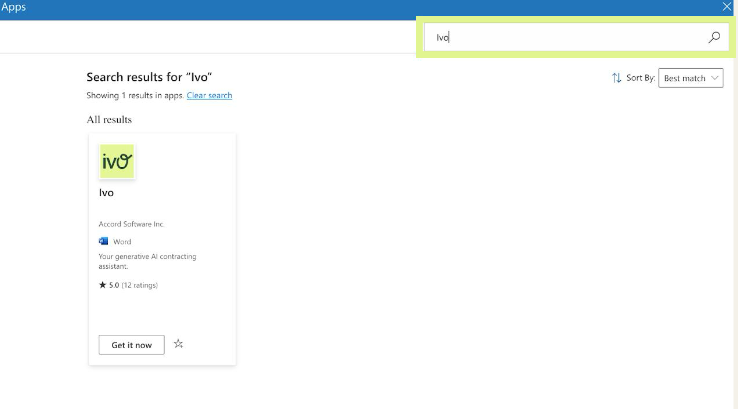
Step 3: Confirm Installation
In the popup window, click Get it now again to continue.
Step 4: Assign Users
Choose the users or groups you want to deploy Ivo to.
Click Next.
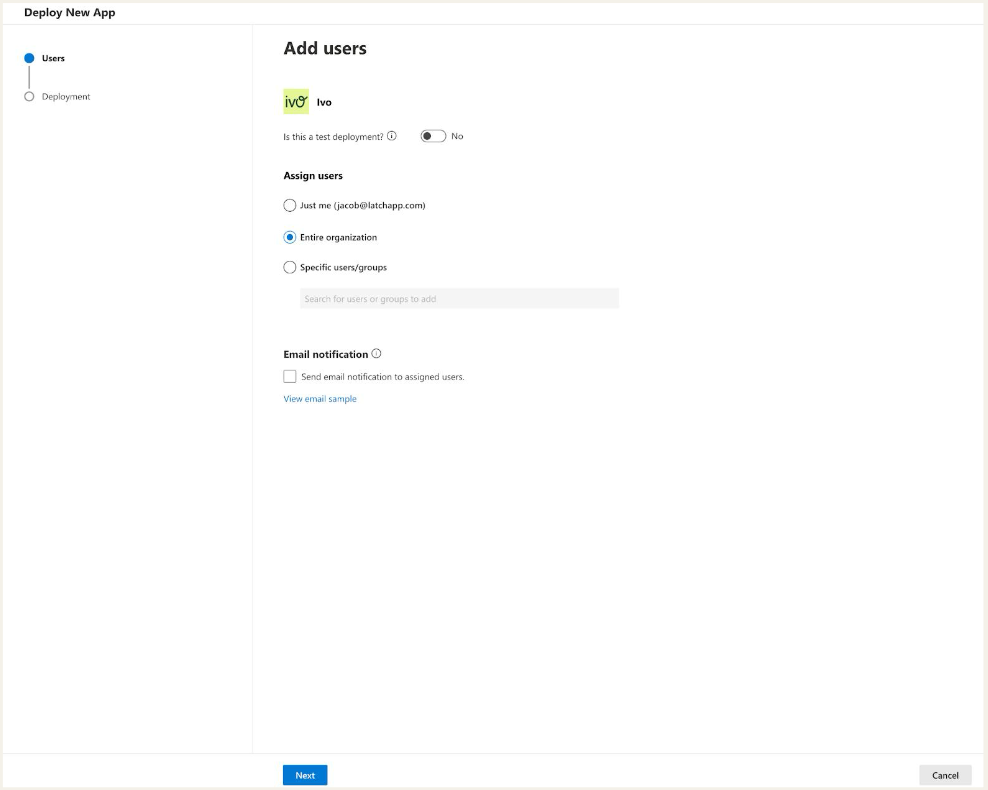
You may deploy to:
Specific users
Specific groups
The entire organization
Step 5: Accept Permissions
Review the requested permissions.
Click Next to accept the required permissions.
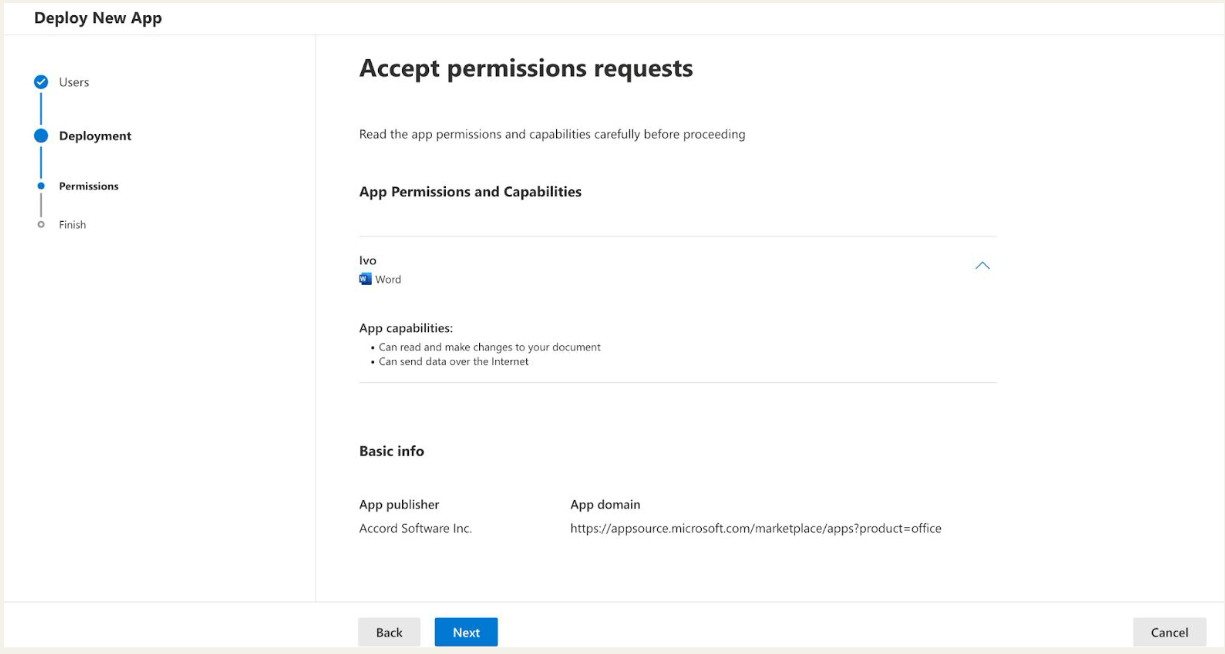
Step 6: Finish Deployment
Review your selections.
Click Finish deployment.
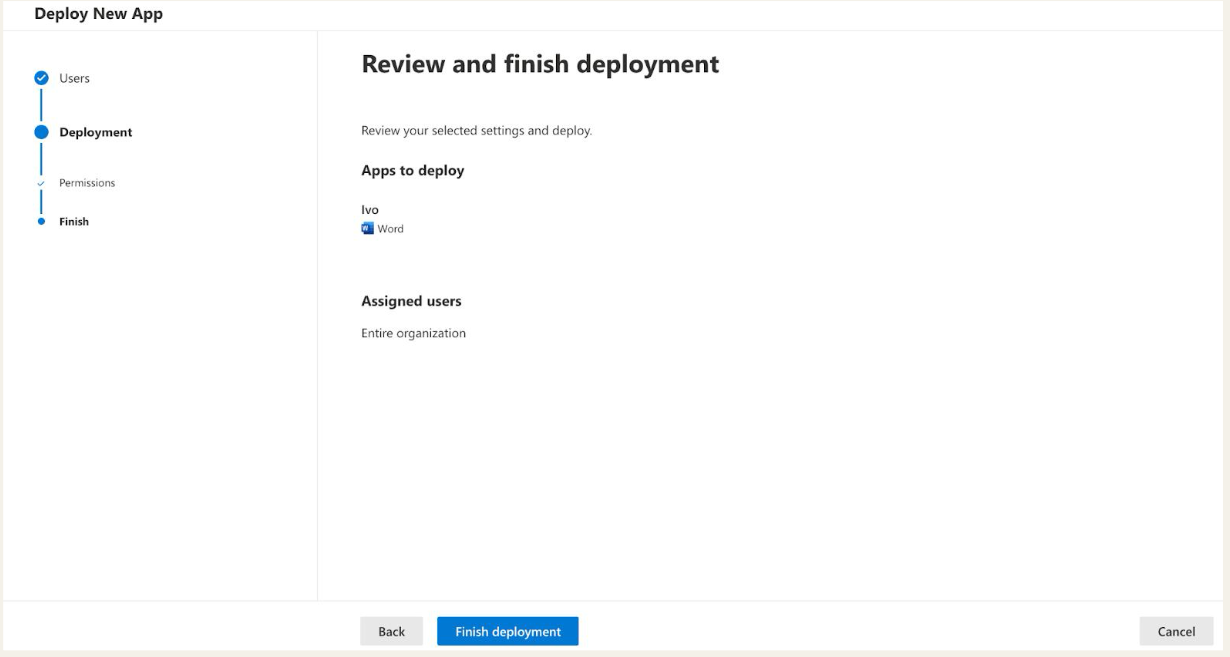
Important: It can take up to 24 hours for selected Office 365 users to gain access to Ivo.
How Users Access Ivo After Deployment
Once deployment is complete and provisioning has finished:
Open Microsoft Word.
Click Get Add-ins.
Navigate to the Admin Managed tab.
Select Ivo.
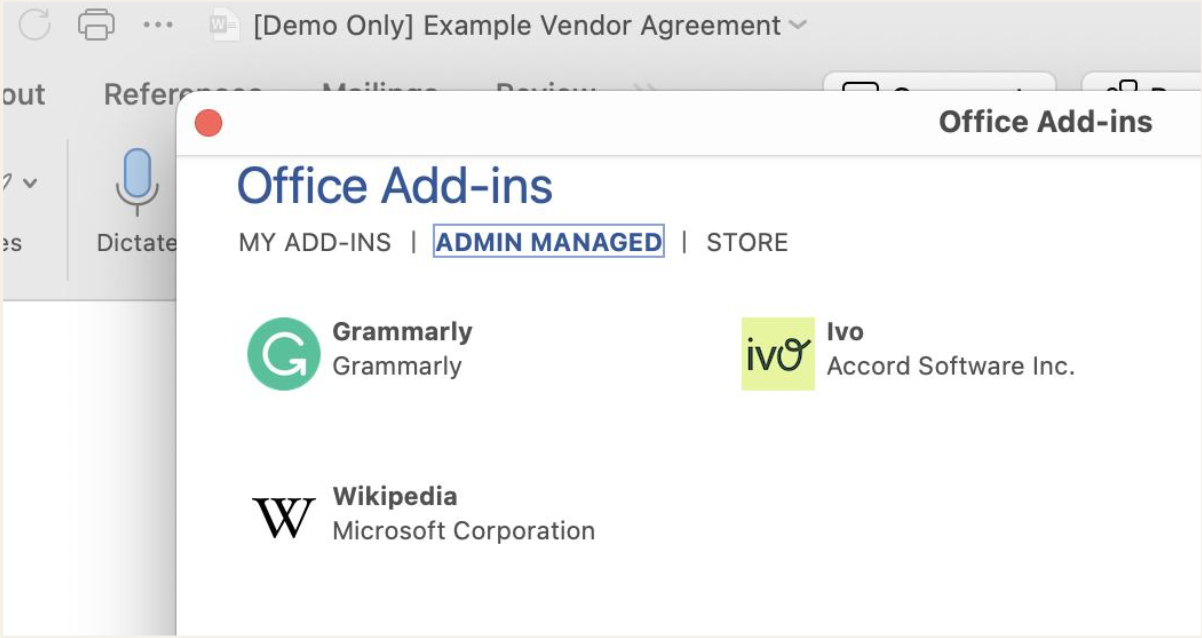
The add-in will appear under the Admin Managed section once it has been successfully deployed.