Setting Up SSO with Okta
Last updated: June 4, 2026
Ivo supports Single Sign-On via SAML 2.0, allowing you to manage access using Okta.
Create a SAML application in Okta using the following settings and by following the instructions below:
Setting | Value |
Ivo logo:
https://drive.google.com/file/d/1tMU7VTHk_wbEbQZG5Lh3rVey5LoQWUYu/view?usp=sharing
If you get stuck at any time during this setup, please contact: dev@ivo.ai
Okta SSO instructions
Open the okta dashboard https://login.okta.com/
Navigate to Applications -> Applications
Click Create App Integration and select SAML 2.0
General Settings:
Enter Ivo as the App name.
Click Next
Enter the provided Single sign-on URL and SP Entity ID into the corresponding fields
Click Next
Select “This is an internal app that we have created” then Finish
Navigate to the Sign On tab of your new application and copy the Metadata URL (this may take time to populate)
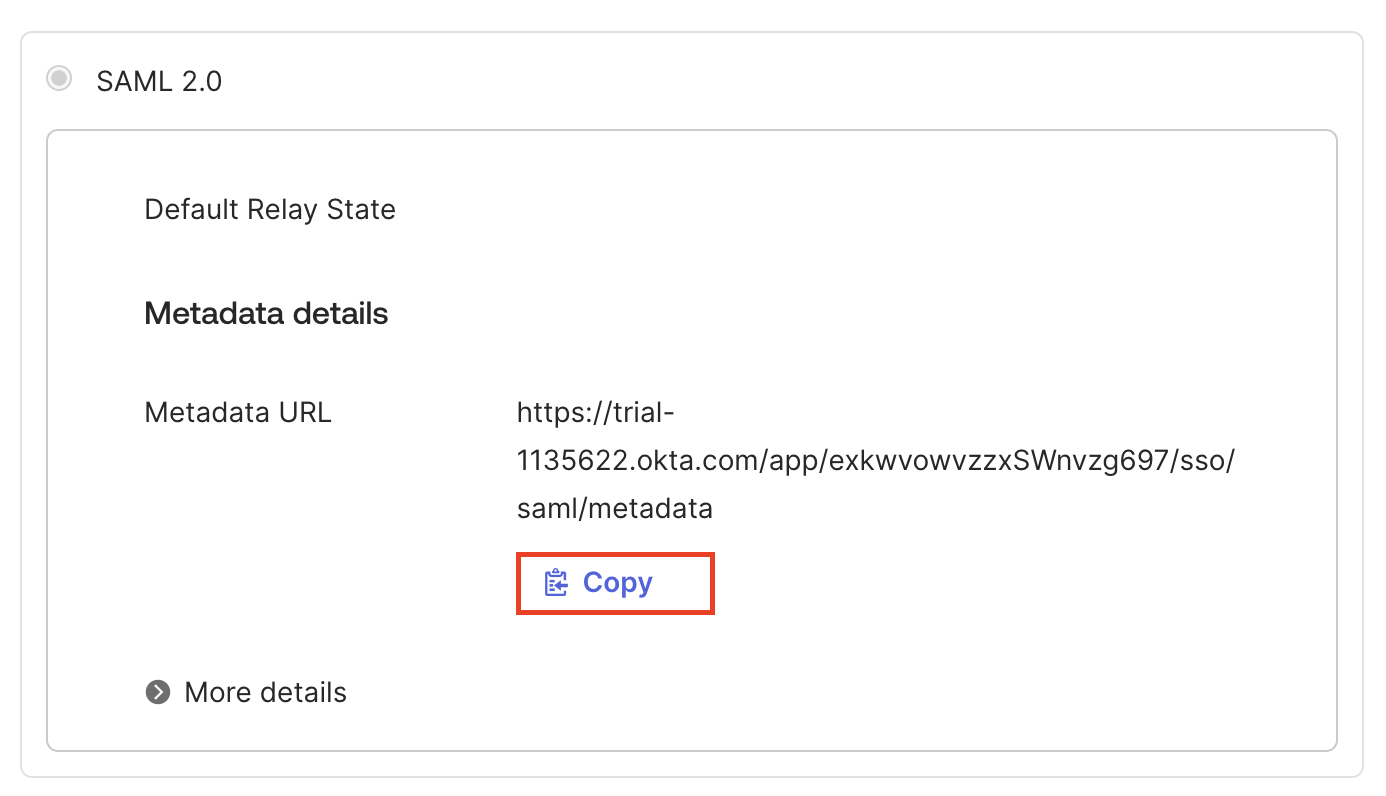
Using the Metadata URL, set up SAML SSO via the Ivo Web application📄 Setting up SAML Single Sign-On
Creating a Tile
Go to Settings > Admin > Identity.
Copy your Sign-In URL.
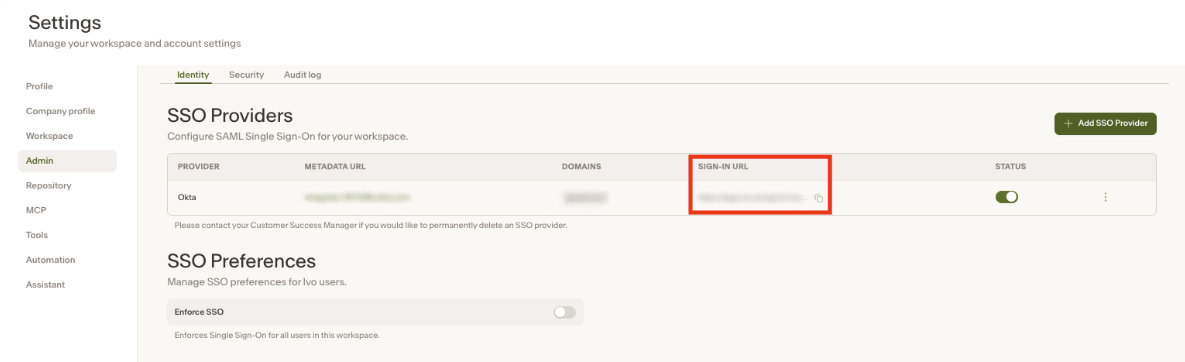
In Okta, set a bookmark as the Sign-In URL.