Setting up SAML Single Sign-On
Last updated: August 3, 2026
Ivo supports Single Sign-On via SAML 2.0, allowing you to manage access using your existing Identity Provider (IdP) such as Okta or Microsoft Entra ID.
Prerequisites
Before configuring Ivo, you must create a SAML application in your Identity Provider. Use Ivo's SP metadata, or manually copy the following settings:
Setting | Value |
Entity ID (Audience URI) | |
ACS URL (Single Sign On URL) | |
Name ID Format | EmailAddress (urn:oasis:names:tc:SAML:1.1:nameid-format:emailAddress) |
Note: Ensure that the Name ID maps to the user's email address in your IdP.
Once created, locate the Metadata URL or download the Federation Metadata XML file from your IdP. You will need this for the next step.
Step 1: Add SSO Provider in Ivo
Sign in to Ivo.
If you need access to Ivo, please contact your Customer Success Manager.
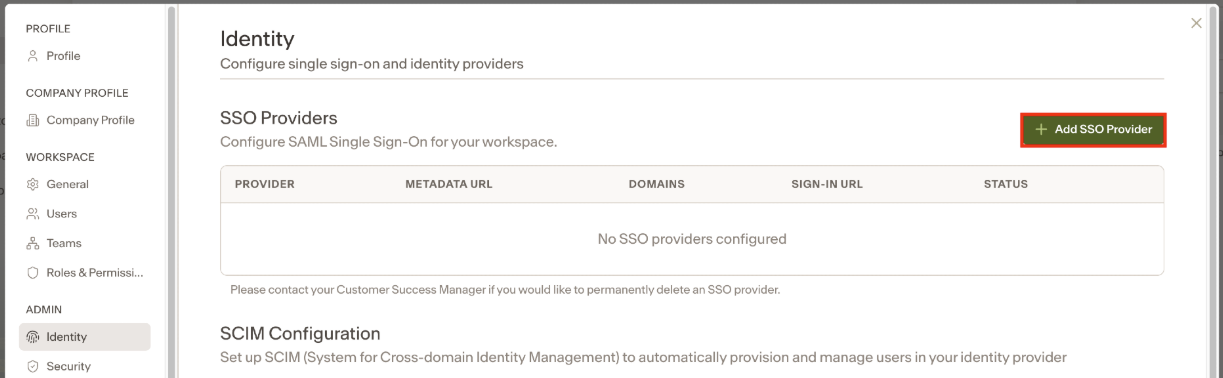
Navigate to Settings > Admin > Identity.
Click the Add SSO Provider button.
The Add SSO Provider modal will appear. It displays the Service Provider info (Entity ID and ACS URL) if you need to copy them again.
Choose your input method:
Metadata URL (Recommended): Paste the public Metadata URL provided by your IdP.
Paste XML: Paste the raw XML content from your IdP's metadata file.
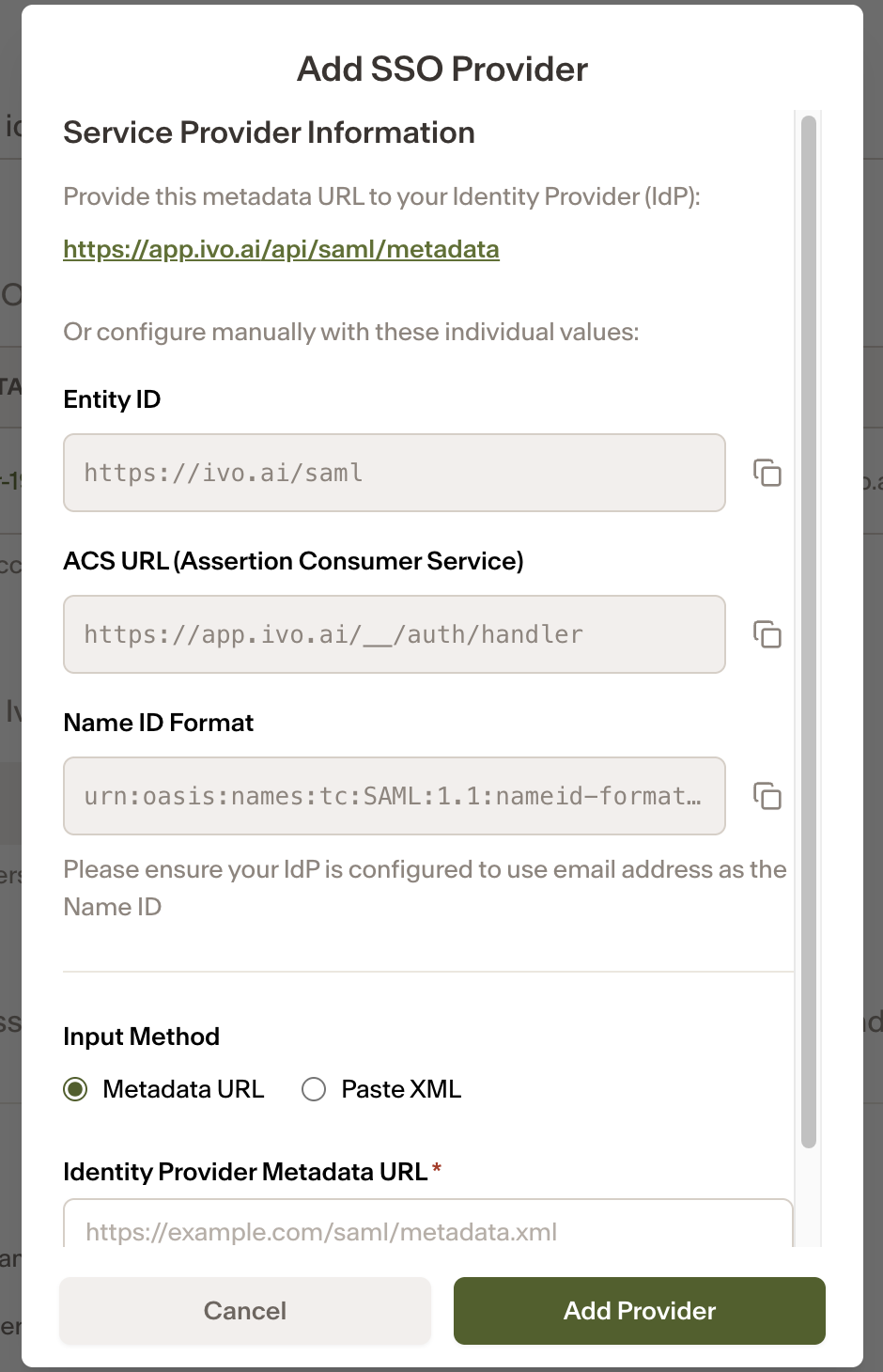
Click Add Provider. Ivo will automatically validate the connection details.
Step 2: Configure Email Domains
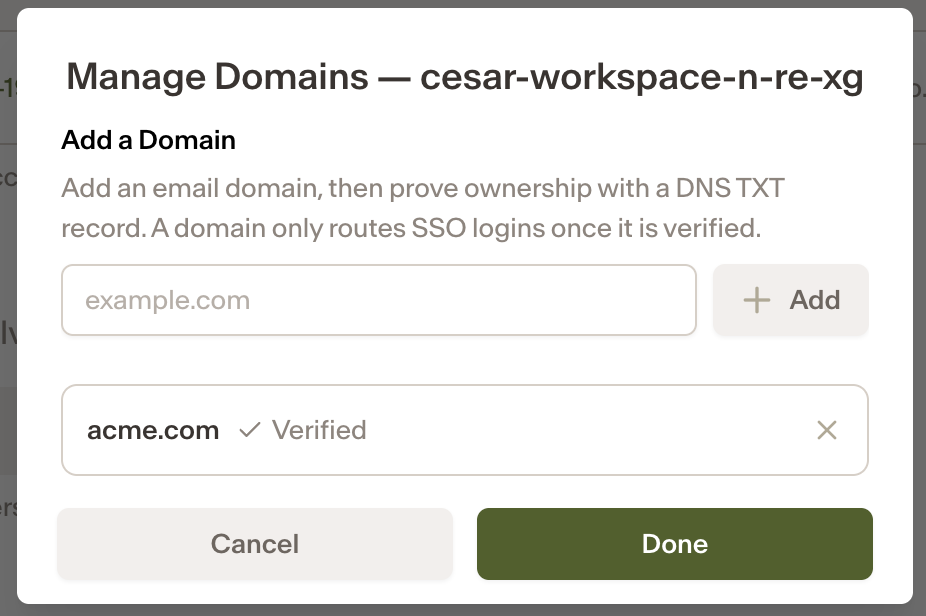
To ensure users are redirected to your SSO provider, you must specify which email domains belong to your organization. Domains must be verified.
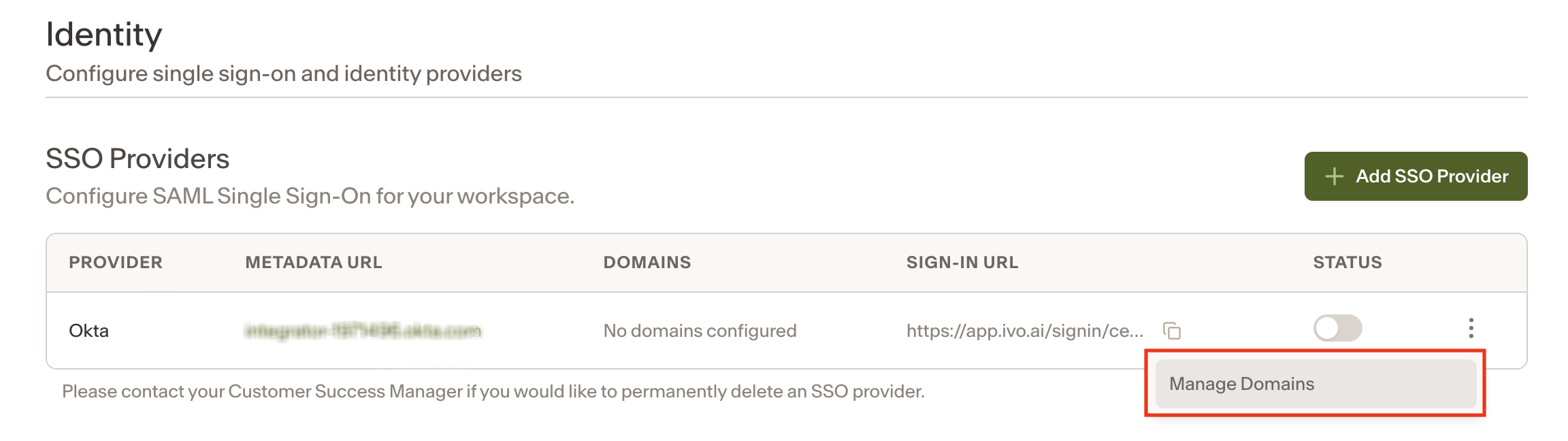
Locate your newly added provider in the list.
Click the three dots menu (⋮) and select Manage domains.
Enter your organization's email domains (e.g., acme.com) and hit Add. You can add multiple domains.
Click Save Changes.
If you get an error message at this step, please contact your Customer Success Manager.
Step 3: Enable SSO
Once your domains are configured, toggle the Status switch to On.
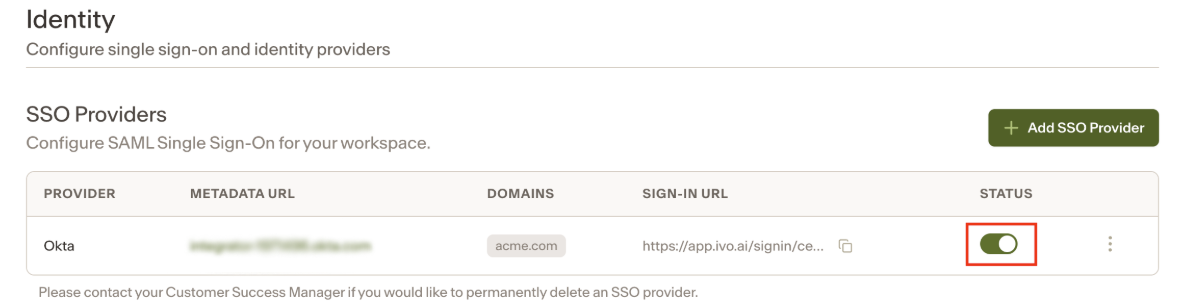
Your users can now log in to Ivo using their company credentials. When they enter their email address on the login page, they will be automatically redirected to your Identity Provider.
If you would like to enforce SSO sign on for your Workspace, toggle the SSO Enforced switch to On.
Testing
In a new private window of your browser, sign in to Ivo. When entering your email, you will be directed to sign in via SSO.
Additionally, once a provider is configured, a direct sign-in URL is shown in the Sign-in URL column of the providers table. You can copy and share this link with your users (e.g. add it to an intranet portal). It takes users directly to their Identity Provider login without needing to enter their email first. (IDP SSO)
