Sharing Assistant Chats
Last updated: August 31, 2026
You can now share your Assistant conversations with other users in your workspace. This makes it easy to hand off context, share research, or loop someone in on a conversation without having to copy and paste.
How to share a chat
Open the Assistant conversation you want to share.
Click the Share button in the conversation.
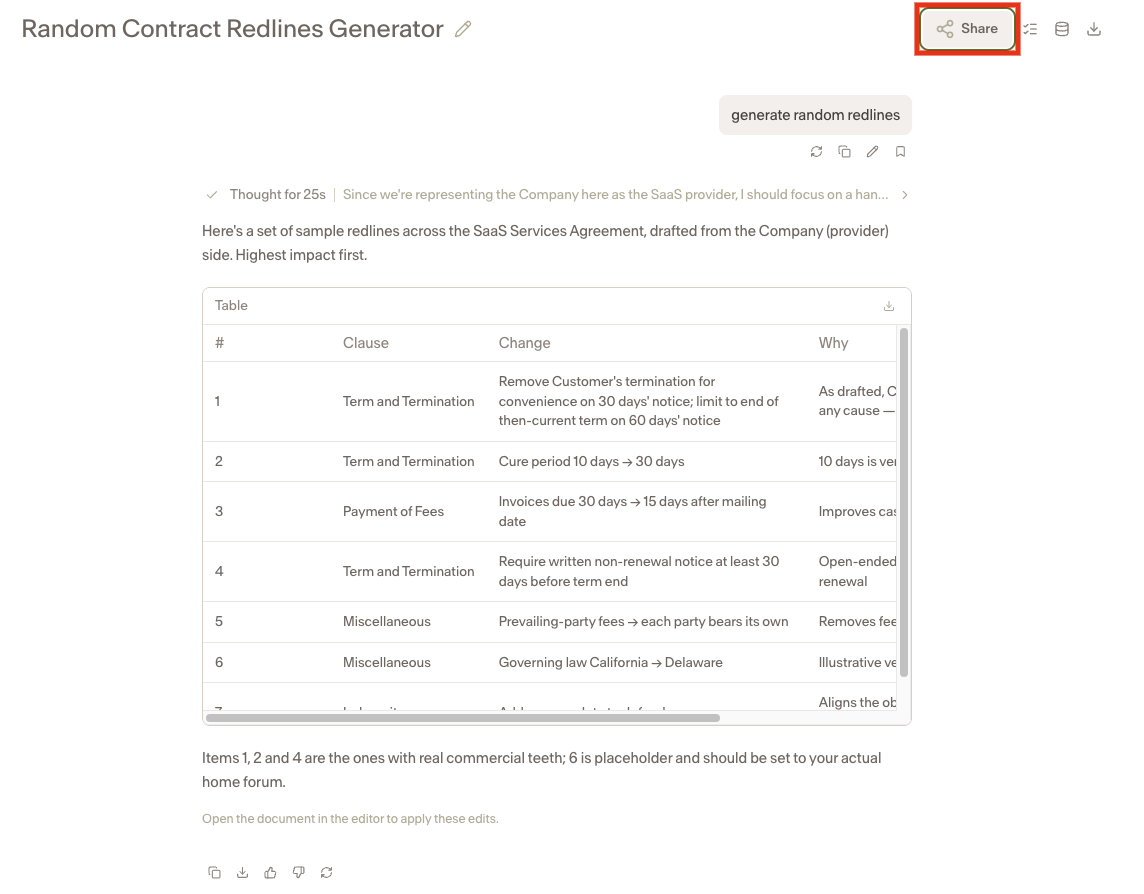
Choose who can view the chat:
Private — only you can view this chat.
Specific People — only the people you choose can view this chat. Select them under People.
Teams — members of the selected teams can view this chat.
Everyone in the Workspace — anyone in this workspace with the link can view this chat.
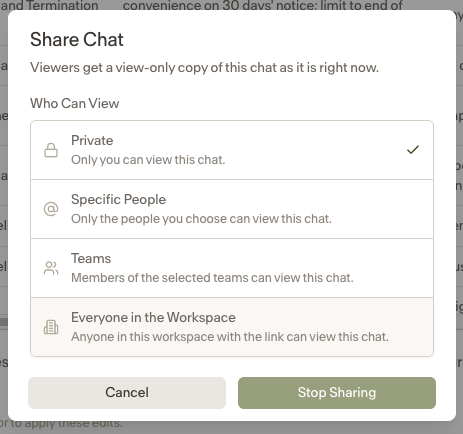
The recipient will be able to view the conversation up to the point at which it was shared.
Updating a shared chat
If you continue a conversation after sharing it, the recipient will only see the content that was shared at the time of the original share. You can update the shared content at any time to give recipients access to newer messages.
Notes
This feature is available to Intelligence customers who have authorized saving chats in their workspace.
Shared chats are view-only. Recipients cannot add to or interact with the conversation.
Access to shared chats is subject to the same permissions as the rest of the workspace.