Sharing Playbooks and Skills
Last updated: October 30, 2026
Playbooks and skills now support flexible, per-item sharing. You can share them with individual users, specific teams, or your entire organization, giving you granular control over who can access, use, or edit each one.
Playbook tabs
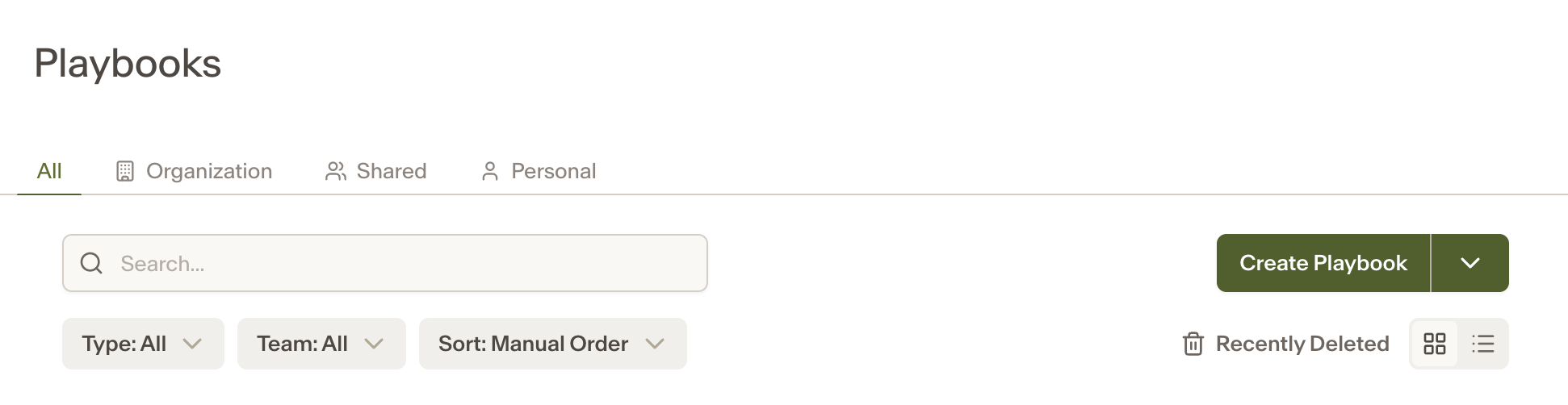
Playbooks are organized into three tabs:
Organization — playbooks shared with the entire workspace.
Shared — playbooks shared with specific users or teams.
Personal — playbooks only visible to you. Once shared with anyone, a playbook moves to the Shared tab.
Permission levels
Each person or team added to a playbook or skill can be given one of three permission levels:
Permission | What they can do |
|---|---|
Viewer | Use the playbook or skill. Cannot edit or manage permissions. |
Editor | Use and edit the playbook or skill. Cannot manage permissions. |
Admin | Use, edit, and manage permissions for the playbook or skill. |
Who can share what
Action | Who can do it |
|---|---|
Share with an individual user | Anyone |
Share with a specific team | Team Owners and Workspace Admins only |
Share with the entire organization | Workspace Admins only |
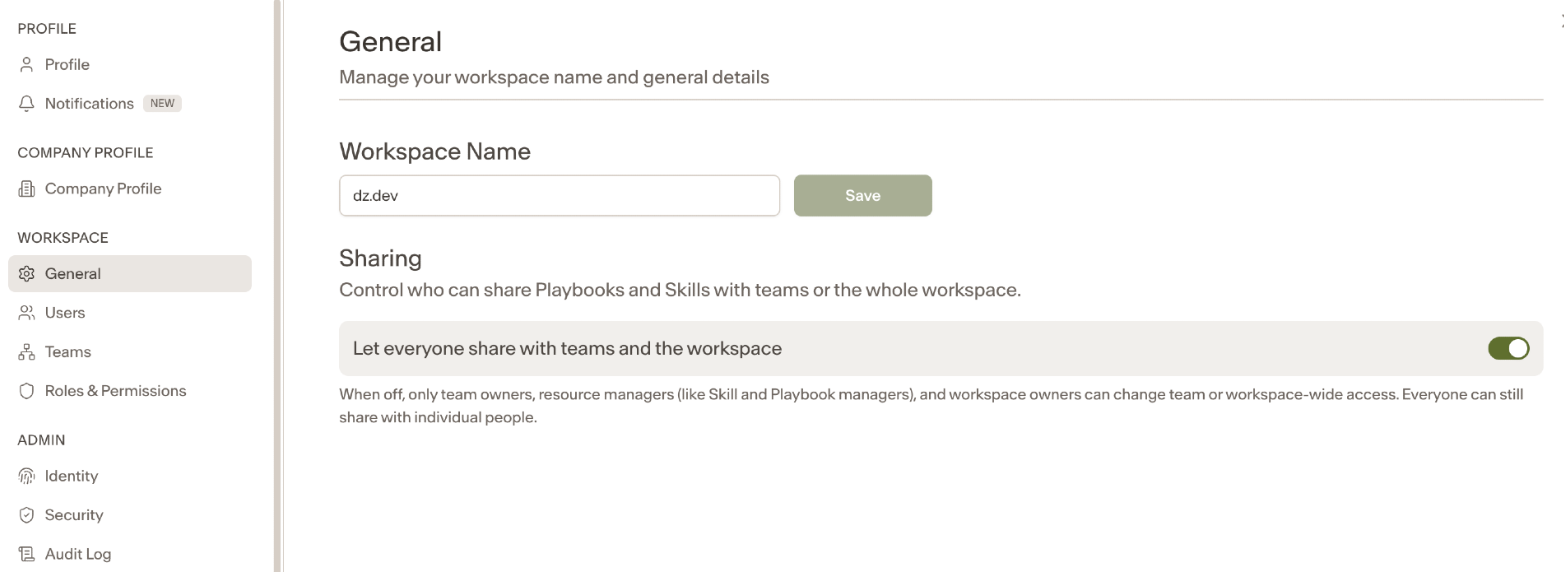
Workspace Admins can also enable a setting that allows all users to share with teams. This can be toggled on under Settings → General → Allow everyone to share with teams in the workspace.
How to share a playbook
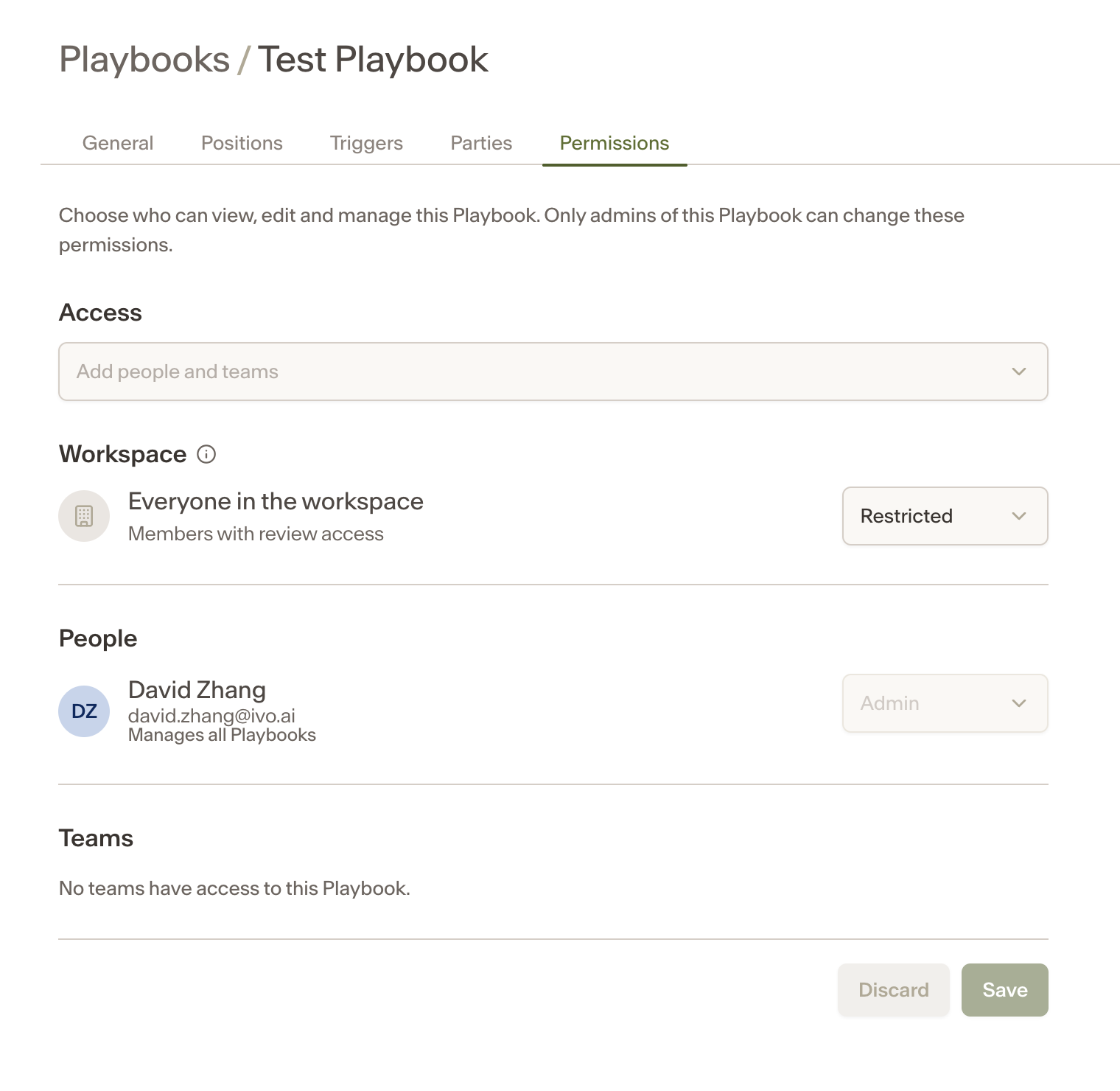
Open the playbook you want to share from the Playbooks page.
Click the permissions icon or open the sharing settings.
Search for and add the user, team, or select Organization to share workspace-wide.
Set the permission level for each person or team.
Save your changes.
How to share a skill
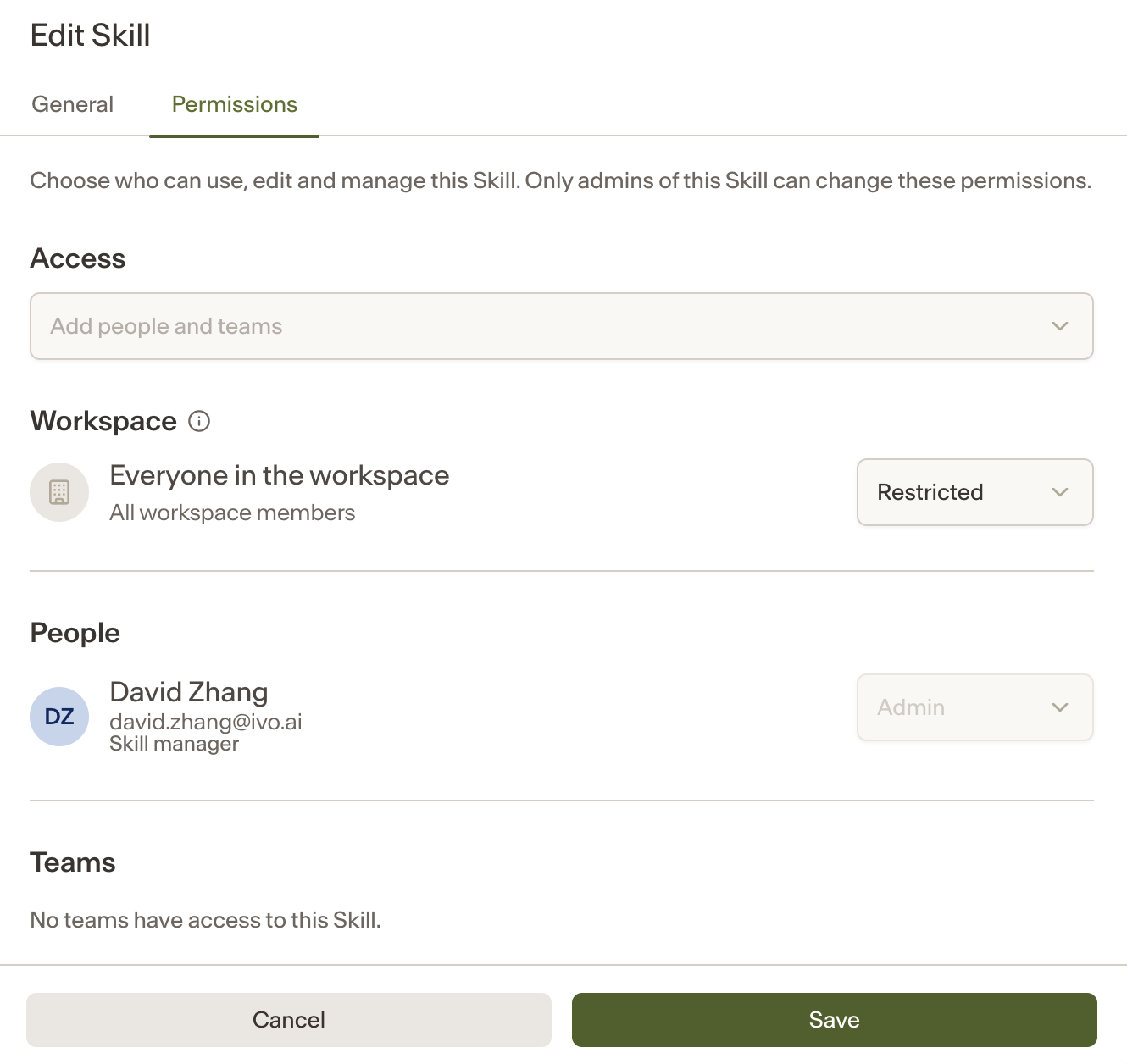
Sharing a skill works the same way as sharing a playbook.
Open the skill from the Skills Library.
Open the sharing settings.
Add the user or team and set their permission level.
Save your changes.
Skills shared with a team allow team members to run the skill and, if the skill runs on a schedule, receive results via email and chat history.
Visibility for managers
Users with Playbook Manager permissions can see all personal playbooks in the workspace.
Users with Skills Manager permissions can see all personal skills in the workspace.
Notes
No existing access is lost as part of this change. If you could see or edit a playbook or skill before, you still can.
Playbook editing is now controlled at the playbook level rather than through the Review Viewer/Editor role distinction. See the Review User role article for more details.