Pinning Prompts and Skills
Last updated: September 29, 2026
Pinned prompts and Skills let you quickly access your favorites directly from the Ivo home screen in Word or Google Docs. Clicking a pinned prompt pre-fills the assistant chat box in one click. Clicking a pinned Skill runs that Skill in Assistant.
Each user can pin up to 4 items from their personal, workspace, or Ivo library. Pins are user-specific, so each person manages their own.
By default, prompts like Tidy Up come pre-pinned to help you get started.
How to pin a prompt:
Open Ivo and click the Prompt Library button (the three horizontal bars icon).
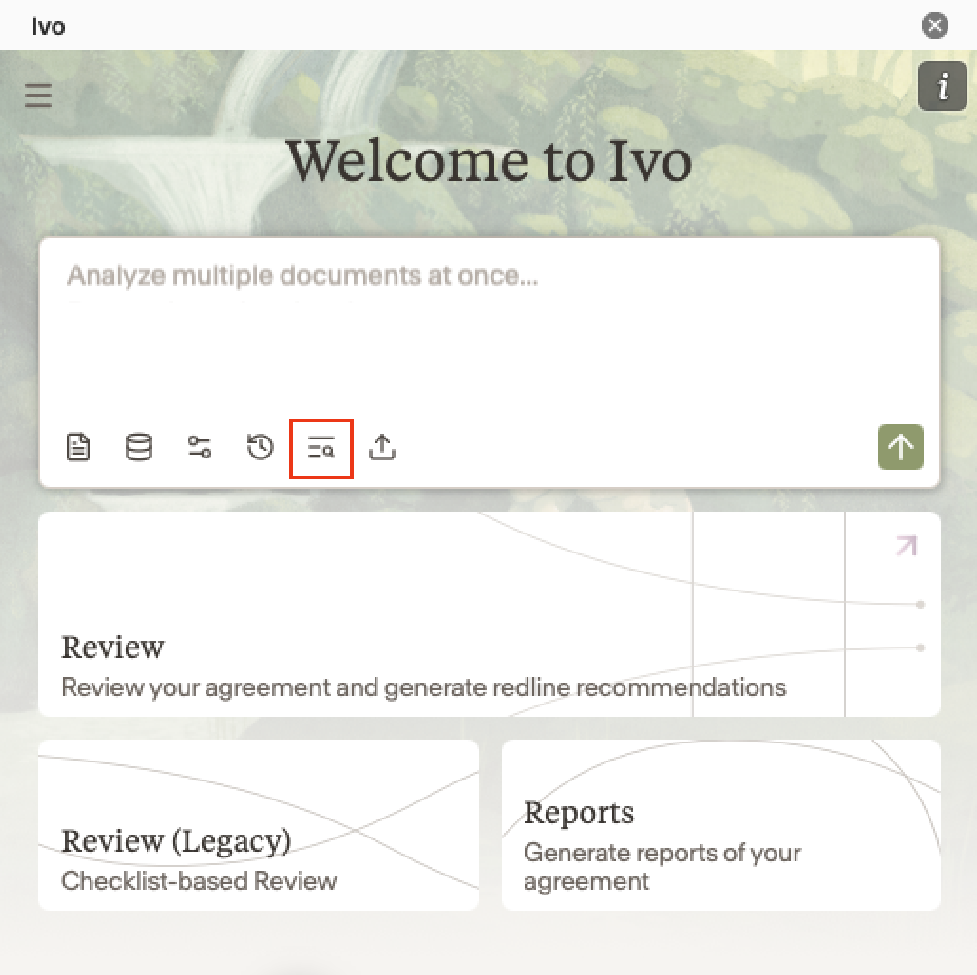
Browse to the prompt you want to pin. It can be from User, Workspace, or Ivo prompts.
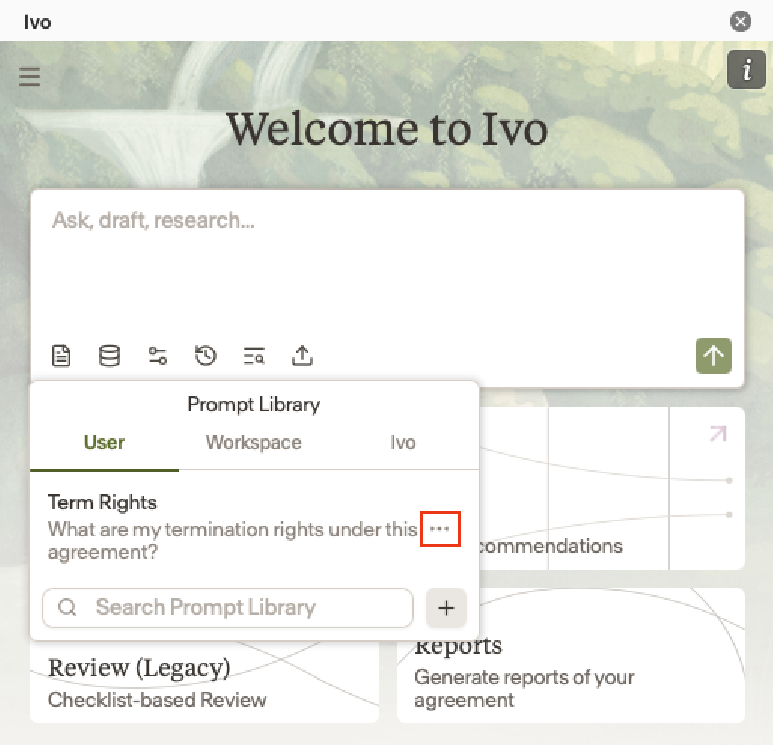
On the applicable prompt, select the three dots (⋯) that appear.
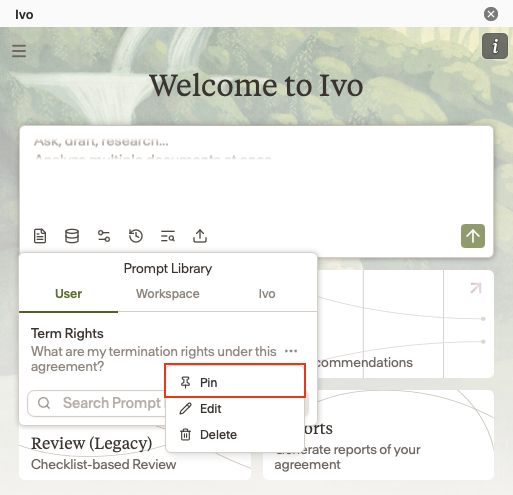
From the drop down, select Pin.
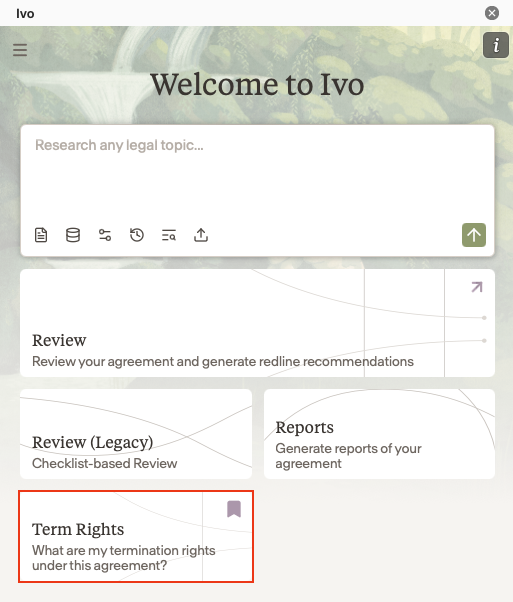
The prompt will now appear on your home screen. Clicking it will automatically fill the assistant chat box with that prompt.
How to pin a Skill:
Open your Skills Library. In the web app, it's in the Assistant Anywhere sidebar. In Word and the Chrome extension, click the three dots and select Skills Library.
Browse to the Skill you want to pin. It can be a User, Team, or Workspace Skill.
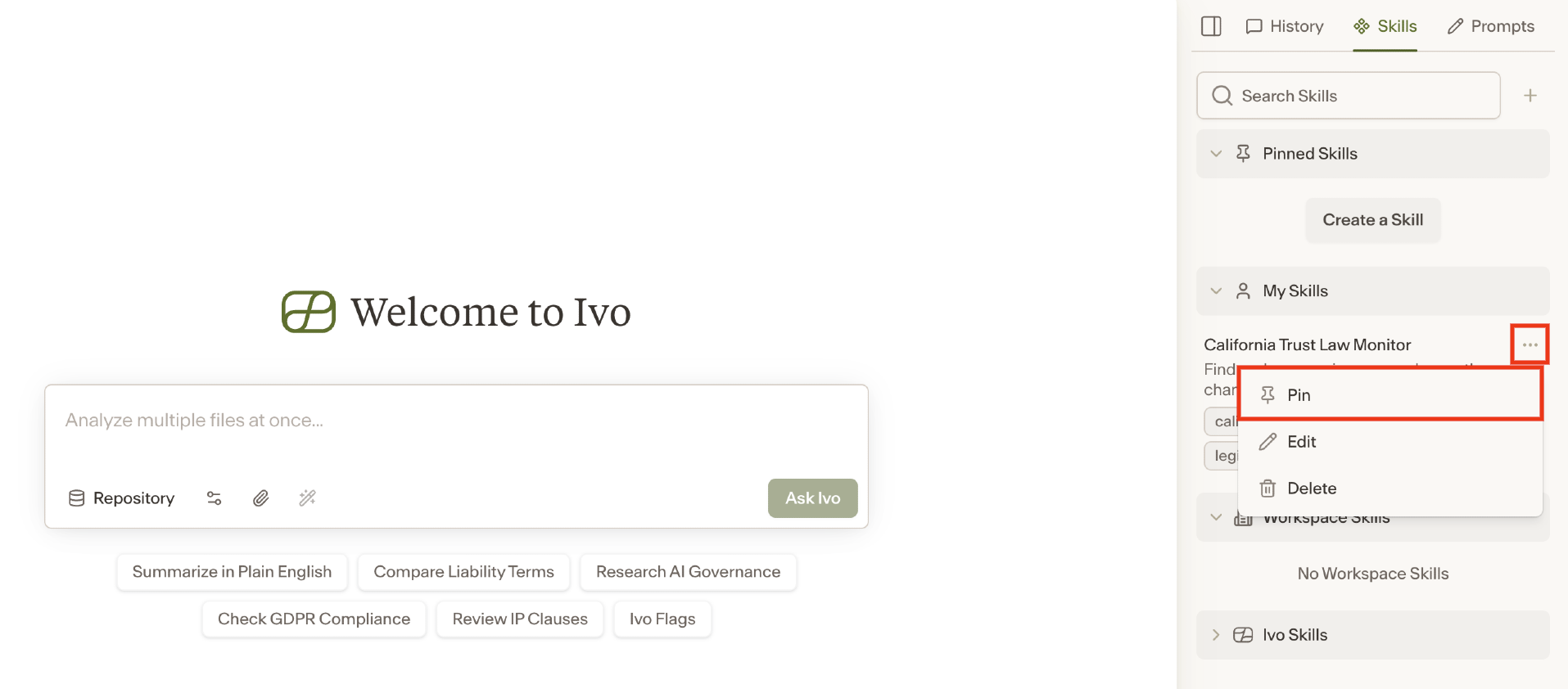
On the applicable Skill, select the three dots (⋯) that appear.
From the drop down, select Pin.
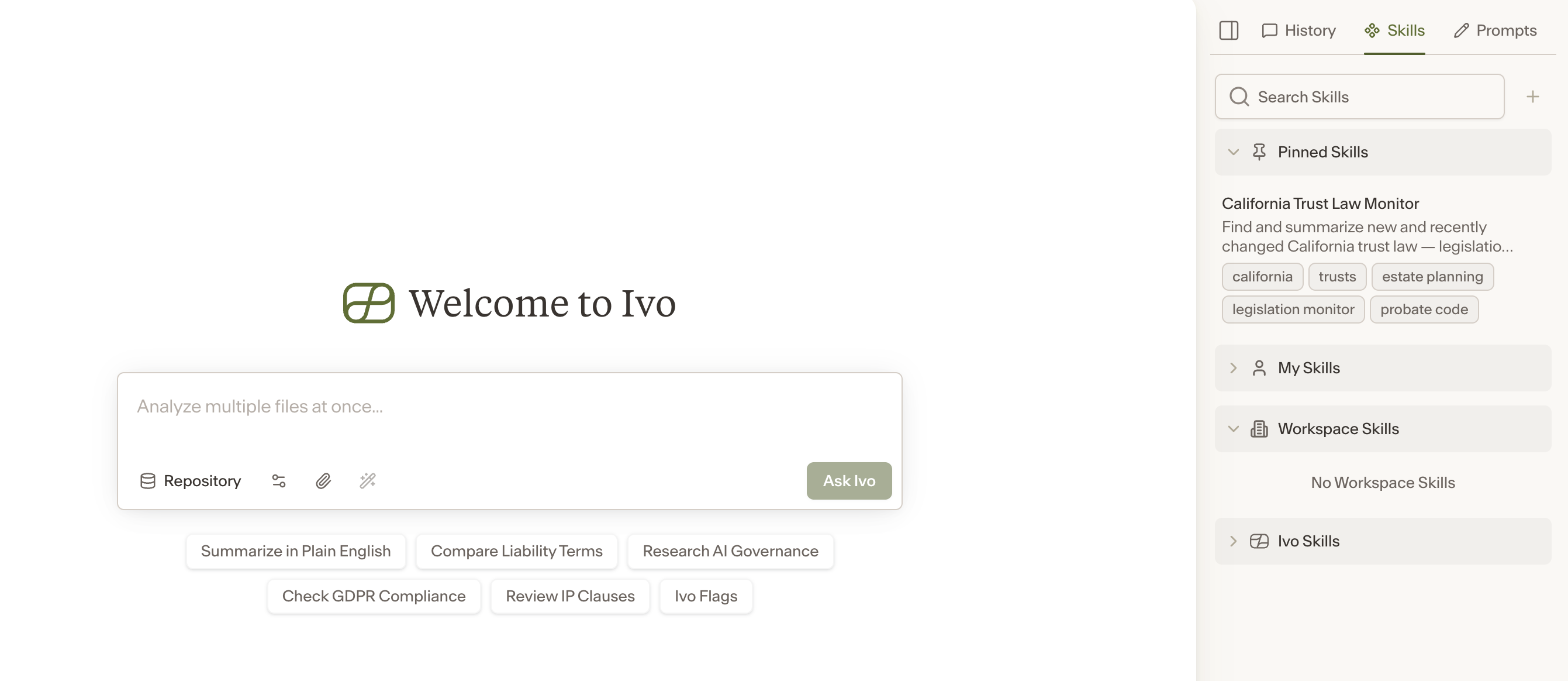
The Skill will now appear on your home screen. Clicking it will run that Skill in Assistant.
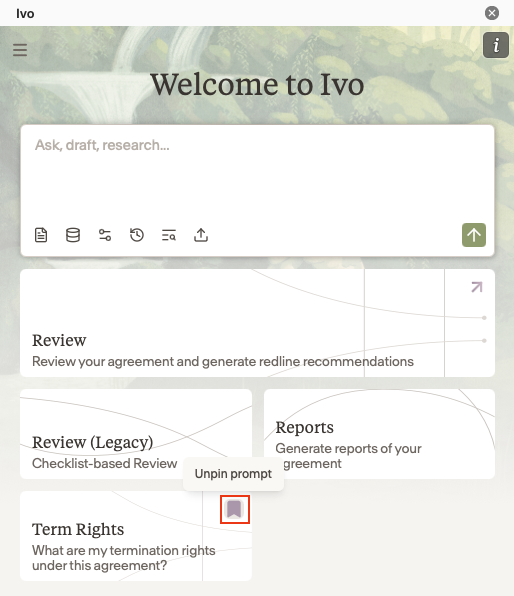
To unpin, select the bookmark icon in the top left of the prompt tile on your home screen.