Creating AI Fields in Repository
Last updated: June 17, 2026
Ivo’s Repository allows teams to create custom AI fields and columns without any manual tagging. These fields are populated automatically, making it easy to extract insights like upcoming renewals, key dates, contract types, and more — all within customized views.
Custom fields in Ivo are flexible, user-defined columns that can be filled by AI based on instructions you provide. This enables you to tailor your data structure to fit your workflow — without needing engineering or tagging rules.
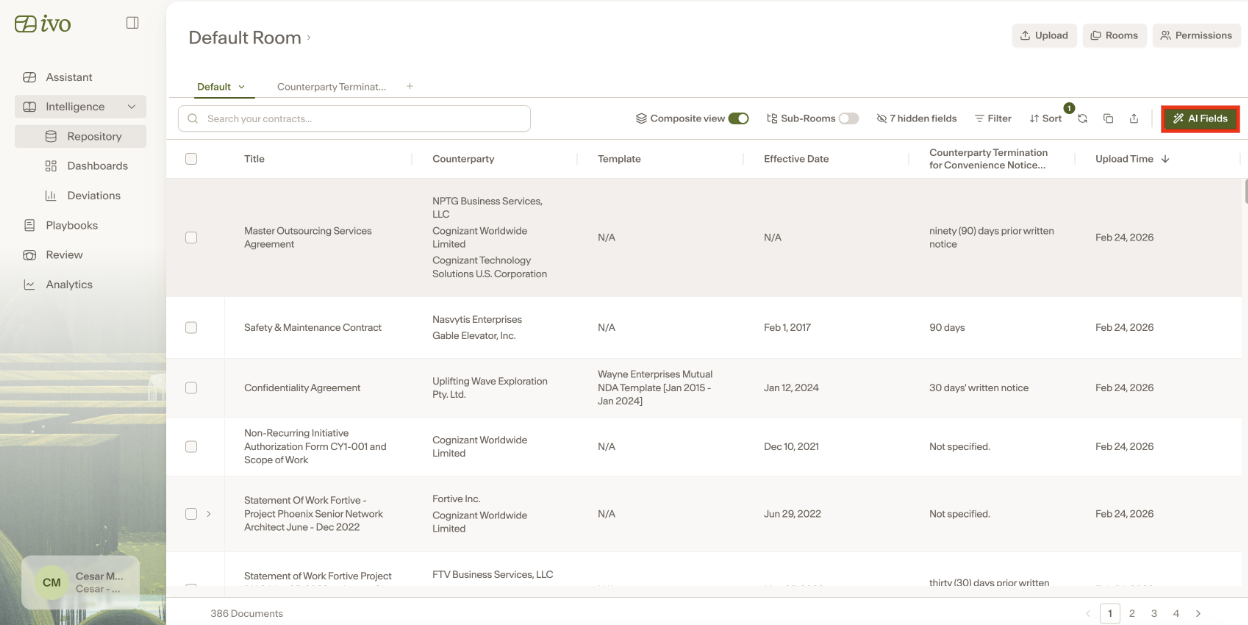
To add or create an AI field, click on AI Fields.
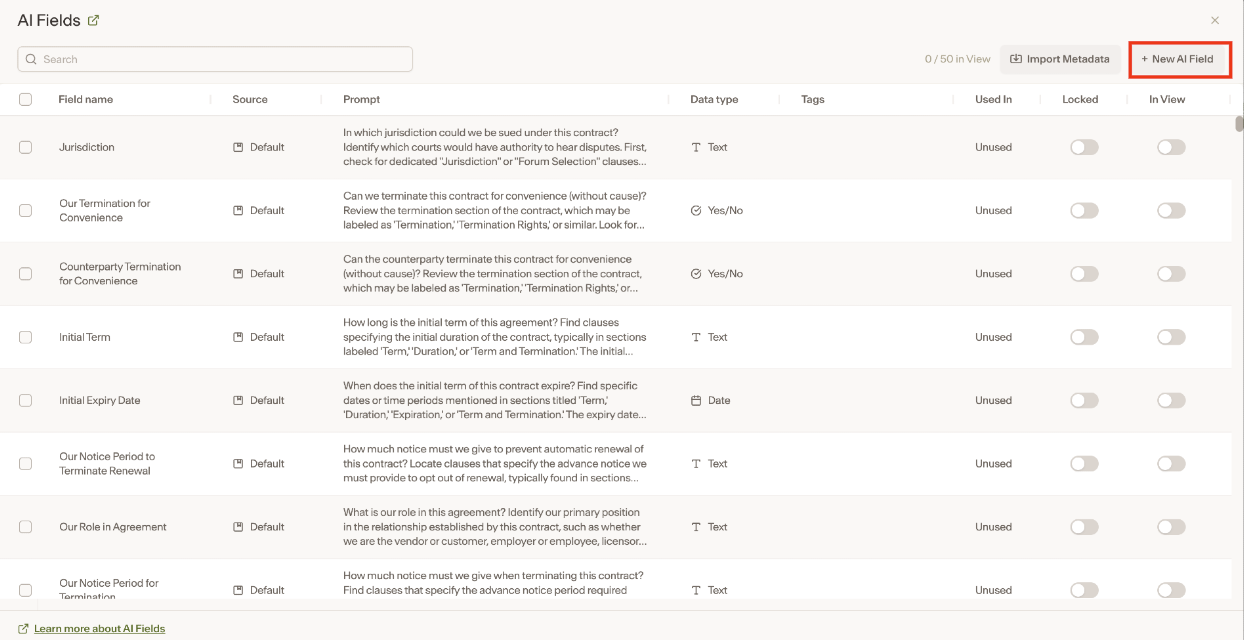
You can select from a list of preconfigured fields and enable them by using the toggle under the In View section.
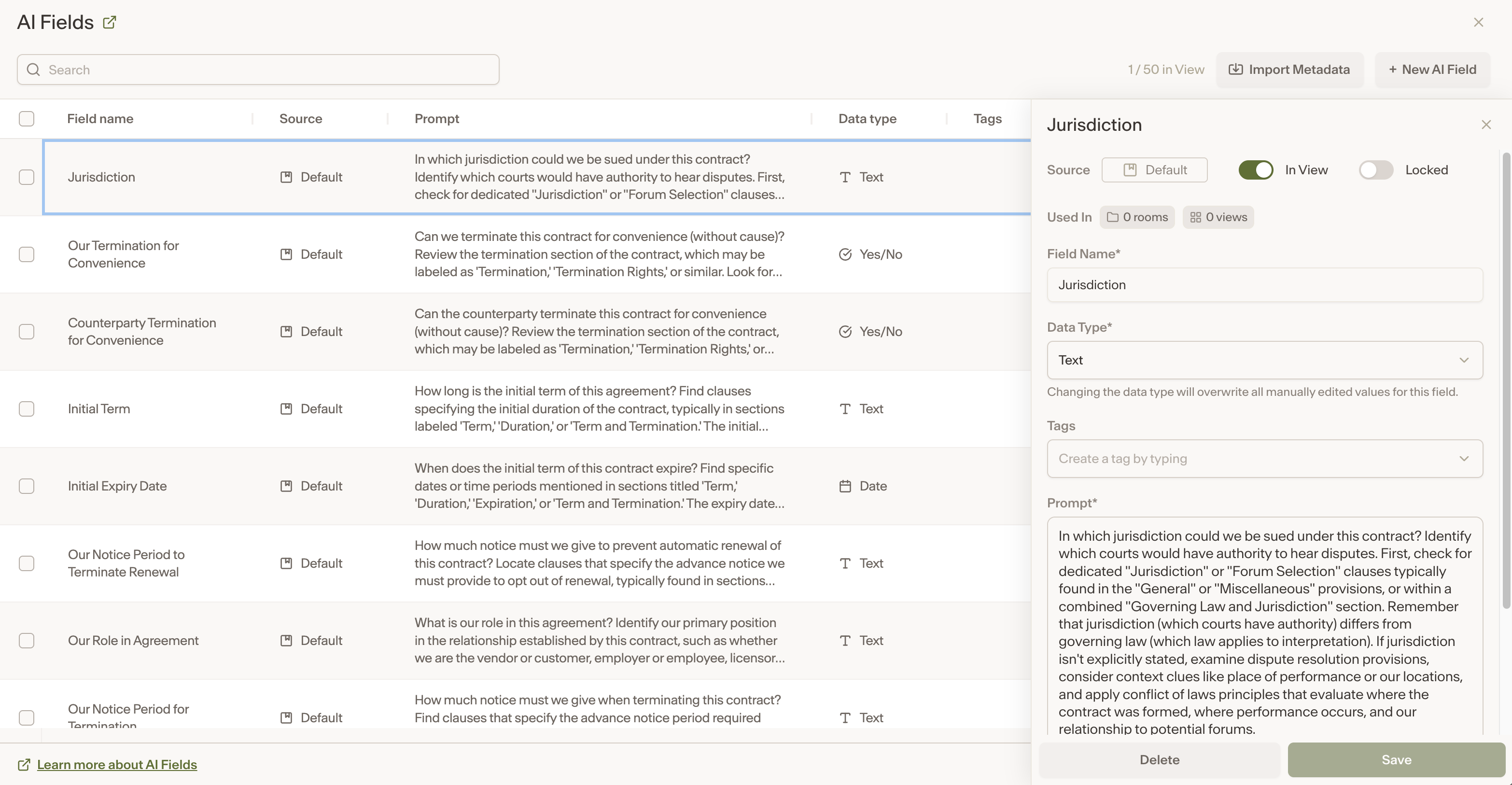
To create a custom field:
Enter a Field Name, e.g., "Upcoming Renewal."
Select a Data Type by choosing the appropriate response format. For the above example you could choose Yes/No or a Date
Add relevant Tags if applicable (e.g., tag as "finance" if relevant to the Finance team)
Add an Prompt describing what you want the field to do, such as: “Does this contract have a renewal coming up in the next 60 days?”
Tip: After typing in a prompt, you can select the Generate Prompt button to have Ivo suggest improvements to your prompt.
Click Save to add the field.
Once saved, Ivo begins processing your contracts using the AI instruction. As it processes, the custom column will be automatically populated for each document in the view. You’ll see the new column filled in progressively as contracts are evaluated. This removes the need for any manual tagging or parsing.
Next, you can create a custom View to save this list and create filters with conditions surrounding this field.