Getting started with Repository
Last updated: October 12, 2026
Ivo works with your existing file systems to access your contract database. There are two ways to upload your files to Repository: You can upload your files from your local device to Repository, or you can sync existing documents in Google Drive or SharePoint/OneDrive with Repository:
1) Uploading files directly to Repository
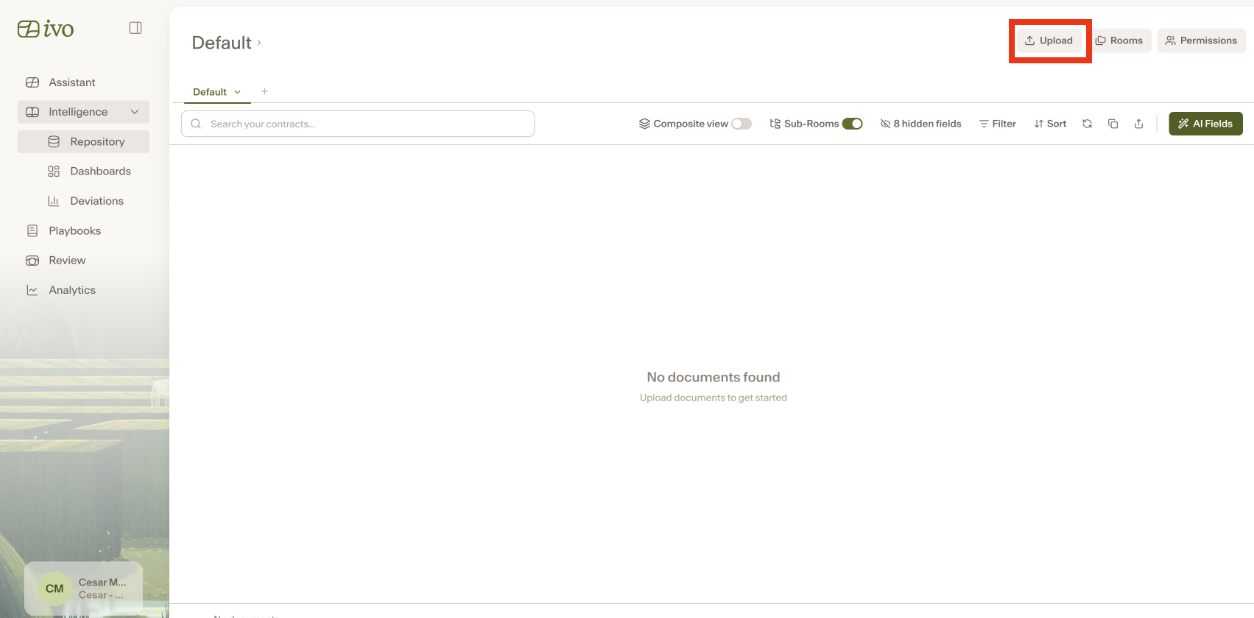
Navigate to the Room in which you would like to upload files.
Click the Upload button on the top right corner.
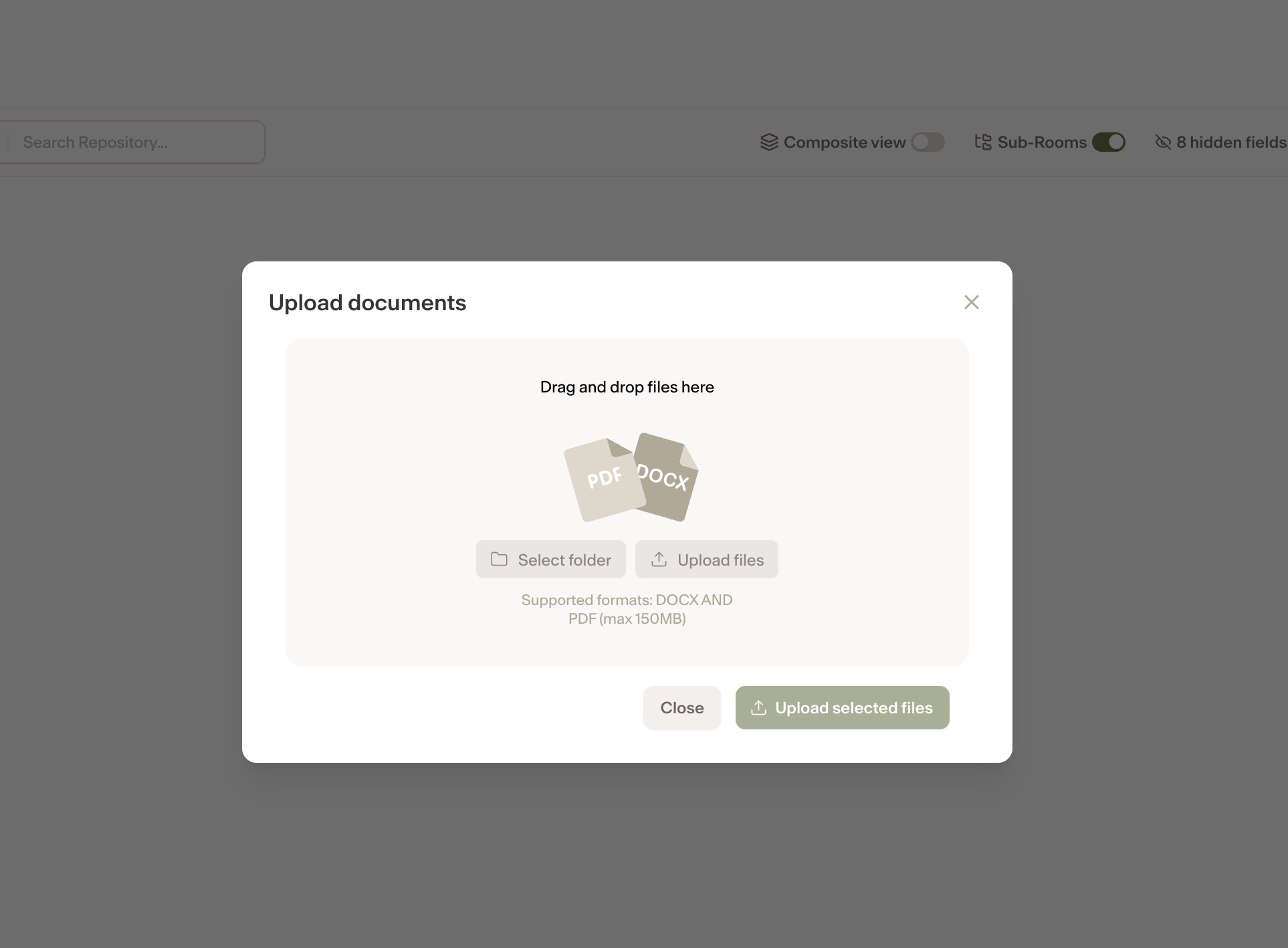
Select the file(s) that you would like to upload to Repository by dragging and dropping them in the window, or clicking the Select Folder or Upload Files buttons.
These files will be added to your Repository.
2) Integrating to import/sync files with Repository:
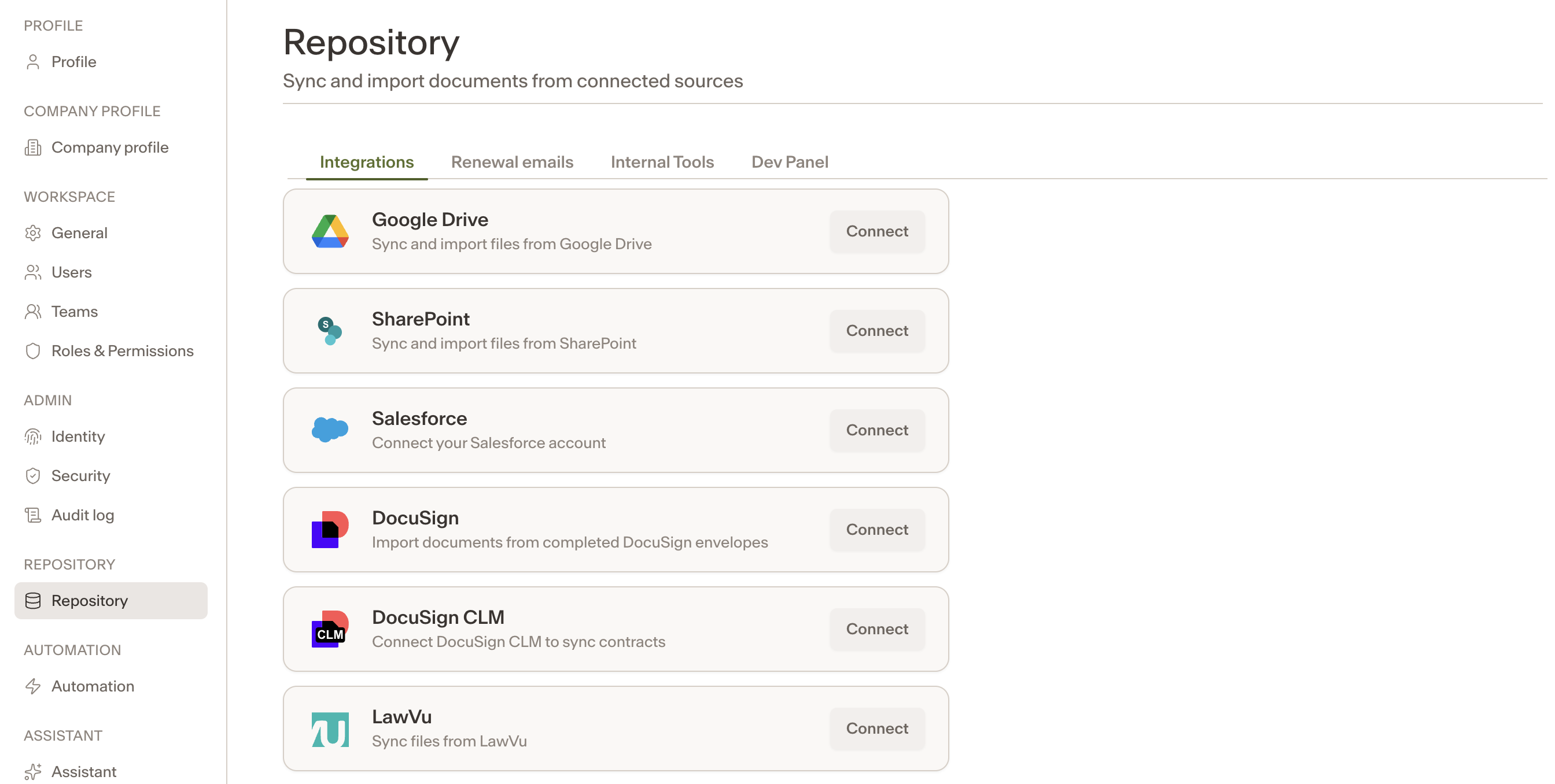
Navigate to Settings.
Select Repository on the menu.
Click the Connect button under the relevant integration.
Log in with the system credentials and allow access.
Select either Setup Sync or One-time Import.
Paste the URL for the drive you wish to connect Repository to and select which Room it should sync with.
Click Accept.
Setting Up Your Entities
Next, please provide your entities so Ivo Repository can use this information to determine which party you are in each contract and thus determine the provisions that apply to you versus the counterparty. Please include the Legal Name(s), Trading Name(s), and Places of Incorporation for every legal entity associated with your organization that may appear in the contracts. This includes your current legal entity, any subsidiaries, former company names resulting from mergers or acquisitions, and any other entities that appear in the contracts and you'd consider to be "your party."
Click on Settings on the left sidebar.
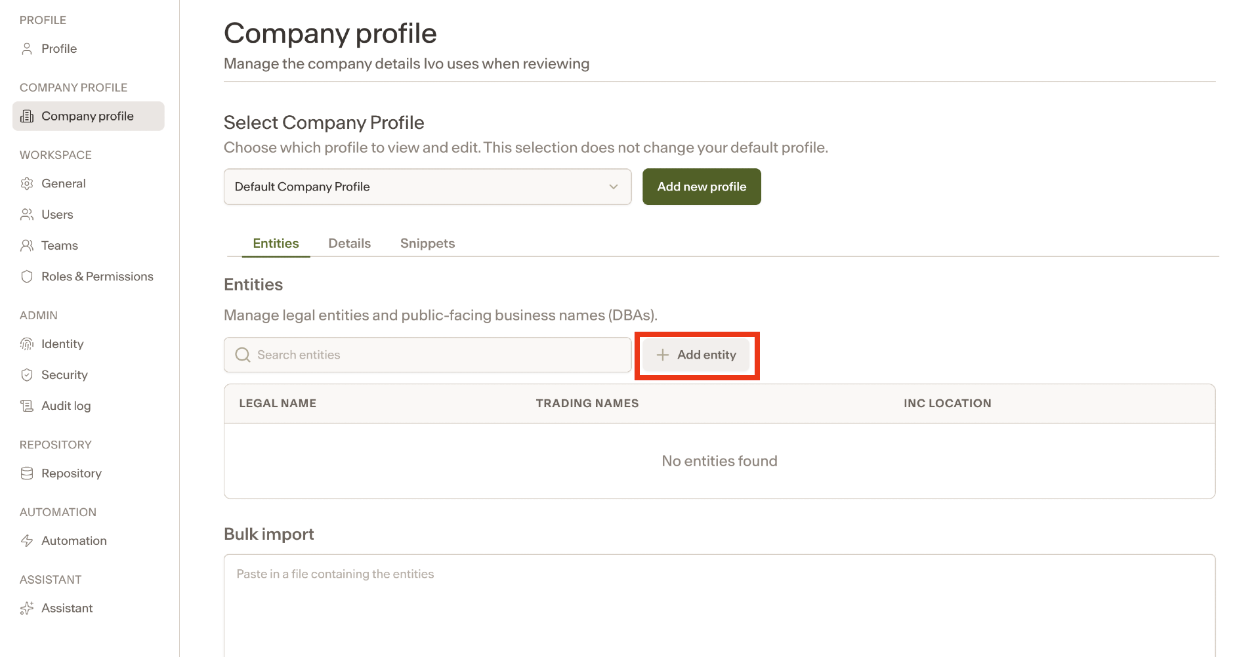
Navigate to Company Profile on the menu.
Click the +Add Entity button on the top right.
Enter your legal name, incorporated locations, and any DBA names associated with your business.
Click Add on the top right corner.
Please contact your Account Executive or Customer Success Manager if you require further assistance.