Connecting Your Repository via MCP
Last updated: June 4, 2026
You can connect your repository to external tools using MCP (Model Context Protocol). This allows compatible applications such as AI assistants or workflow tools to access your repository data.
Before you begin
MCP must be enabled for your workspace. To do this, contact your Customer Success Manager or support@ivo.ai to enable it.
Step 1: Open MCP Settings
Go to app.ivo.ai
Navigate to Settings
Select the MCP tab
Step 2: Create an MCP API Key
Click + New API Key
Enter a Connection Name
Set an expiration period
Click Create
Once created, copy the generated API key.

Step 3: Connect to Your MCP Server
In the MCP-compatible tool you want to connect (for example Gumloop or an MCP-enabled chat client):
Paste the API key you created
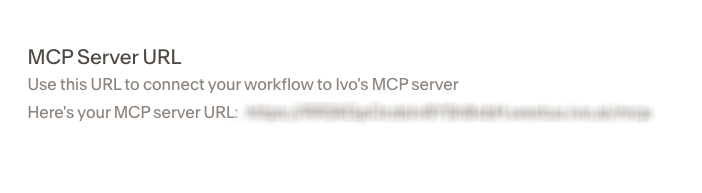
Enter your MCP Server URL
You can find your MCP Server URL in the MCP tab of your Ivo settings.
Step 4: Complete the Connection
After entering the API key and server URL in your MCP client, the connection will be established and your repository will be accessible through that tool.
Notes
MCP currently supports repository access only.
Contract review functionality is not available through MCP at this time.