Dynamic Rooms
Last updated: July 24, 2026
Dynamic Rooms automatically pull documents into a room from another room based on rules you define. Instead of manually moving or organizing documents, Ivo keeps the room up to date for you.
How it works
When you set up a Dynamic Room, you define a source room and the conditions under which documents should be pulled in. Ivo checks for matching documents every 2 minutes and adds any that meet the criteria. If a document already exists in the Dynamic Room, it will not be added again.
Documents are copied into the Dynamic Room rather than moved, so the original document remains in the source room.
Who can create Dynamic Rooms
To create a Dynamic Room, you must have admin permissions in the destination room.
How to set up a Dynamic Room
Navigate to Repository in the Ivo web app.
Create a new room, or open an existing one to use as the destination room.
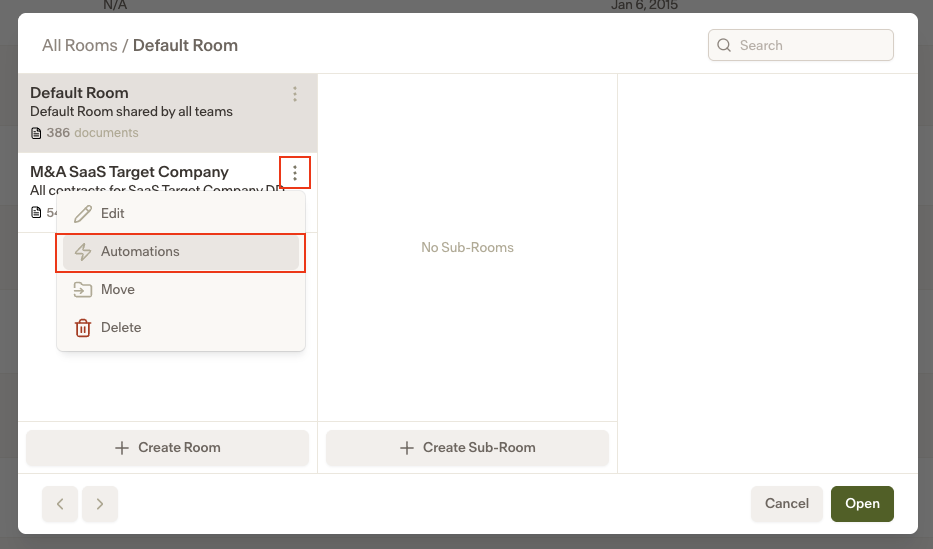
Open the room selector, click the three dots next to the room you want to pull from, and select Automations.
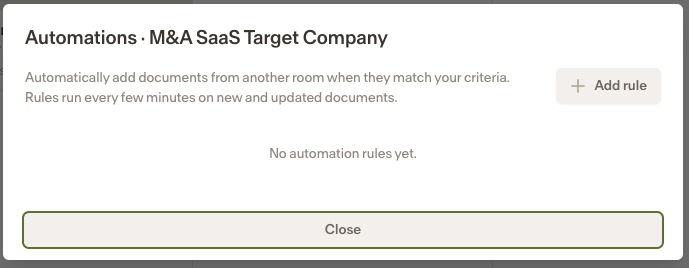
Click Add rule to configure the automation.
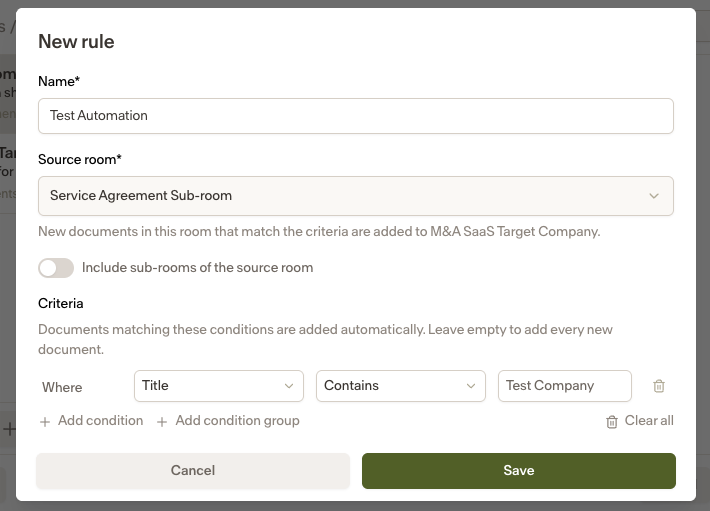
Enter the following details, then click Save:
Name: a label for the rule
Source room: the room to pull documents from
Criteria: the conditions a document must meet to be pulled in
The automation is created and starts running immediately.
Notes
Syncs run every 2 minutes, so there may be a short delay before newly matching documents appear.
Documents are copied, not moved. The original stays in the source room.
Duplicate documents are never created; if a document is already in the Dynamic Room, it's skipped.