Assistant Skills
Last updated: October 6, 2026
Skills let you package a complete workflow into a single, reusable command. Where a prompt is a block of reusable instruction text, a Skill bundles the instructions together with everything needed to run a whole job: playbooks, reference files, room selection, and capabilities like web search and deep research.
Prompts vs. Skills
A prompt is a single, well-defined action made up of reusable text. A Skill is a full workflow package. It includes the instruction text plus the tools, files, and know-how to complete a bigger job, including playbook selection, room selection, attached reference documents, and research steps. The underlying text of a Skill is hidden by default, so you work with the outcome rather than the raw instructions.
Where is it?
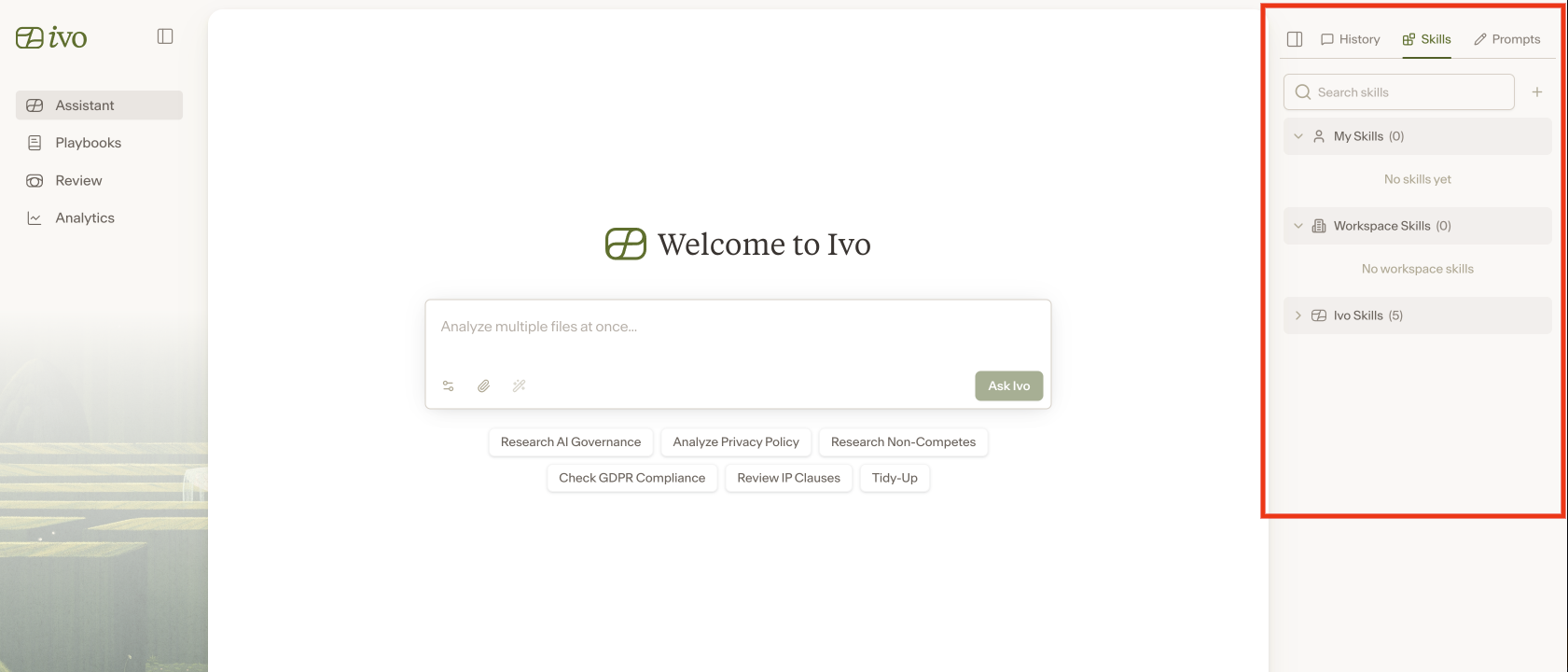
In web it can be found in the Assistant Anywhere sidebar.
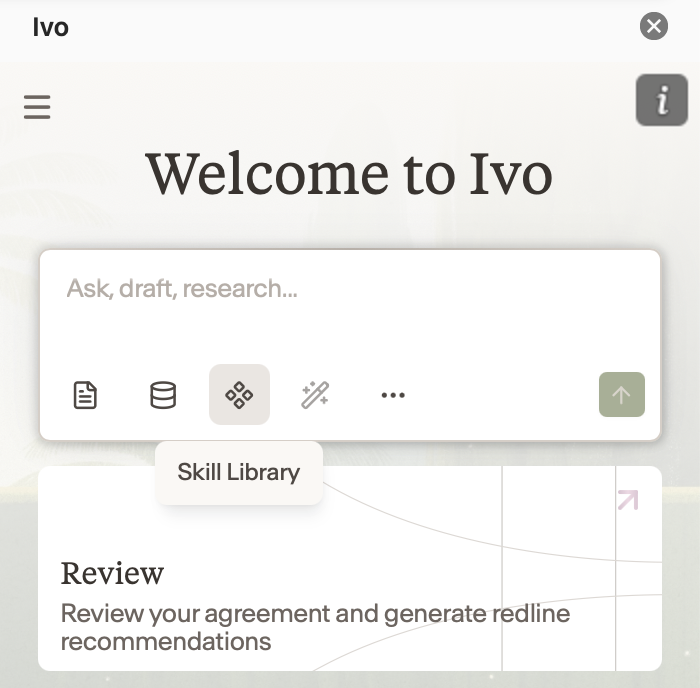
In Word and the Chrome extension, it can be found by clicking the below skills icon.
How to create a Skill
There are three ways to create a Skill, available on the web app, Word add-in, and Google Docs:
Ask Assistant
Tell Assistant you want to create a Skill and it will guide you through the process conversationally. This is the recommended approach.
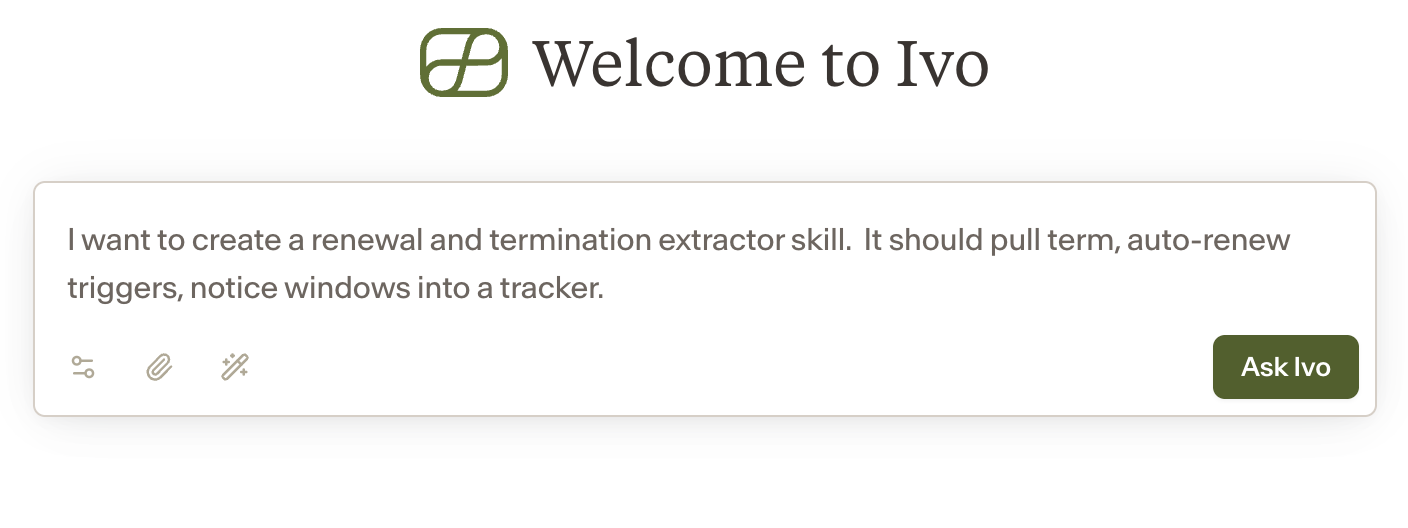
Start by telling Assistant what kind of skill you would like to create. The more specific you are, the better the output will be
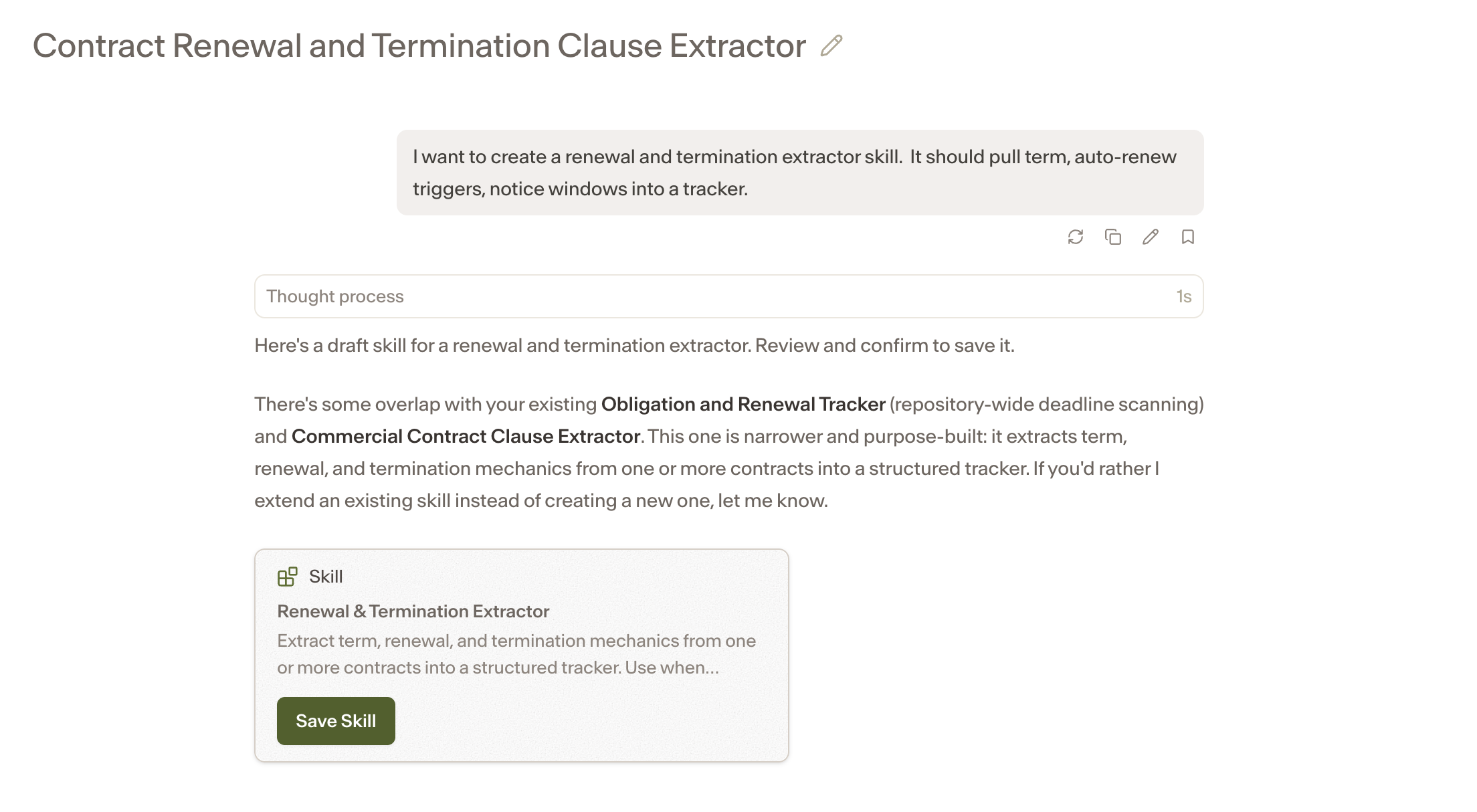
Based off your prompt assistant will generate a skill. Click Save Skill to view the details.
Set the following
Save as (required): Choose whether to save the Skill as a User Skill, a Team Skill, or a Workspace Skill. User Skills are only available to you. Team Skills are saved to a specific team, which means everyone assigned to that team will be able to use the Skill. Workspace Skills are available to everyone in the workspace. Team and Workspace Skills can only be published by admins.
Name (required): The name of the Skill. Once saved, it can be invoked by typing
/[Skill name]in Assistant.Description (required) — Describes what the Skill does and when to use it. This also determines when the Skill gets invoked automatically based on natural language.
Instructions (required) — The core prompt for the Skill. This can include scope, steps, workflow, formatting requirements, and guidance on how to use any attached tools or files.
Playbook (optional) — Attach up to 3 playbooks. For example, a contract review Skill could use your MSA playbook by default and also pull in a DPA playbook when a DPA exhibit is present.
Reference documents (optional) — Upload up to 10 PDF or DOCX files for the Skill to reference. Include guidance in the instructions on how to use them.
Capabilities (optional) — Toggle on web search, deep research, repository access, and reports. If you include specific formatting instructions, they will override the default reports structure.
Schedules (optional) — Check Run on a schedule to have Ivo run this Skill automatically and email you the results, instead of running it yourself each time.
Tags (optional) — Add tags to organize your Skills in the Skills Library.
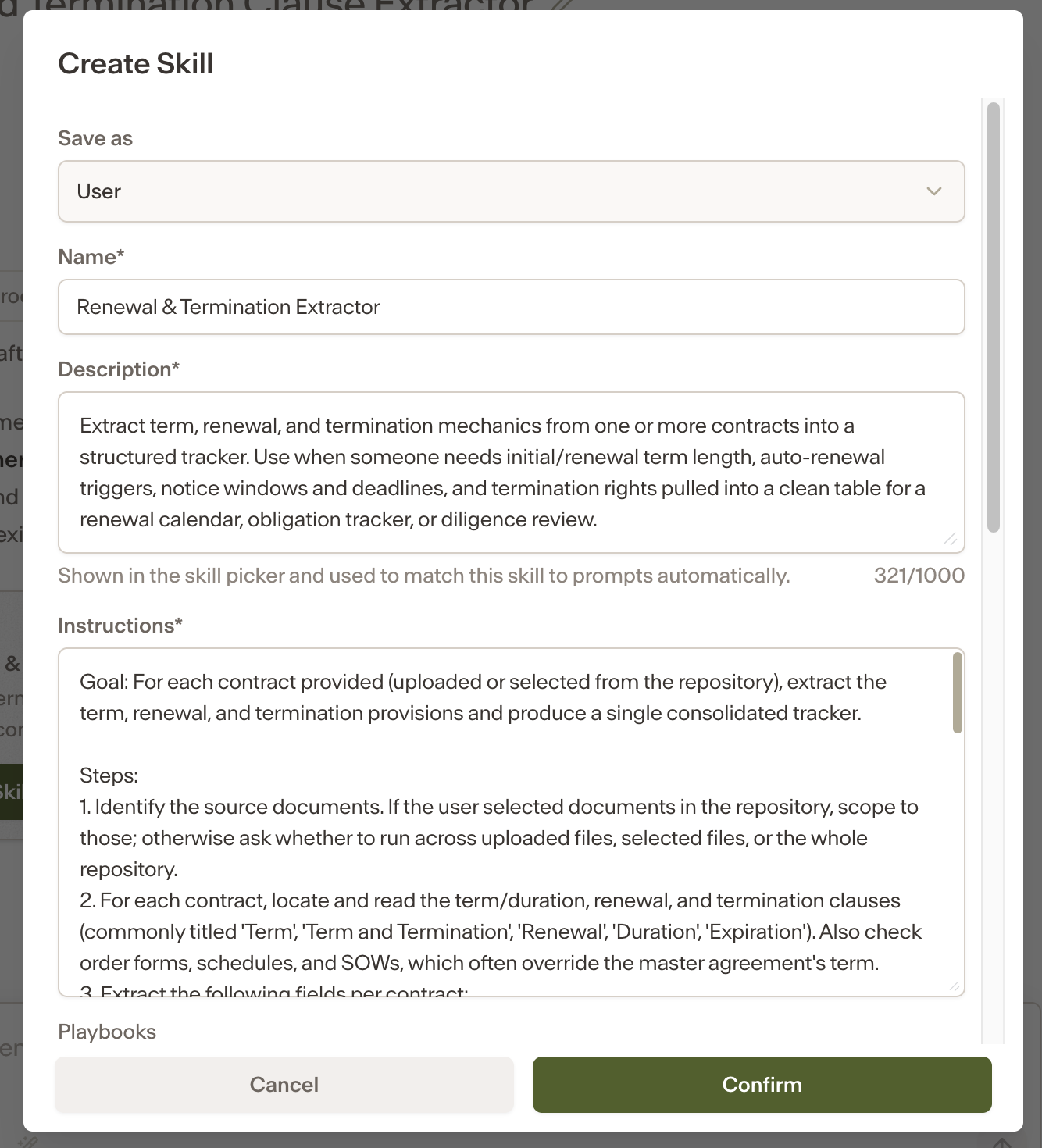
Click Confirm and the Skill will be added to your Skill Library.
Demo
Add a Skill
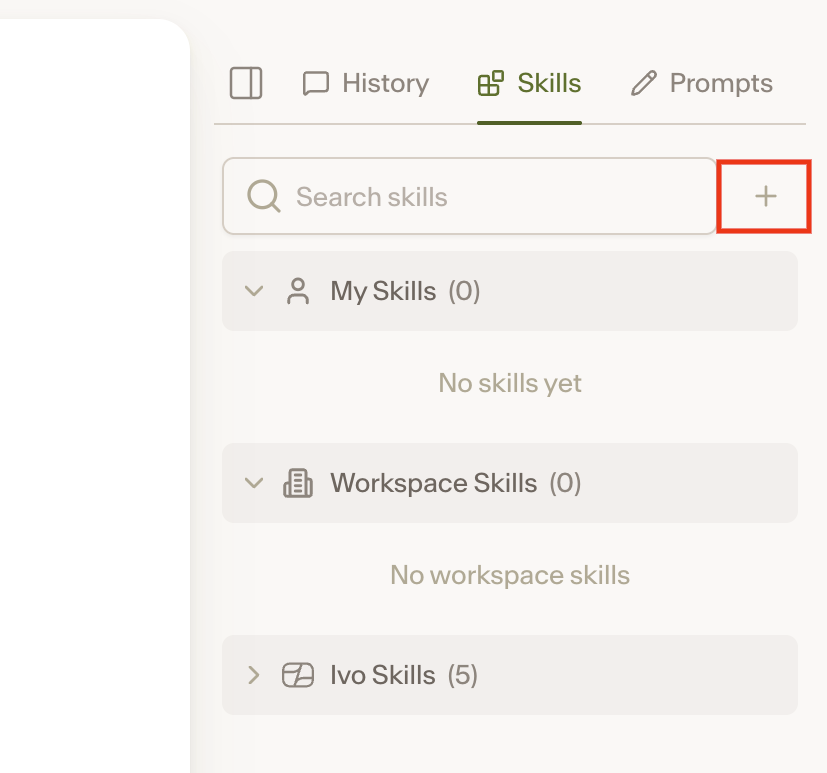
Click + in the Skills Library to build one directly. This is useful if you prefer to see all components at once or want to paste in existing content.
Click the plus sign (+) in your skill library.
Set the following
Save as (required): Choose whether to save the Skill as a User Skill, a Team Skill, or a Workspace Skill. User Skills are only available to you. Team Skills are saved to a specific team, which means everyone assigned to that team will be able to use the Skill. Workspace Skills are available to everyone in the workspace. Team and Workspace Skills can only be published by admins.
Name (required): The name of the Skill. Once saved, it can be invoked by typing
/[Skill name]in Assistant.Description (required) — Describes what the Skill does and when to use it. This also determines when the Skill gets invoked automatically based on natural language.
Instructions (required) — The core prompt for the Skill. This can include scope, steps, workflow, formatting requirements, and guidance on how to use any attached tools or files.
Playbook (optional) — Attach up to 3 playbooks. For example, a contract review Skill could use your MSA playbook by default and also pull in a DPA playbook when a DPA exhibit is present.
Reference documents (optional) — Upload up to 10 PDF or DOCX files for the Skill to reference. Include guidance in the instructions on how to use them.
Capabilities (optional) — Toggle on web search, deep research, repository access, and reports. If you include specific formatting instructions, they will override the default reports structure.
Schedules (optional) — Check Run on a schedule to have Ivo run this Skill automatically and email you the results, instead of running it yourself each time.
Tags (optional) — Add tags to organize your Skills in the Skills Library.
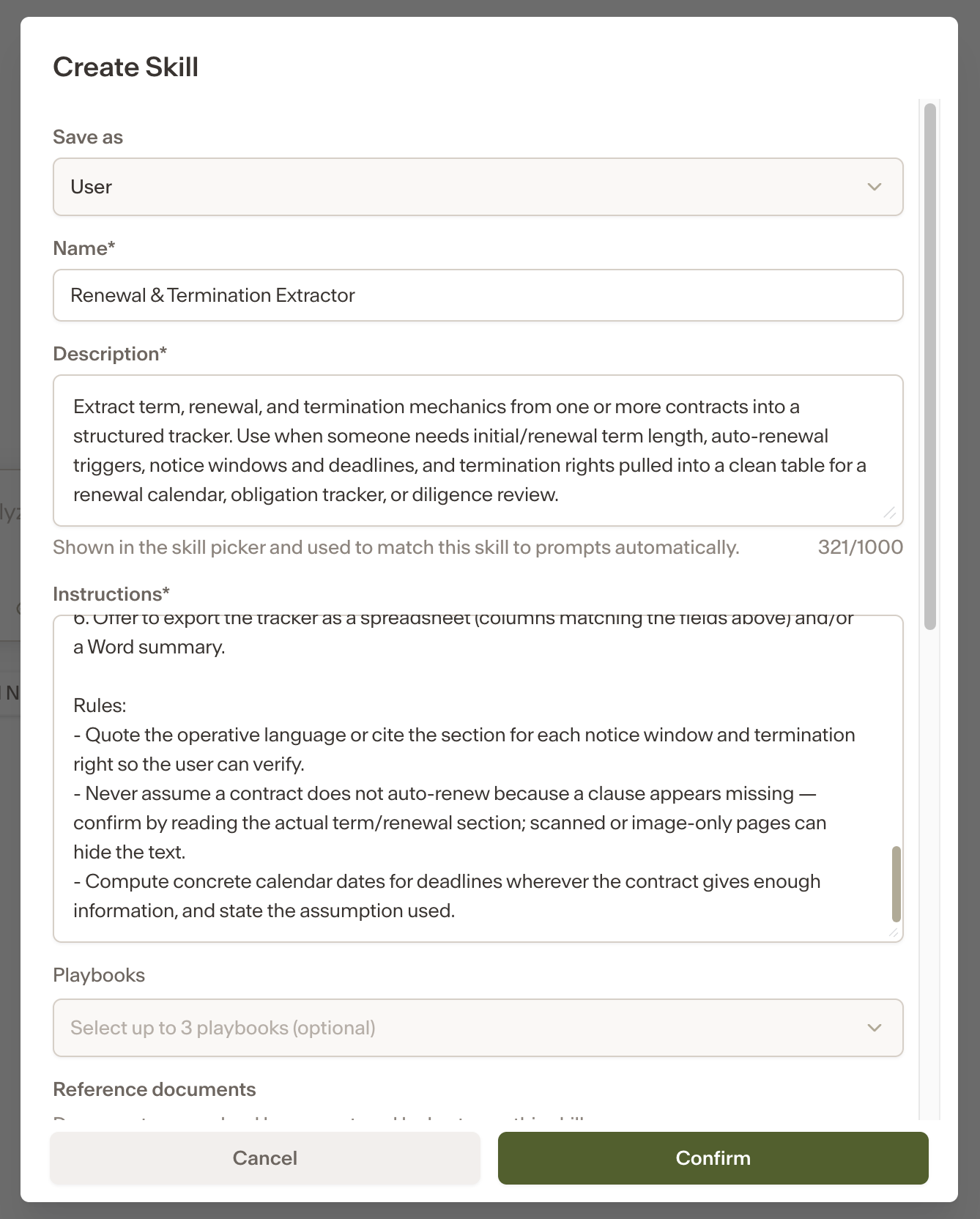
Click Confirm and the Skill will be added to your Skill Library.
Convert a prompt
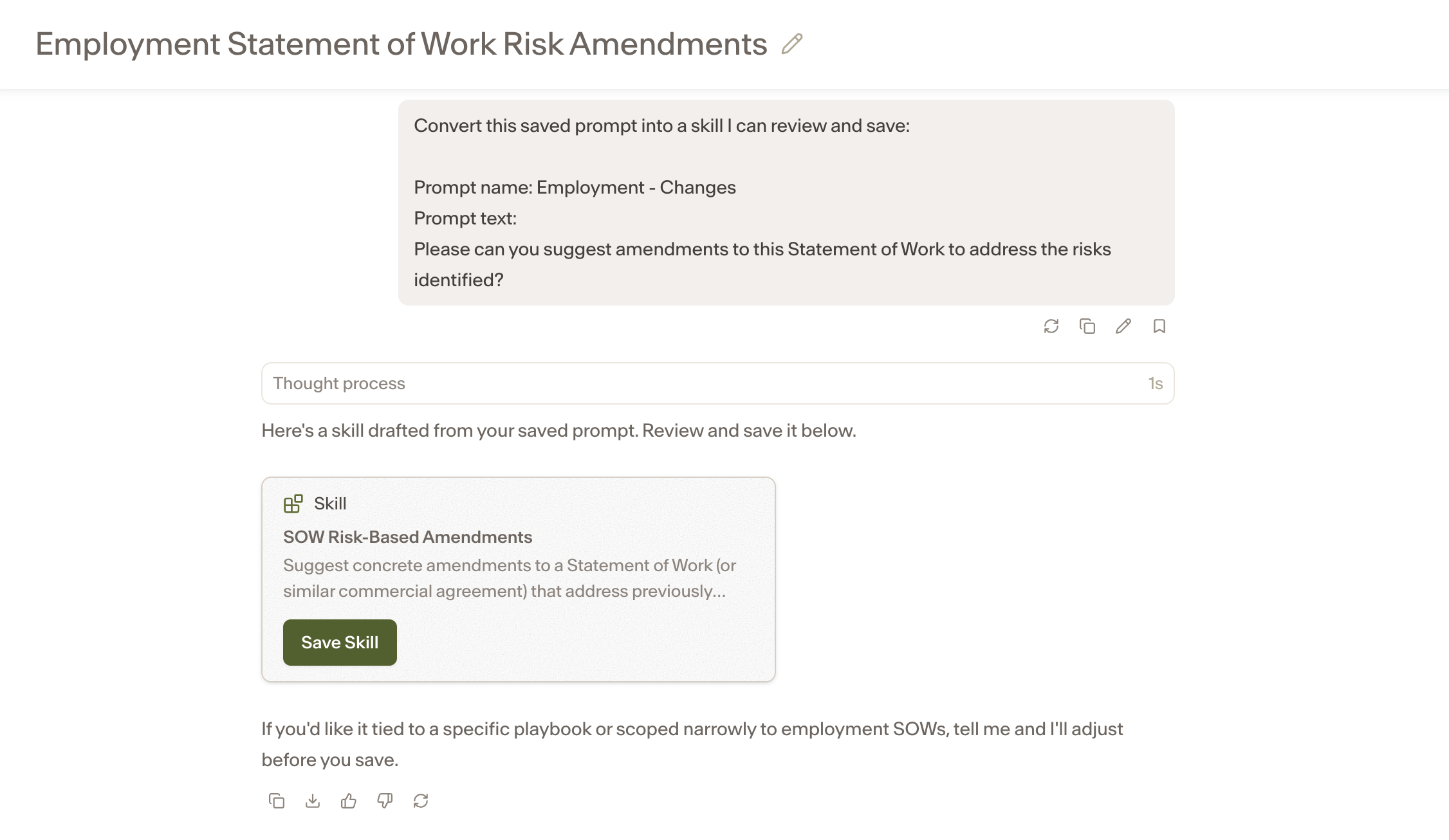
Click Convert to Skill on any existing prompt and Assistant will guide you through the conversion.
Next to your prompt of choice, click the three dots and select Convert to Skill.
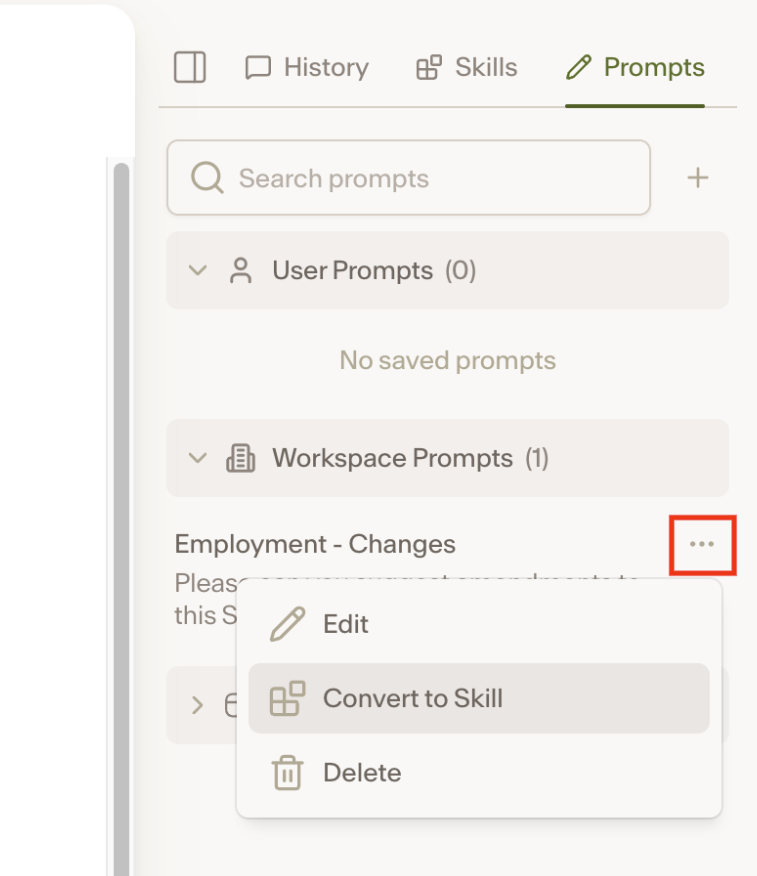
Assistant will generate a skill based off your prompt. Review it following the same steps as generating a skill from assistant above.
How to use a skill
There are three ways to run a Skill in an Assistant conversation:
Type your request in plain language. For example, "review my agreement" can invoke a Contract Review Skill automatically.
Type
/and select from the list of available Skills.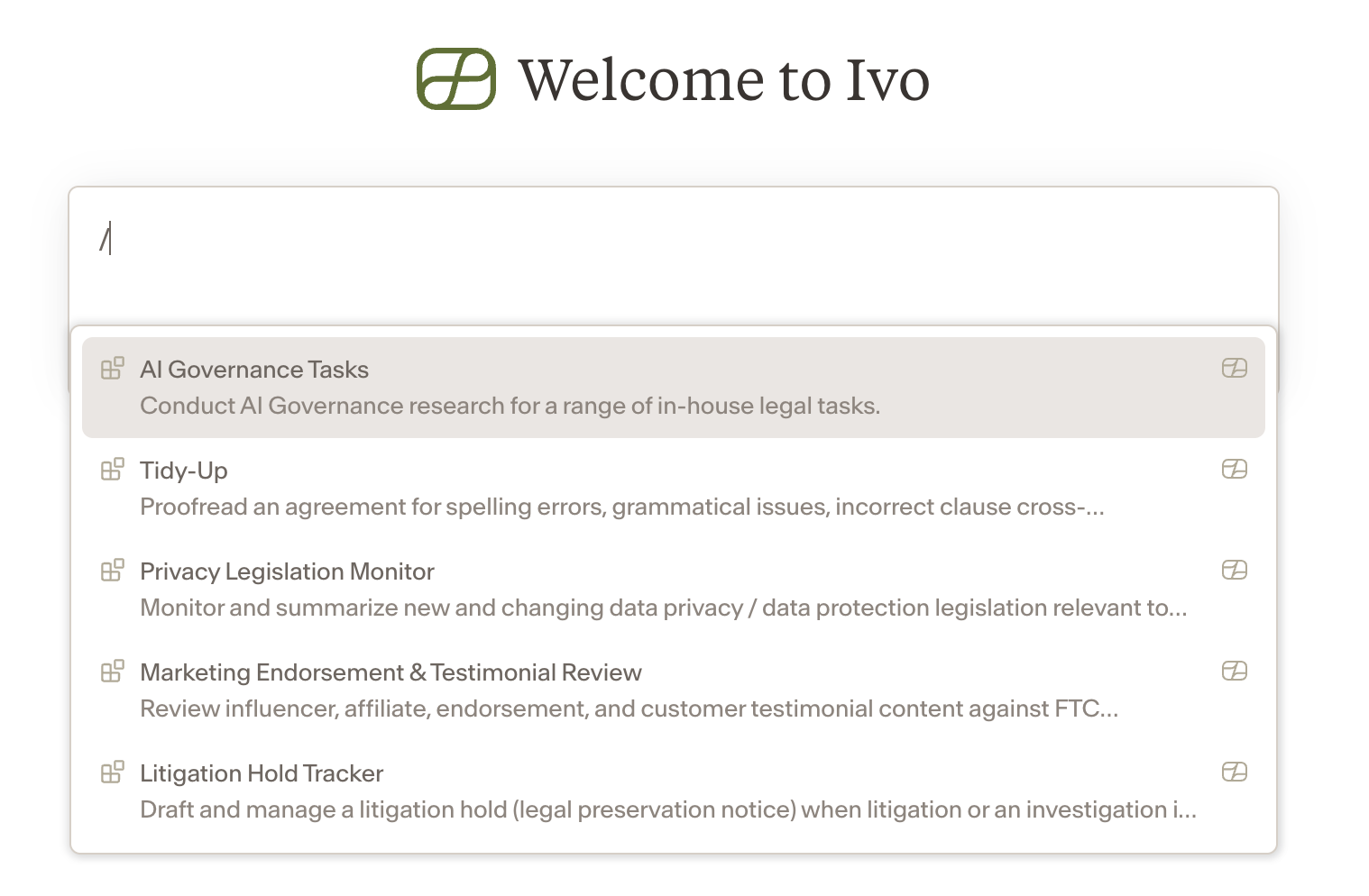
Open the Skills Library and click the Skill you want to use.
Schedules
Schedules let you run one of your personal Skills automatically on a recurring basis, instead of triggering it each time. The Assistant runs the Skill on the cadence you choose and notifies you when the result is ready.
This is especially useful for Skills you want to run regularly rather than only when you remember to ask, such as monitoring new privacy legislation, checking your repository for upcoming renewals and obligations, or running a status sweep of agreements with a given counterparty.
How it works
A Schedule is a saved personal Skill plus a cadence. To set one up, open the Skill in your Skills Library and set a schedule directly from its settings.
Schedules can run daily, weekly, or monthly, at a time of day you choose, in your time zone.
Once set, Schedules live in the Skills Library and are marked with a dedicated Schedules tag for easy filtering.
Notifications
When a scheduled run fires, you can watch it work in real time in your chat history. When it finishes, you'll receive an email notification containing the summary report, any charts generated by the run, and any attachments produced.
Personal Skills only
Schedules are available only at the personal Skill level. You can schedule your own personal Skills; workspace and team Skills cannot currently be scheduled.
Managing a Schedule
Set a Schedule from the Skill in your Skills Library.
Watch a scheduled run stream into your chat history in real time; its output is available there once complete.
To stop a Schedule, delete it — pausing isn't supported yet.
If a scheduled run fails, it will continue to run on its cadence, and the Assistant will let you know in the report.
Sample Skills
The Skills Library includes 10 sample Skills to get you started:
Compare Vendor Contracts — Compares a target contract against prior agreements with the same counterparty in your repository and flags deviations from previously accepted positions.
AI Governance Tasks — Handles a range of in-house legal tasks related to AI governance, including clause drafting, agreement review, internal policy, and employee guidance.
Commercial Contract Clause Extractor — Extracts key commercial terms from one or more executed contracts into a structured summary.
Tidy Up — Reviews a legal agreement and flags cross-references, defined terms, grammar issues, and typos.
Same Party Contract Status Check — Reviews all agreements in your repository and reports the current status of agreements with a given counterparty.
Privacy Legislation Monitor — Monitors and summarizes new and changing data privacy legislation relevant to your business.
Obligation and Renewal Tracker — Scans your repository and surfaces upcoming deadlines and obligations across all agreements, including renewal windows, auto-renewals, and expirations.
Marketing Endorsement and Testimonial Review — Reviews influencer, affiliate, endorsement, and customer testimonial content against FTC endorsement rules.
Commercial and GDPR Review — Reviews a commercial agreement, determines whether GDPR is in scope, and if so, runs a deep research pass before benchmarking against prior agreements and producing a Word memo.
Litigation Hold Tracker — Drafts and manages a legal preservation notice when litigation or an investigation is anticipated.
Permissions
Personal Skills are owned and edited by the individual user who created them. Workspace Skills are owned and edited by Workspace Owners/Admins and are available to everyone in the workspace.
Notes
Skill text is hidden by default. You can choose to view the contents of a Skill at any time.
If a Skill references a deleted room or playbook, it will let you know why it cannot run and suggest alternatives.
Complex Skills with multiple steps or deep research enabled may take longer to run.