Ivo Add-in Is Greyed Out in Microsoft Word
Last updated: February 23, 2026
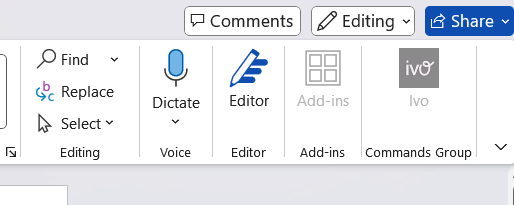
If the Ivo Word Add-in appears greyed out and cannot be selected, the document is likely saved in the older .doc format (Microsoft Word 97–2003 format).
Microsoft Word does not support modern Office Add-ins (including Ivo) in .doc files. To use the Ivo add-in, the document must be saved in the newer .docx format.
What This Looks Like
The Ivo add-in button appears greyed out and cannot be clicked.
How to Confirm the File Type
In Word, click File.
Select Info>Inspect Document(Windows) or Properties (Mac).
If the file name ends in .doc, it must be re-saved as a .docx file.
How to Save a .doc File as .docx
💻 Windows Instructions
Use Save As
Open the .doc file in Microsoft Word.
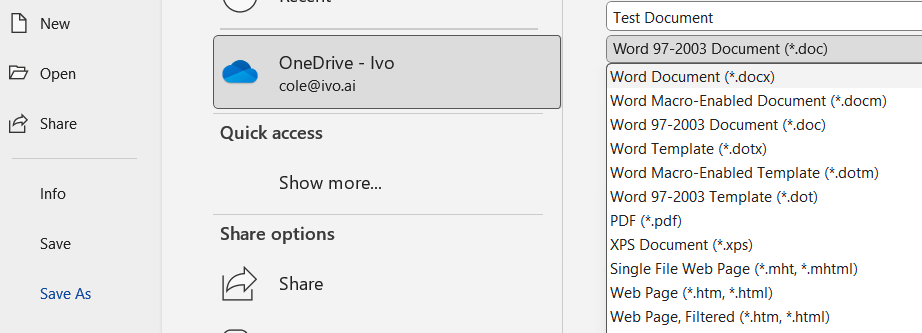
Click File.
Click Save As.
Choose a location to save the file.
Under Save as type, select:
Word Document (*.docx).Click Save.
🍎 Mac Instructions
Use Save As
Open the .doc file in Microsoft Word.
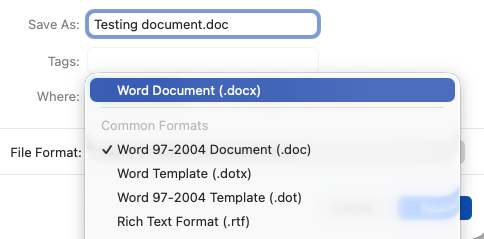
Click File in the top menu.
Select Save As.
Choose a save location.
In the File Format dropdown, select:
Word Document (.docx).Click Save.
After Re-Saving
Once the document is saved as a .docx file:
The Ivo Word Add-in should now be active and clickable.
If not immediately available, close and reopen the document.
If the add-in is still greyed out after re-saving the file as .docx, please contact Ivo Support at support@ivo.ai for further assistance.