Ivo Word Add-in Troubleshooting
Last updated: September 11, 2026
Try these quick steps to fix common issues in Ivo such as the add-in not loading or crashing spontaneously.
Step 1: Restart Microsoft Word
Save any open documents.
Close Microsoft Word completely (on macOS, right click the Word icon in the dock and click quit).
Reopen Microsoft Word.
Open a document and test the Ivo add-in.
Step 2: Sign Out and Sign Back In to Microsoft Word
Instructions for Windows:
Open Microsoft Word.
Click on your profile picture or initials in the top-right corner of the Word window (next to the minimize button).
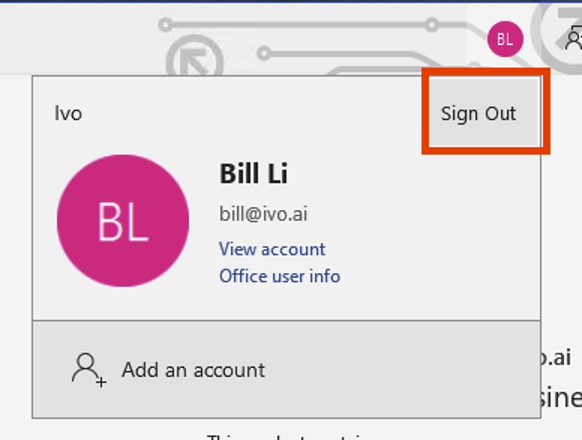
Select Sign out from the dropdown menu.
Close and reopen Microsoft Word.
Click Sign in in the top-right corner or from the prompt that appears.
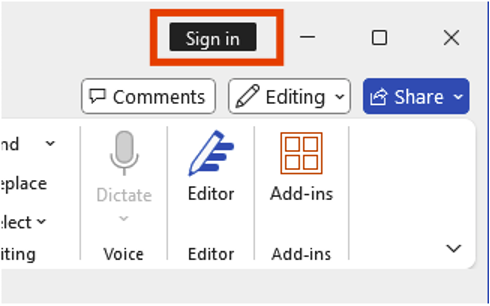
Enter your Microsoft account credentials (email and password) and follow any two-factor authentication prompts.
Once signed in, try using the Ivo add-in again (e.g., open a document and access the Ivo pane via the Add-ins tab or Home tab, depending on your setup).
Instructions for macOS:
Open Microsoft Word.
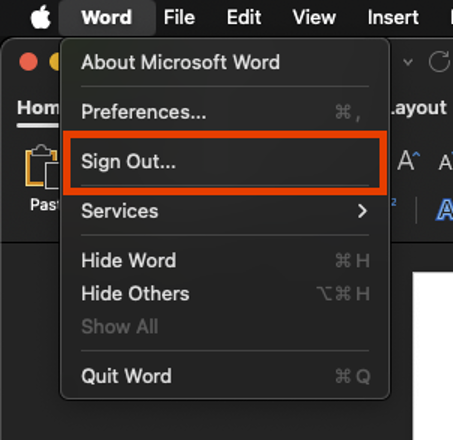
Click on the Word menu in the top-left corner of your screen (next to the Apple logo).
Select Sign Out from the menu.
Close and reopen Microsoft Word.
Click Sign in from the prompt that appears or in the top left corner of the app.
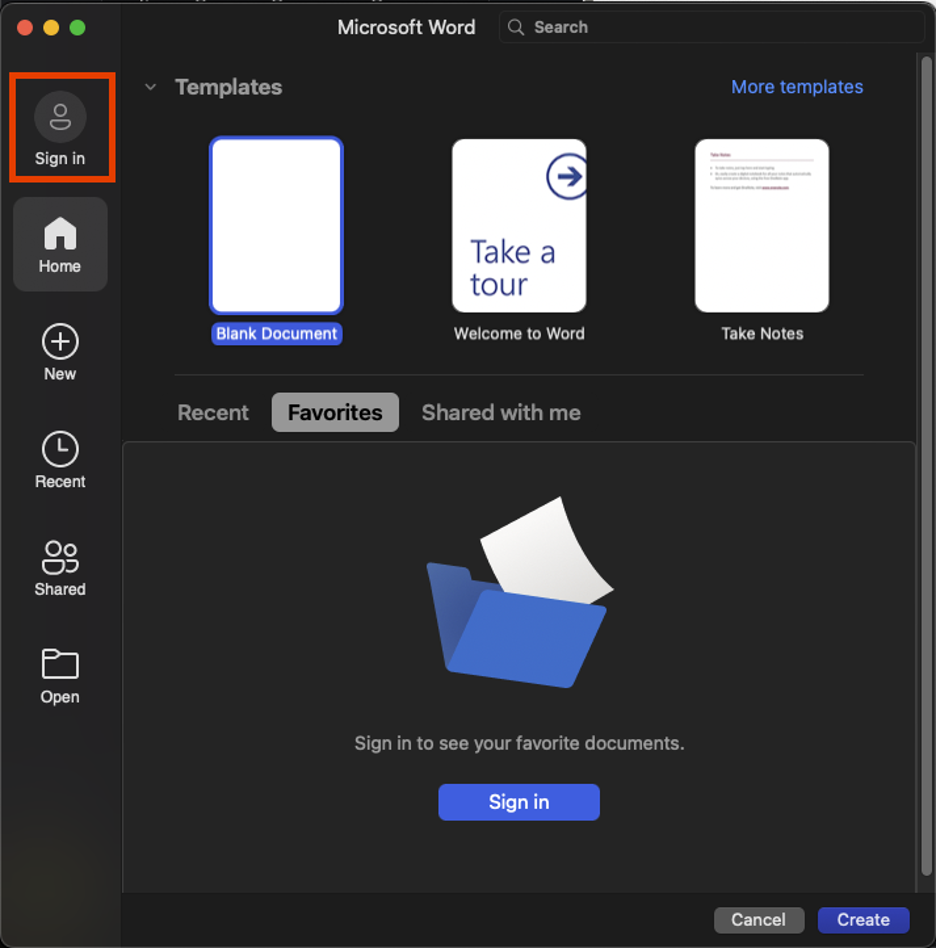
Enter your Microsoft account credentials and complete any authentication steps.
Test the Ivo add-in in a document.
Step 3: Clear your cache (Mac only)
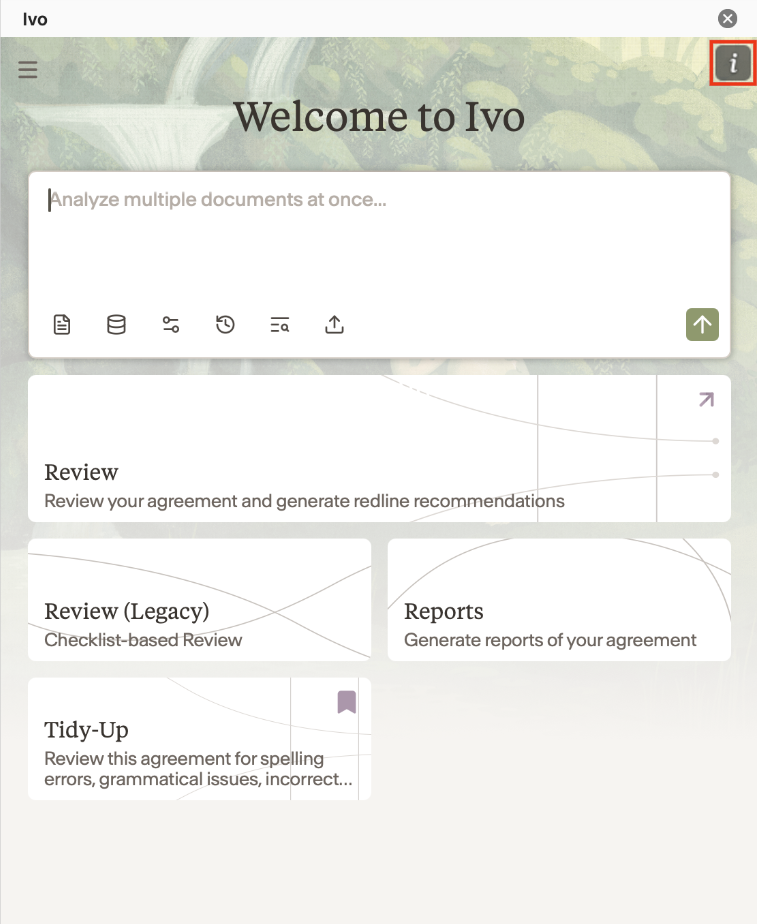
Click the dark gray rectangle “i” button in the top right of the Word add-in
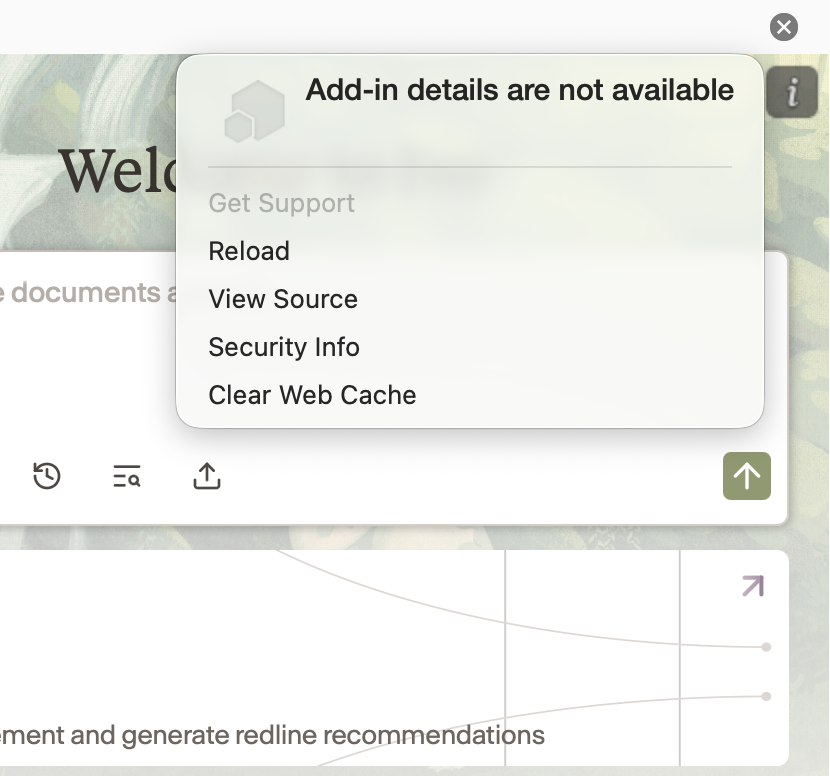
Press Clear Web Cache
Click the "i" button again
Press Reload
Log back in
Step 4: Restart Your Computer
Save all work and close open applications.
Restart your computer via the standard method:
Windows: Click Start > Power > Restart.
macOS: Click the Apple menu > Restart.
After restarting, open Microsoft Word and test the Ivo add-in.
Step 5: Update Microsoft Word
Instructions for Windows (Microsoft 365 Subscription):
Open Microsoft Word.
Go to File > Account.
Under Product Information, click Update Options > Update Now.
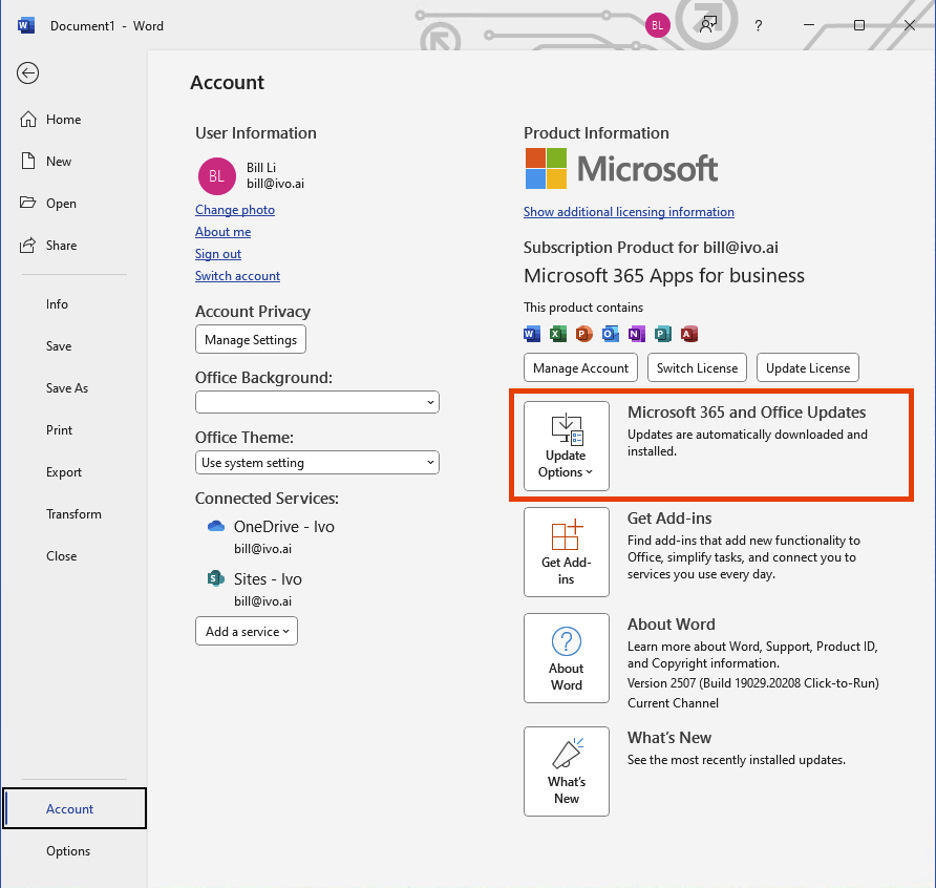
Allow updates to download and install (this may require restarting Word).
Check for the Ivo add-in after the update.
Instructions for macOS (Microsoft 365 Subscription):
Open Microsoft Word.
Click Help > Check for Updates from the top menu.
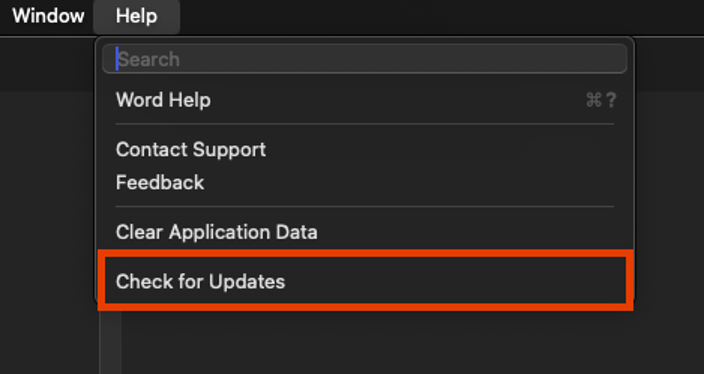
If updates are available, install them and restart Word if prompted.
Check for the Ivo add-in after the update