Team Skills
Last updated: September 30, 2026
Team Skills are Skills that have been assigned to a specific team in your workspace. When a Skill is saved as a Team Skill, it becomes available to every member of that team, making it easy to share repeatable workflows with the right group of people without publishing them to the entire workspace.
Who can create Team Skills
Team Skills can be created and edited by Workspace Owners and Workspace Admins only.
Assigning a Skill to a Team when creating it
Via Assistant
Tell Assistant you want to create a Skill and follow the conversational flow.
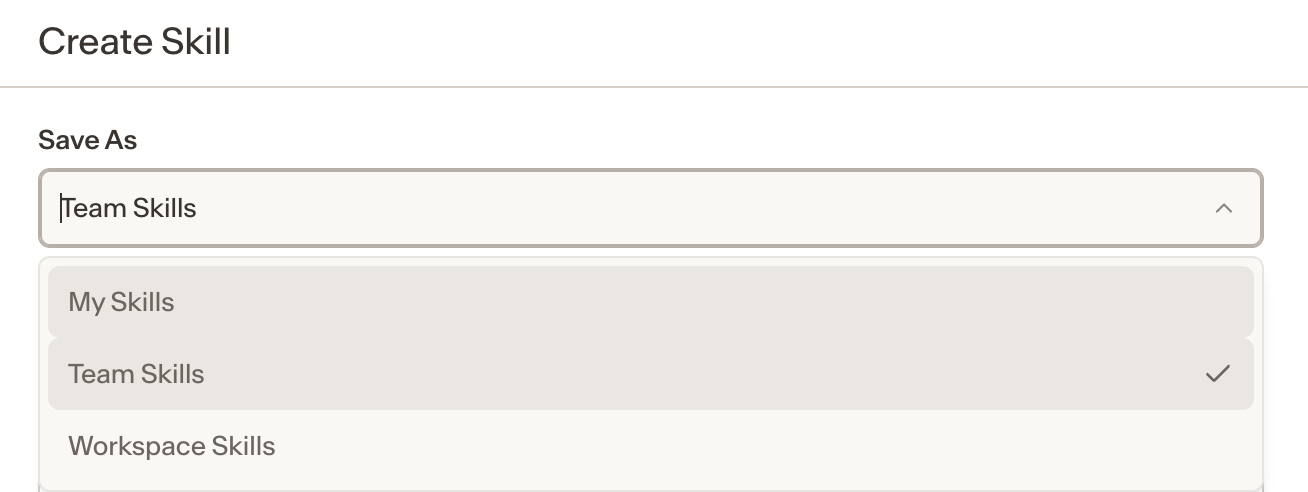
When prompted to set the Skill details, under Save as, select Team.
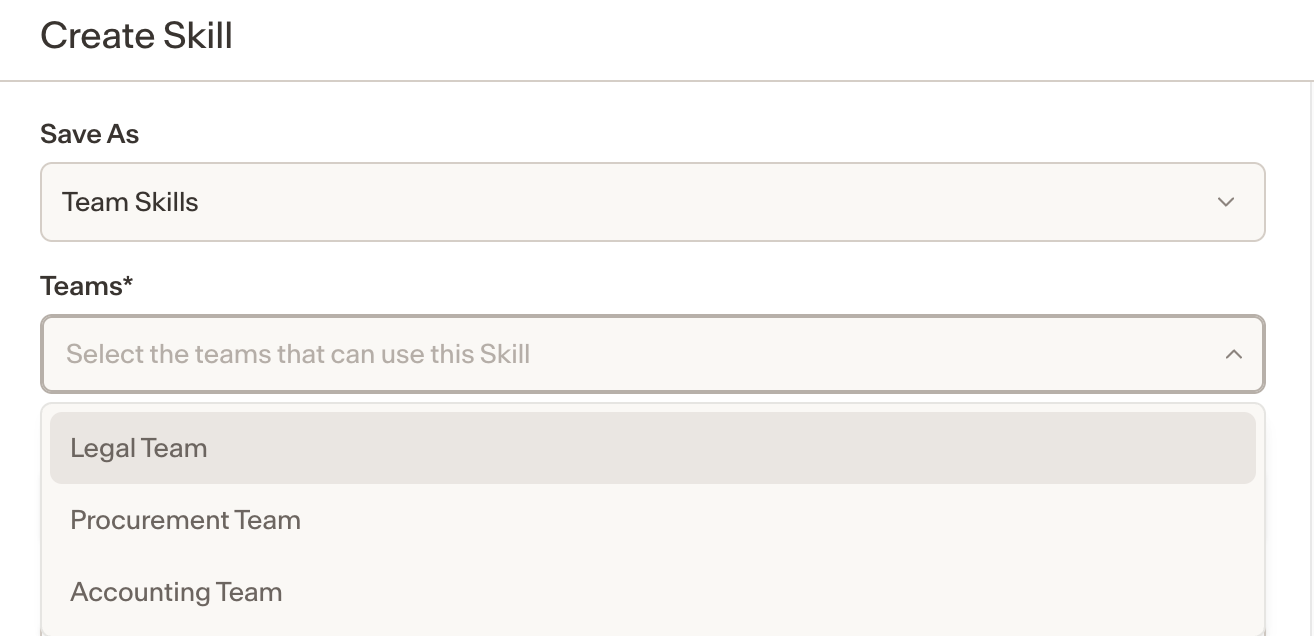
Choose the team you want to assign the Skill to from the dropdown.
Fill in the remaining details and click Confirm.
Via the Skills Library
Click + in the Skills Library.
Under Save as, select Team.
Choose the team you want to assign the Skill to from the dropdown.
Fill in the remaining details and click Confirm.
Assigning a Skill to a Team when editing it
You can also change the scope of an existing Skill to assign it to a team.
Open the Skills Library and find the Skill you want to update.
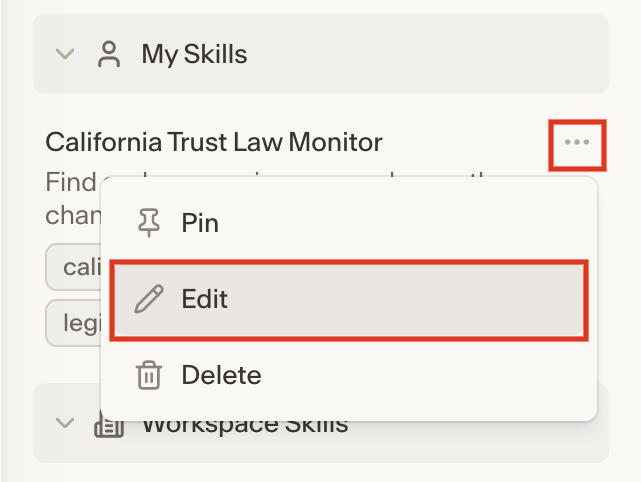
Click the three dots next to the Skill and select Edit.
Under Save as, change the selection to Team.
Choose the team from the dropdown.
Click Confirm to save your changes.
Notes
Team Skills are visible and usable by all members of the assigned team.
Team Skills can be created and edited by Workspace Owners and Workspace Admins only.
Schedules are not currently available for Team Skills. Schedules are only supported at the personal Skill level.
If a user is removed from a team, they will lose access to that team's Skills.