Lost Ivo Access After Updating Microsoft Word
Last updated: June 1, 2026
If you can no longer access the Ivo add-in after updating Microsoft Word, this is usually caused by Word signing you out or temporarily disabling add-ins during the update process. Follow the steps below to restore access.
Step 1: Make Sure You’re Signed Into Word
Word updates can sometimes sign you out automatically. Please confirm you’re signed in with your work account.
For Windows
Open Microsoft Word
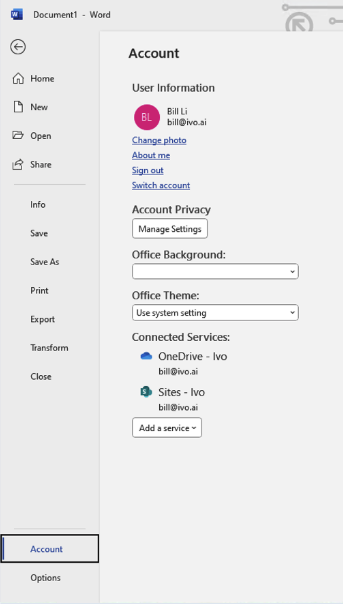
Select Account in the bottom left
Confirm that your work email is shown under User Information
If you are signed out:
Click Sign In
Enter your company email and password
Close and reopen Word after signing in
For Mac
Open Microsoft Word
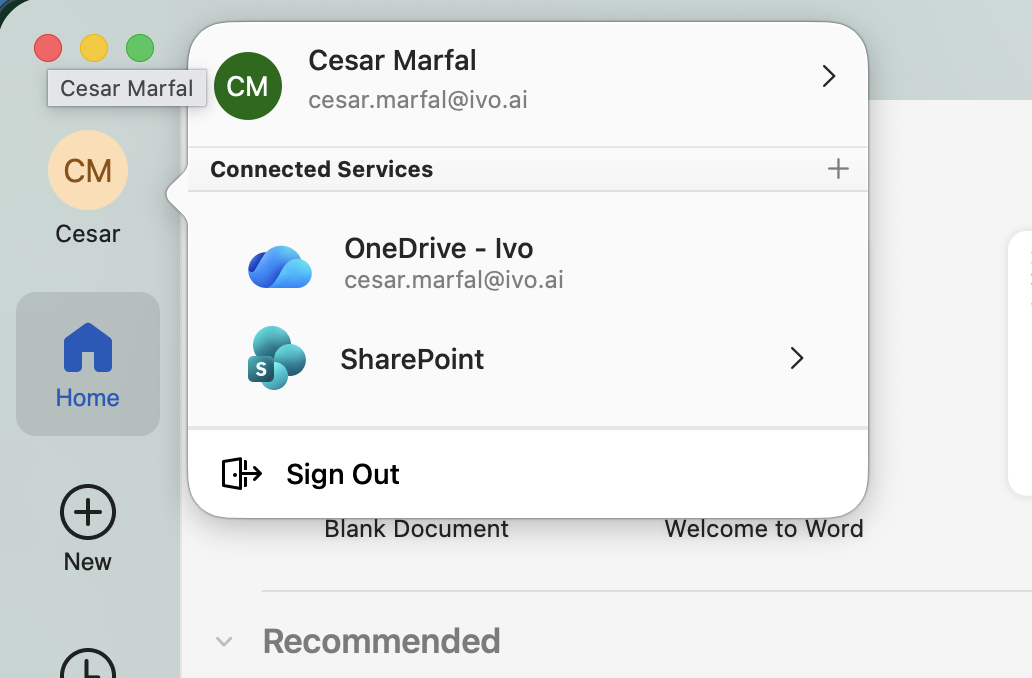
Look at the top-left corner of your screen
Confirm that your name or work email appears there
If you are not signed in:
Click Sign In
Enter your company email and password
Fully close and reopen Word
Step 2: Check for the Ivo Add-In
Word updates can sometimes disable or remove add-ins. Follow the steps below to restore Ivo.
Open Microsoft Word
Go to the Home tab
Click Add-ins (or Get Add-ins, depending on your version)
Click More Add-ins
First: Check Admin-Managed Apps
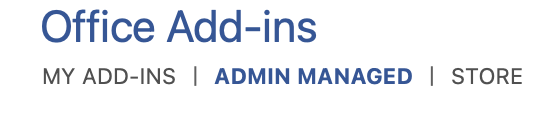
Select the Admin Managed tab
Look for Ivo in the list
If you see it, click Add (or enable it)
If Ivo appears here but cannot be enabled, you may need to contact your IT team.
If You Don’t See Ivo There: Search the Store

Go to the Store tab
Search for Ivo
Select the Ivo add-in and click Add
After reinstalling:
Restart Word
Check if the Ivo panel appears
Step 3: Contact Your IT Team (If the Issue Persists)
In many cases, Word updates require your IT team to redeploy or re-enable approved add-ins across your organization.
If reinstalling the add-in does not resolve the issue:
Contact your IT team
Let them know the Ivo add-in may need to be redeployed after a Word update
Ask them to confirm that Office add-ins are enabled for your account
This is especially common in managed Microsoft environments.
If you’re still unable to access Ivo after completing the steps above, please contact us at