Setting Up SSO with Microsoft Entra ID
Last updated: December 22, 2025
Ivo supports Single Sign-On via SAML 2.0, allowing you to manage access using Microsoft Entra ID.
Create a SAML application in Entra ID using the following settings and by following the instructions below.
Entra ID supports uploading an XML metadata file to speed up the process. Download Ivo's SP metadata by right clicking and saving from your browser.
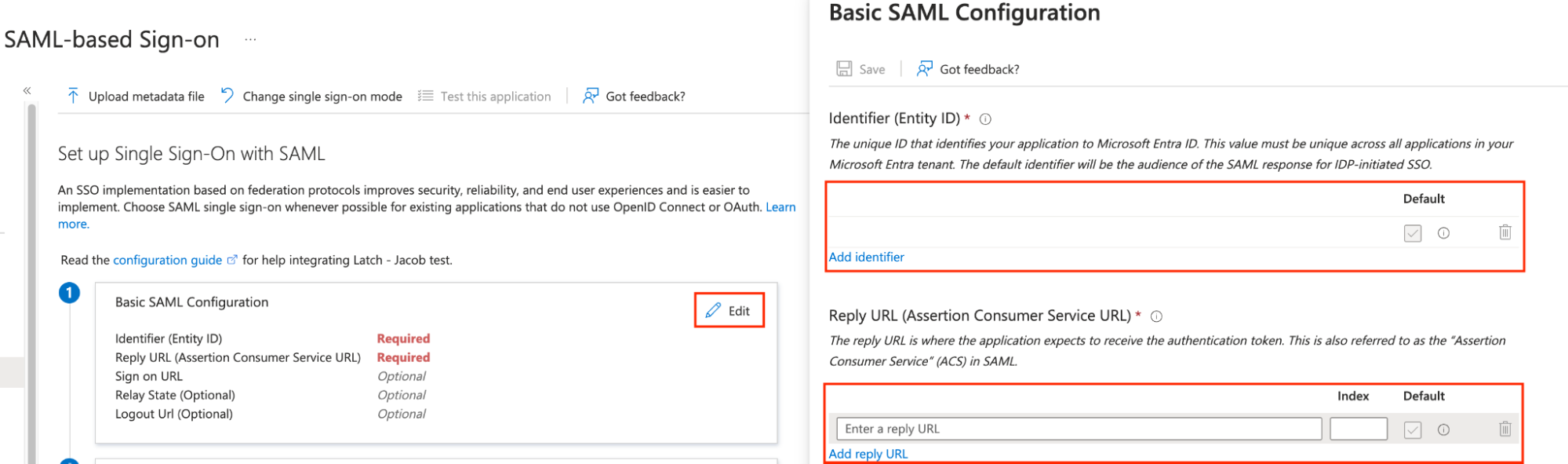
Alternatively, the values may be entered manually:
Setting | Value |
Ivo logo:
https://drive.google.com/file/d/1tMU7VTHk_wbEbQZG5Lh3rVey5LoQWUYu/view?usp=sharing
If you get stuck at any time during this setup, please contact: dev@ivo.ai
Entra ID SSO Instructions
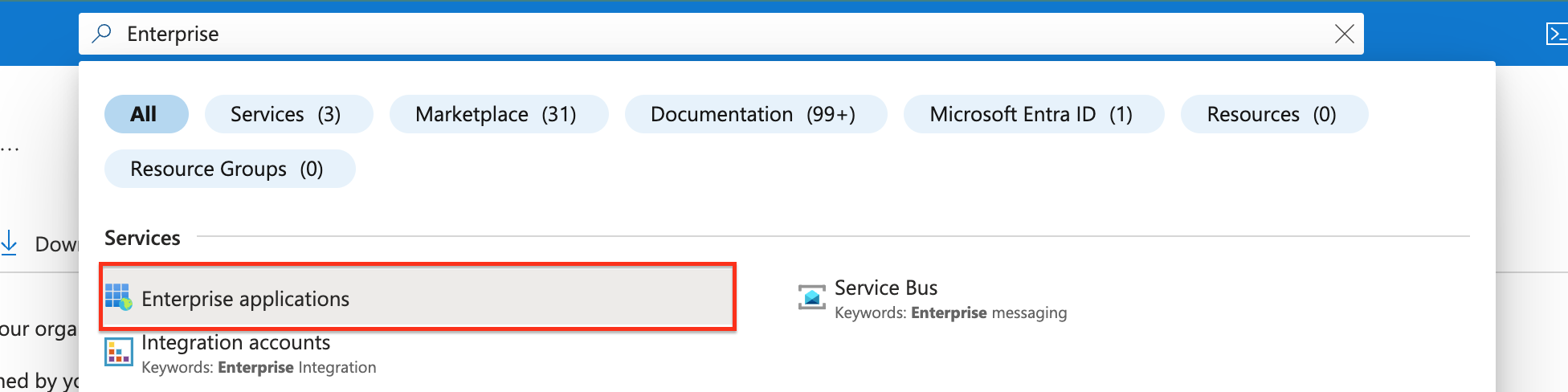
Open the Azure console, and search for Enterprise applications
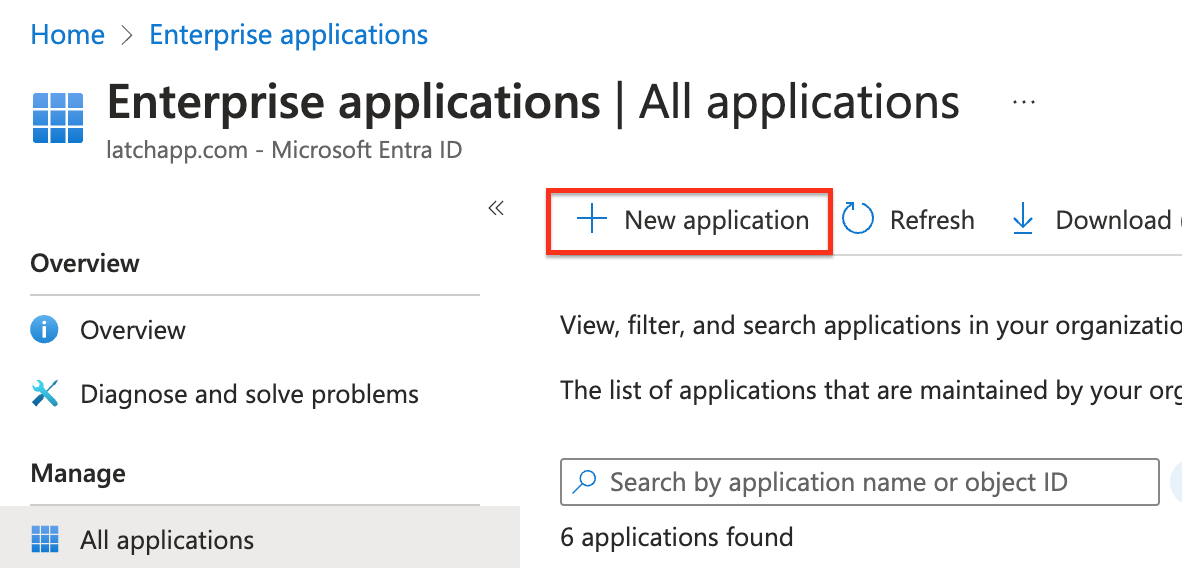
Create a New application
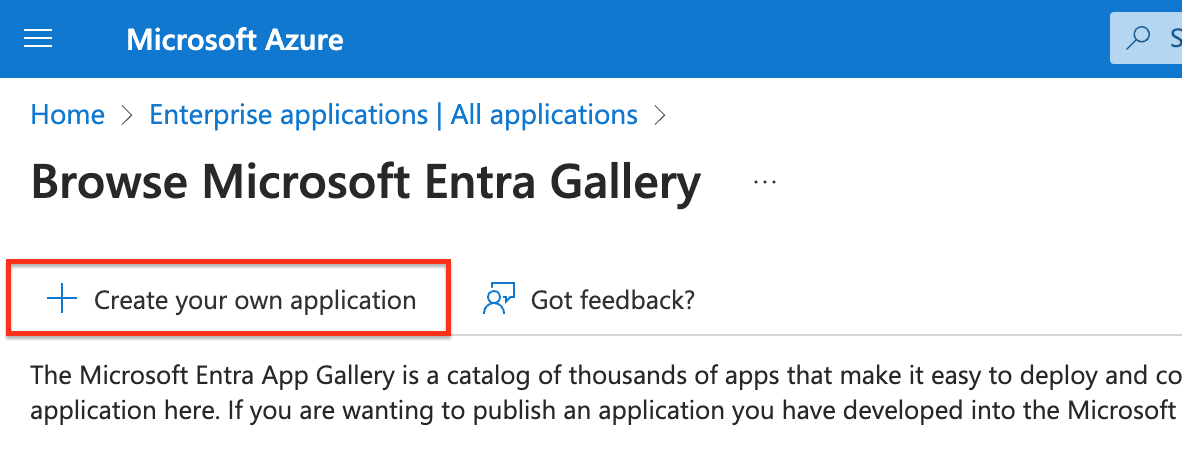
Create your own application
Enter Ivo as the app name, select
Integrate any other application you don't find in the gallery (Non-gallery)and click Create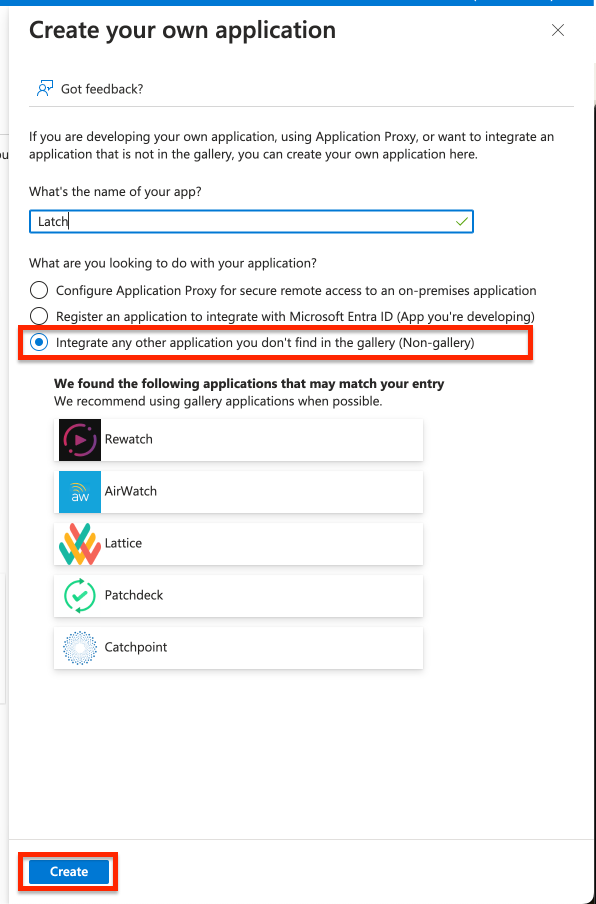
Once the app has been created click Assign users and groups, then assign yourself to Ivo to test the integration
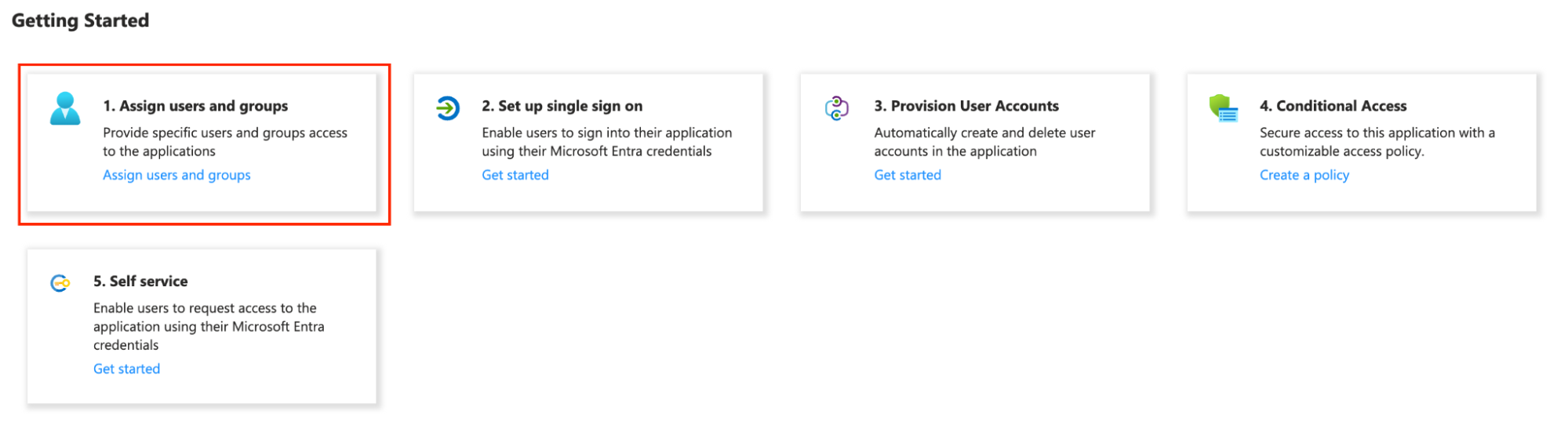
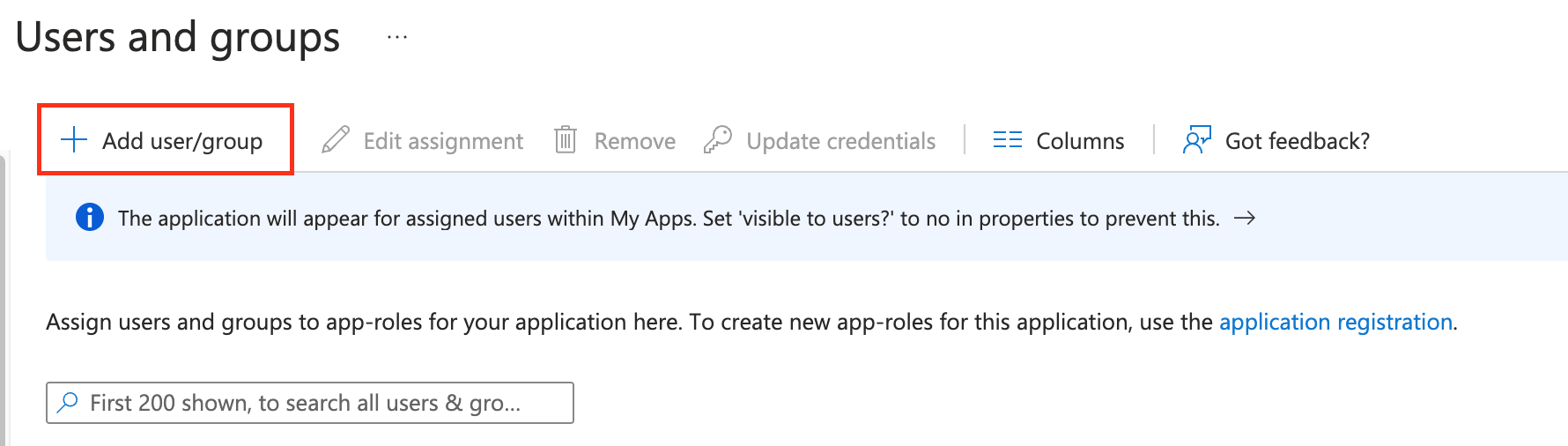
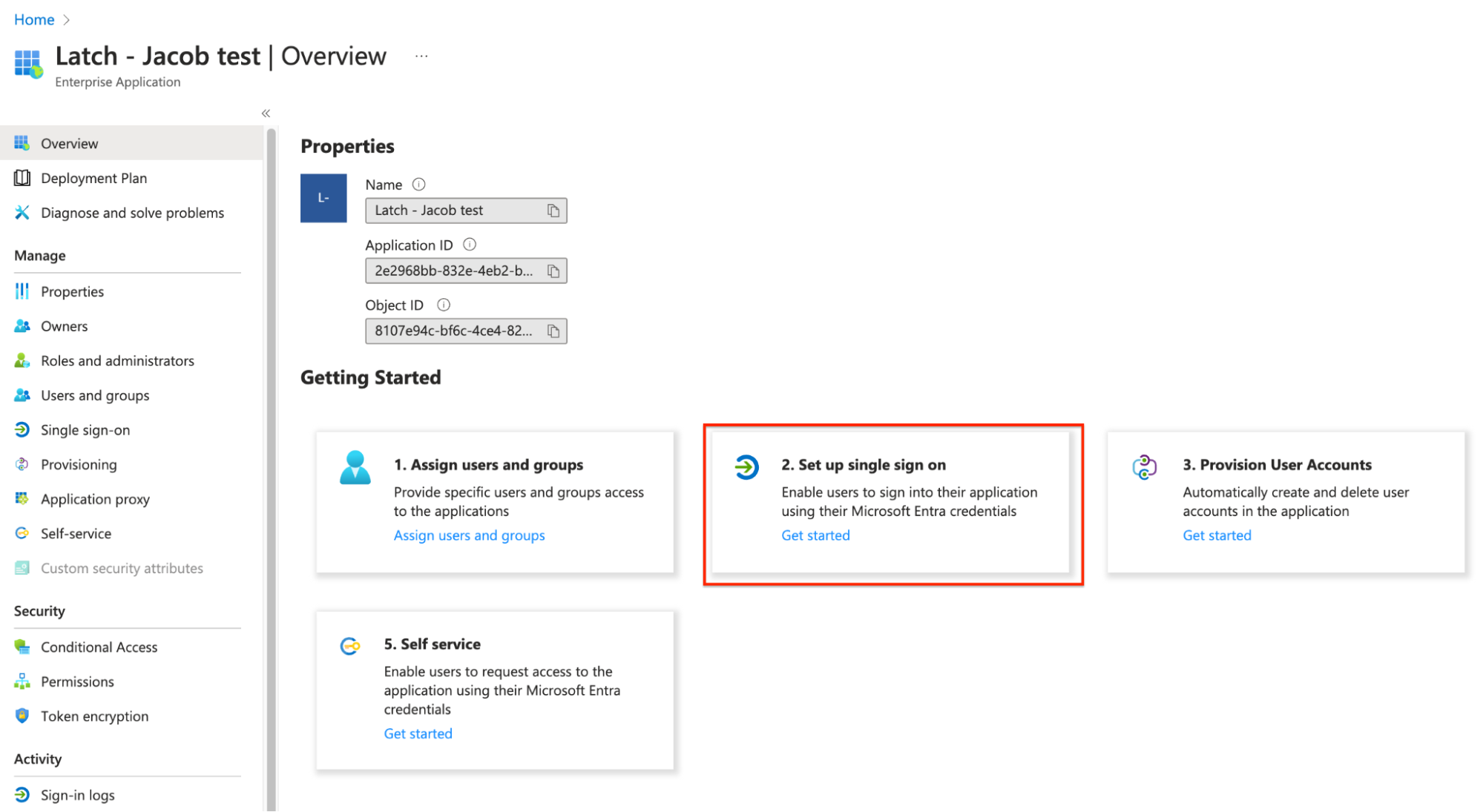
Go back to Overview and click Set up single sign on
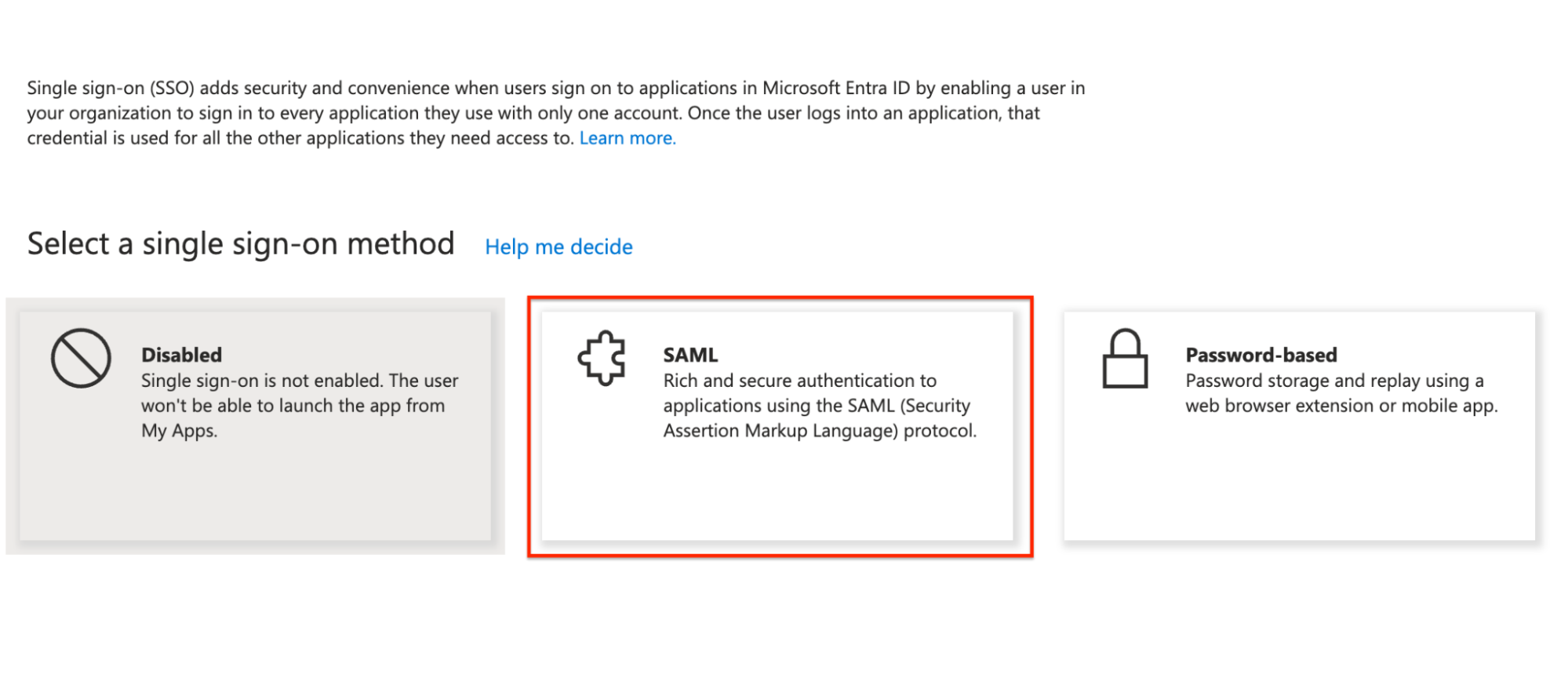
Select SAML
Click Upload metadata file and upload Ivo's SP metadata
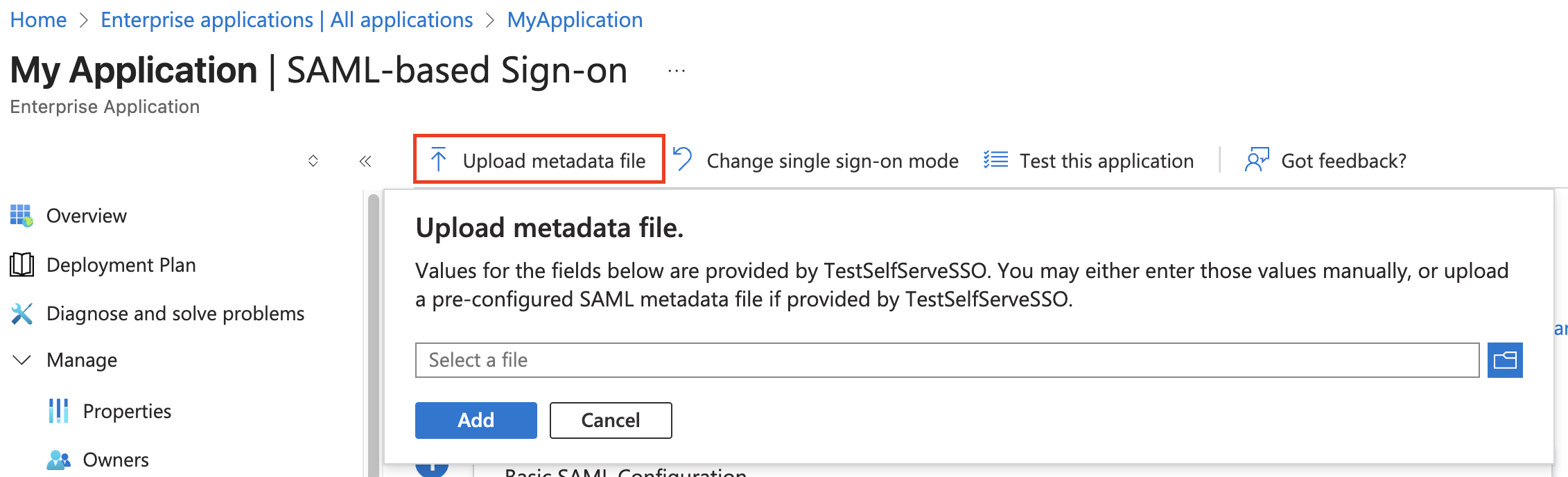
(If entering the details manually: Edit the basic SAML configuration, and add the Entity ID and ACS URL provided at the top of this document)
Download the Federation Metadata XML
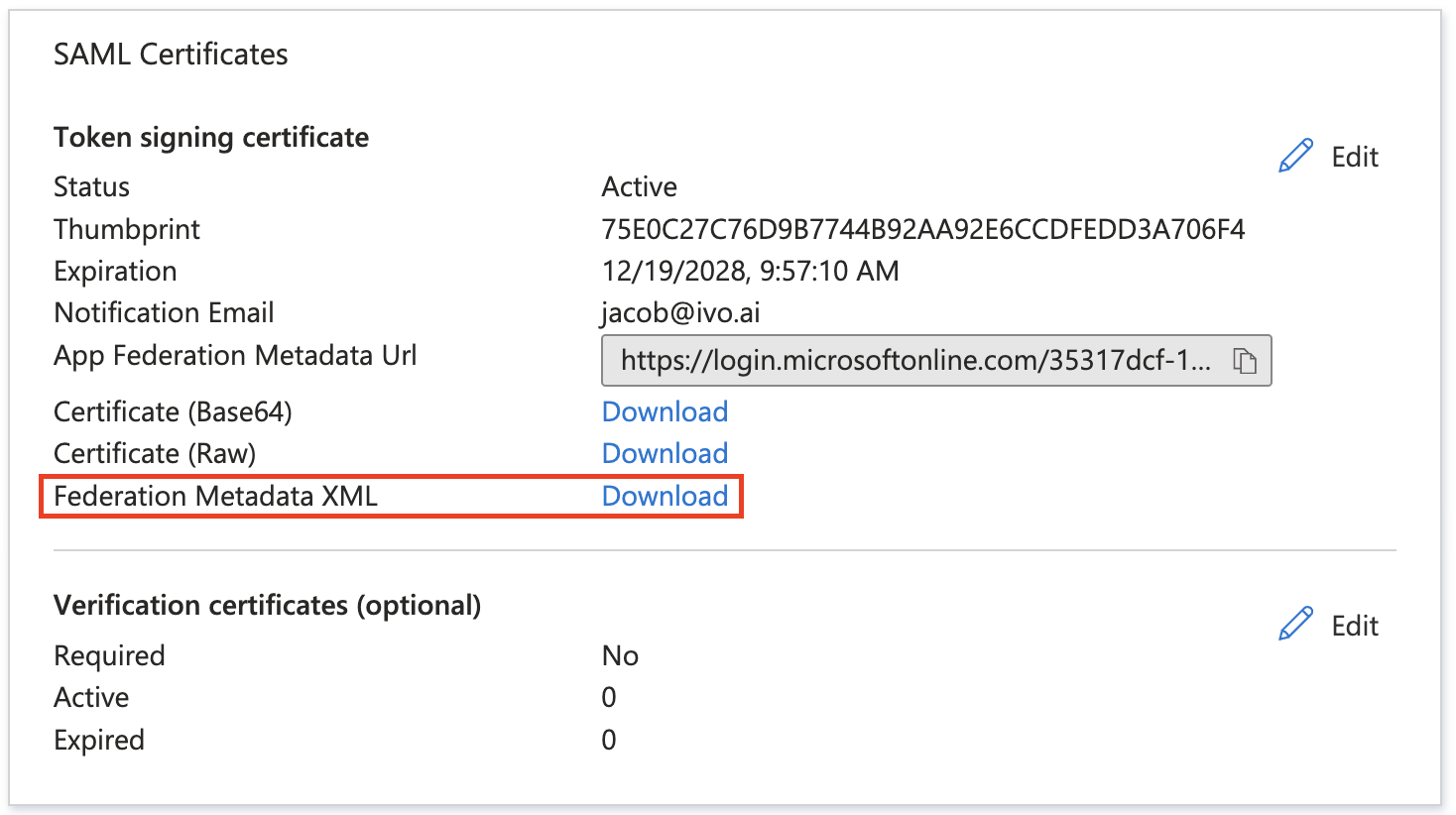
Using the Metadata URL, complete SAML SSO setup via the Ivo Web application📄 Setting up SAML Single Sign-On