Relationships & Composite
Last updated: October 29, 2026
Relationships
Ivo automatically detects and links related documents, such as amendments to original agreements, SOWs to MSAs, and termination letters to the agreements they end. Relationships appear in the document drawer as an interactive graph, and amendment chains can generate a consolidated Composite view. Users with the Manage contract relationships permission can manually add, change, or remove relationships.
Supported relationship types: Modifies, Prolongs, Governs, Incorporates, Supersedes, Terminates, Transfers, Waives, Draft of
Navigating the Relationship Graph
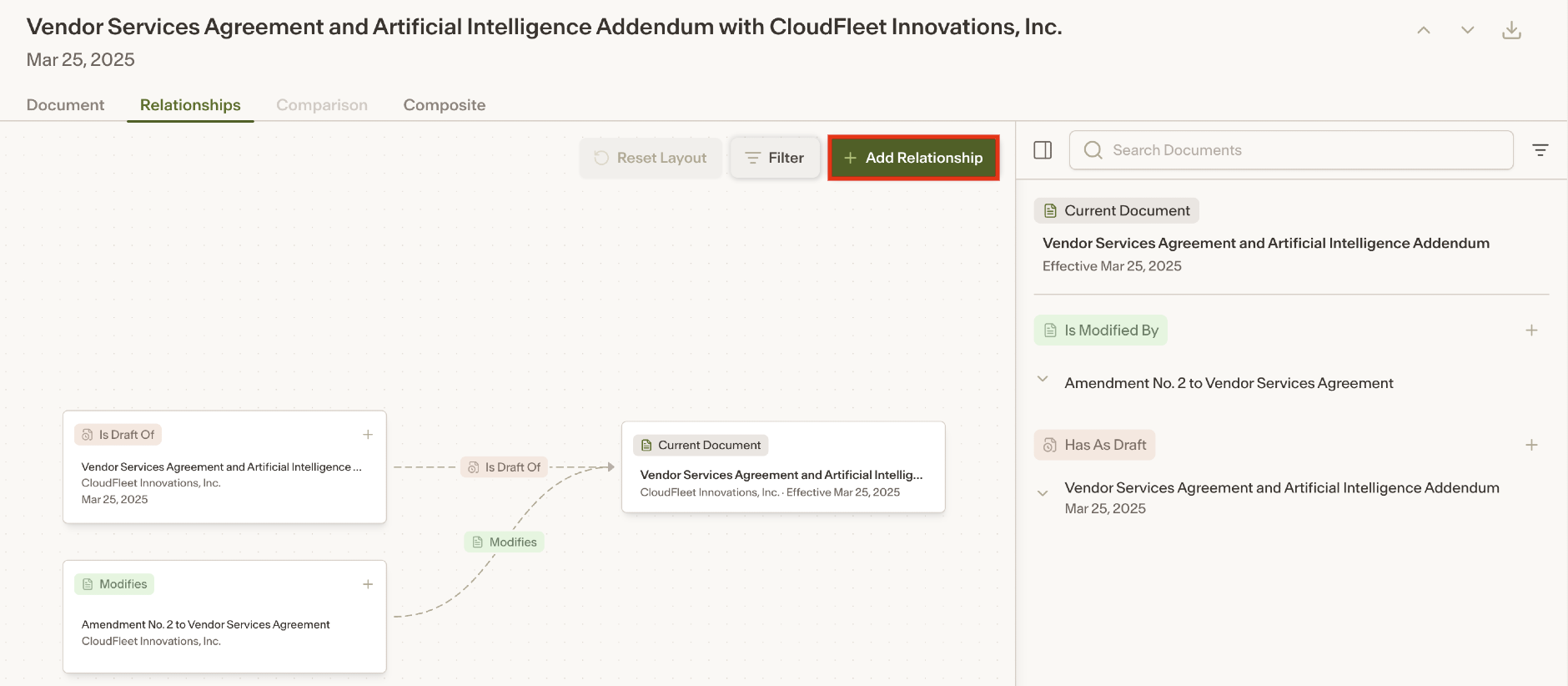
To access the relationship graph, click on a document in Repository and select the Relationships tab.
Documents are grouped by relationship type, so all contracts that the current document governs appear in a single Governs card, all contracts it modifies appear in a Modifies card, and so on. This keeps even large graphs clean and easy to read.
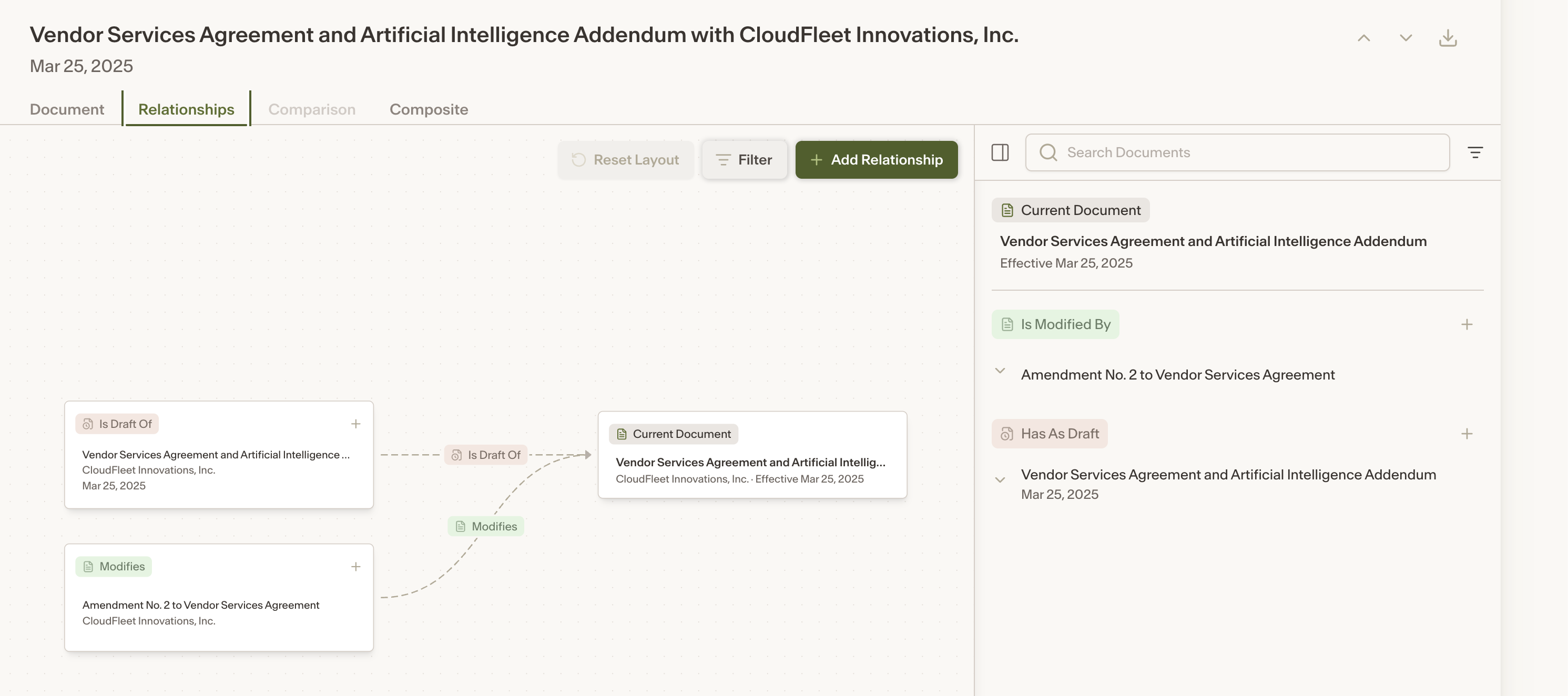
Hovering over a card highlights its relationships and dims the rest of the graph, making it easier to focus on a specific set of connections.
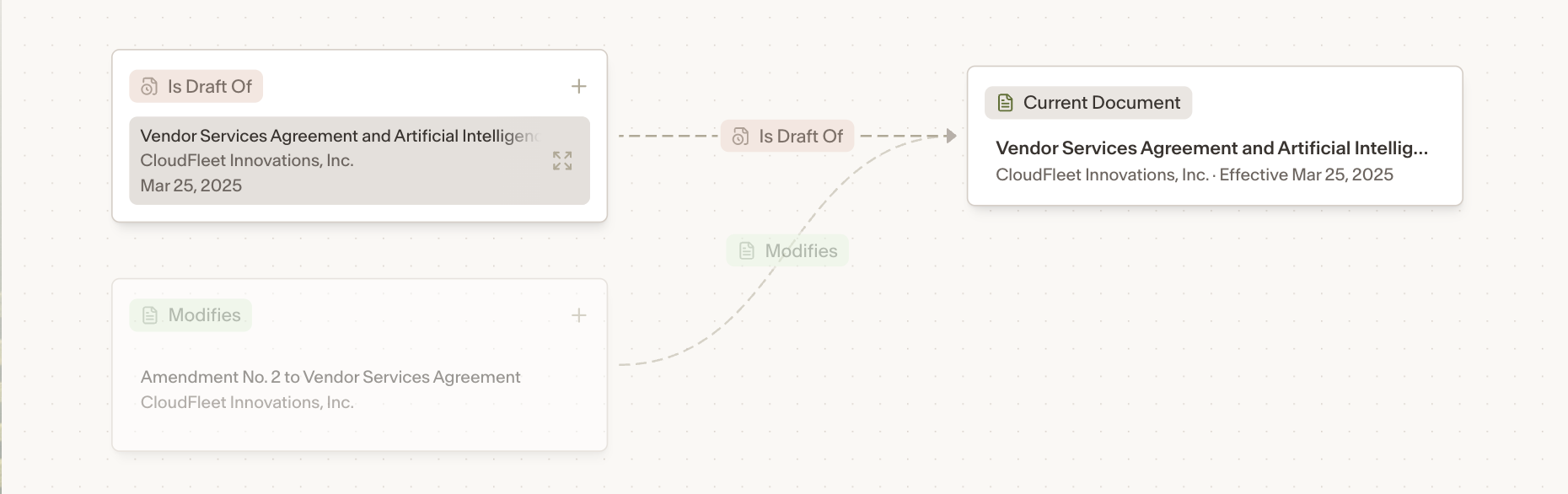
Clicking on a document in the graph opens a preview in a modal. From the modal you can:
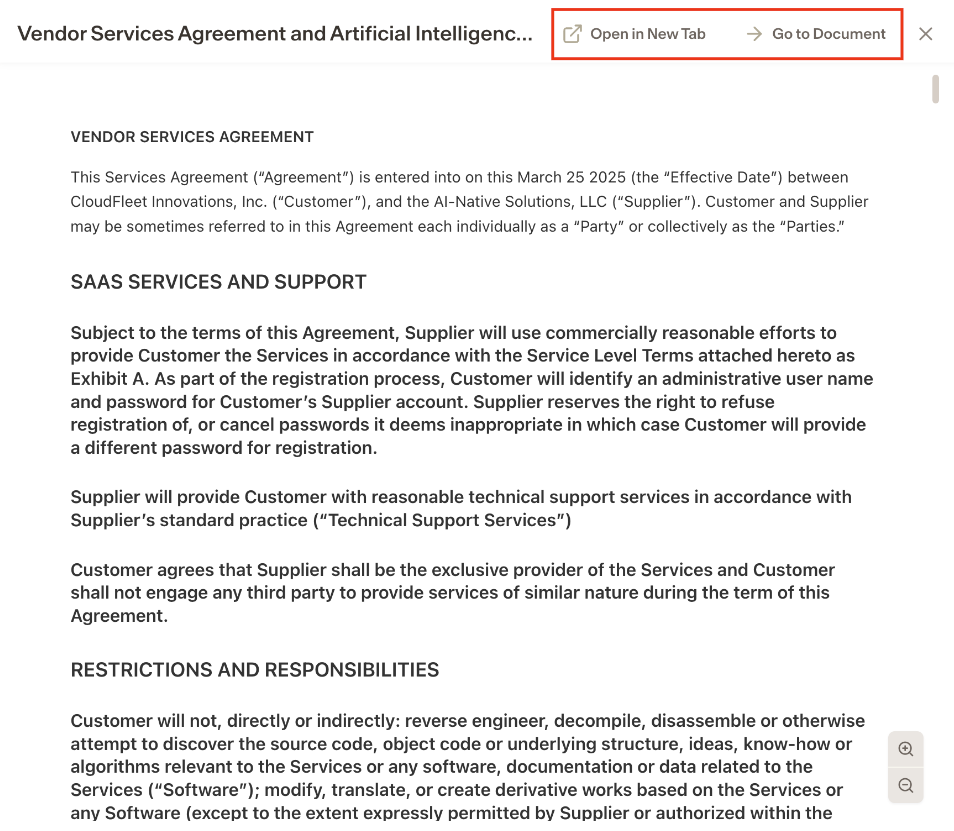
Open in a new tab — opens the document in a new tab.
Go to this document — switches the relationship graph to show that document’s relationships in the current tab.
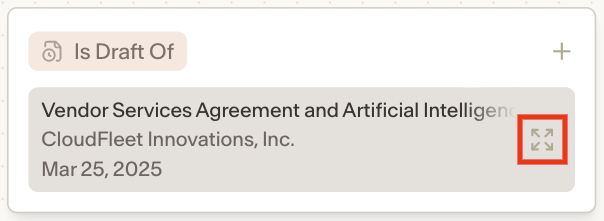
Expanding second-degree relationships — hover over any document in the graph and click the expand icon to pull it out of its group card and show its own relationships alongside the current document’s. This lets you explore the broader contract family without switching documents.
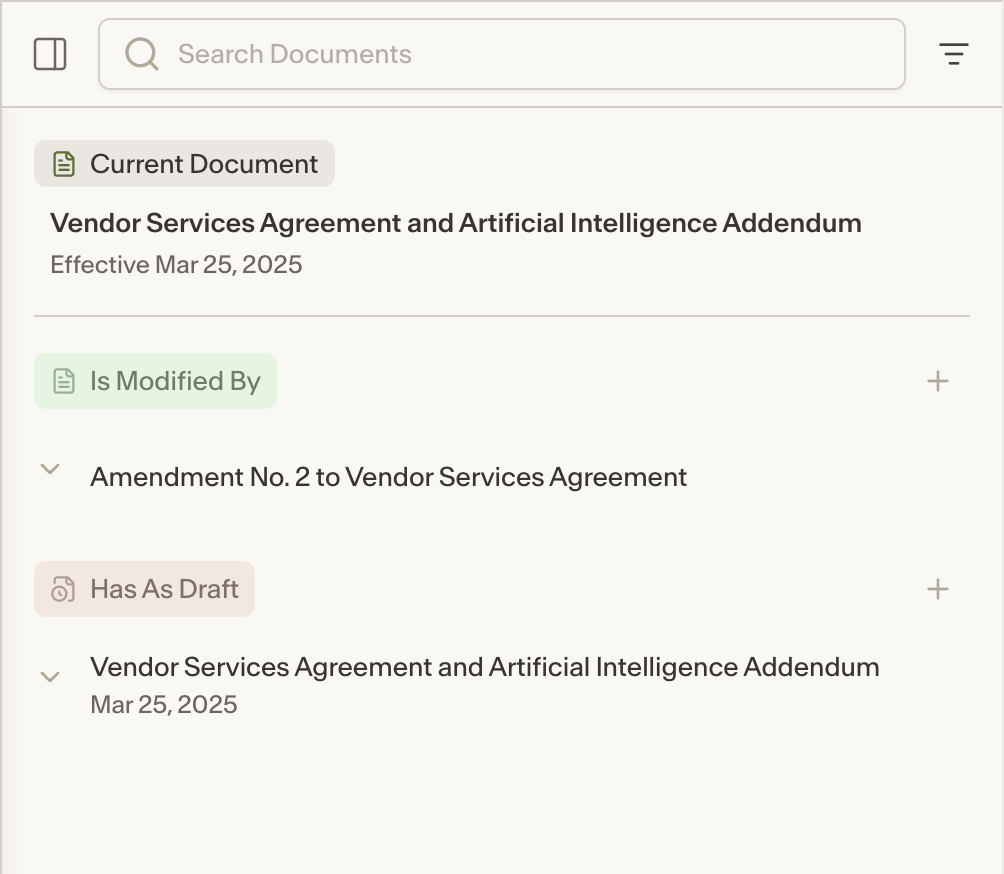
Sidebar List View
A searchable sidebar is available alongside the graph, displaying the same relationship information in a list view. Click on any contract in the sidebar to expand it and see its second-degree relationships, or click through to navigate directly to that document’s relationship graph.
Adding Relationships
To add or edit a relationship, click the Add Relationship button in the relationships view. A modal will open where you can:
Select the relationship type you want to add.
Search for and select the contract to link.
Click Add to confirm.
The graph will animate to show the newly added relationship. Existing relationships can also be edited or removed from the same modal.
Composite
When Ivo links an amendment chain (an original agreement plus the amendments that modify it), it automatically generates a Composite: a consolidated, restated version of the agreement with every amendment applied in order. Composites are built from Modifies relationships (an amendment that changes the original) and Incorporates relationships (an agreement that pulls in another document, such as an Order Form incorporating online terms). Please note that any contract that is not from an online source will not appear in the Composite, even if it forms an Incorporate relationship. Adding either relationship between two contracts creates a composite; removing it removes the composite.
Composite tab
The document drawer shows the merged document with each amendment's changes highlighted. Hover a change to see which amendment made it and why. A timeline slider shows the agreement as it stood after any amendment, and a toggle switches between marked-up and clean restated views.
Composite View
In the repository, the Layers toggle (off by default) groups each chain into a single row that expands to show the original, its amendments, and any drafts.
Export
Download as PDF or Word. In Word, each amendment's changes appear as tracked call-outs with the explanation attached as a comment. Source files remain available via Download Original.
Known limitations: Relationships
1. Detection depends on clear document references
Detection is most reliable when documents clearly reference one another by title, date, agreement number, or other identifying details. Vague references, similar filenames, non-English documents, scanned files, and references buried deep within very long documents may reduce accuracy.
Workaround: Manually create the relationship. Open the Relationships tab, click Edit, search by counterparty, and add the contract to the relationship graph.
2. Counterparty and room structure affect mapping
Documents generally need to share the same counterparty and folder tree to be linked. Ivo groups similar entity names so relationships can form across variations of a company’s name, but this may occasionally link contracts of unrelated counterparties, particularly around mergers, rebrands, or other entity-name changes. Cross-counterparty relationships, such as assignments to a new entity, usually require manual linking. Draft matching supports Word drafts paired with executed PDFs; scanned files are not supported in composite views.
Workaround: Manually create the relationship from the Relationships tab as described above.
3. Relationships may not appear immediately after upload
After bulk uploads, relationships may take an hour or more to appear, and newly synced documents may not show up in Ivo until the next daily sync completes. Existing matches are not automatically reconsidered when a better-matching document is uploaded later.
Workaround: Upload all related documents in the same sync whenever possible. If documents have synced but a relationship is still missing, link them manually or contact the Ivo team.
Known limitations: Composite
1. Only Modifies and Incorporates (by online documents) are merged
Other relationship types (renewals and extensions, waivers, terminations, transfers, and governing documents) appear in the relationship graph but do not change the composite. A waiver letter, for example, is linked but its effect is not reflected in the restated text.
Workaround: Open these documents individually from the Relationships tab or the chain's expanded rows in Composite View.
2. Scanned and very long documents are not supported
The original agreement and each amendment must have machine-readable text. If any document in the chain is scanned or image-only, that step cannot be merged and the composite may omit those changes. Very long documents (roughly 350+ pages, or chains with very large combined length) are not merged.
Workaround: Upload digital, text-based versions where possible. Otherwise review the documents individually.
3. Same counterparty and subroom required, and effective-date order applies
A composite only forms when the master agreement and its amendments share the same counterparty and subroom. Amendments are applied in effective-date order; if a date cannot be identified, that amendment is applied last, which can place changes out of sequence.
Workaround: Keep related documents in the same subroom. If the timeline order is wrong, check that effective dates are identifiable, or contact the Ivo team.
4. Fix composites by editing relationships
The composite document cannot be edited directly. If a composite formed that should not exist (for example, a letter incorrectly linked with an Incorporates relationship), the fix is to edit the relationship. A missing composite usually means the Modifies or Incorporates relationship is missing.
Workaround: Users with the Manage contract relationships permission can remove the incorrect relationship or change it to a non-merging type such as Governs, which removes the composite.
5. Updates are automatic but not instant
After a relationship is added or changed, the composite typically updates within a few minutes. Already-generated portions of a chain are not recomputed, and replacing or re-uploading an underlying document does not refresh an existing composite. If generation fails, the Composite tab shows no merged document; there is currently no error message or retry button.
Workaround: If a composite is missing or out of date even though the relationships are correct, contact the Ivo team, who can regenerate it.
6. Composite content is AI-generated and should be verified
The merged document is produced by AI applying each amendment's changes to the original text. Occasionally a change may be missed or applied to the wrong location, and the UI does not display confidence scores.
Workaround: Use the highlighted change call-outs to spot-check against the source documents, available via Download Original. If the composite is wrong because the underlying relationship is wrong, edit the relationship.
These notes reflect expected behavior today. The Ivo team is actively improving Relationships and Composite in upcoming product cycles.