Mapping relationships between documents
Last updated: September 1, 2026
Ivo lets you connect related documents so your team can see how they fit together, for example linking an amendment back to its master agreement, or tying an exhibit or SOW to the contract it belongs to. Once documents are linked, you can label how they relate so everyone understands the connection at a glance.
What relationships do for you
See the full story of an agreement. Open any document and view everything that modifies, renews, replaces, or otherwise relates to it, with the direction of each link made explicit.
Navigate a document family. From one contract, jump straight to its amendments, schedules, order forms, or the master agreement that governs it.
Power consolidated views. Amendments and renewals are folded into a single, up-to-date "composite" document, so you read the current state of the deal rather than reconciling a stack of files.
Keep AI answers accurate. Because Ivo understands which documents belong together, extracted fields and answers reflect the amended, current terms, not just the original contract.
Before you start
You'll need edit access to the documents you want to link. If you only have view access, ask a workspace admin or the document owner to grant edit permissions.
Both documents must already be uploaded to your workspace. If a document isn't in Ivo yet, upload it first, then return to link it.
Link related documents
Open the document you want to start from (for example, the master agreement).
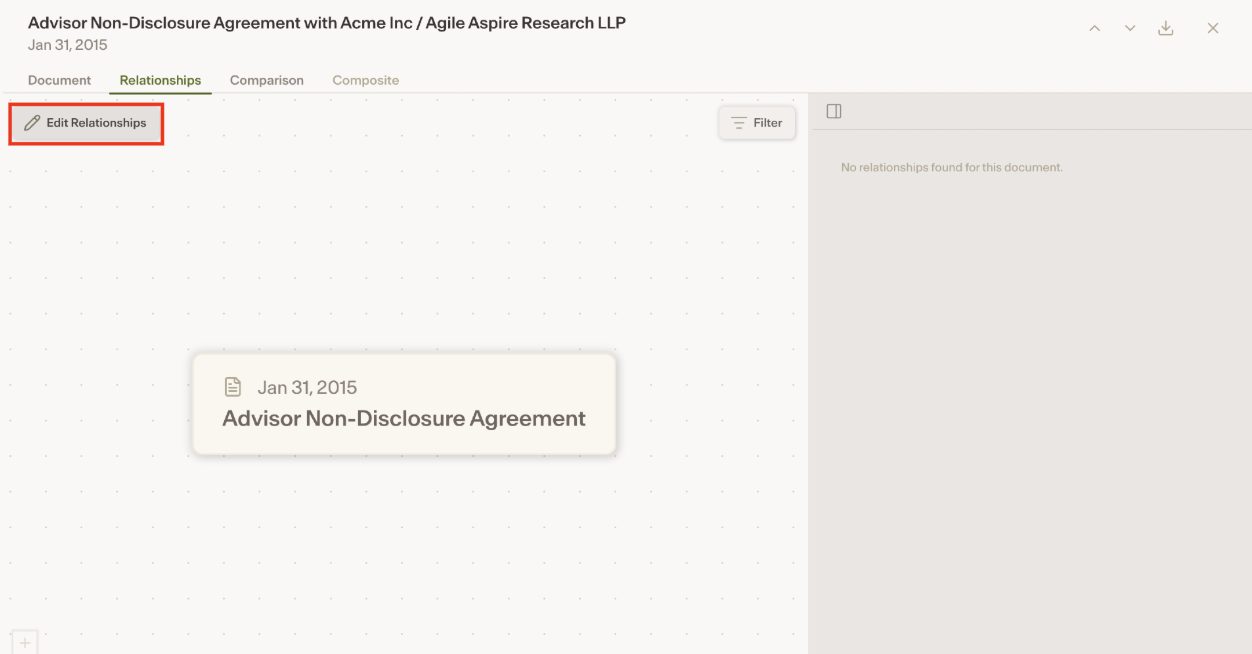
Go to the Relationships panel.
Select Edit Relationships.
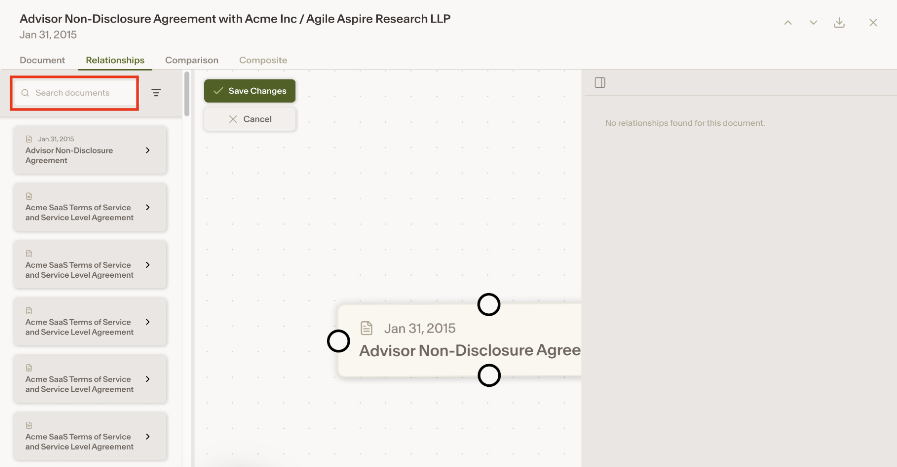
Search for the document you want to connect by name. Select it from the results and drag it into the fields.
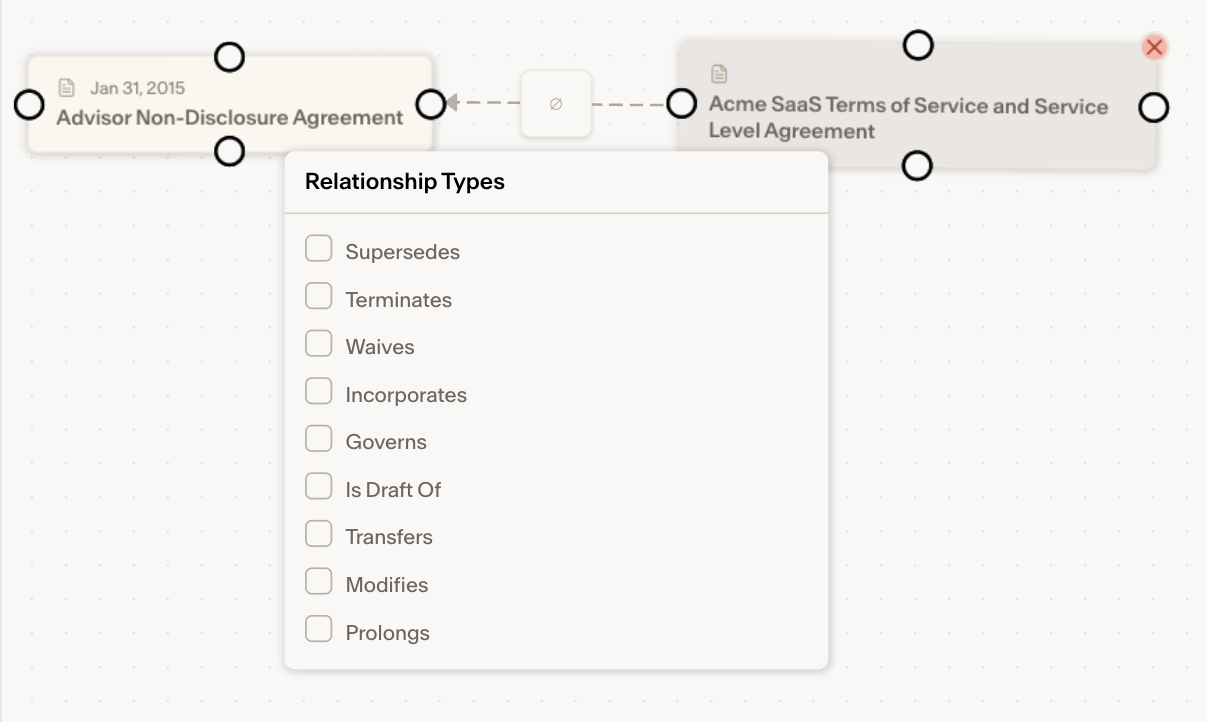
Drag the dot from relationship type to describe how the two documents relate (see the next section).
Select Save.
The linked document now appears in the Relationships panel of both documents, so the connection is visible from either side.
Tip: You can link a single document to several others. Repeat the steps above to add each additional relationship.
Define the relationship type
The relationship type tells your team how two documents are connected. When you add or edit a link, choose the type that best describes the connection:
Relationship type | Use it when... |
|---|---|
Supersedes / Superseded by | One document replaces an earlier version. |
Terminates / Terminated by | One document ends or cancels another. |
Waives / Waived by | One document waives a right or obligation set out in another. |
Incorporates / Incorporated by | One document pulls in terms from another by reference. |
Governs / Governed by | One document is the master or governing agreement that controls the terms of another (e.g. an MSA governing an SOW). |
Is Draft Of | One document is an unexecuted draft version of another. |
Transfers / Transferred by | One document transfers rights or obligations to another party (e.g. an assignment). |
Modifies / Modified by | One document changes the terms of another (e.g. an amendment to a master agreement). |
Prolongs / Prolonged by | One document extends the term or duration of another. |
Relationship types are directional where it matters. For example, if Document A amends Document B, Document B will show as amended by Document A. Ivo applies the correct label on each side automatically.
To Edit a Relationship:
Locate the existing relationship and select the document.
Navigate to the Relationship tab and select Edit Relationships.
Make the necessary edits.
a. Deselect any relationship types to end the relationship.
b. Select the red X on any documents that are no longer related to remove them from the relationship.Click Save to save your changes.
Removing a relationship only unlinks the documents, it does not delete either document.