Prompt Library
Last updated: June 8, 2026
The Prompt Library allows you to access and save your most-used or favorite prompts so you can quickly reuse them across documents. This helps streamline your workflow and keeps commonly used instructions easily accessible.
Accessing the Prompt Library (Word)
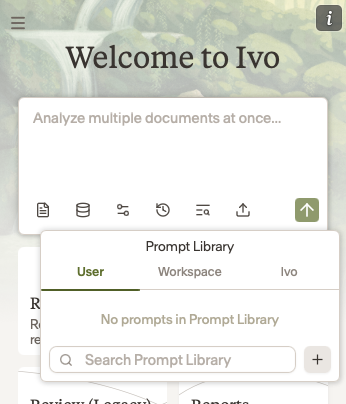
In the Word add-in, click the Prompt Library icon.
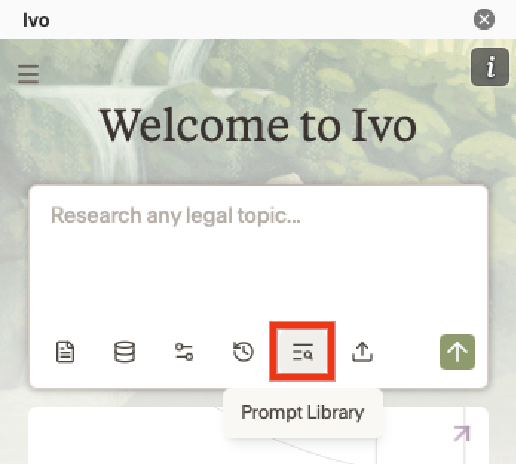
You will have access to the following:
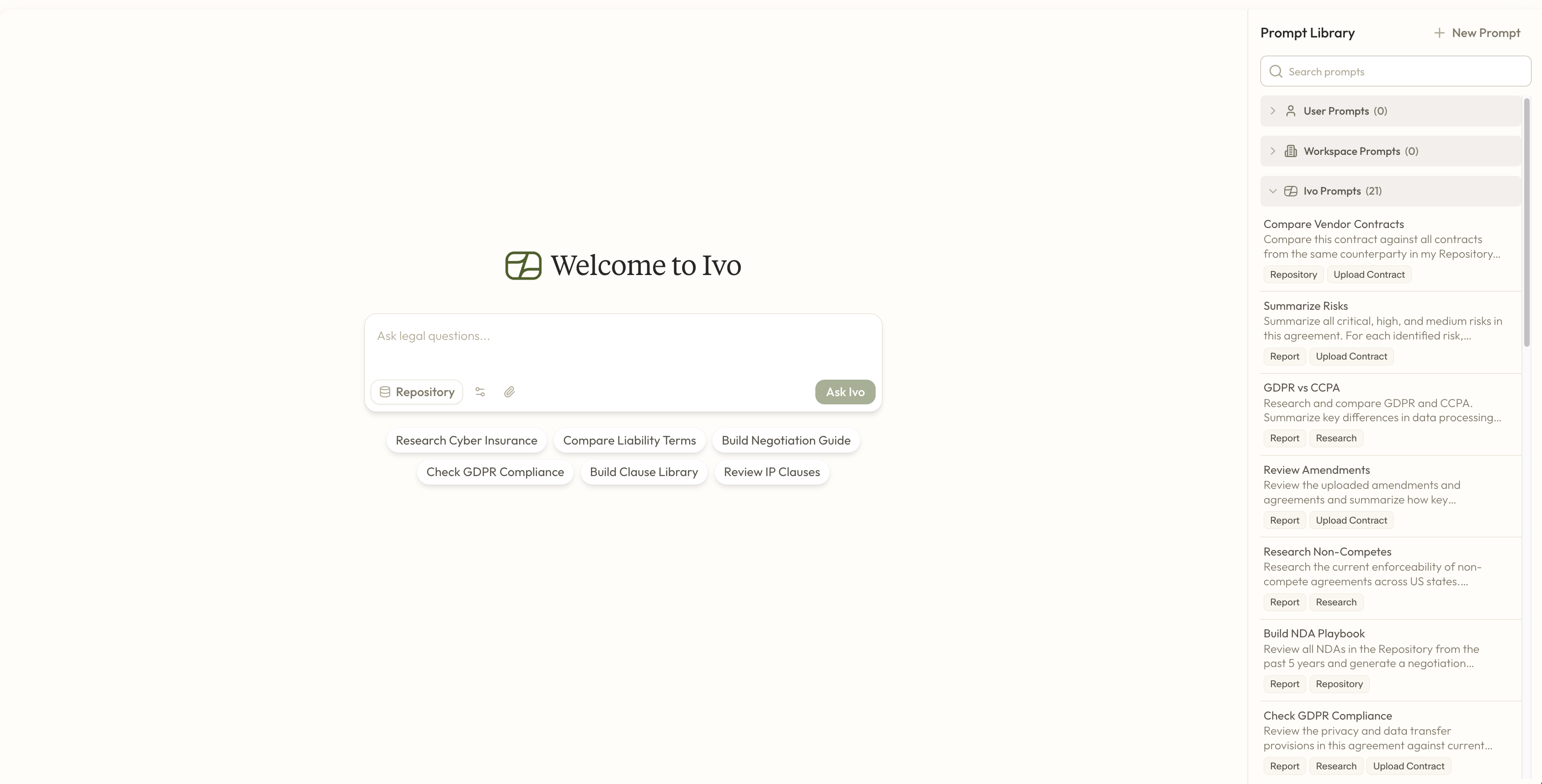
User prompts
Prompts created and saved by you.
Workspace Prompts
Prompts created and saved by members of your workspace.
Ivo Prompts
Prompts created by Ivo for your use.
Accessing the Prompt Library (Web)
In Web, your prompt library will be displayed along the right side of your screen when you have assistant open.
Saving a New Prompt
Word
In the Assistant panel, click the Prompt Library icon.
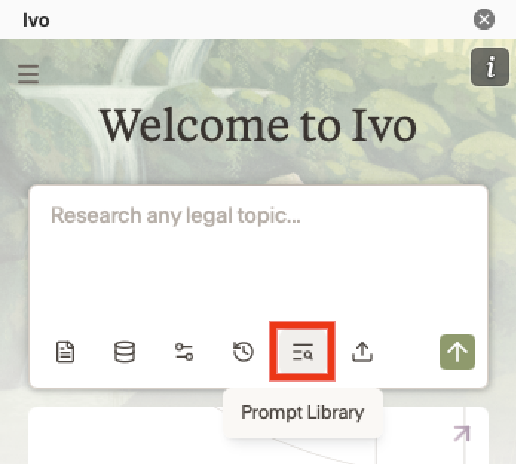
In the Prompt Library window, click the plus (+) icon in the bottom-left corner.
Enter a label, your prompt, and any tags if applicable.
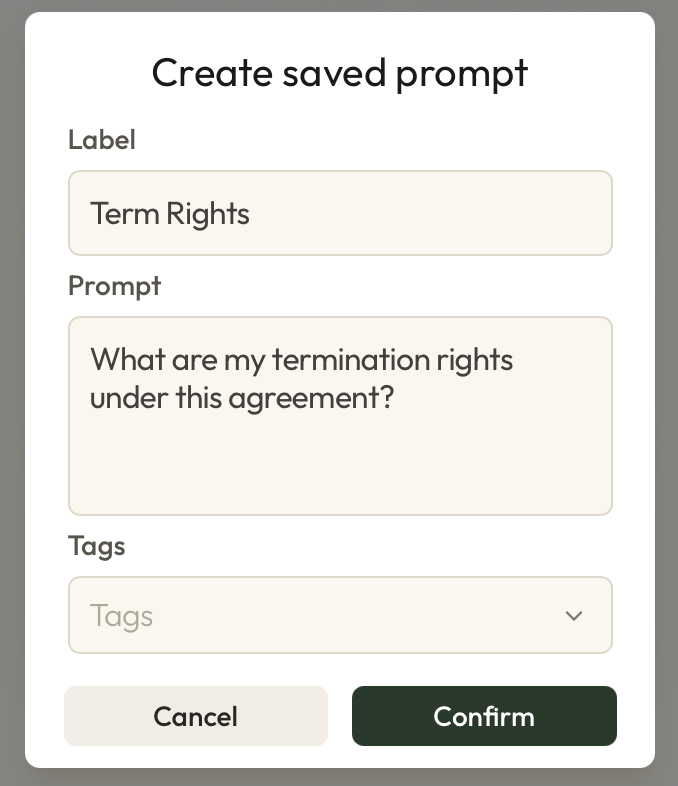
Click Confirm to save your prompt.
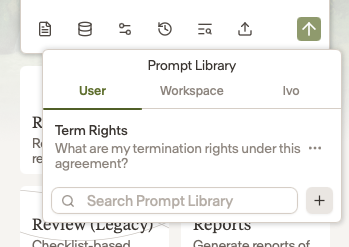
Your new prompt will be saved and ready to use. Use the three dots to the right of the prompt to make edits or delete it.
Web
Select the plus (+) icon
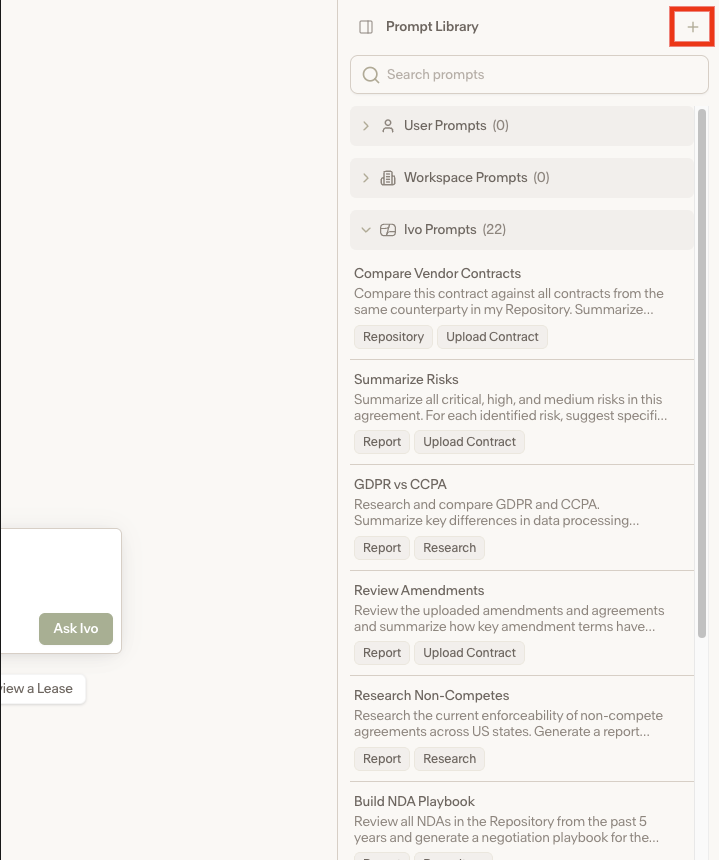
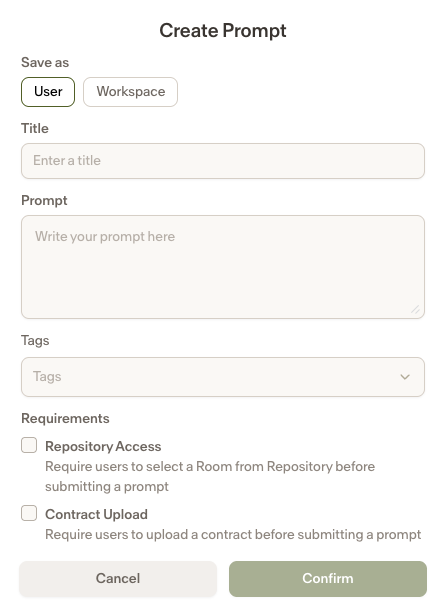
Configure your prompt by selecting whether it should be available at the User or Workspace level.
Enter the Title, Prompt, and any applicable Tags or Requirements.
Confirm your changes.