Creating a Playbook
Last updated: August 17, 2026
Playbook Builder lets you pull contracts, templates, and internal guidance documents from your Ivo repository, or upload files directly, and automatically generate a structured legal playbook that Ivo can use for AI-driven contract redlining.
To get started:
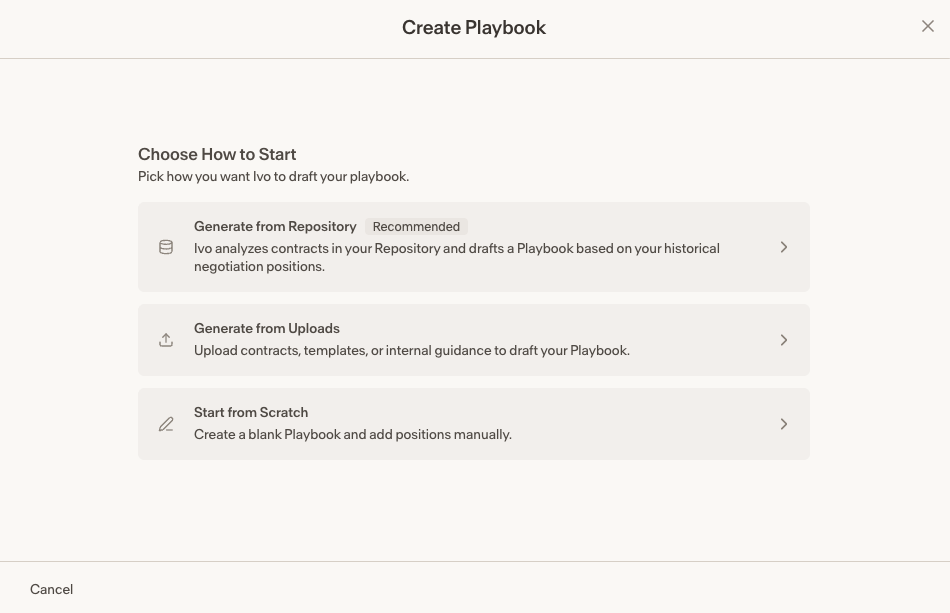
Navigate to https://app.ivo.ai/playbook and click +Create Playbook. You'll be prompted to choose a creation method:
Generate from Repository (recommended)
Generate from Uploads
Start from Scratch
Generate from Repository
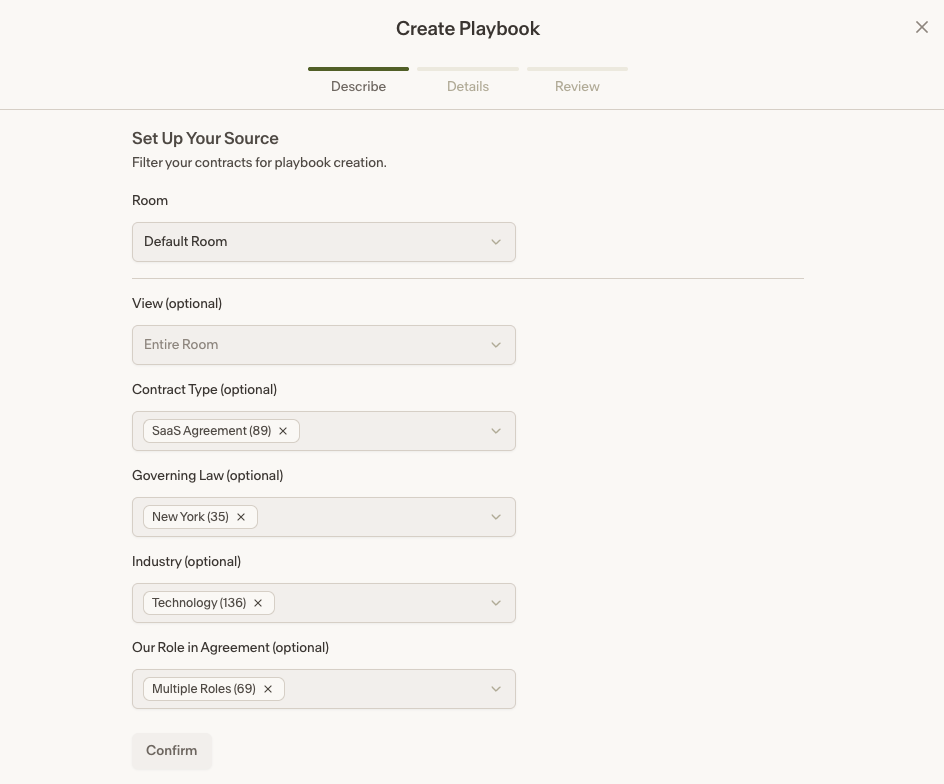
Select a Room
Select of one the following options to define your scope:
View
Contract Type
Governing Law
Industry
Our Role in Agreement
Add additional instructions (optional)
To generate your playbook into a different language, add "Generate the playbook in XXX"
Click Continue — your playbook will be generated automatically
Configure Your Playbook
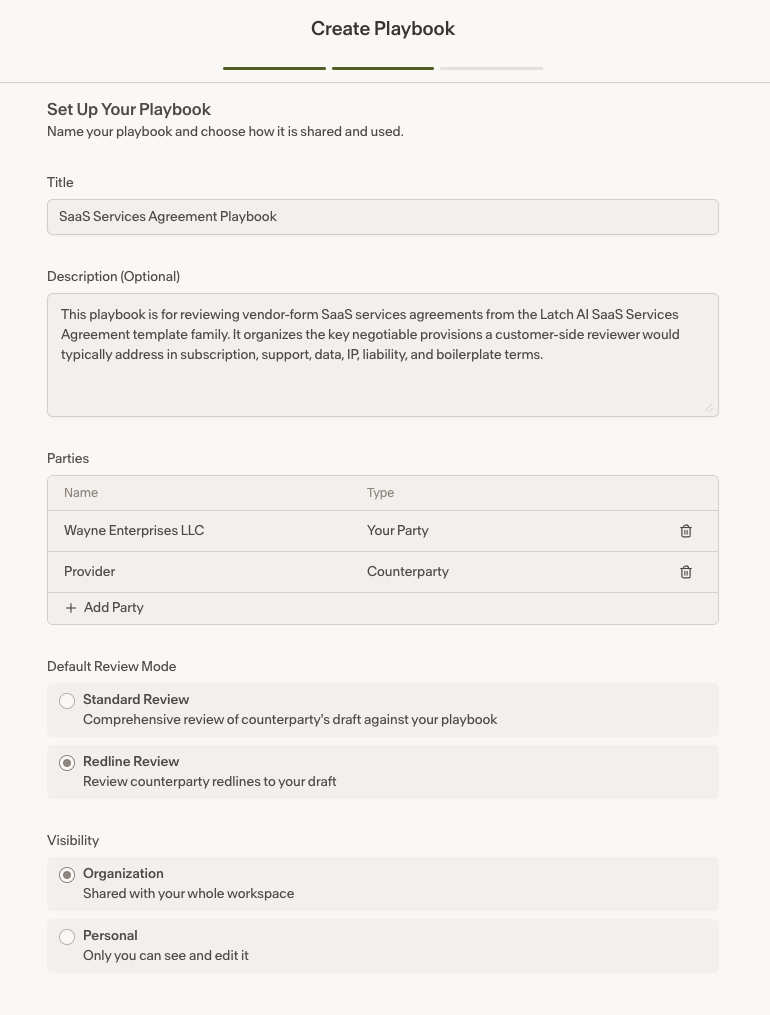
Once generated, you'll be asked to fill in a few details:
Set a title
Add a description (optional)
Add the parties the playbook represents
Choose a review mode
Set the playbook's visibility
Organization: Shared with the whole workspace (available to admin roles only)
Personal – Only you can see it (available to all roles)
Click Continue
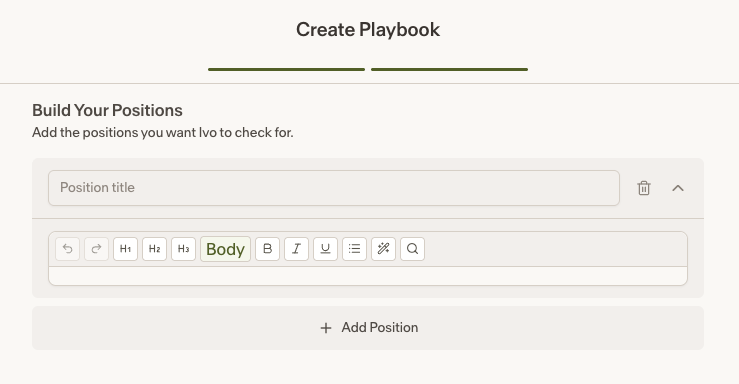
You can then review your positions and add any additional ones as needed. When finished, click Save Playbook and your playbook will be ready to use.
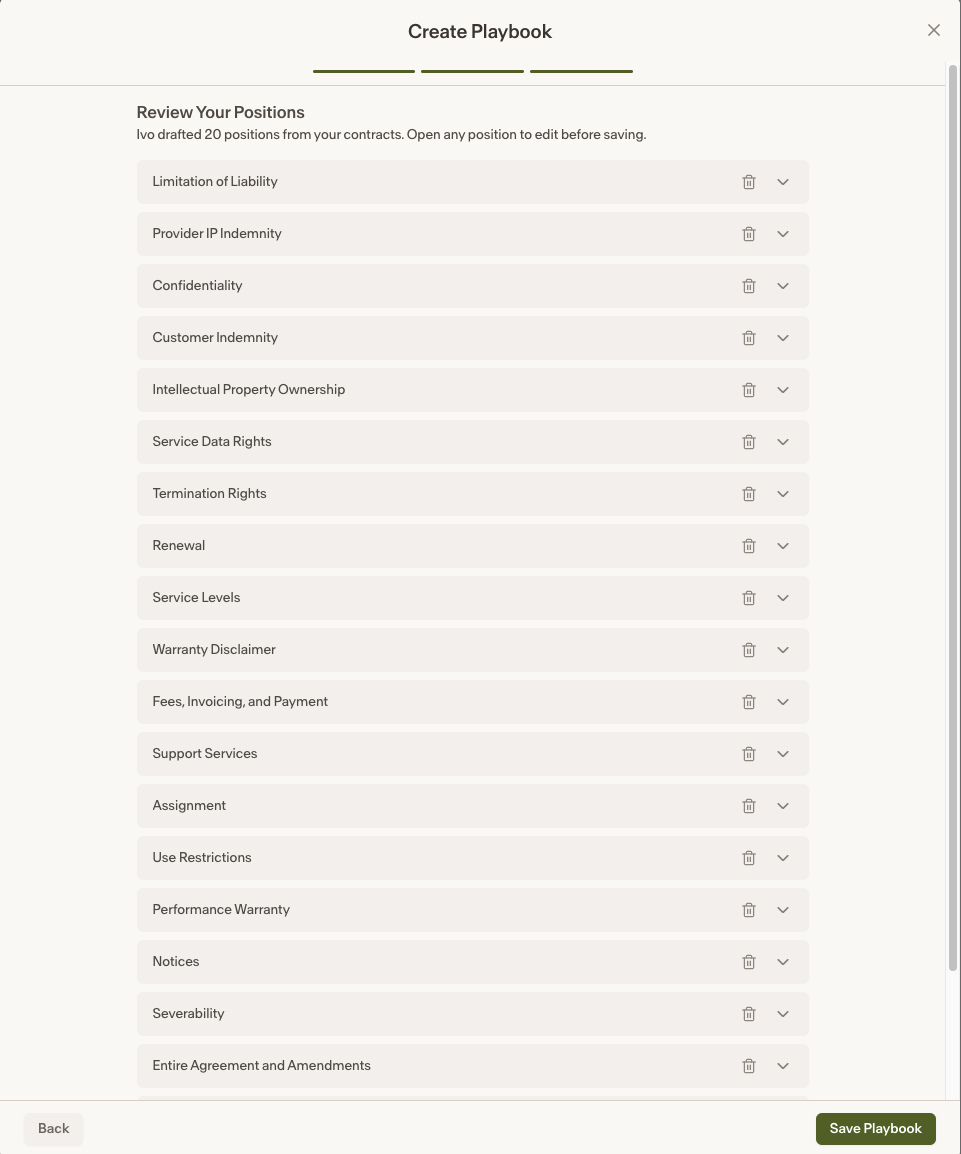
See it in action:
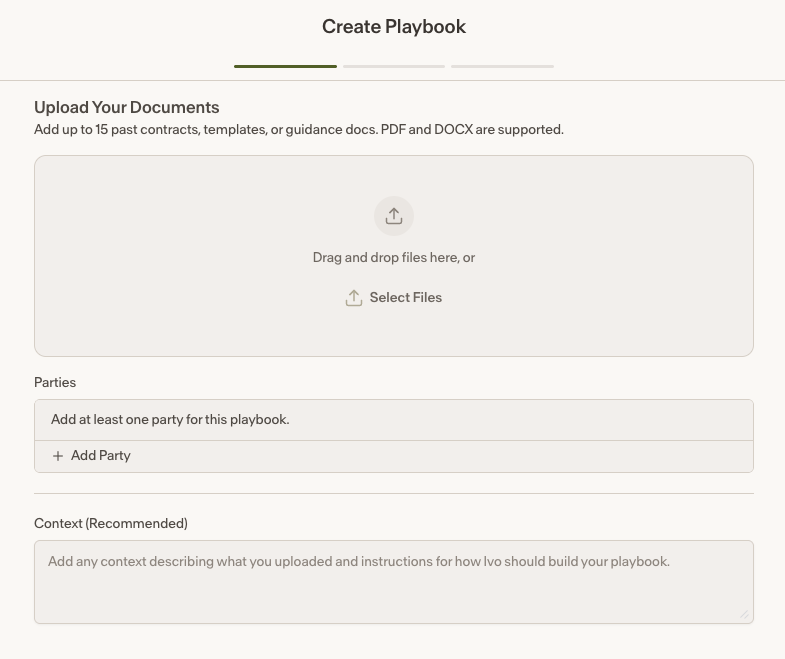
Generate from Uploads
Upload up to 15 files for the playbook to be generated from
Add the parties for the playbook
Provide context for how you want the playbook to be built (recommended)
Click Continue and your playbook will be generated automatically
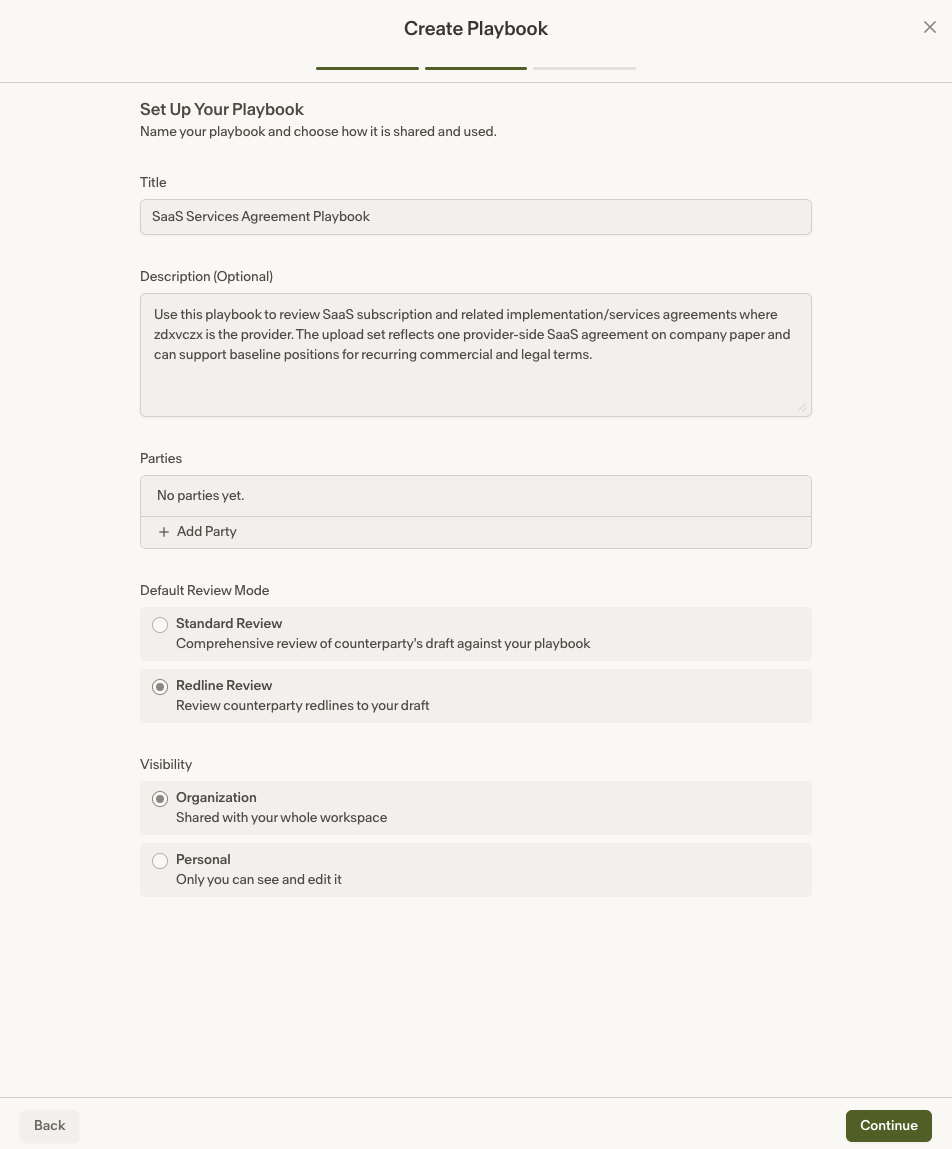
Configure Your Playbook
Once generated, you'll be asked to fill in a few details:
Set a title
Add a description (optional)
Add the parties the playbook represents
Choose a review mode
Set the playbook's visibility
Organization: Shared with the whole workspace (available to admin roles only)
Personal: Only you can see it (available to all roles)
Click Continue
You can then review your positions and add any additional ones as needed. When finished, click Save Playbook and your playbook will be ready to use.
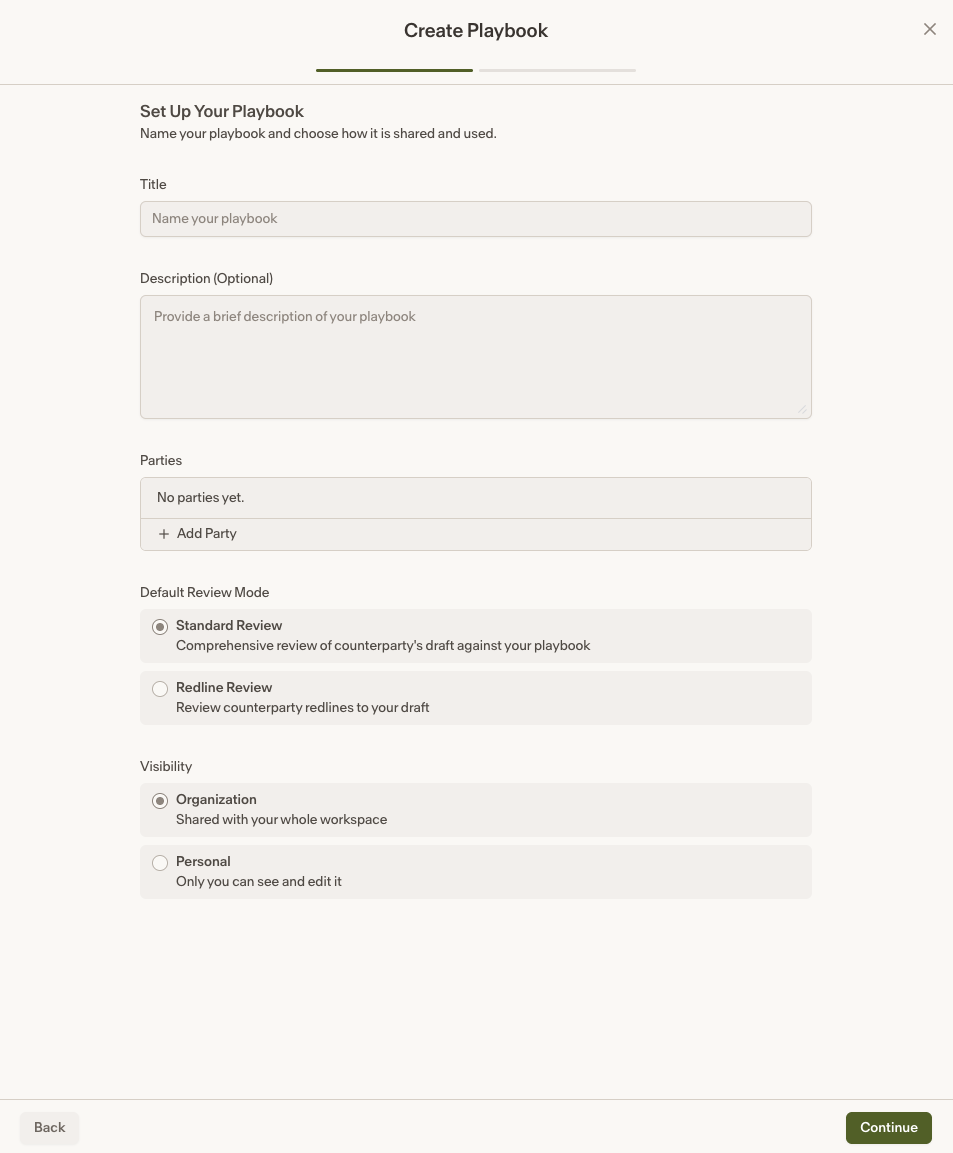
Start from Scratch
Set a title
Add a description (optional)
Add the parties the playbook represents
Choose a review mode
Set the playbook's visibility
Organization: Shared with the whole workspace (admin roles only)
Personal: Only you can see it (available to all roles)
Click Continue
Build out your positions. Once all positions have been added, click Save Playbook and your playbook will be ready to use.