Setting Up Groups and Workflows
Last updated: October 27, 2026
Group Admins configure the structure and rules that govern how Collaborate works for their team. This includes setting up Groups, building Workflows, configuring review inputs, assigning reviewers, and creating document generation templates.
Groups
A Group is a business or approval unit such as Legal, Finance, or Security. Groups contain members and workflows.
To create a Group:
Navigate to the Collaborate admin settings.
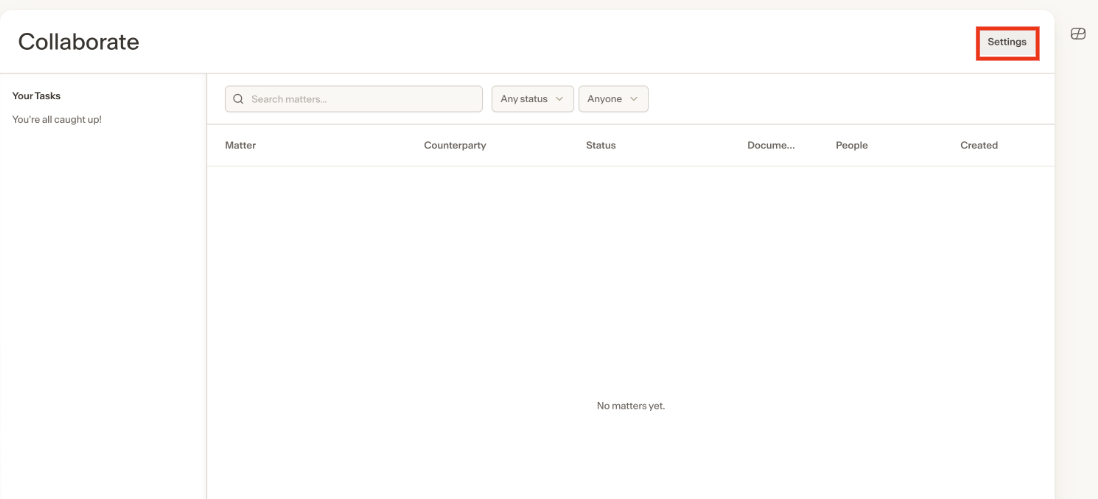
Create a new Group and give it a name.
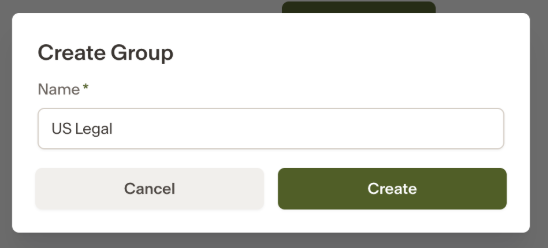
Add members directly. Members can be Ivo users or external guests represented by an email address.Setting Up a Collaborate Workflow
A workflow tells Collaborate what information to collect, how to review documents, who should handle issues, and which approvals are needed. Not every step is required — at its core, a workflow is about routing the contract to the right people with the right context.
Before you begin
Before setting up a workflow, think through the following:
What kind of contracts this workflow will handle.
Whether users will start from your own template.
What questions users need to answer when submitting a contract.
Which playbooks and review sources to use.
Who should review issues and approve documents.
Workflows
1. Name your workflow
At the top of the workflow page:
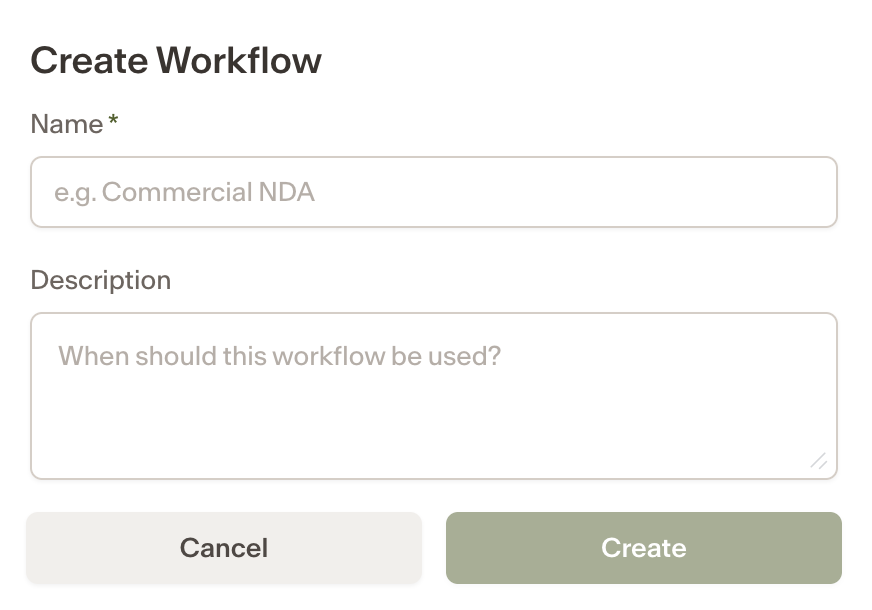
Click Add Workflow
Enter a name that helps users choose the right workflow, such as “Supplier Agreement Review.”
Add a short description explaining when to use it.
Create your Workflow
2. Configure the template (optional)
The Template section applies to first-party intake, when users generate a contract from your organization’s own template. Skip this step if your workflow only handles third-party paper.
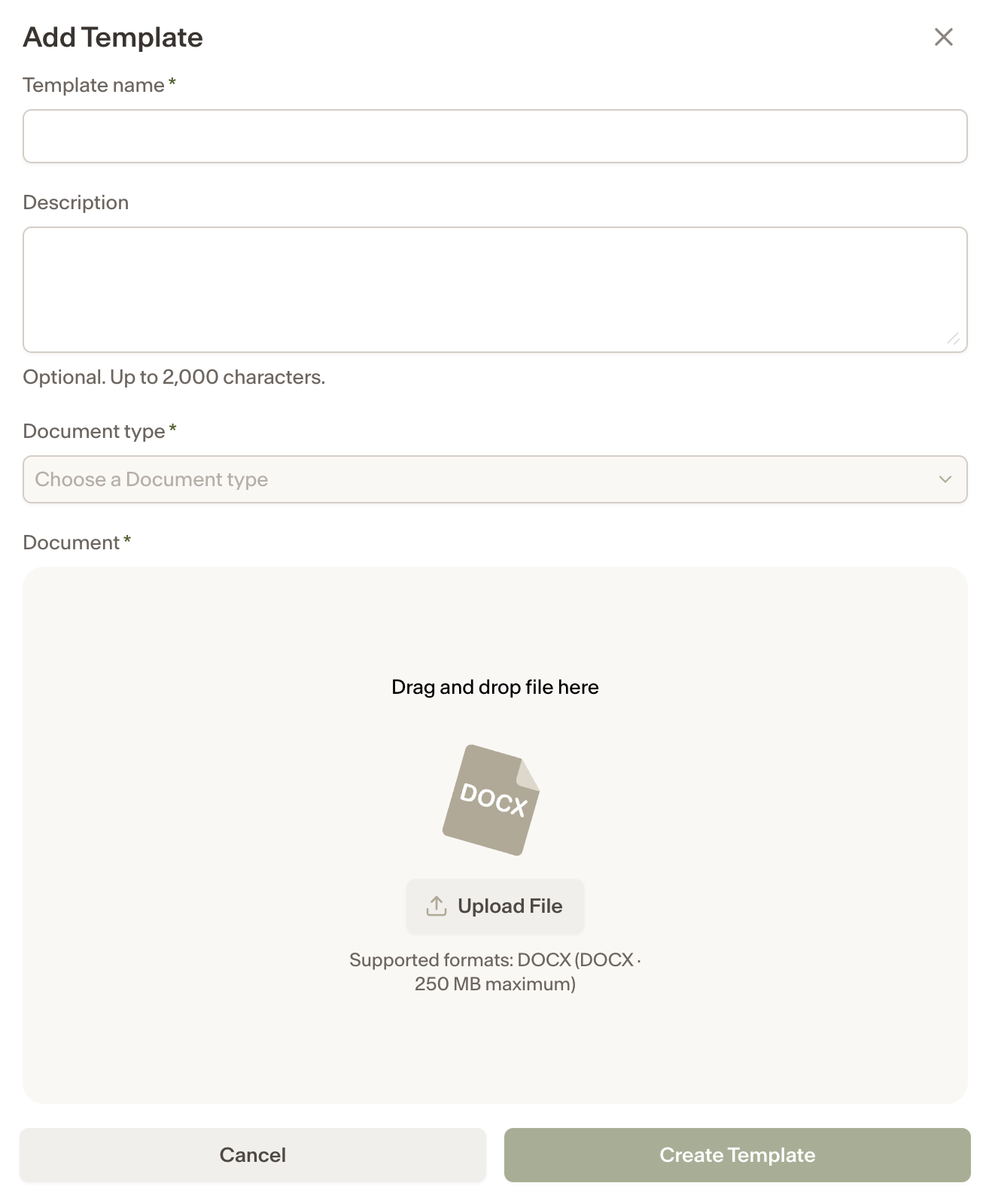
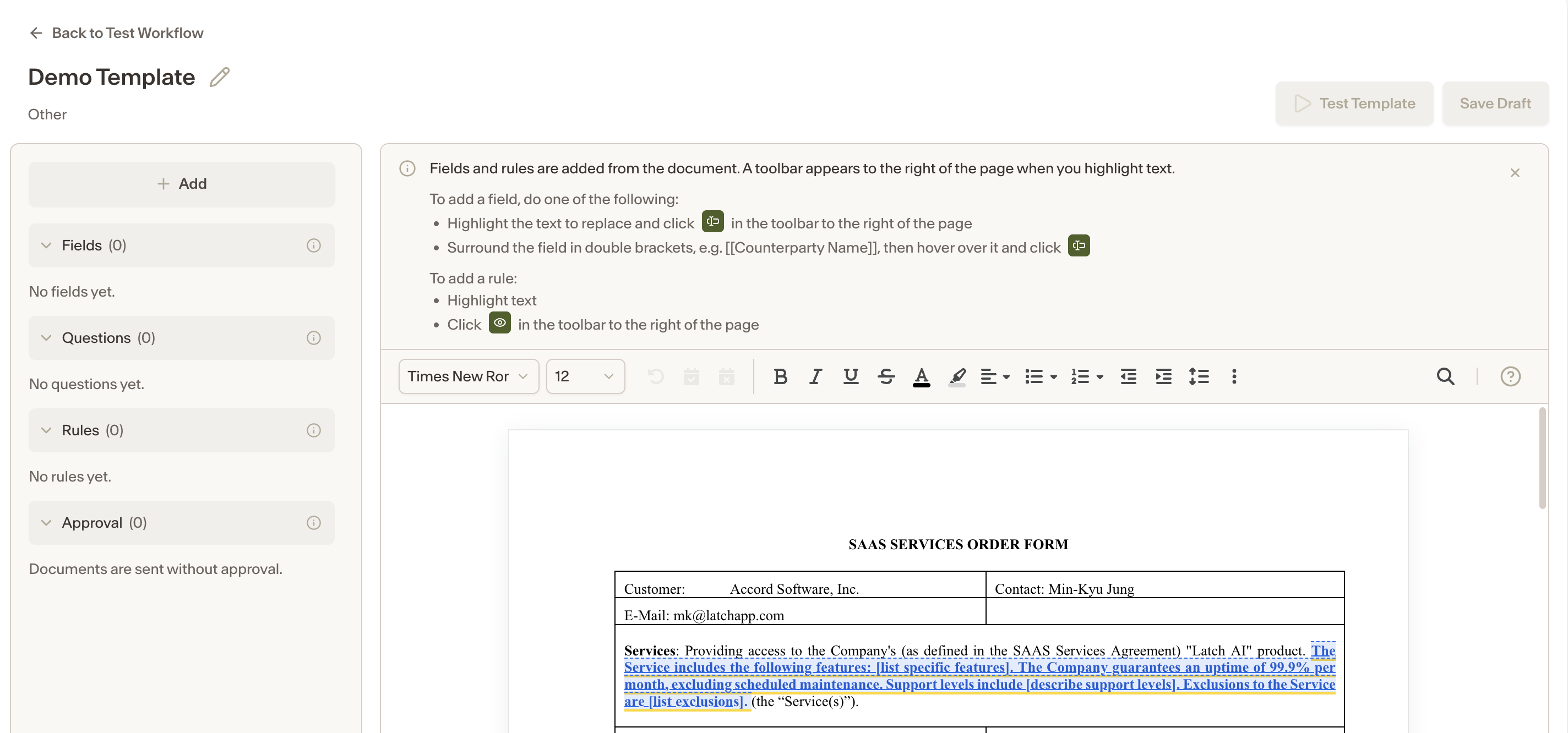
Templates are built from four components:
Fields — placeholders filled in when a document is generated. To add a field, highlight text in the document or add brackets like [Company Name]. The field will appear during intake and its answer will populate every matching placeholder automatically.
Questions — prompts that ask the user for information during intake. To add a question, enter the question text and choose an answer type, including free text, number, date, select, or pre-set dropdown options. Questions can be used to trigger rules or approvals.
Rules — logic that decides which text goes into the document based on a question answer. To add a rule, highlight the text it applies to and link it to a question. Multiple passages can be linked to the same rule.
Approvals — sign-offs required before a generated document can be sent. To add an approval, choose an approver and link it to the applicable question and condition. When the condition is met, the approver is notified before the document can proceed.
Generated documents go directly to the counterparty-send stage unless a specific approval is triggered. Users can send from Collaborate or download for manual sending.
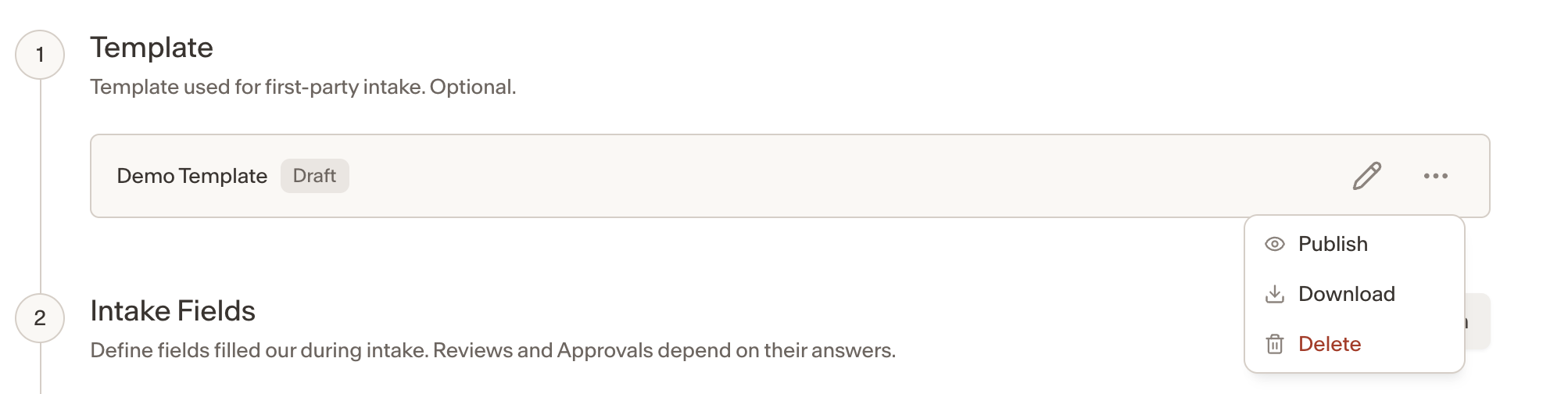
Once your template has been configured, return to the workflows screen, click the three dots next to it and select Publish.
3. Add intake questions
Intake questions are answered by the person submitting the contract. Their answers can determine who reviews issues and which approvals are required.
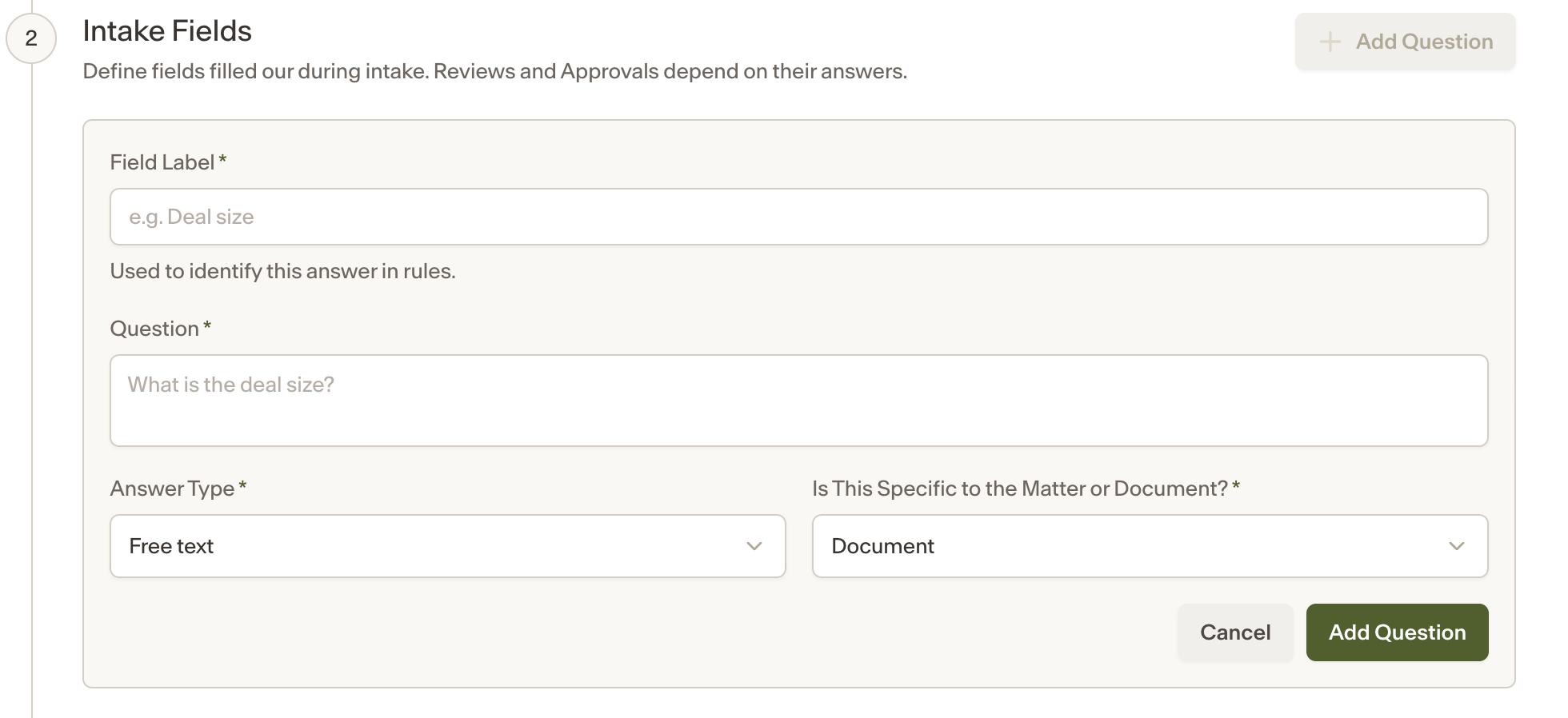
Under Intake Fields, select Add Question and complete the following:
Field | What to enter |
|---|---|
Field Label | A short name used to identify the answer in rules, such as “Deal Size.” |
Question | The question users will see, such as “What is the deal size?” |
Answer Type | The appropriate format: Dropdown or Free text. |
Matter or Document | Whether the answer describes the overall Matter or an individual document. |
Options | For dropdown questions, add the selectable answers using Add Option. |
Click Save Question and repeat for each question you need.
Example questions:
Field Label | Question | Answer Type | Applies To |
|---|---|---|---|
Deal Size | What is the deal size? | Dropdown | Matter |
Counterparty Origin | Where is the counterparty located? | Free text | Matter |
PII Clause | Does the contract contain a provision governing how personal data is handled? | Dropdown: Yes / No | Document |
Note: Intake questions apply when a user uploads a third-party contract or uploads counterparty markup for a document that went through document generation. Questions, fields, rules, and approvals for document generation itself are configured separately in the template builder.
4. Configure review
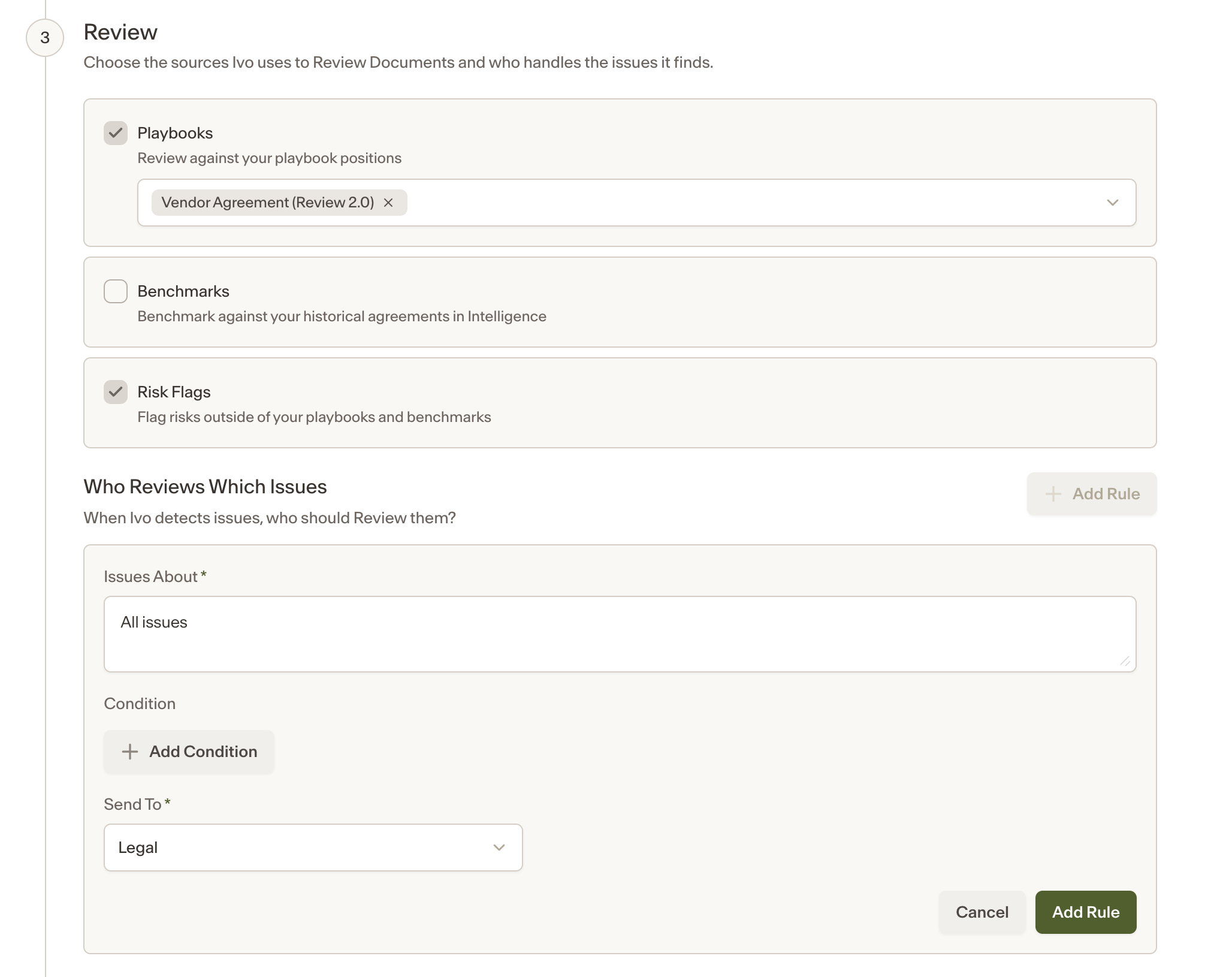
Under Review, enable the sources appropriate for this workflow:
 Source | What it does |
|---|---|
Playbooks | Reviews documents against your playbook positions. Select the relevant playbook from the dropdown. |
Benchmarks | Compares against historical agreements in Intelligence. |
Risk Flags | Flags risks outside your playbooks and benchmarks. |
You can skip Review entirely if you have configured general approvals instead.
Assign issues to reviewers
Under Who Reviews Which Issues, create rules that tell Collaborate where to send detected issues.
Select Add Rule.
In Issues About, describe the issues the reviewer should handle.
If the rule should apply only for a specific intake answer, choose the question and matching answer under Condition. Use Add Condition to add multiple conditions.
In Send To, select the responsible reviewer or group.
Select Save Rule.
Example rules:
Issues About | Condition | Send To |
|---|---|---|
Payments | Deal Size matches “>50k” | Finance |
Security, vulnerabilities, and SOC 2 compliance | Always | Security |
All other issues | Always | Legal |
5. Add document approvals
Approvals are additional sign-offs required for a document before it can proceed. They are configured separately from issue-review rules.
Under Approvals, select Add Approval and complete the following:
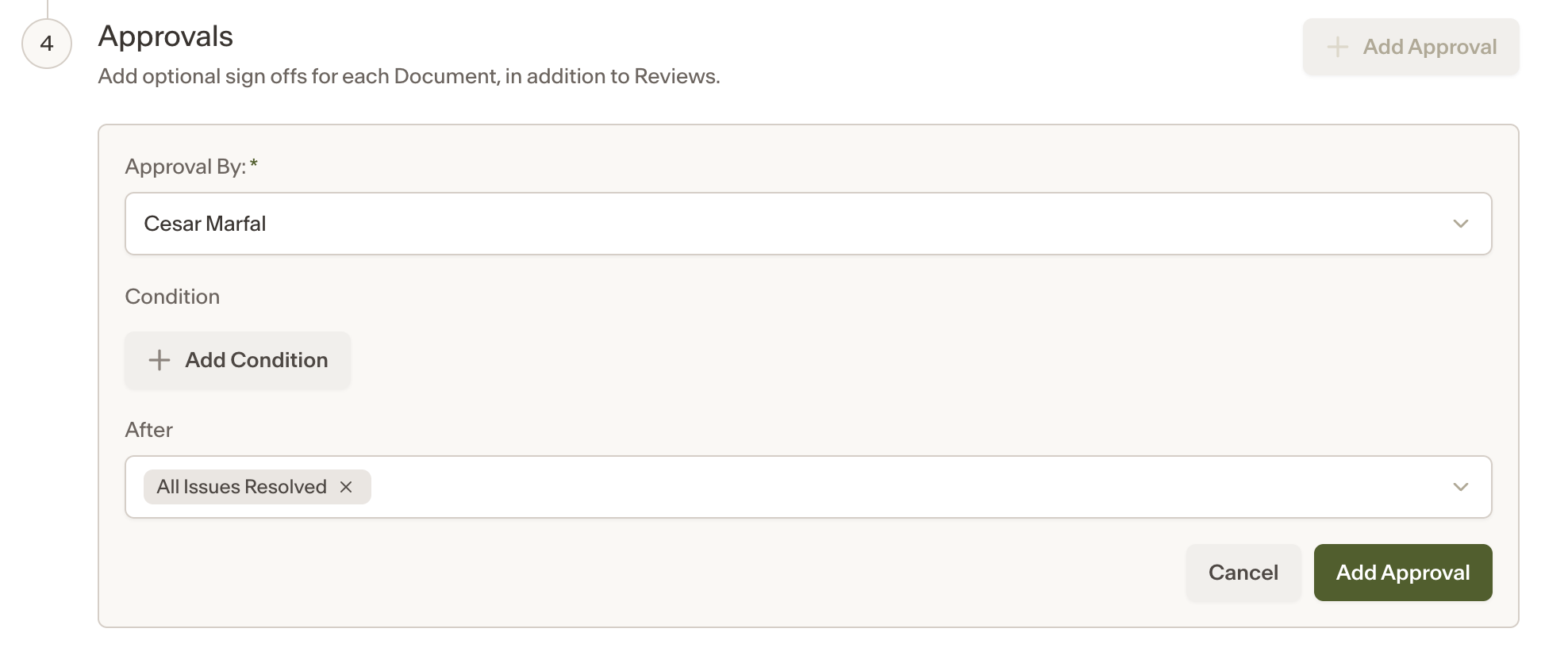
In Approval By, select the approver or group.
Under Condition, choose the intake answer that triggers this approval, if applicable.
Under After, select what must happen before this approval begins.
Select Add Approval to save.
The following timings are supported:
Timing | Use it when |
|---|---|
Immediately | Approval can begin without waiting for issue resolution or another approval. |
All Issues Resolved | Approval should wait until all issues have been resolved. |
Another Approval | One approver must sign off before this approval begins. |
Multiple Prerequisites | Approval must wait for several selected steps to complete. |
Examples:
Security approval — required when PII Clause = Yes, after All Issues Resolved.
Finance approval — required when Deal Size matches “>100k”, starting Immediately.
Further approver — required for the same deal-size condition, after Security approval, Finance approval, and issue resolution.