1. Getting Started: Intake
Last updated: September 30, 2026
Intake is how new contracts enter Collaborate. There are two paths depending on whether you are working from your own paper or a document received from a counterparty.
Both paths start from the Collaborate home page.
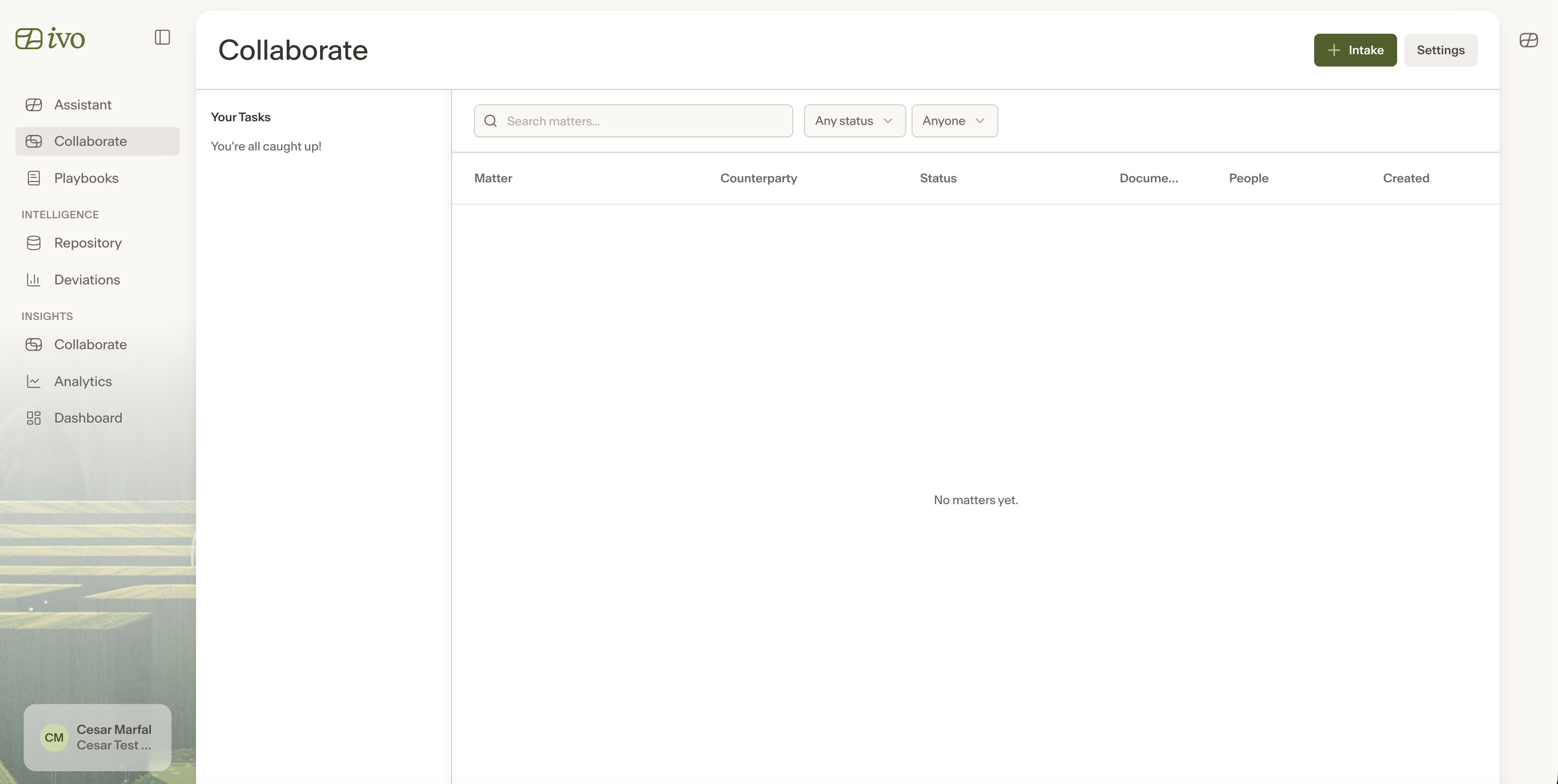
From there, choose Upload if you have received documents from a counterparty, or Start from Template if you are generating a new document from a template.
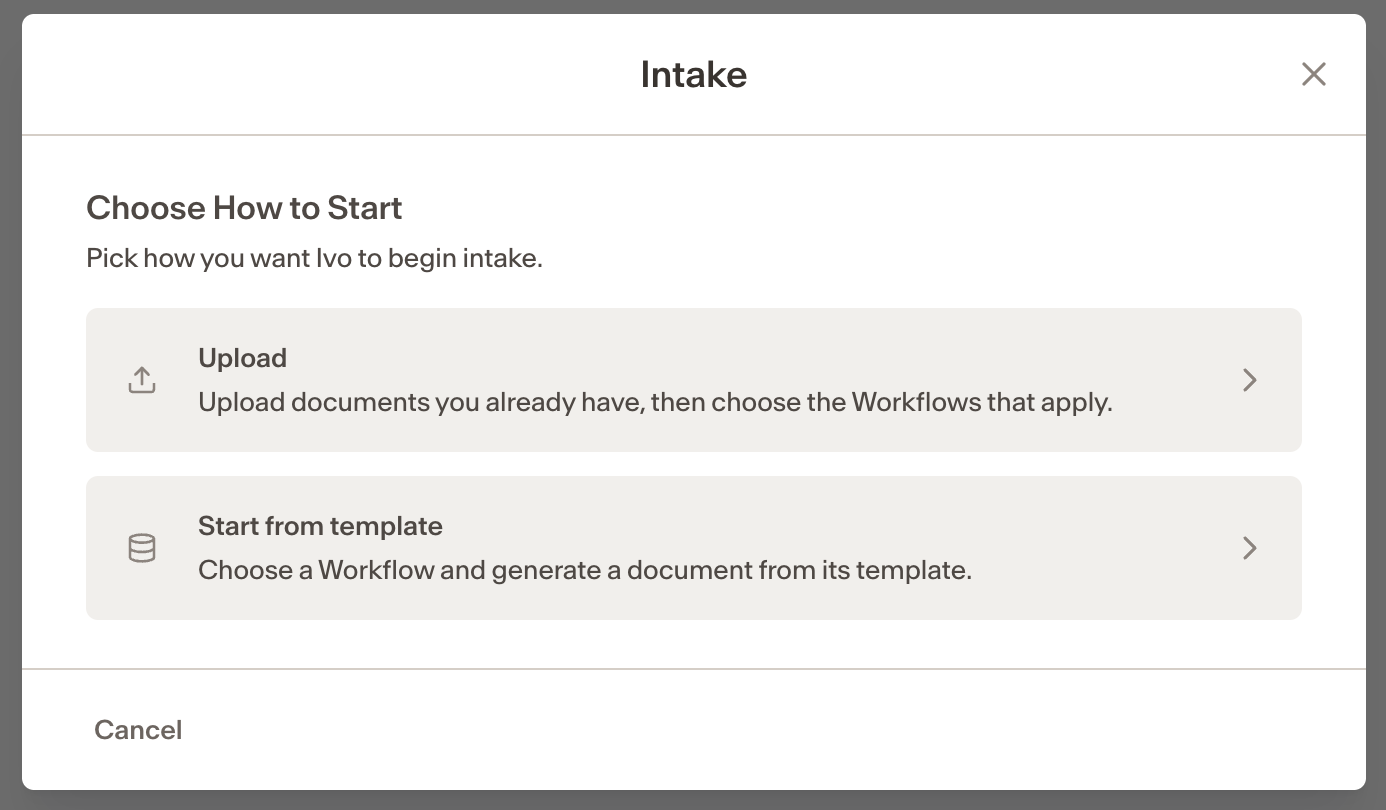
Start from Template (DocGen)
Use this when you want to generate a contract from a pre-configured template.
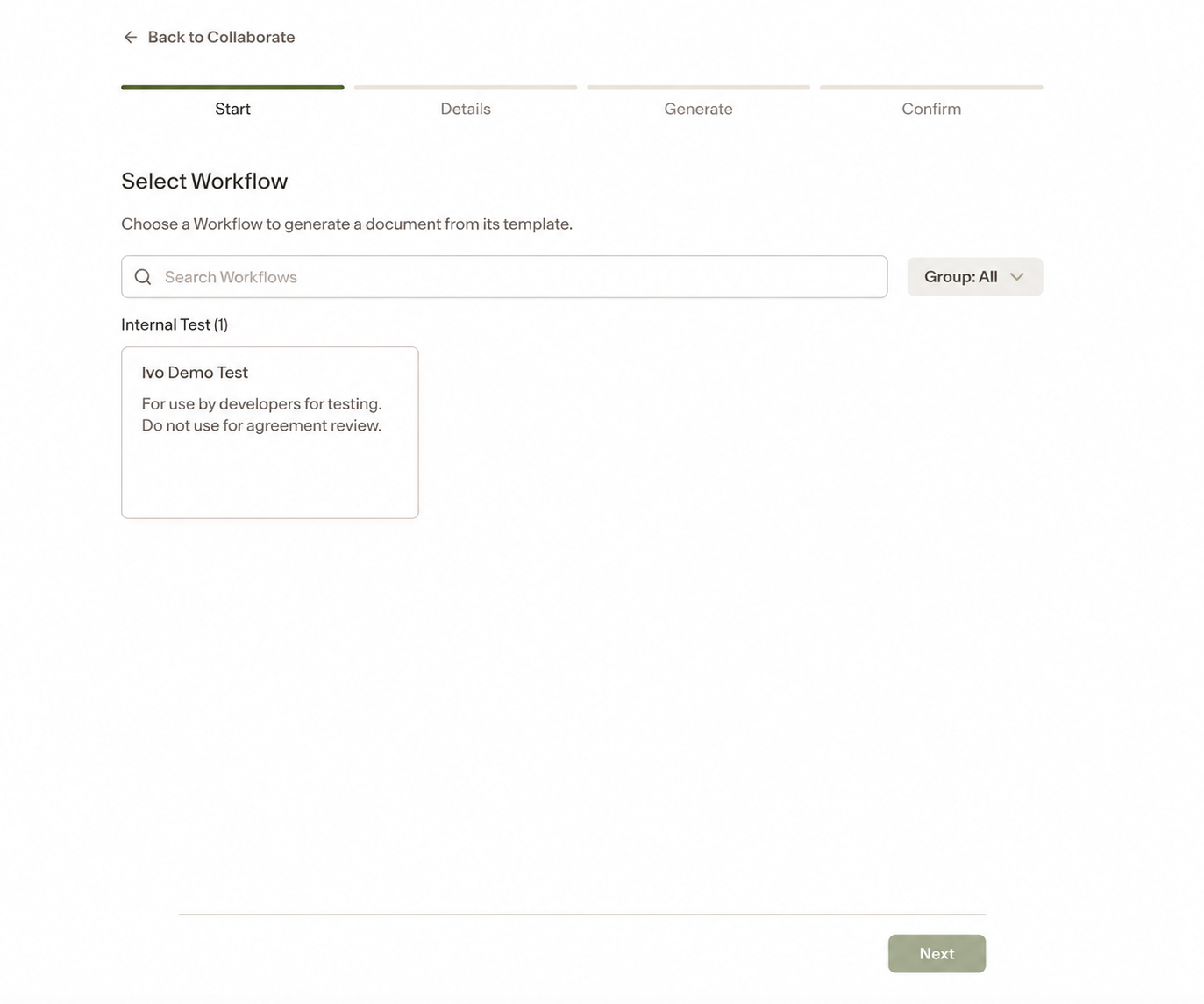
From the Collaborate home page, click Start from Template and select a workflow that has a template configured.
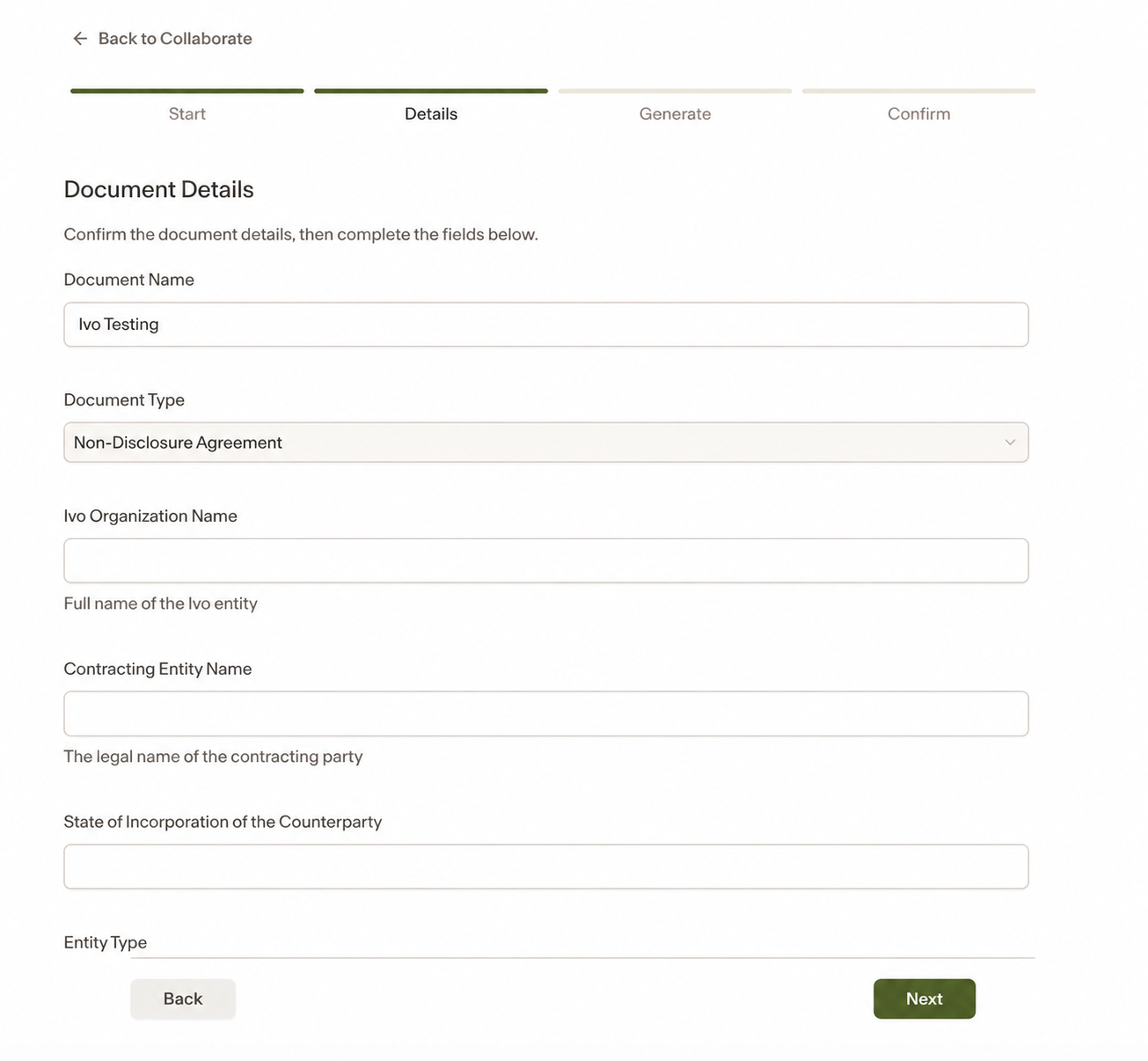
Details — confirm the Document Name (pre-filled from the workflow) and the Document Type, then answer the template's pre-configured questions. These are set per workflow, so they vary by template.
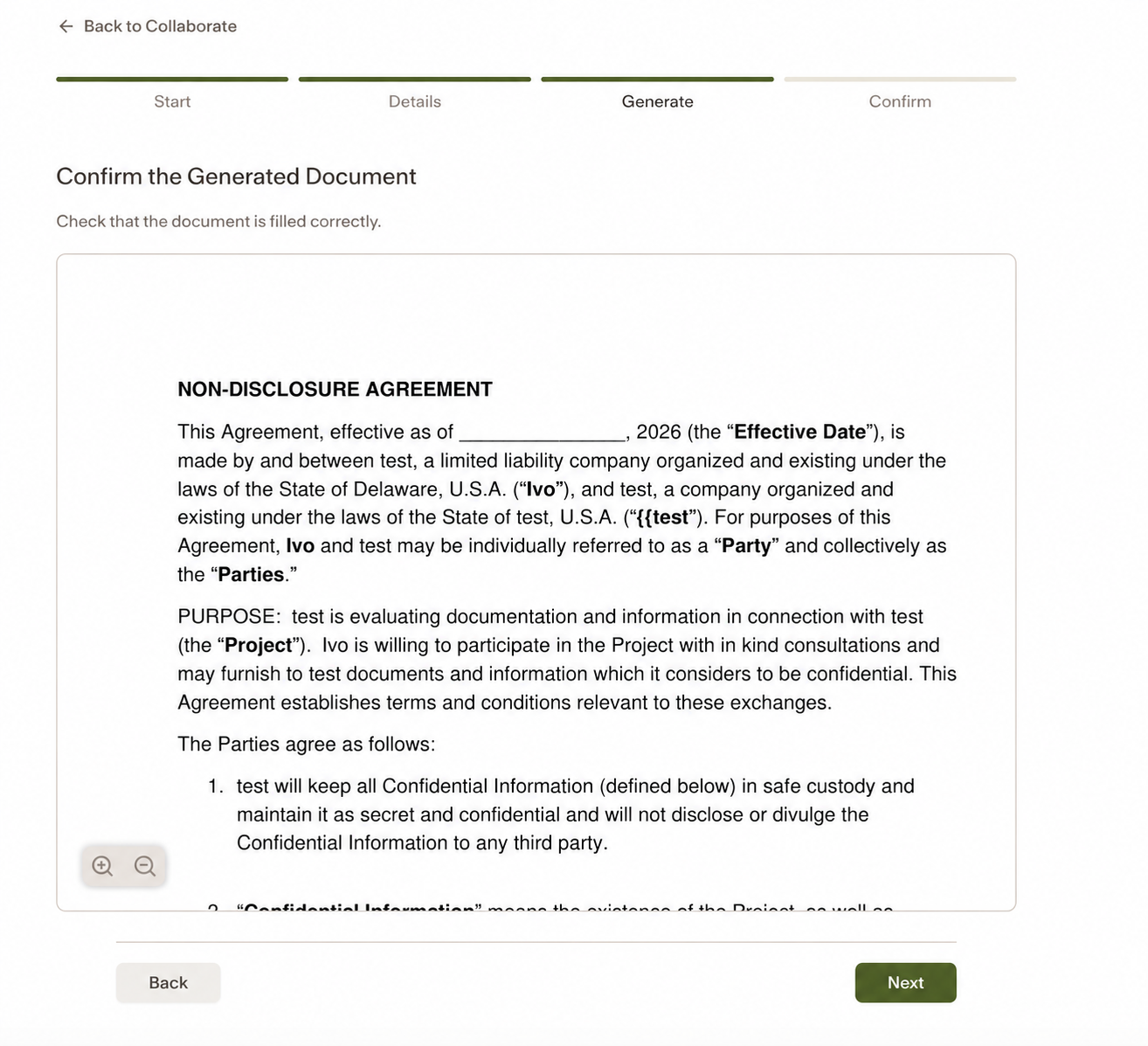
Generate — Collaborate generates the document from your answers. The document text is not editable on this screen. To make changes, return to Details, update your answers, and regenerate.
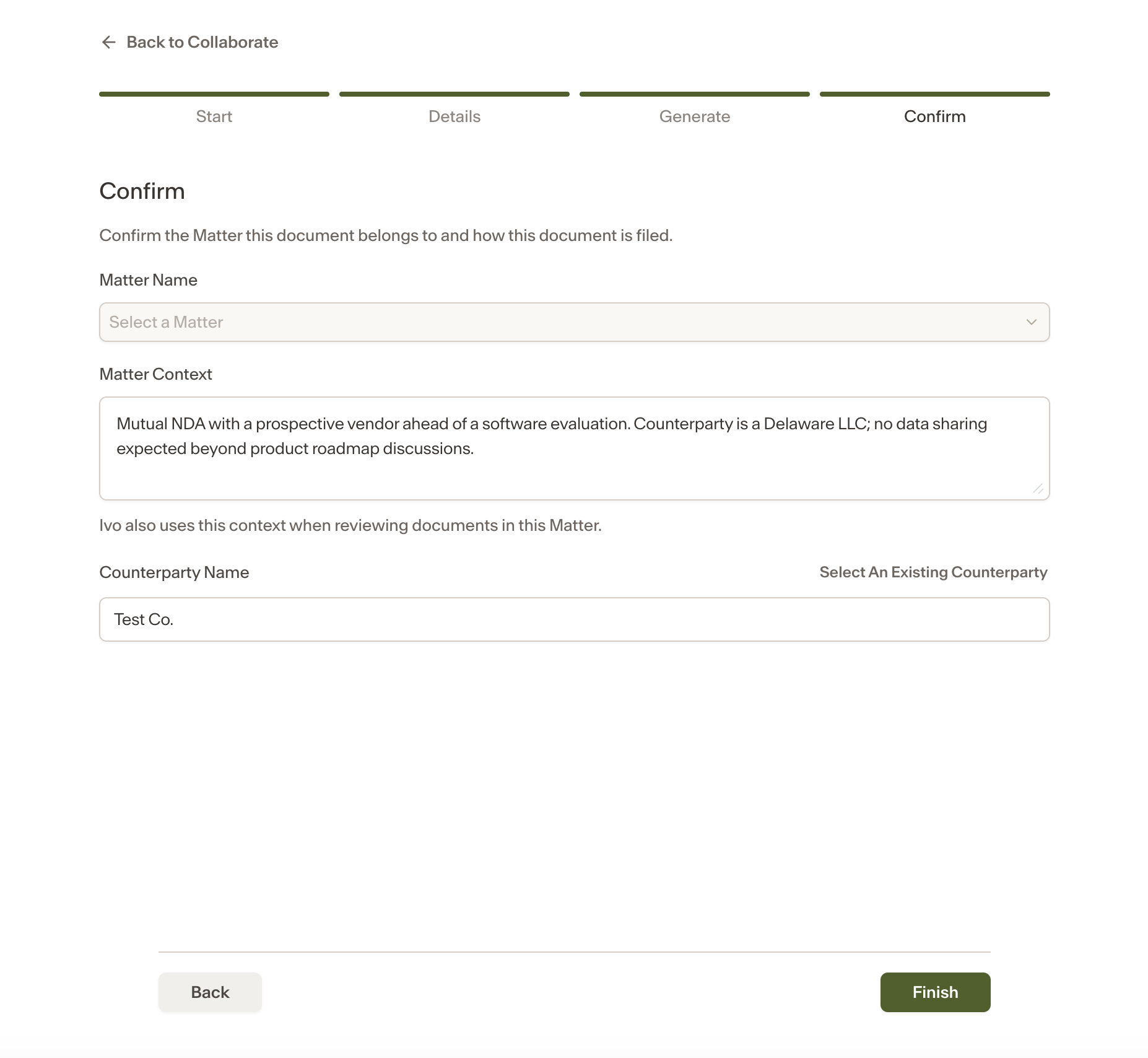
Confirm — associate the document with a Matter and counterparty.
To use an existing Matter, select it from the list. The Matter's context and counterparty details will be inherited automatically.
To create a new Matter, enter its name, context, and counterparty. Matter Context is used by AI Review when reviewing documents in that Matter.
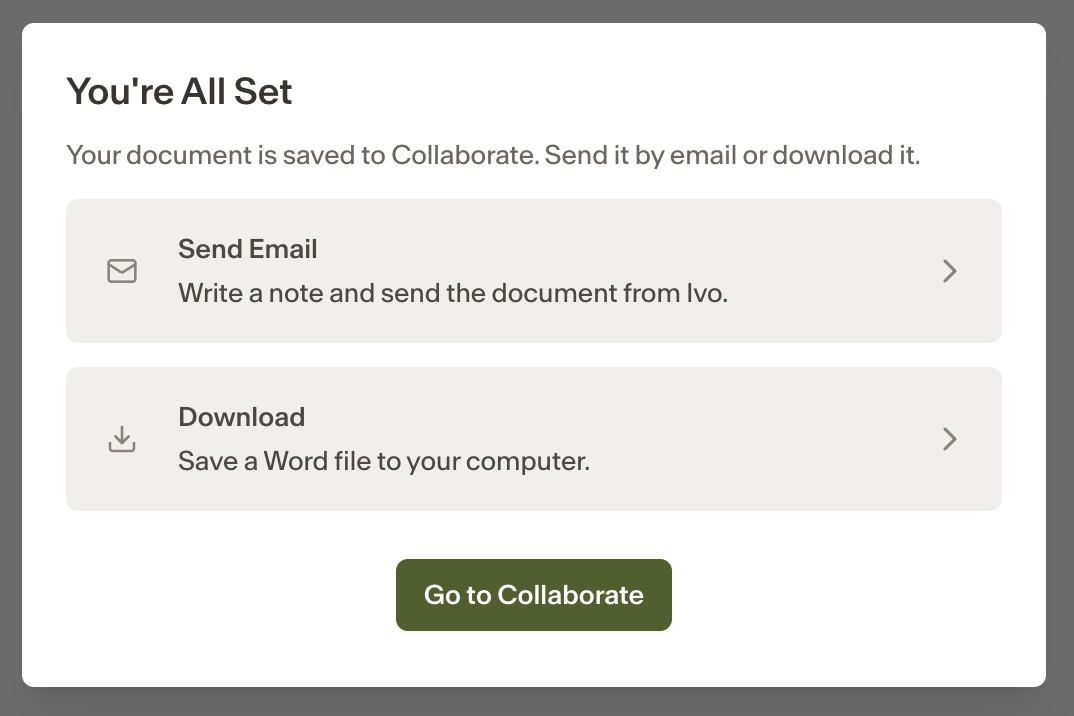
Finish and send — once saved, you have three options:
Send Email — write a note and send the document directly from Collaborate. The email is sent from an Ivo address with you copied. Any replies from the counterparty will come back to you.
Download — download the document as a Word file for manual sending.
Go to Collaborate — open the Matter directly in Collaborate.
Upload
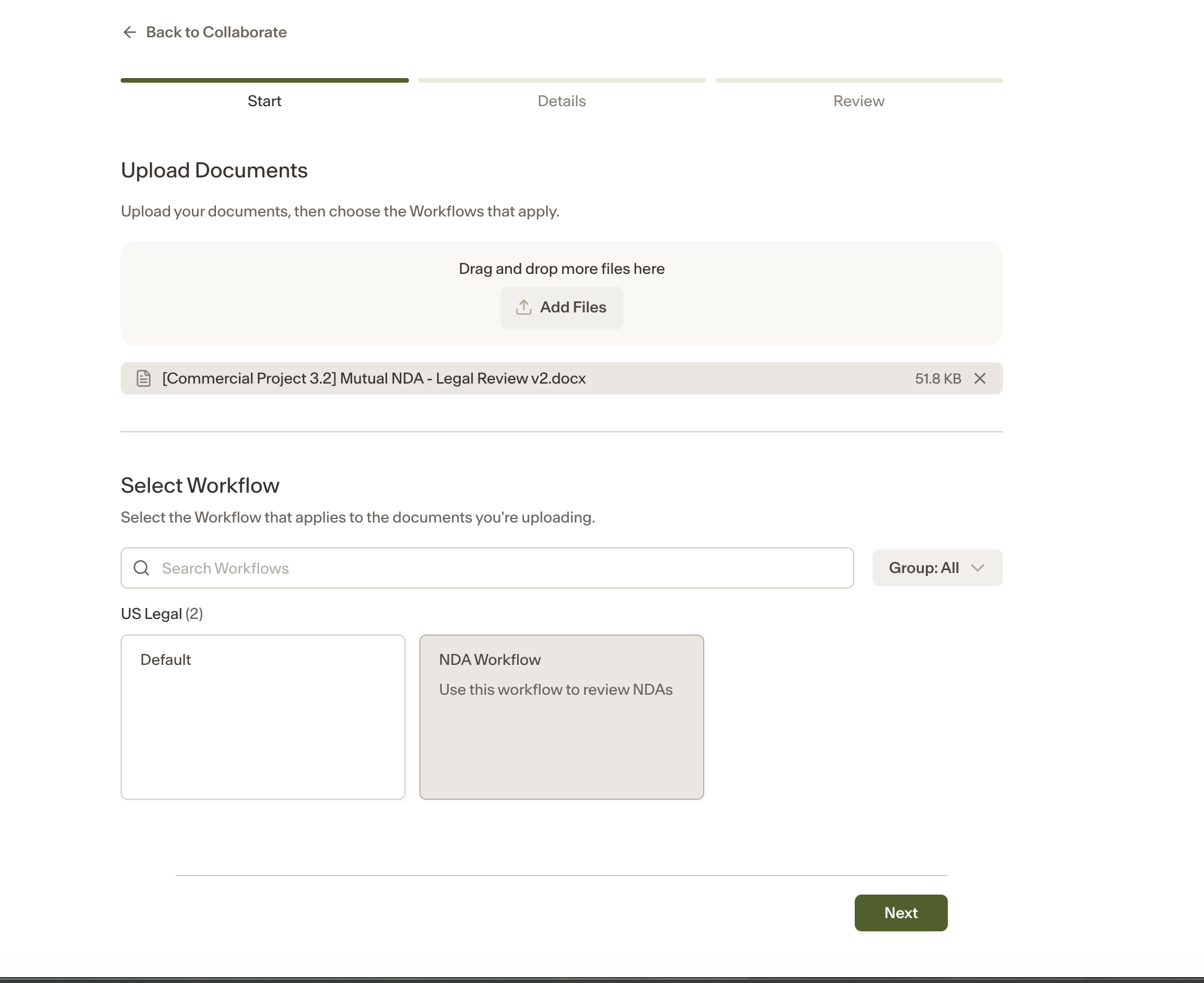
Use this when you have received a contract from a counterparty and want to upload it for review and negotiation.
From the Collaborate home page, click Upload, upload one or more documents related to the same Matter, and select the workflow to use.
Identify and organize — Collaborate infers the Matter association, whether each file is a new Agreement or a new version, whether it is first- or third-party paper, and a suggested document name. Review and edit these details as needed.
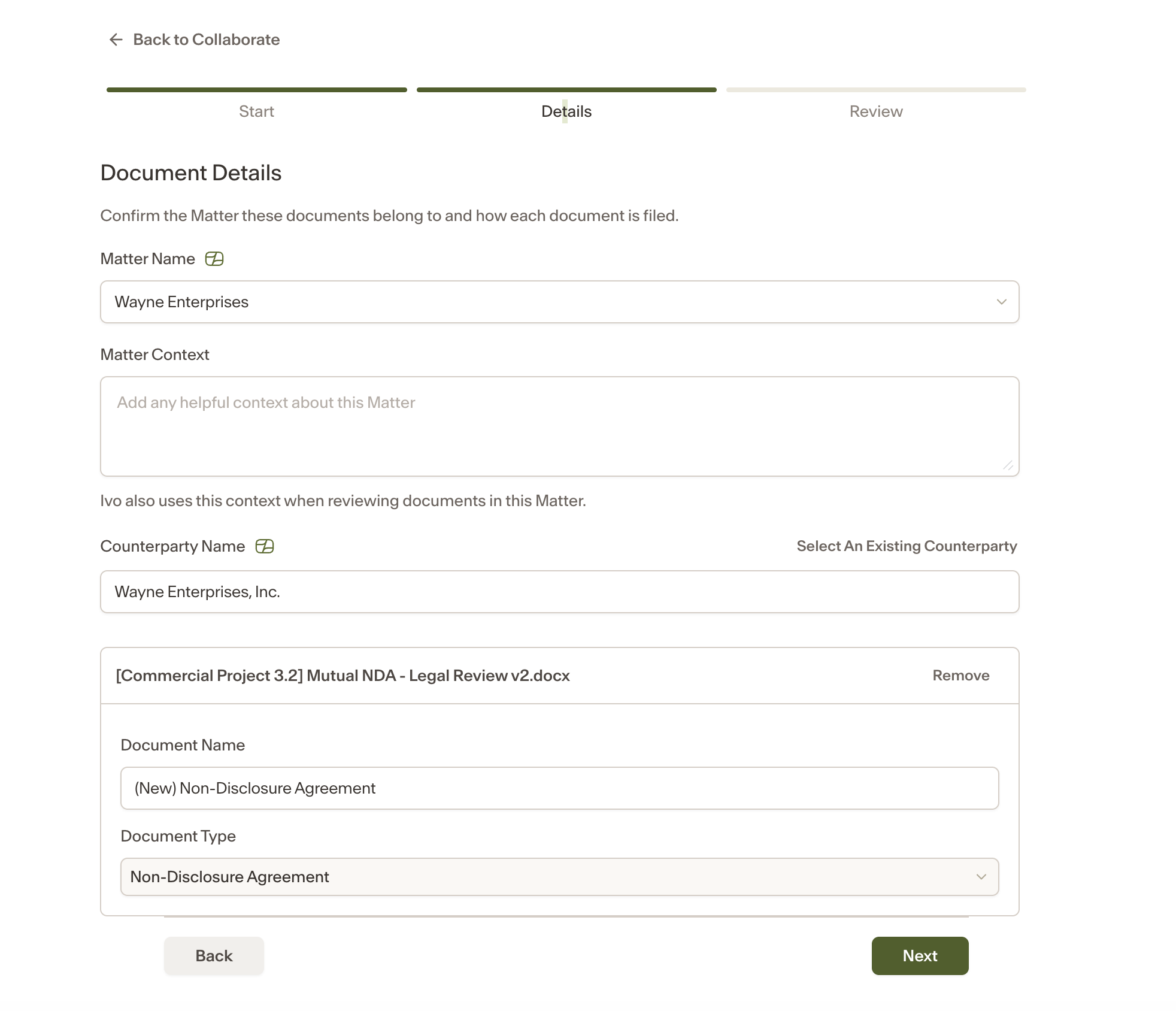
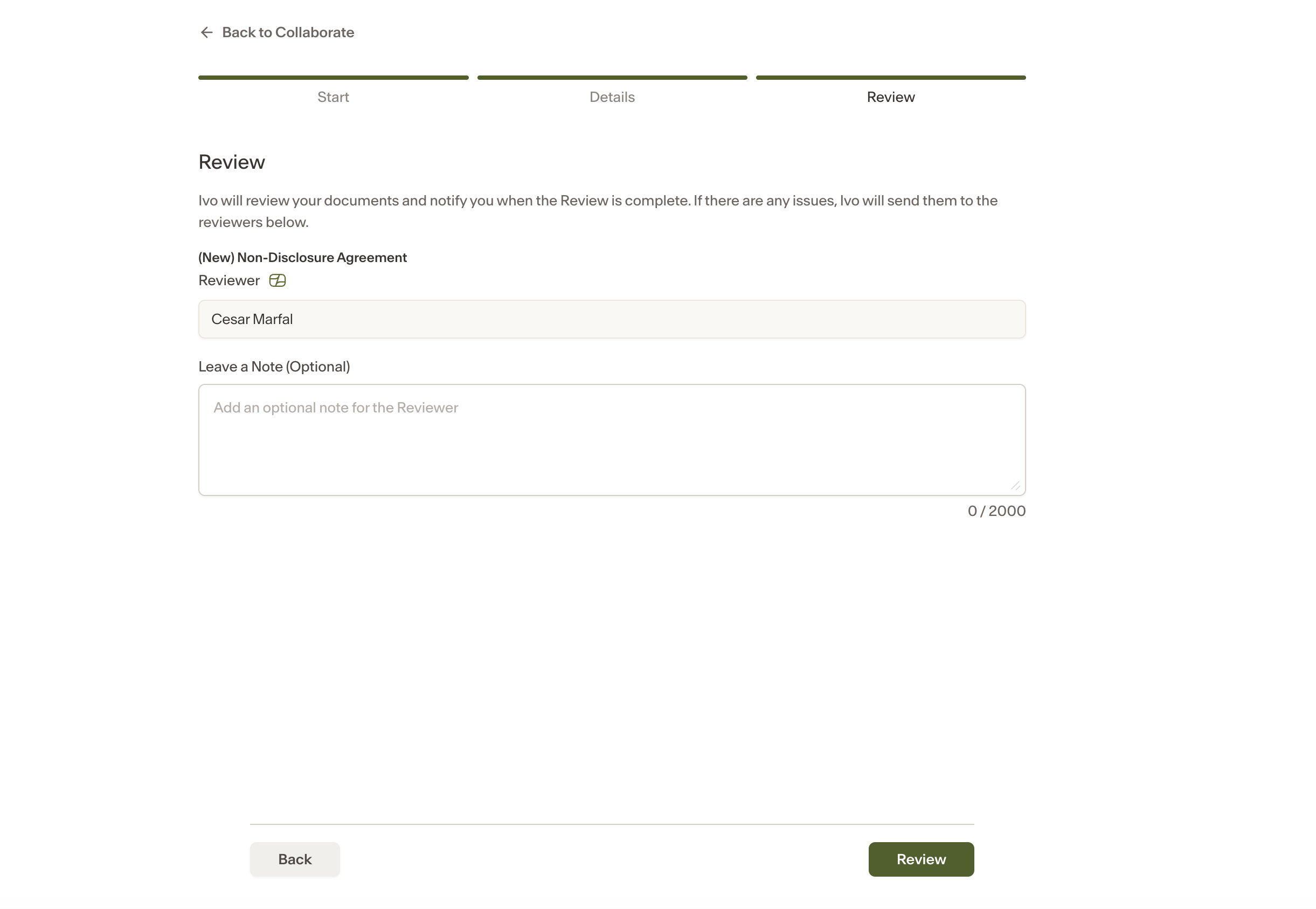
Assign the reviewer — Collaborate applies the reviewer assignment configured in the workflow. The workflow's escalation policy governs fallbacks. Confirm the review details, then click Review.
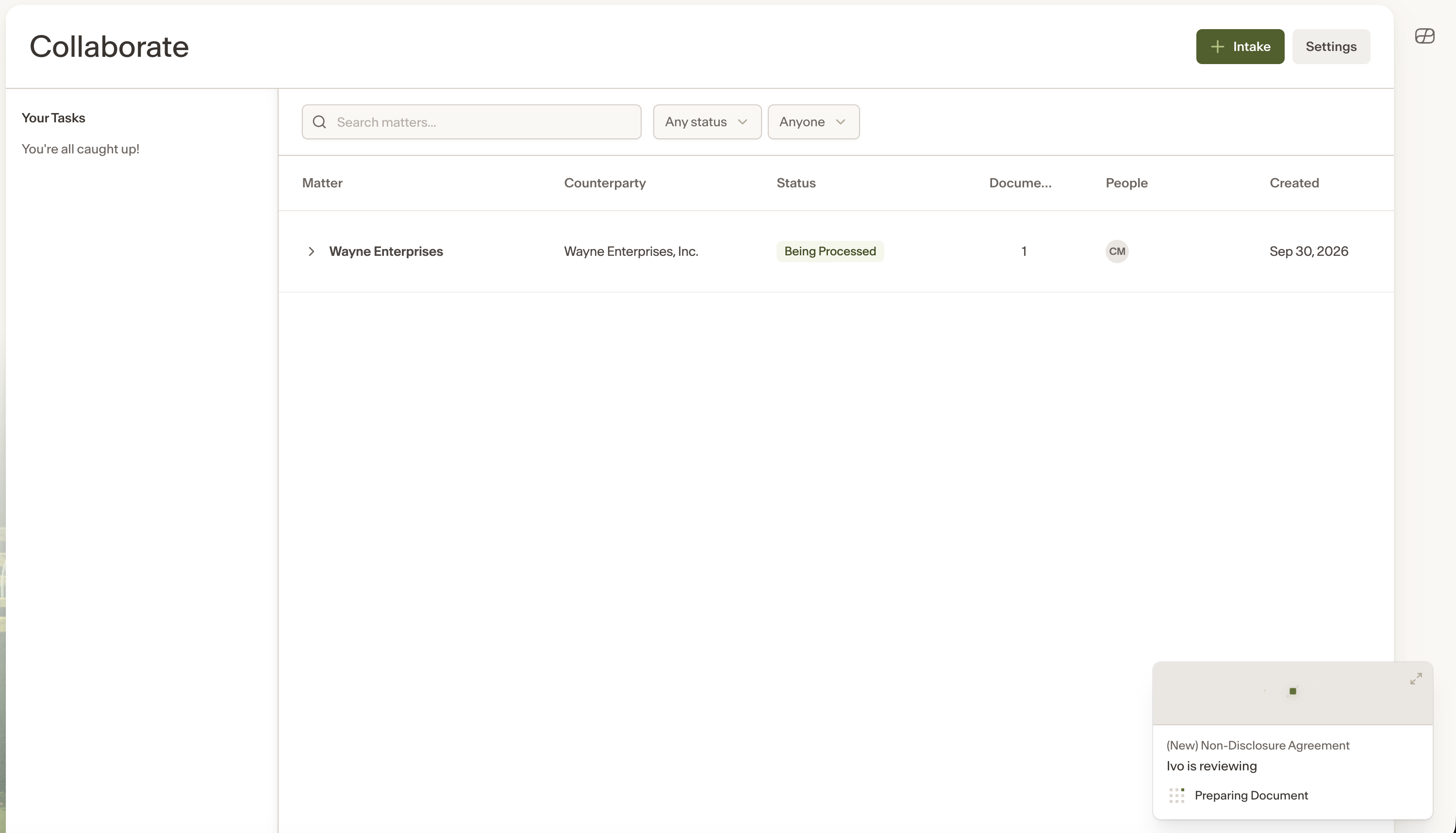
Run AI Review — Collaborate reviews the agreement using the workflow's configured playbooks, benchmarks, and risk flags and produces the first issues list. Once the review completes, issues are assigned and the reviewer is notified.
Auto-approval
If a document passes AI Review with no issues found, it is automatically approved. You will receive both an email and an in-app notification confirming the contract passed review and is ready for signature. No manual review step is required.
From there you can initiate signature through DocuSign if configured, or download the document for manual sending.
Notes
Intake users cannot override the review inputs configured in the workflow, such as which playbook or benchmark to use.
Returned counterparty redlines do not go through home-page intake. The Matter Owner uploads them directly from the Matter or document page. See Negotiation Lifecycle for details.
Emails sent from Collaborate are sent from an Ivo address. All replies to that email thread will go back to the sender.