Collaborate Intake via Email
Last updated: October 20, 2026
You can intake contracts into Collaborate directly from your email client without opening the Ivo web app. Send an email with an attached document to your workspace’s unique intake address and Ivo will handle the rest.
Setup
Before using email intake, the Email Inbound integration needs to be enabled for your workspace.
Navigate to Settings → Flow → Integrations.
Find the Email Inbound integration and enable it.
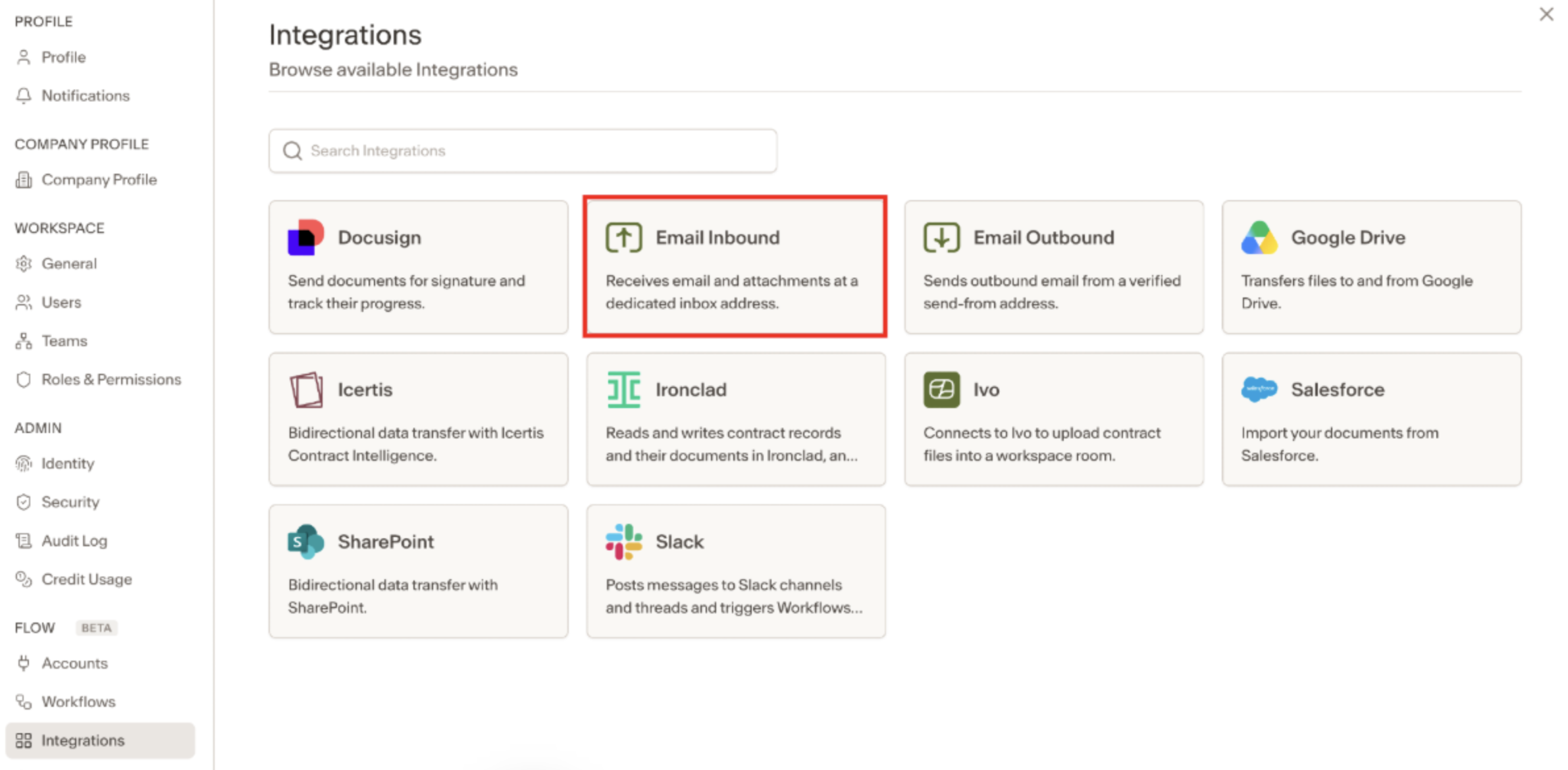
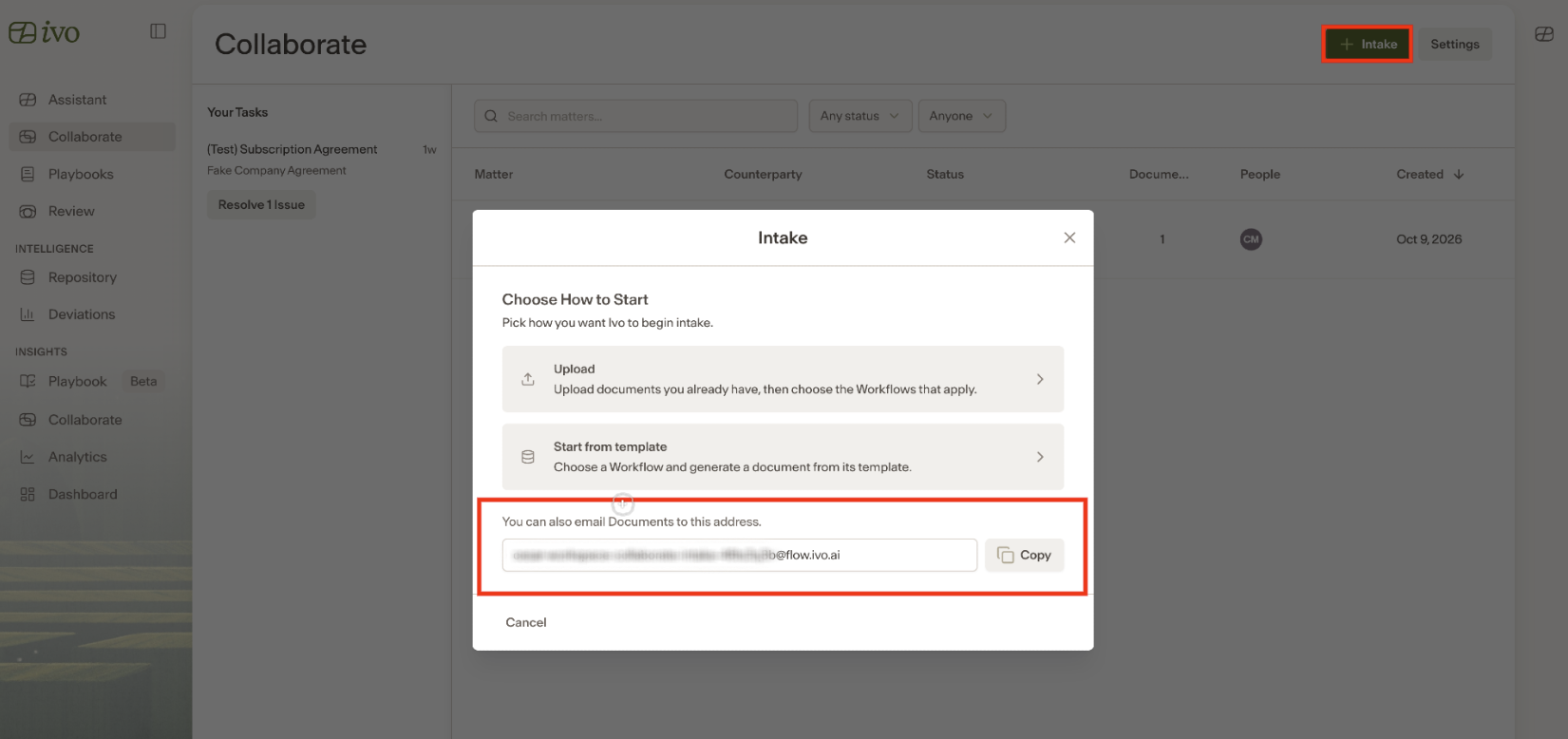
Once enabled, your workspace’s unique intake email address will be available to copy from the intake page.
How to intake a contract via email
Copy your intake email address — find and copy your workspace’s unique intake address from the Collaborate intake page.
Compose an email — from Gmail, Outlook, or any email client, compose a new email to your workspace’s intake address.
Attach a document — attach the contract you want to intake. One document per email.
Add intake details in the body — include any relevant context in the email body, such as the workflow, document name, or other intake information. If details are missing, Ivo will automatically fill them in based on the attached document.
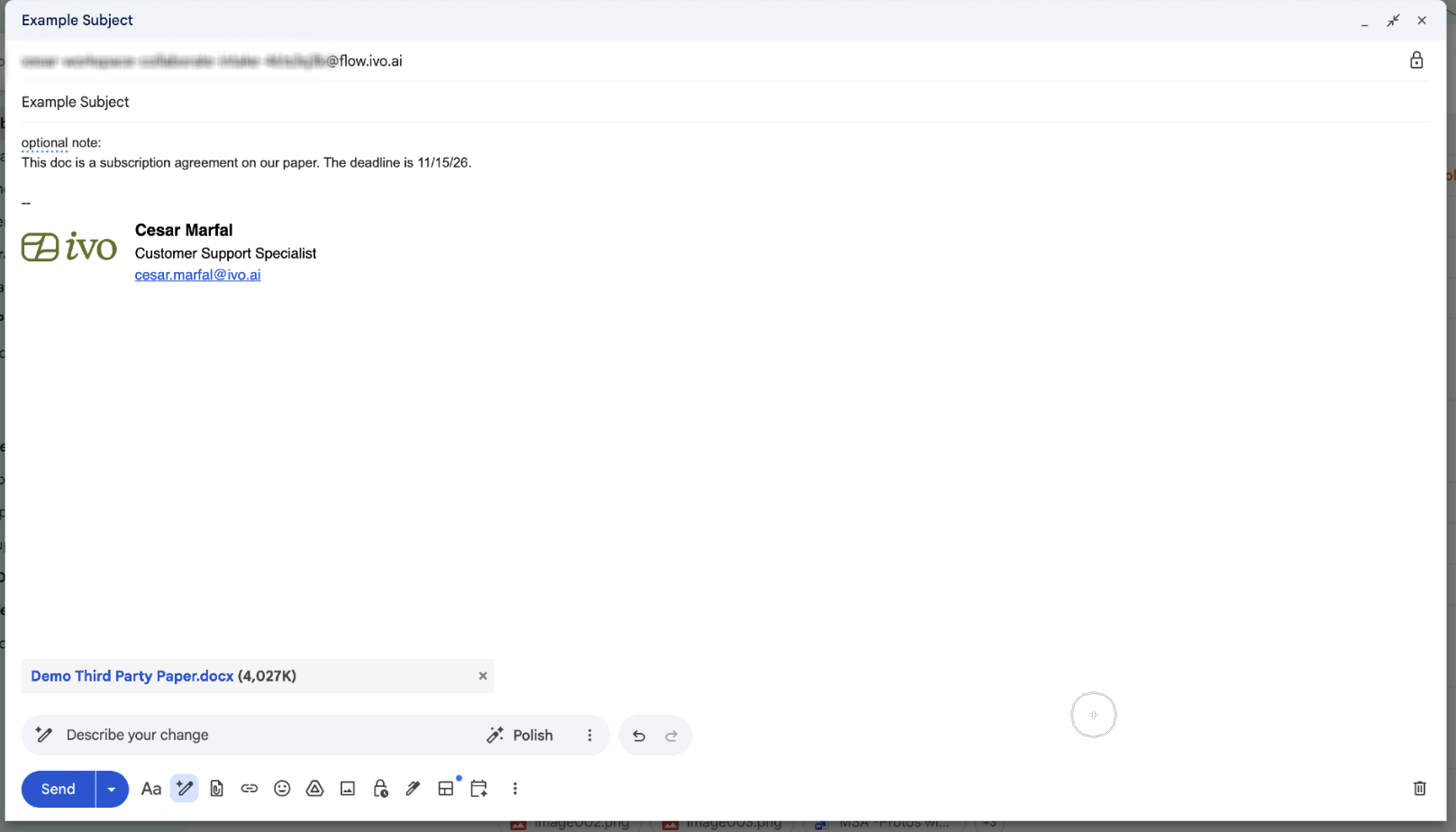
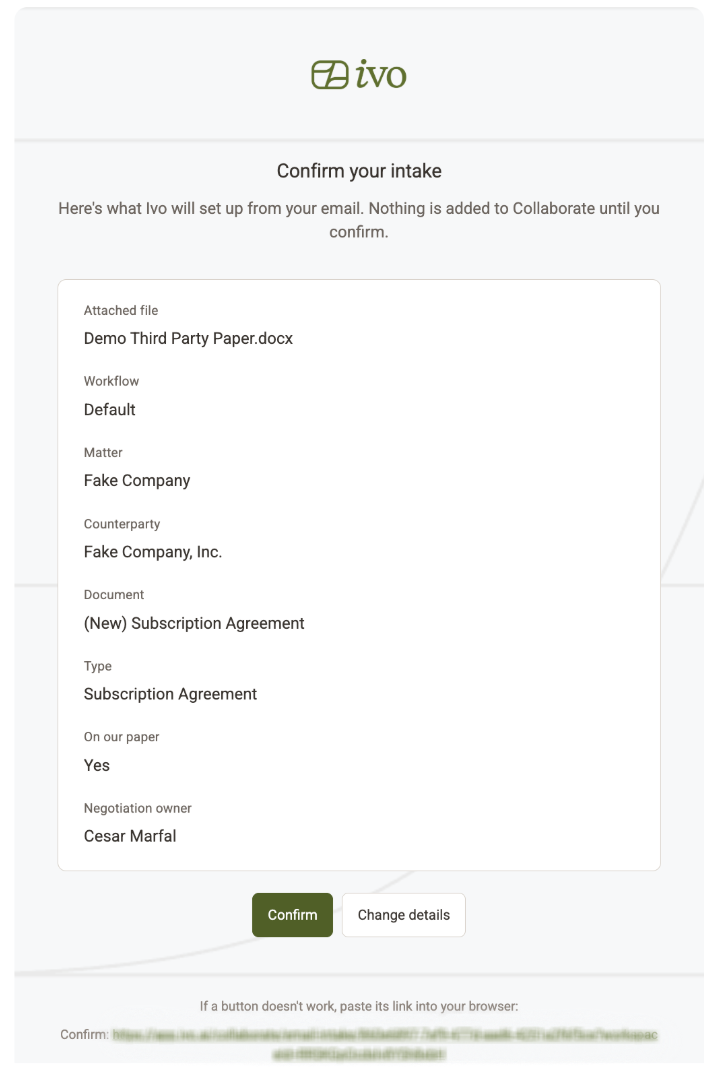
Send the email — Ivo will process the document and send you a summary email with the proposed intake details for your review.
Review and confirm — from the summary email, you have two options:
Confirm — opens Collaborate directly and initiates the intake using the proposed details.
Change Details — opens a separate page where you can review and edit the intake details before proceeding.
Notes
The intake email address is unique to your workspace. Do not share it publicly.
The unique intake email address may take a moment to generate after enabling the Email Inbound integration.
Only one document can be attached per email.
If intake details are missing from the email body, Ivo will infer them from the document automatically.