Setting Up Collaborate in Slack
Last updated: October 9, 2026
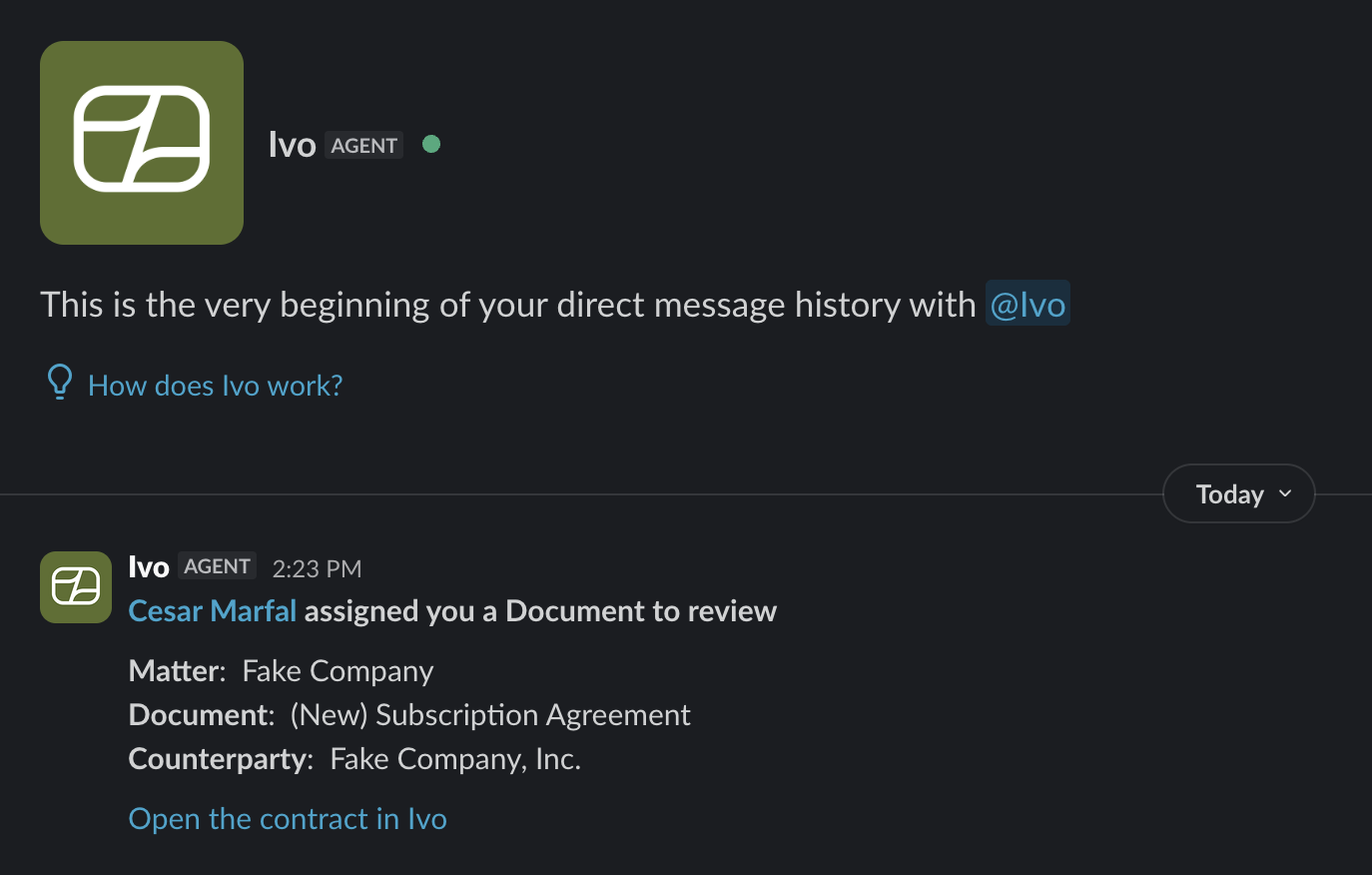
Connecting Slack to Ivo lets Collaborate notify your team where they already work. Once the integration is installed, anyone whose approval is needed is pinged directly in Slack instead of having to check email or the app.
This is an admin task and only needs to be done once per workspace. There are two connections to make: the Ivo integration itself, and then Slack.
Step 1: Open Admin settings
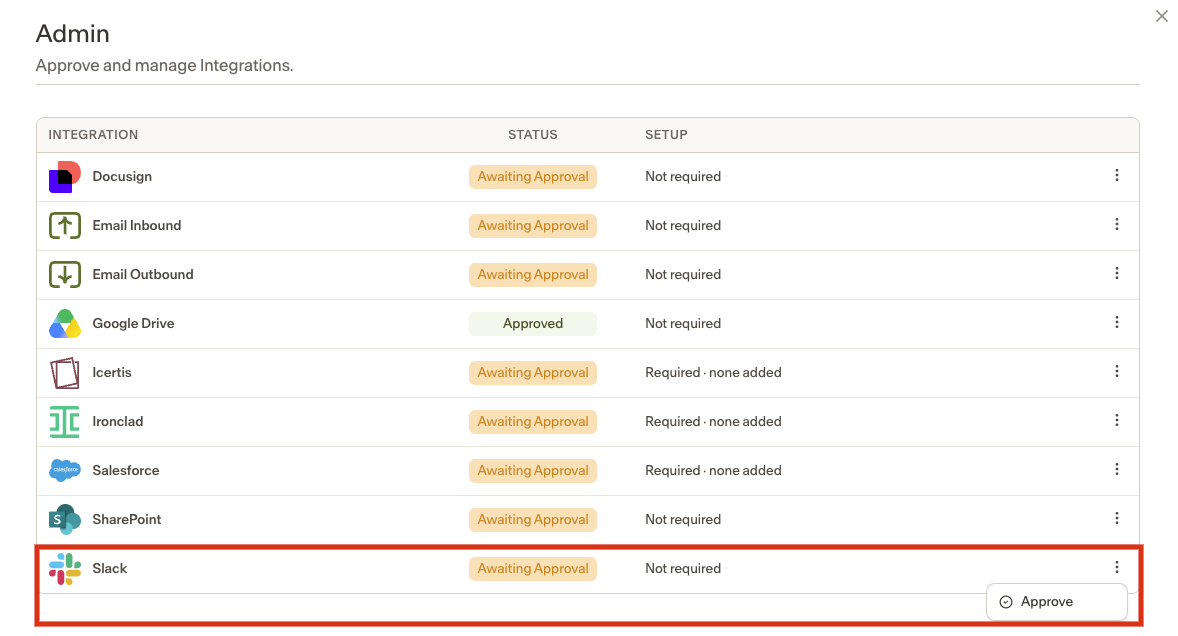
In Ivo, go to Settings and open the Admin section.
Click the three dots in the Slack tab and Approve the Slack integration.
Step 2: Connect the Ivo integration
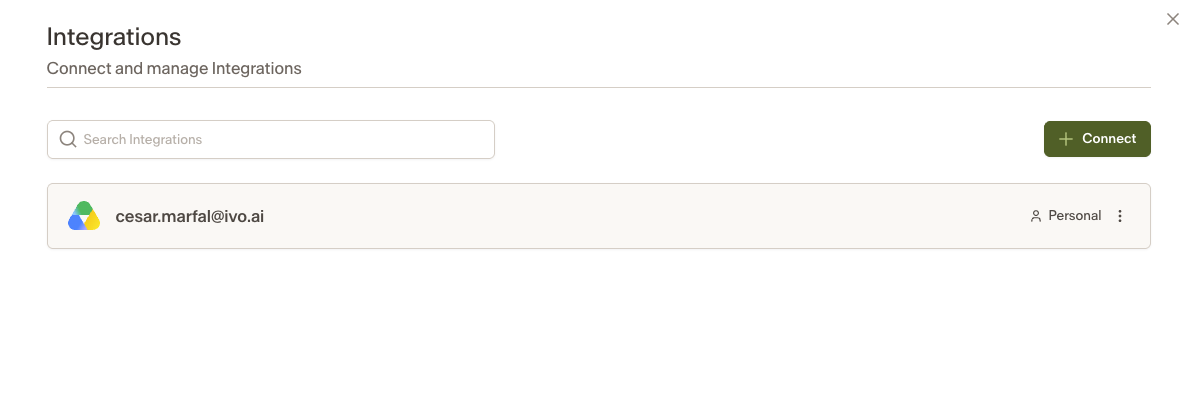
Go to Integrations and click Connect.
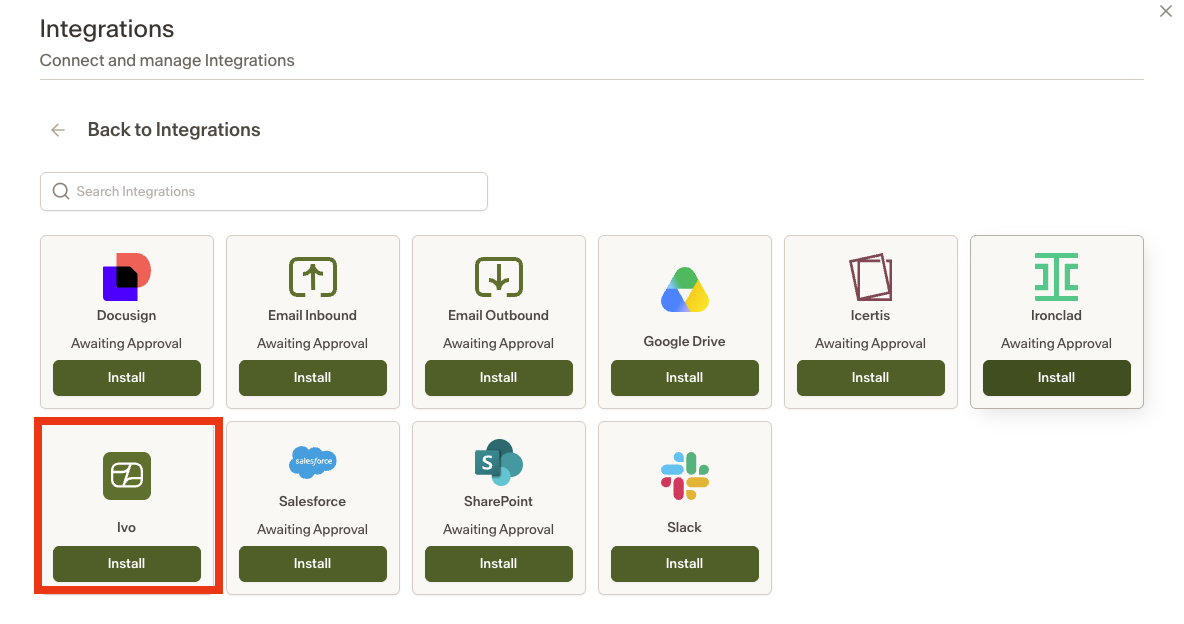
Select the Ivo integration to install it.
Note: you can skip this step if an Ivo integration is already set up at the Organization level. A personal Ivo integration will not work for this.
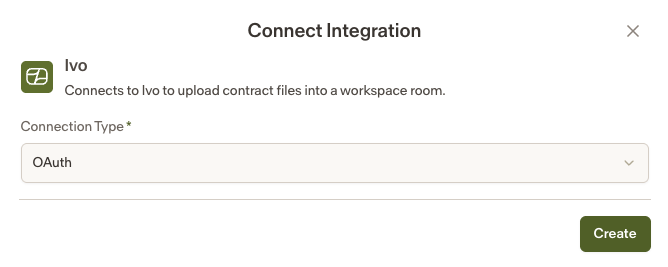
Choose OAuth, click Create, and sign in.
Step 3: Connect Slack
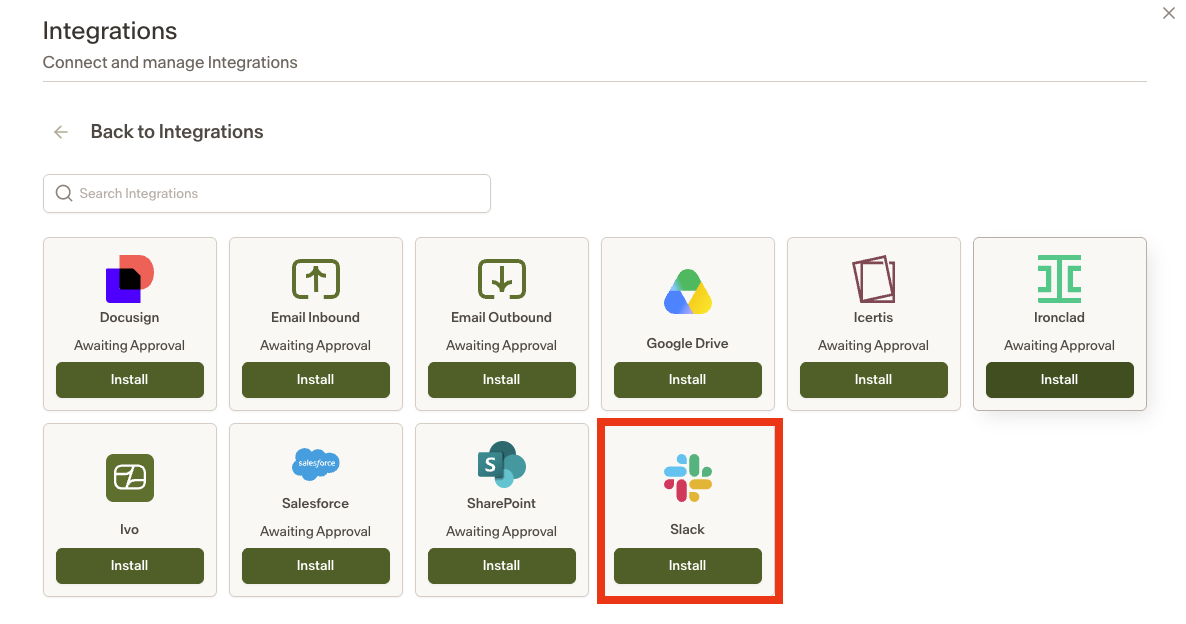
Back on the Integrations page, click Connect again and pick Slack from the list.
Step 4: Approve the install in Slack
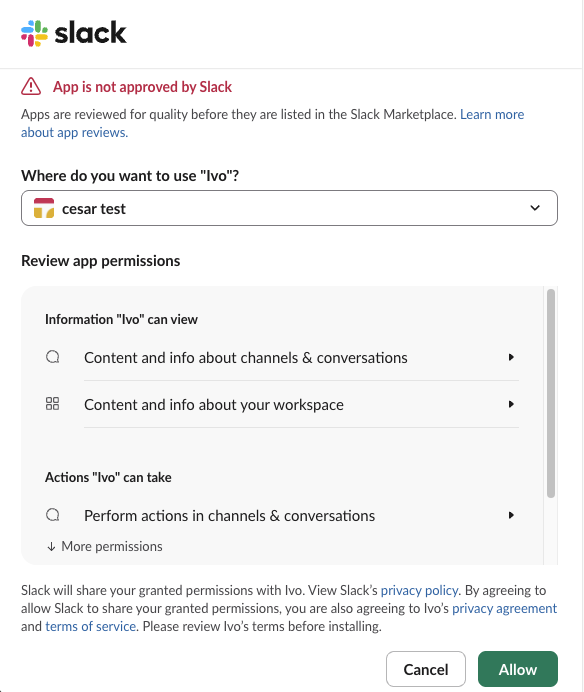
Slack will open and ask you to confirm the permissions Ivo needs. Review them and click Allow.
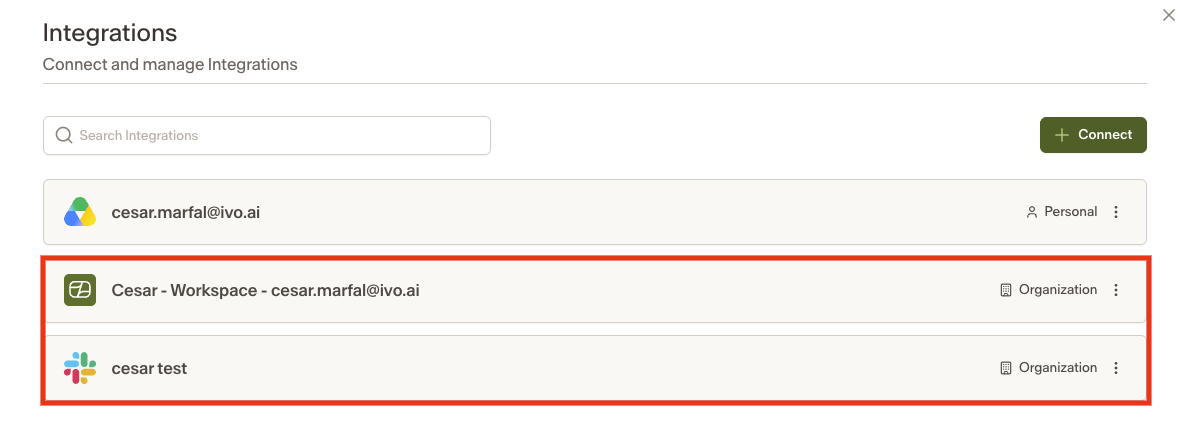
Your Integrations page should now show both the Ivo account and the Slack workspace connected at the Organization level.
What happens next
With the integration in place, whenever someone's approval is required, Ivo sends them a message in Slack with the details of the request. They can act on it without leaving Slack.