2. Issue List Review
Last updated: September 30, 2026
The issues list is the heart of Collaborate. It turns AI Review findings into actionable cards that can be worked through, tracked, and resolved across every round of negotiation.
Once a contract has been reviewed, Ivo generates its issue list and emails the designated reviewers to let them know their issues are ready.
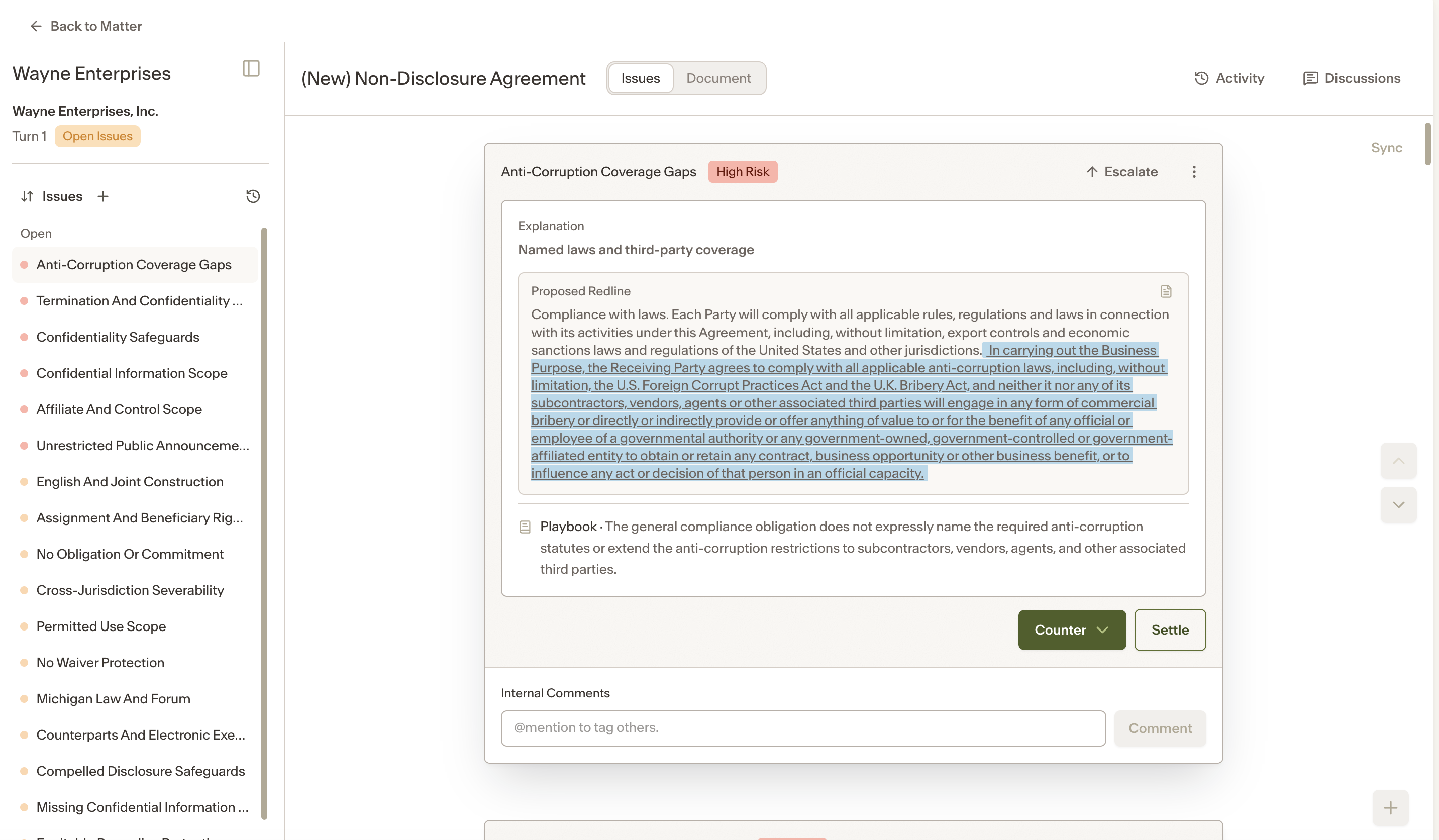
Each issue appears as a card, with the full list on the left and the active issue in the centre:
Interface overview
The agreement workspace is divided into three panels.
Left panel — agreement context and issue history, including issue counts and movement from Countered to Settled. Issues can be sorted by document order or risk level.
Central panel — the main working area, which has two views:
Issues View — displays all issue cards for the agreement. Activity (audit log) and Discussions (agreement-level comment thread) are accessible from the top right corner.
Document View — displays the editable agreement, with the active issue card moving to the right panel. You can edit the document directly here, with changes saving in real time. Activity and Discussions are also accessible from the top.
Right panel — in Document View, shows the issue card to be actioned.
Creating an issue
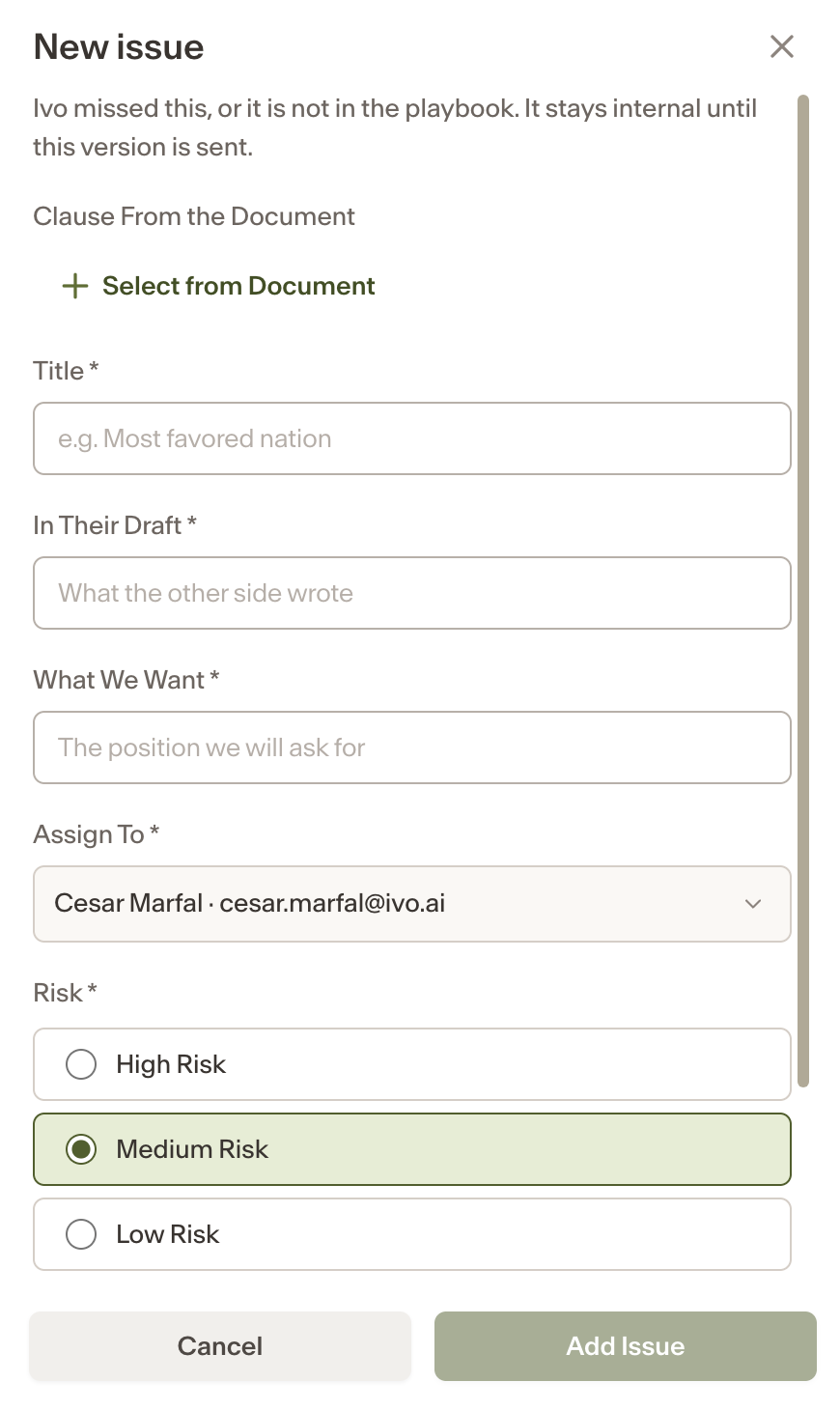
Issues are created automatically by AI Review, but you can also create them manually.
In Document View, highlight a paragraph and select Create Issue.
Alternatively, click at the end of the issues list to add a new issue manually.
Issue actions
Each issue is worked through one of three actions:
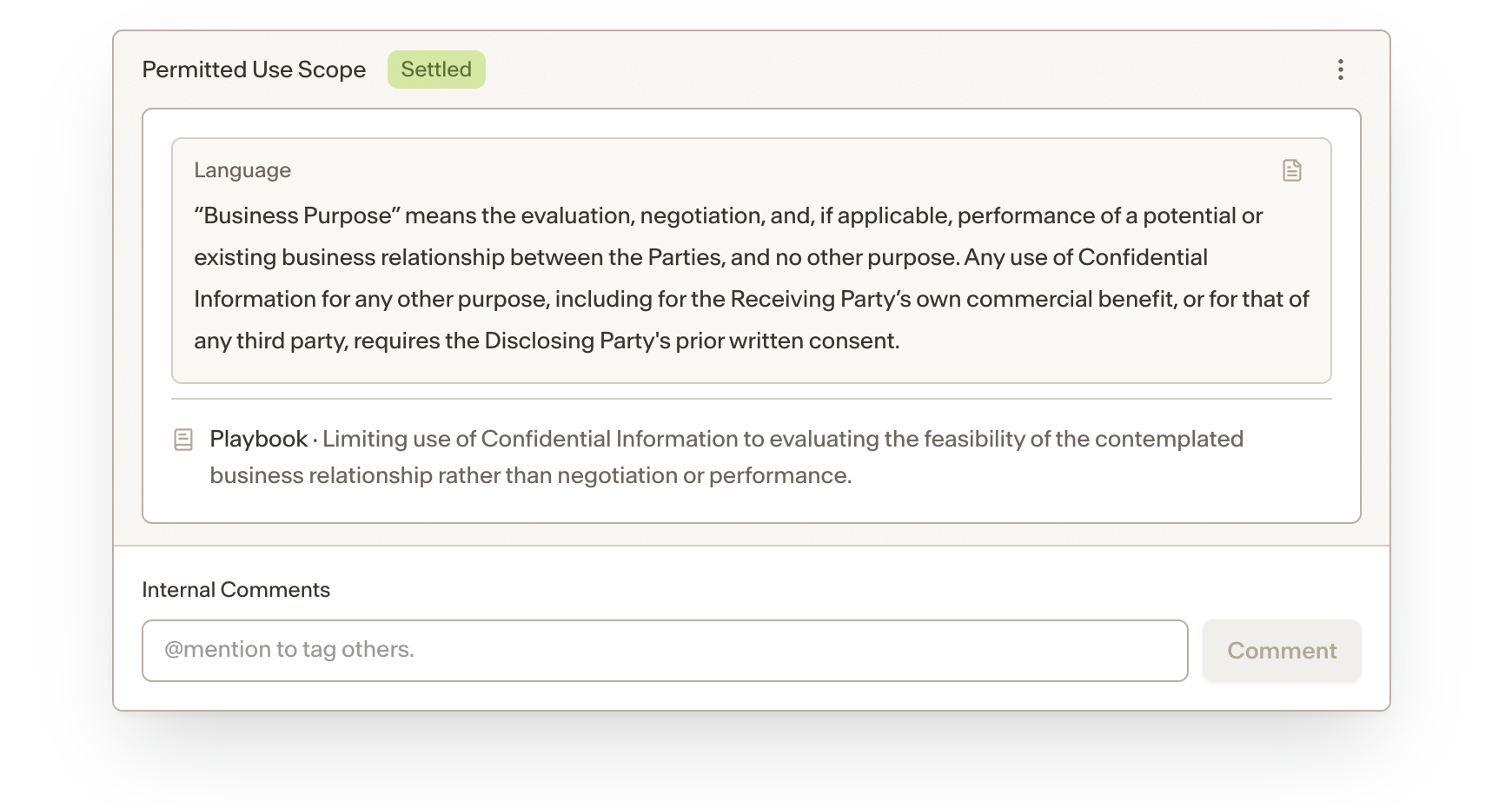
Settle — accepts the existing language in the agreement and closes the issue. Use this when you are comfortable with the counterparty's position. An issue also becomes Settled automatically when the counterparty accepts your countered language on a later turn.
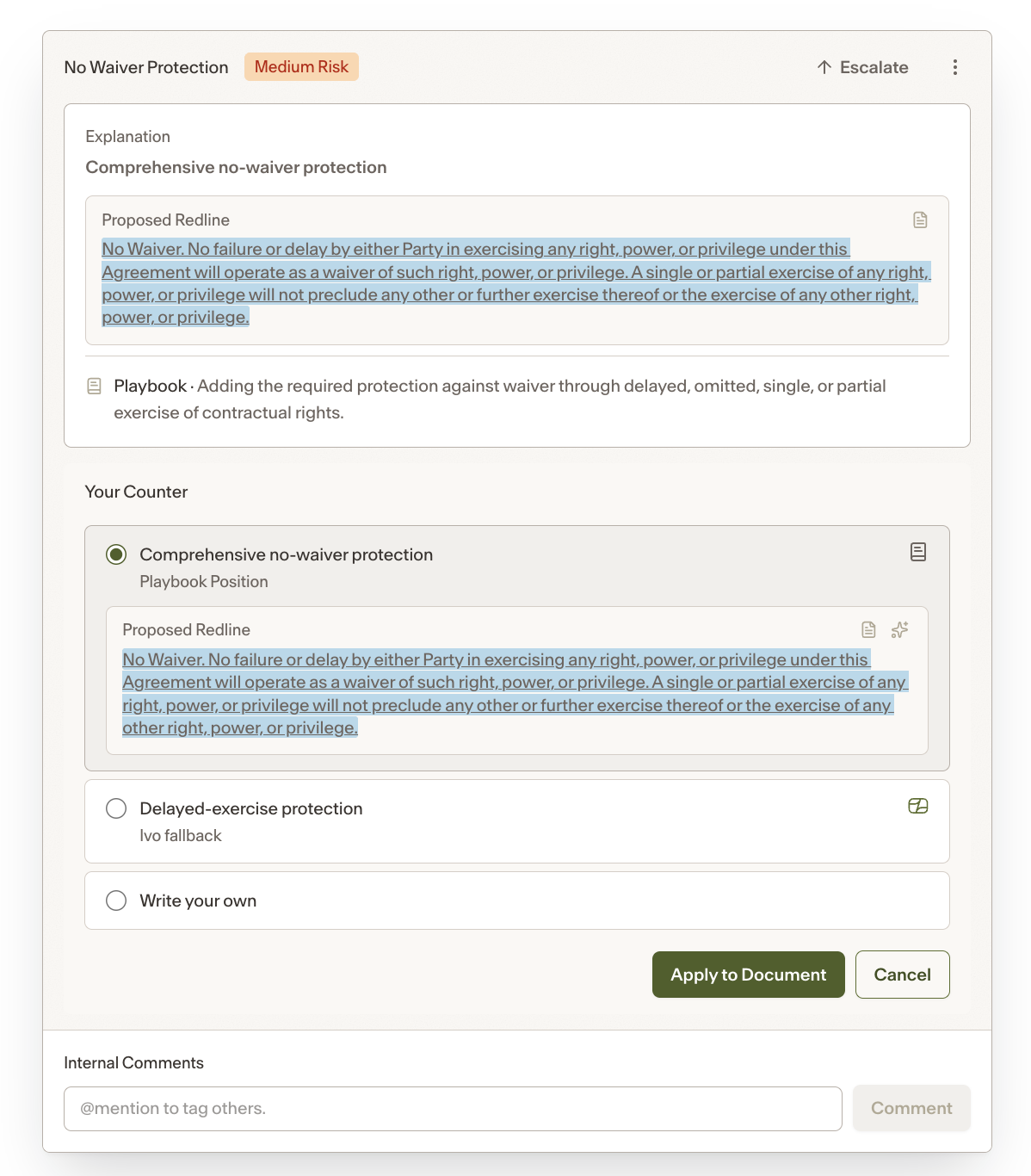
Counter — use this when you want to push back on the counterparty's position. After selecting Counter, Ivo presents a suggested redline informed by the playbook, benchmark, and risk flags. Review the suggestion and click Apply to apply it against the counterparty's proposed wording. The issue remains open and Countered until the counterparty accepts it or you choose to Settle.
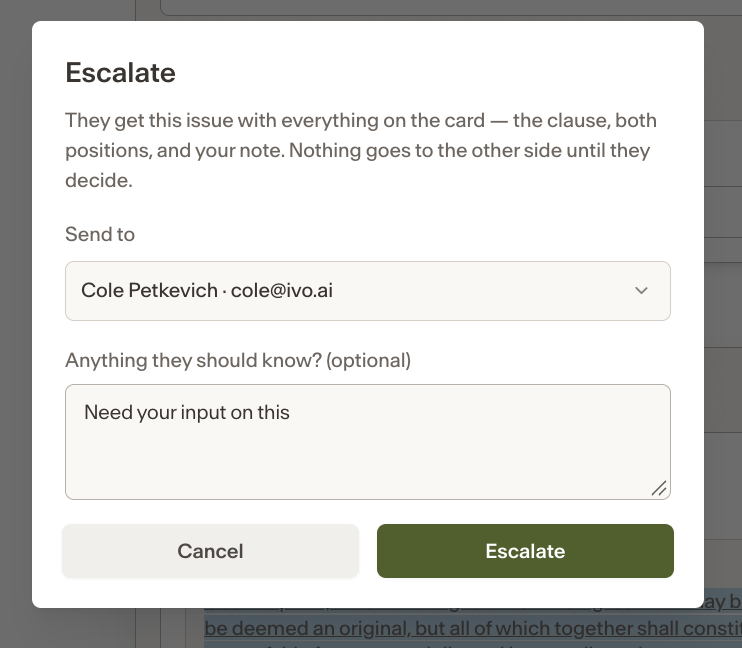
Escalate — transfers ownership and decision authority to another person. Use this when an issue requires input or sign-off from someone else. The recipient can Settle, Counter, or reassign the issue onward. After escalation the issue does not automatically return to you.
Nudge
If an issue is assigned to a reviewer who has not yet acted on it, the Matter Owner and other participants can send a nudge to prompt them. To do this, hover over the reviewer's avatar in the People column and click Nudge, as shown below. Nudges can be sent once every 24 hours per issue.

Comments
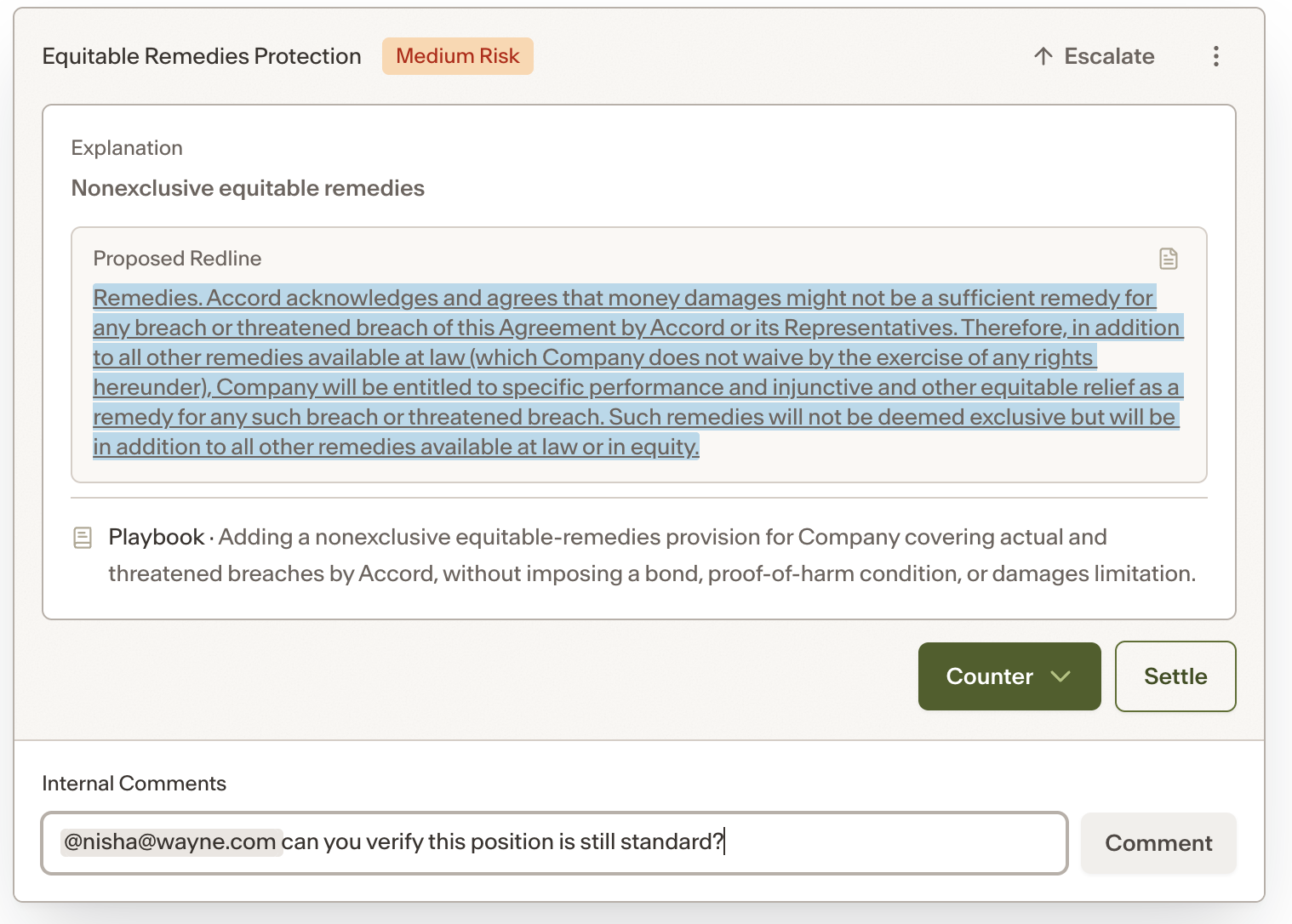
Comments are attached to a specific issue and keep issue-specific discussion in one place. They support mentions by name or email. The assigned reviewer receives a notification for all comments on their issues. Anyone explicitly mentioned in a comment also receives an email notification.
Discussions
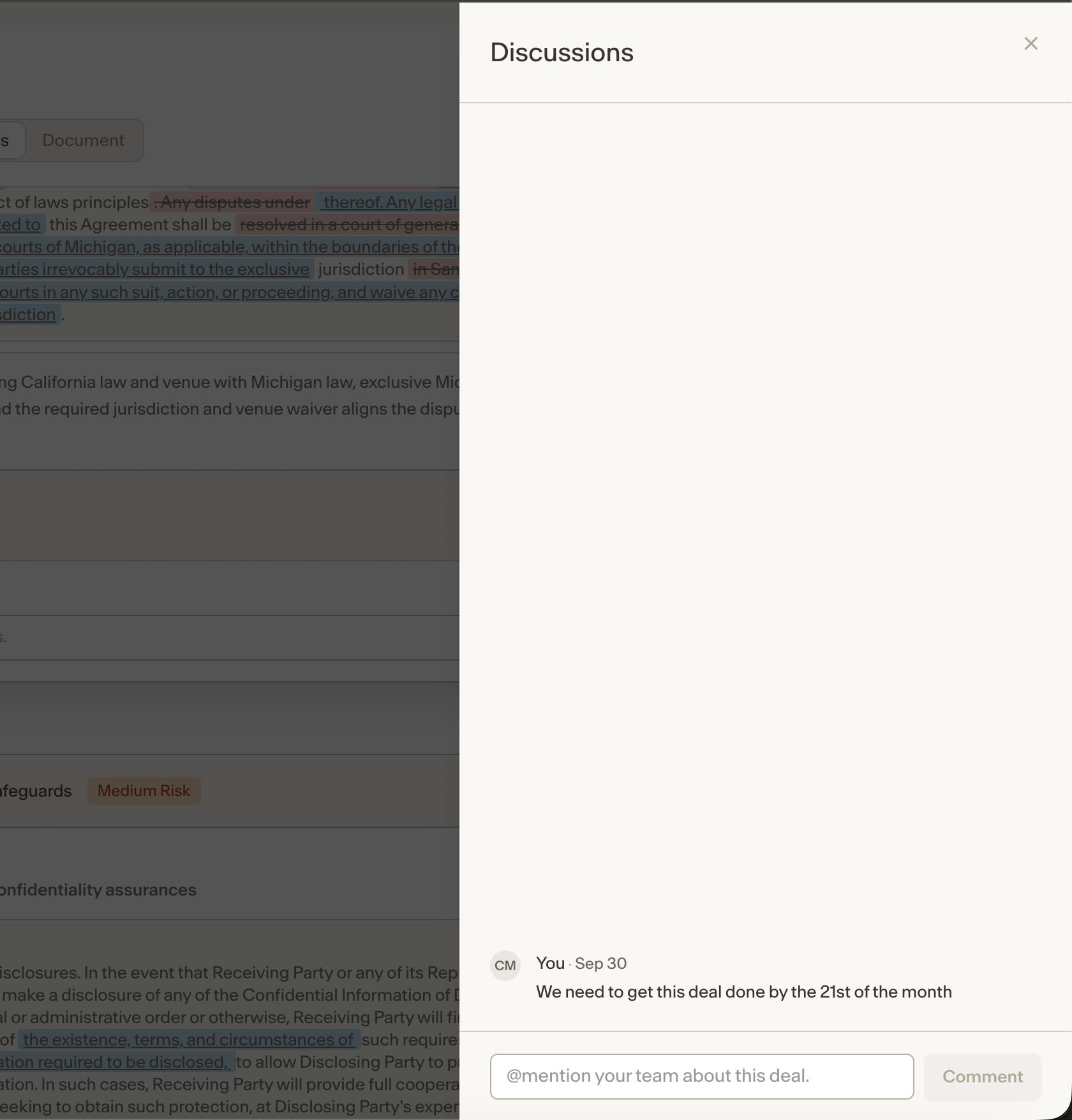
Discussions is a separate thread at the agreement level for general comments that do not relate to a specific issue. It supports mentions and sends notifications to anyone mentioned.
Document status
As issues are worked through, the agreement status updates automatically:
When every issue has been actioned but not all are Settled, the status updates to Ready for Counterparty, marking the end of a turn.
When all issues are Settled, the status updates to Ready for Signature.