4. Send for Signature
Last updated: September 30, 2026
Once all issues in an agreement are Settled and the document is marked Ready for Signature, an authorized user can initiate the signature process. Collaborate supports sending via DocuSign or downloading for manual sending.
Sending via DocuSign
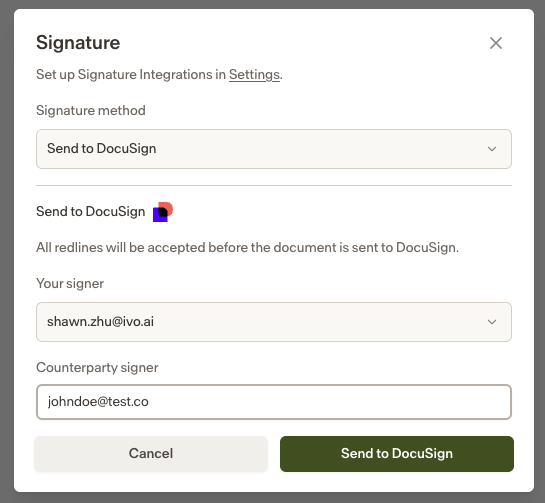
If DocuSign is configured for your workspace, you can send the document for signature directly from Collaborate.
Open the agreement in Collaborate.
When the document status shows Ready for Signature, click Send for Signature.
Collaborate prepares the document and sends it to DocuSign. All tracked changes are accepted automatically before the document is sent, so DocuSign receives a clean copy.
Sending manually
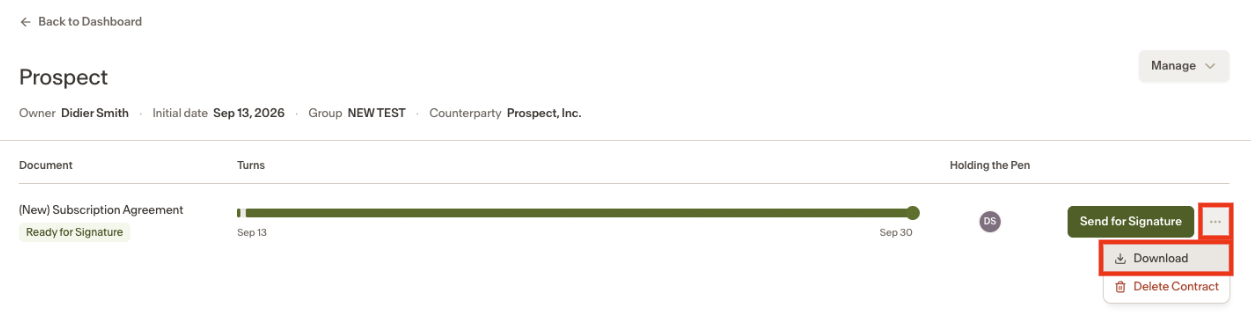
If DocuSign is not configured, you can download the document and send it for signature manually.
Open the agreement in Collaborate.
Click Download to save the document as a Word file.
Send the document to the counterparty through your preferred channel.
Once signed, upload or store the executed copy manually in Ivo Intelligence or your document management system.
Marking a document as signed
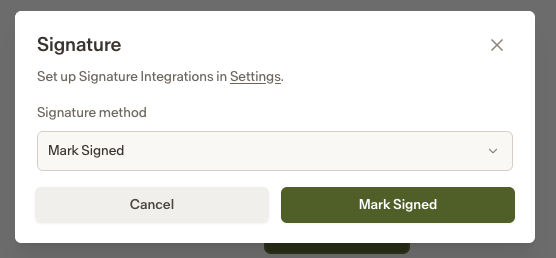
If you are not using DocuSign, you can mark the document as signed manually within Collaborate once the signature process is complete.
Storing executed copies
If DocuSign is configured to save executed copies in Ivo Intelligence, the signed copy will be stored there automatically. If not, you will need to store the signed copy in Intelligence or your document management system manually.
Notes
Collaborate does not initiate signature automatically. An authorized user must always initiate the process.
Sending for signature is not available until all issues in the agreement are Settled and the document status shows Ready for Signature.
Downloading a document does not accept tracked changes or remove comments. If you are downloading for manual sending, accept all changes and remove any comments from the document before sending.