Connecting Salesforce to Collaborate
Last updated: November 20, 2026
Connect your Salesforce org to Ivo so your team can link Salesforce records, such as Opportunities and Cases, to Matters in Collaborate without leaving Salesforce. Setup has five parts and takes two people: a Salesforce admin for parts 1 to 4, and an Ivo workspace admin for part 5.
Before you start
Salesforce admin access. Parts 1 to 4 are done in Salesforce Setup.
Ivo workspace admin access. Part 5 is done in Ivo by someone with the Collaborate Admin role, such as your Legal Ops lead.
Flow enabled on your workspace. The connection is made through Ivo Flow.
Records with owners. Collaborate only works on Salesforce records that have an Owner, such as Opportunities and Cases.
1. Install the Ivo app in Salesforce
Open the Ivo app install page. If you are asked to log in, sign in and select your Salesforce org.
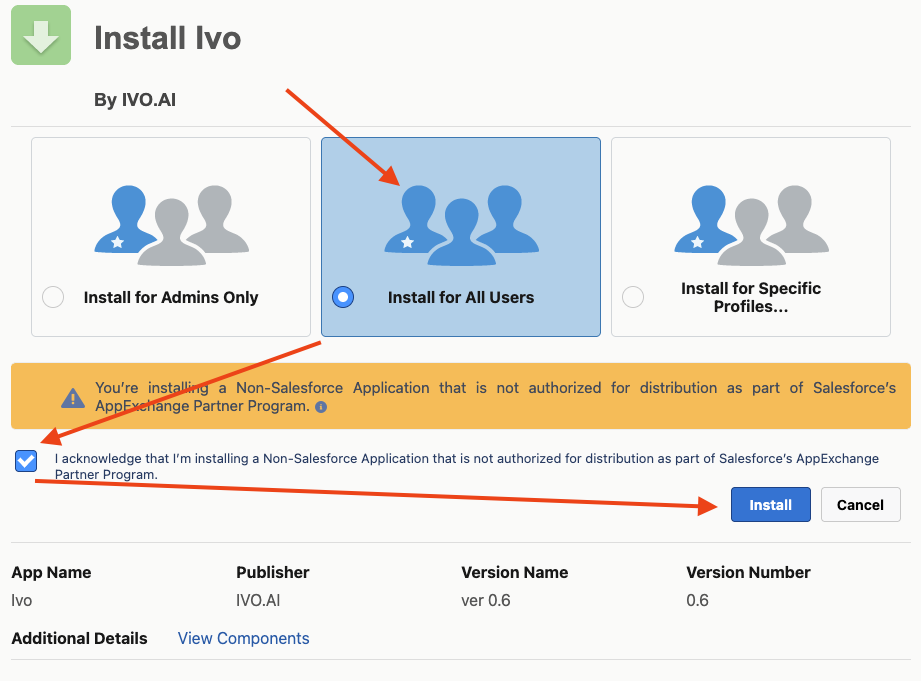
Choose an install setting. We recommend Install for All Users.
Check the acknowledgement box, then click Install.
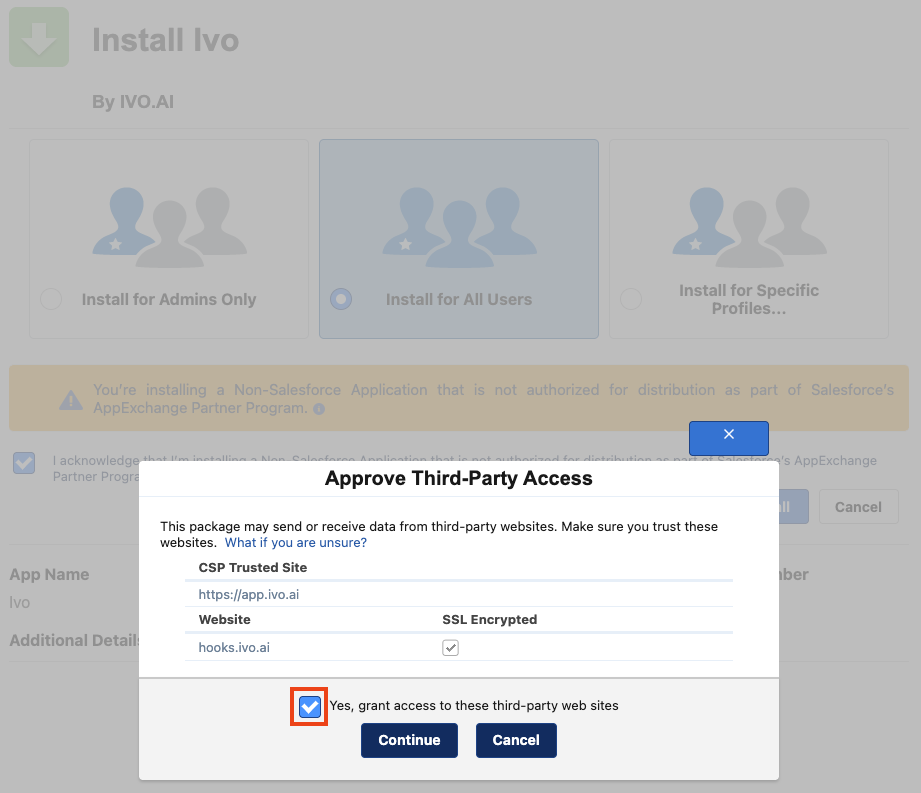
Confirm the third-party access request.
Wait about a minute for the install to finish.
2. Configure the External Client App
Open the External Client App Manager. If you are asked to log in, sign in and select your Salesforce org.
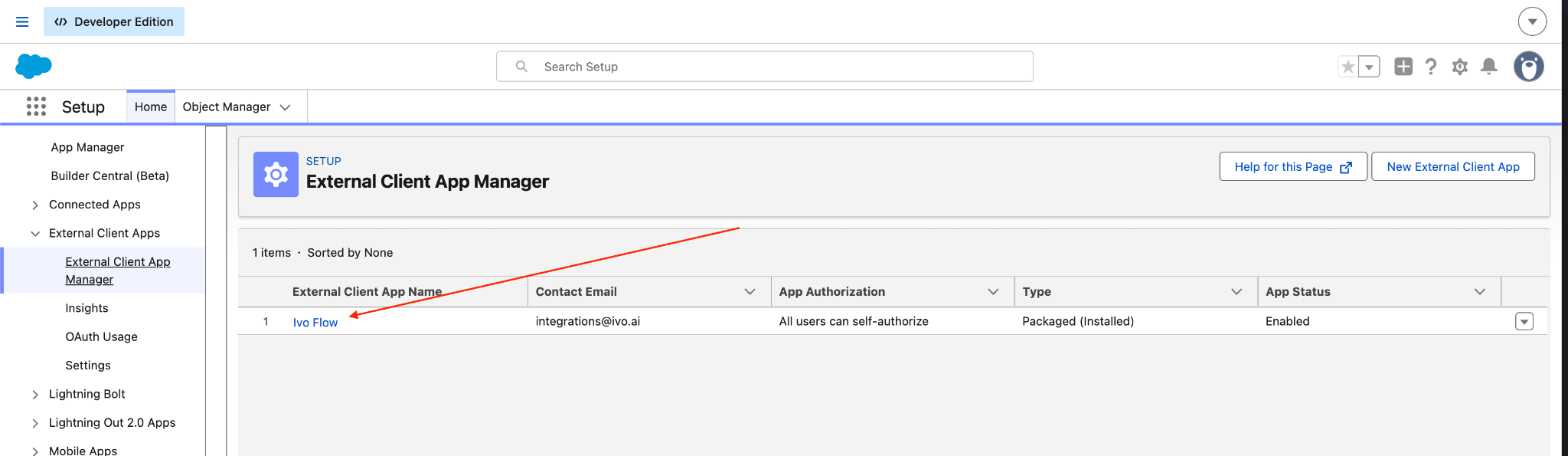
Find and select Ivo Flow.
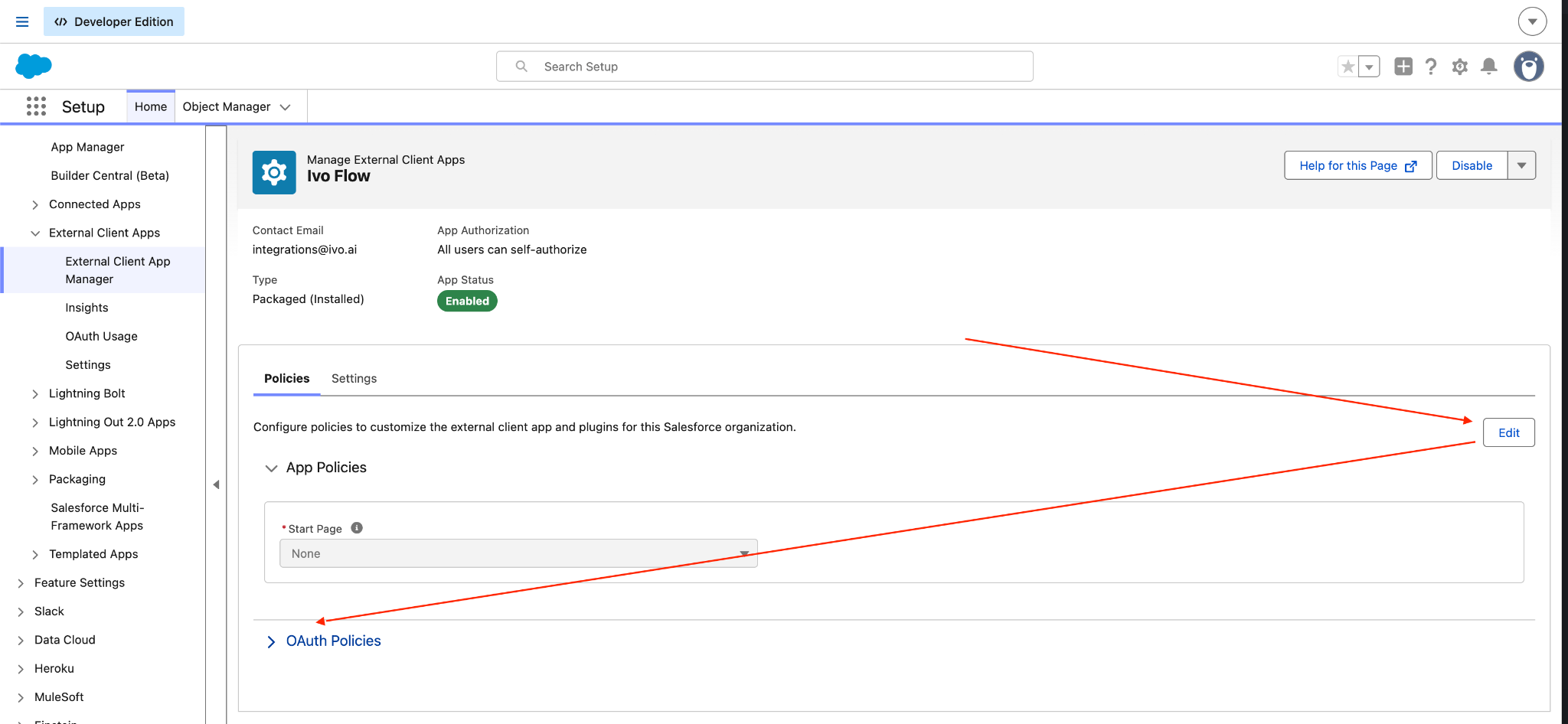
Click Edit, then expand OAuth Policies.
Under OAuth Flows and External Client App Enhancements:
Turn on Enable Client Credentials Flow.
Set Run As to the username of an org admin or service account. Your own username works.

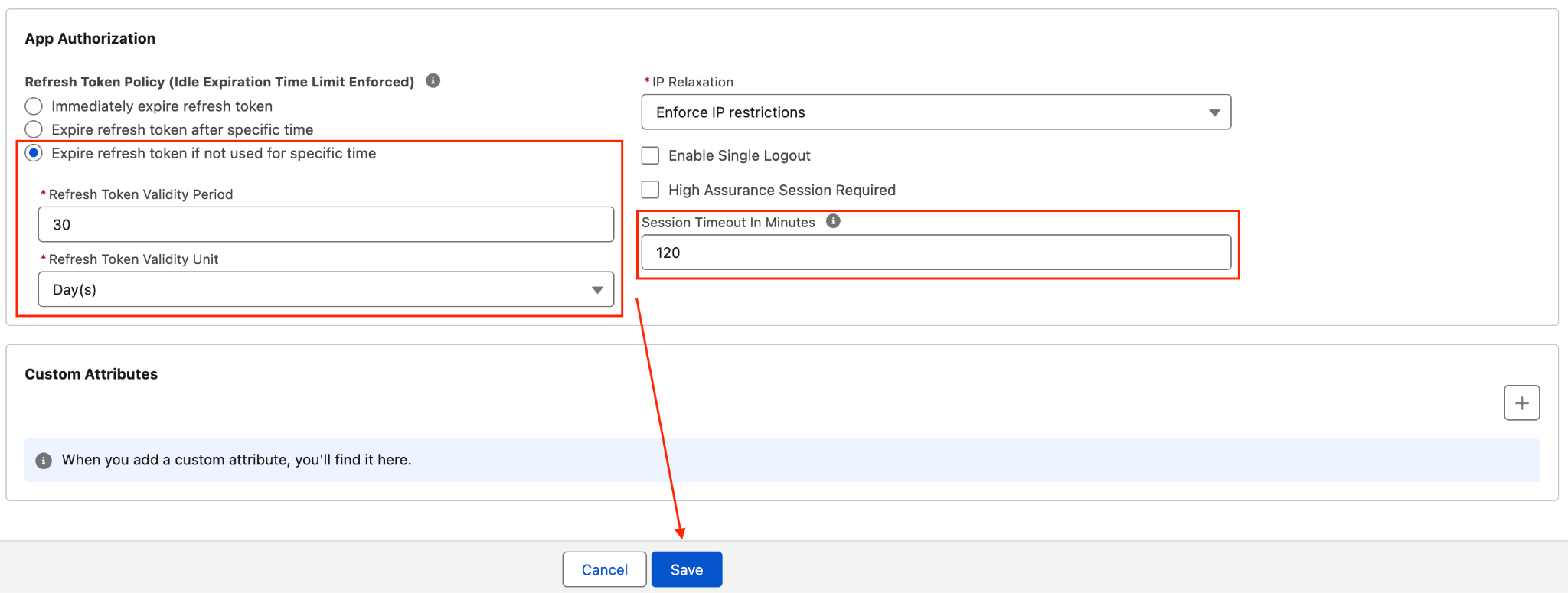
Under App Authorization:
Set Refresh Token Policy to Expire refresh token if not used for specific time.
Set Refresh Token Validity Period to 30 Days.
Click Save.
3. Add the Ivo component to a record page
Go to the type of Salesforce record your team will request Matters from, for example Opportunities.
Open any record of that type.
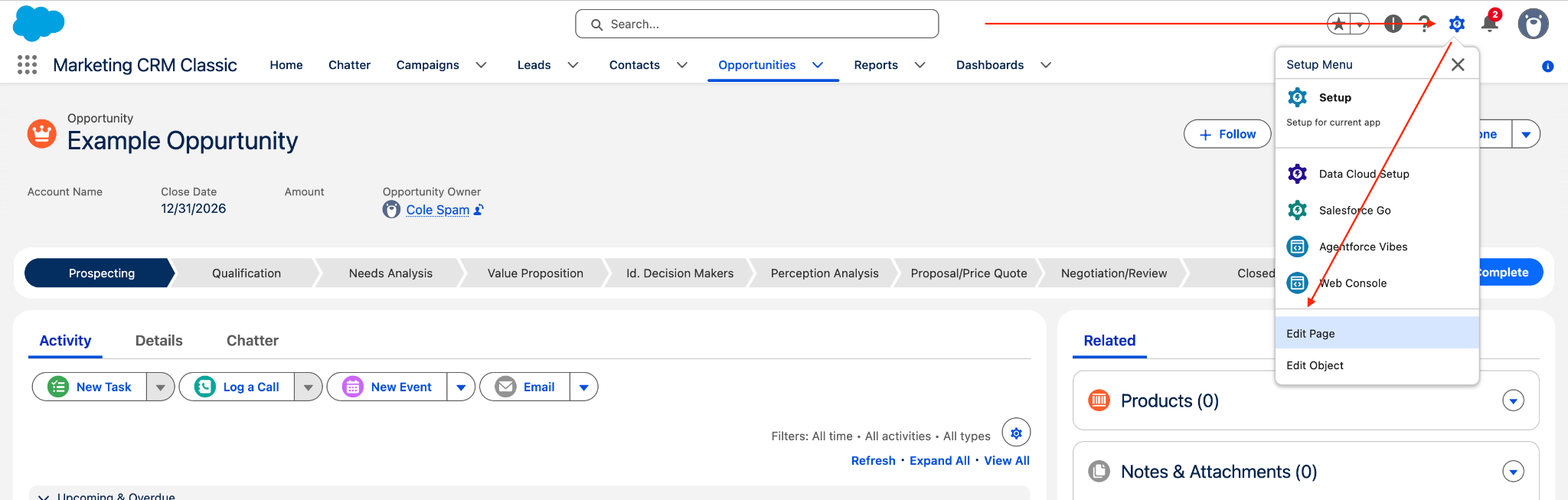
Click the Settings gear, then click Edit Page.
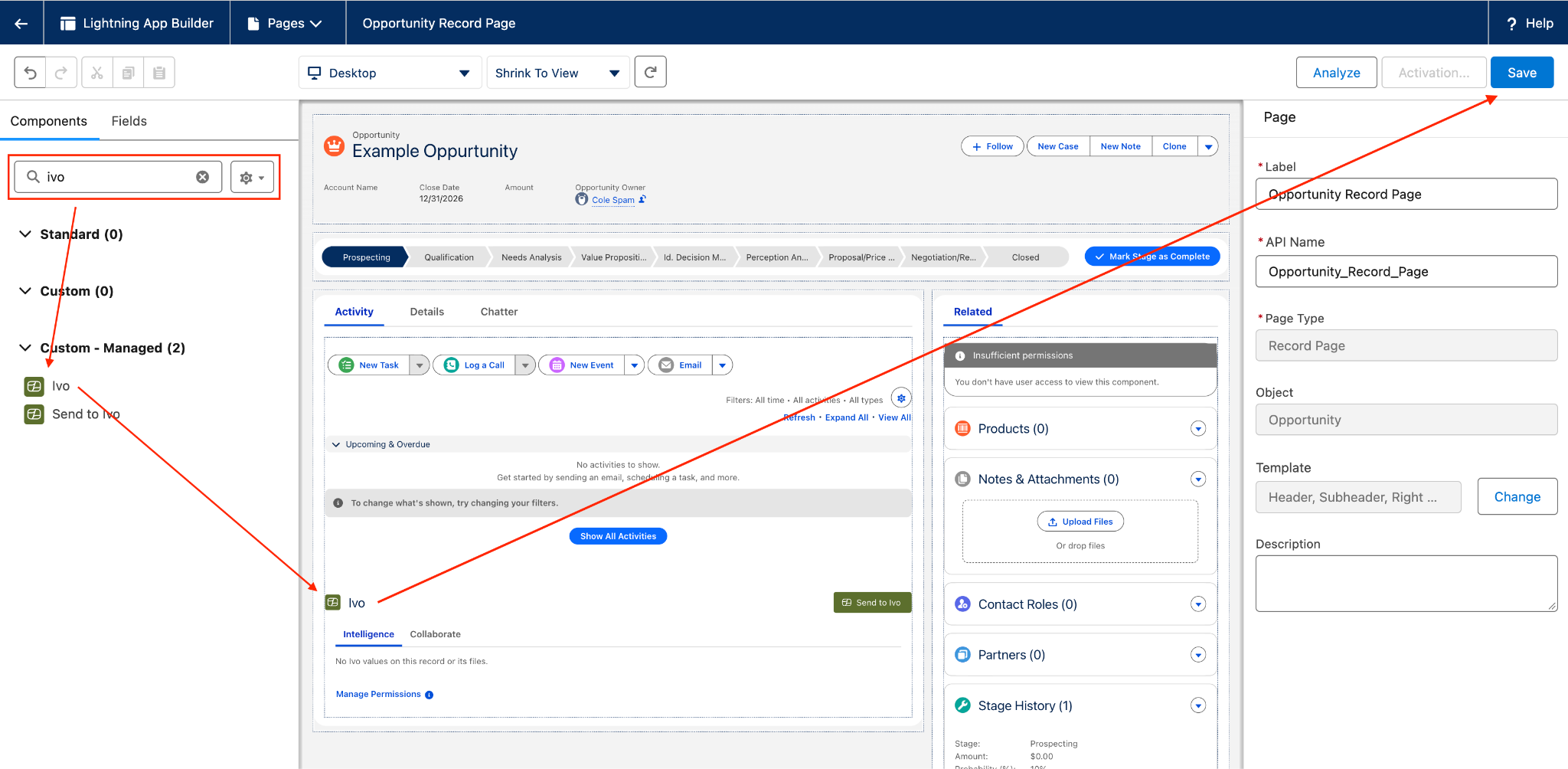
Find the Ivo component in the component list.
Drag the Ivo component to where you want it on the page.
Click Save.
If the page has not been activated yet
New Salesforce orgs need the record page activated before the component appears.
Click Activate (or Activation).
Under Org Default, click Assign as Org Default, select the Desktop and Phone form factors, click Next, then click Save.
Click Activation again.
Under App Default, select the Lightning apps you want to use, such as Sales, and click Next. Select the Desktop and Phone form factors, click Next, then click Save.
4. Set permissions on the Ivo component
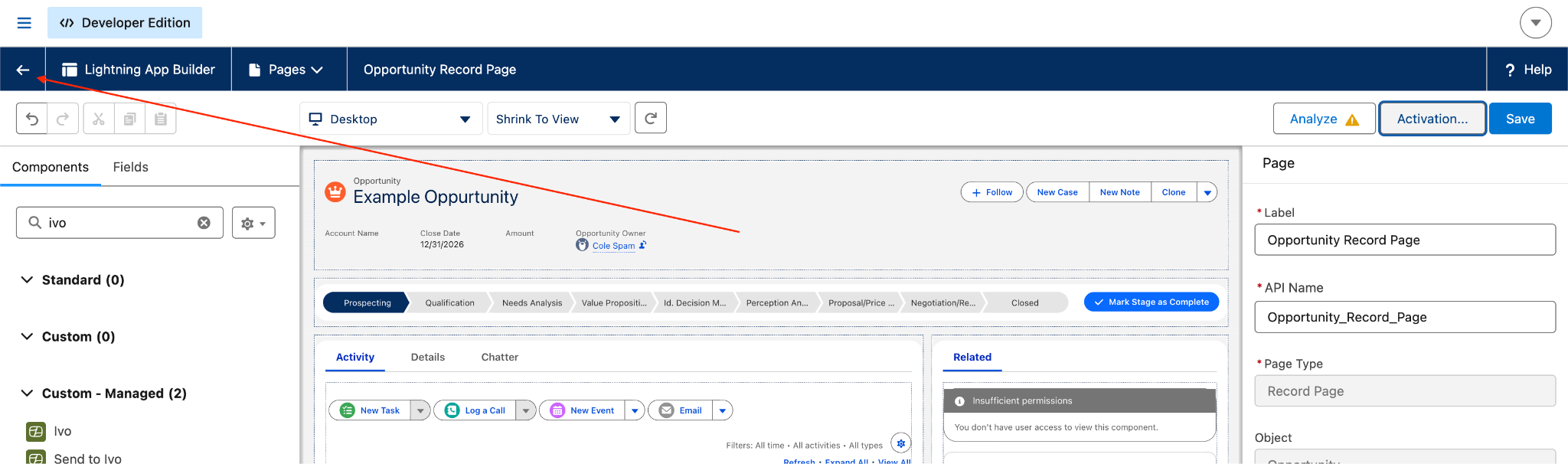
Click Back to leave the page editor and return to the record.
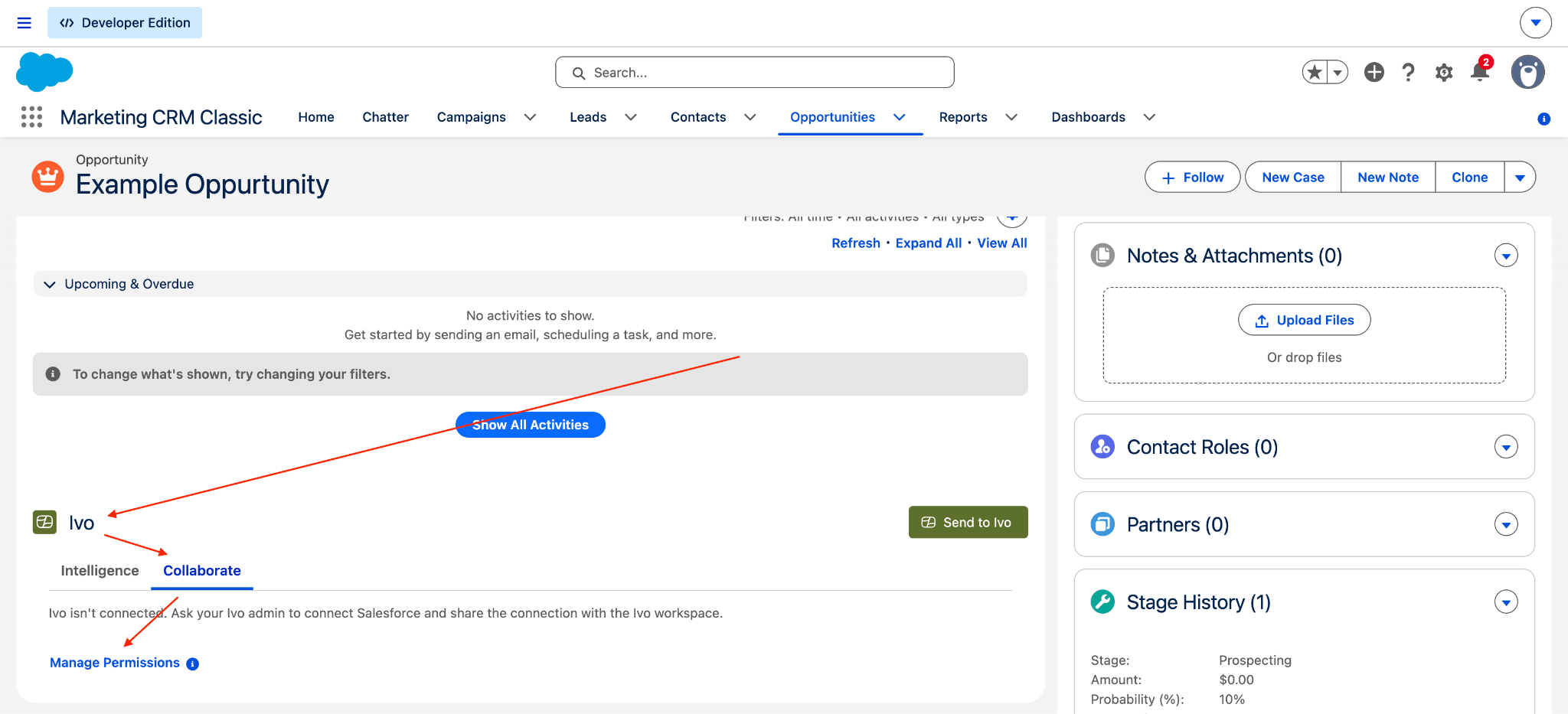
In the Ivo component, select the Collaborate tab, then click Manage Permissions.
Set Integration user to an org admin or service account. Your own username works.

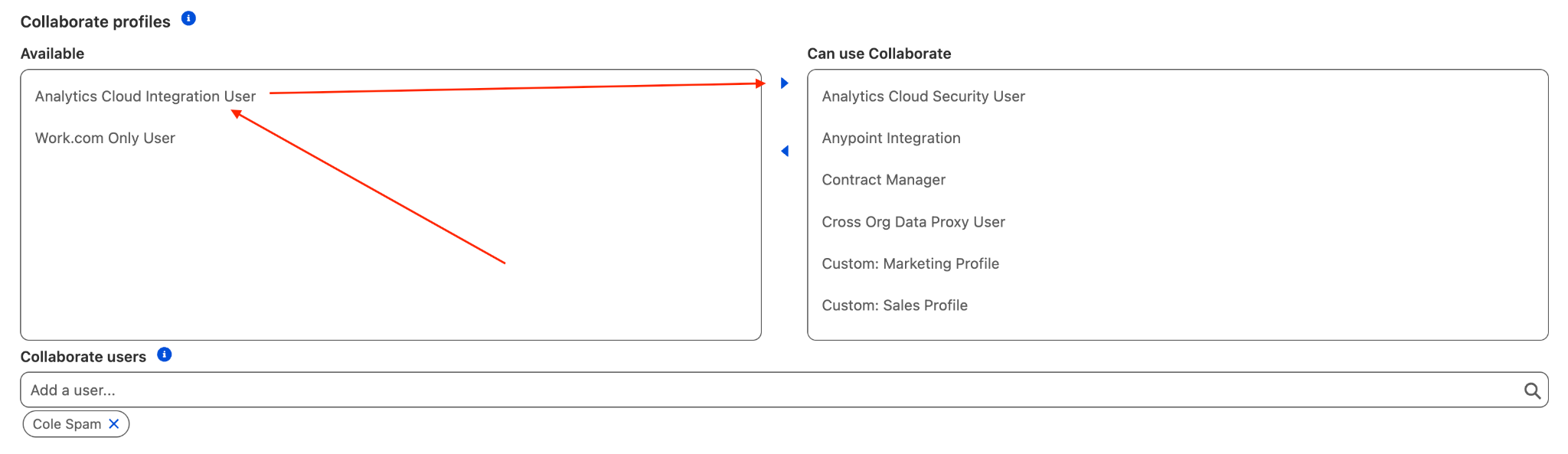
Choose the Salesforce profiles and users who can use the Collaborate tab. We recommend adding all profiles.
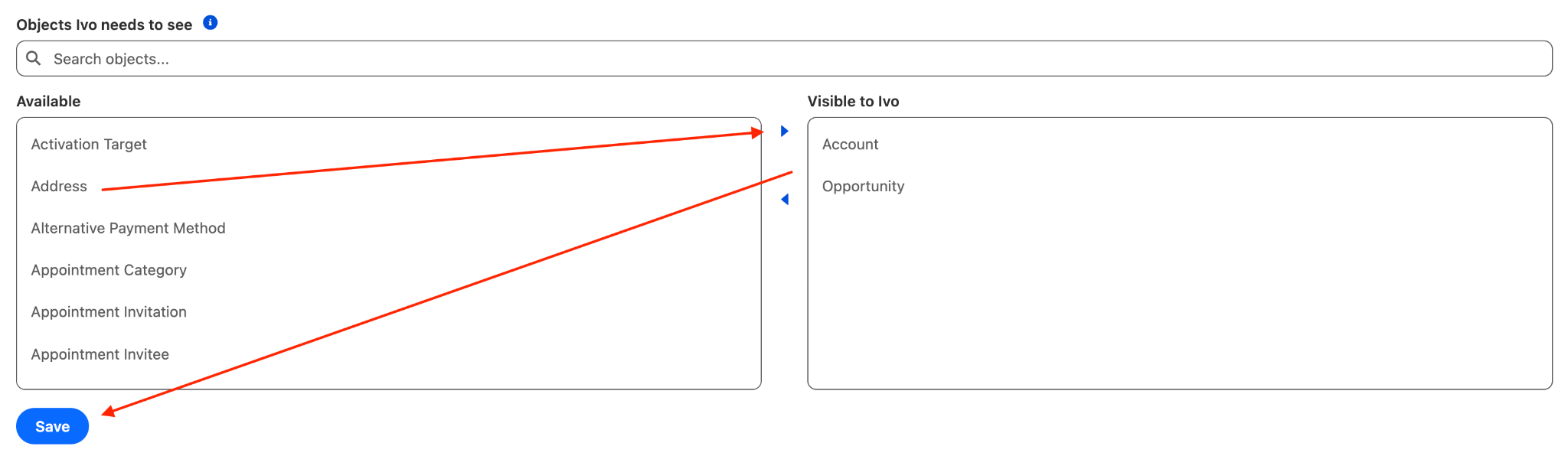
Give Ivo access to the Salesforce records it needs to view:
Required: the record type the Ivo component is placed on. If the component is on the Opportunity page, add Opportunity.
Optional: any record types that record uses. If the component is on the Opportunity page, you can add Account, since Accounts are fields on Opportunities.
Click Save.
5. Connect Salesforce in Ivo
This part is done by an admin of your Ivo workspace.
Check your role
Go to Ivo and open your workspace.
Go to Settings, then Users.
Edit your user profile so it has the Collaborate Admin and Support permissions.
Check that Flow is set up
Go to Settings.
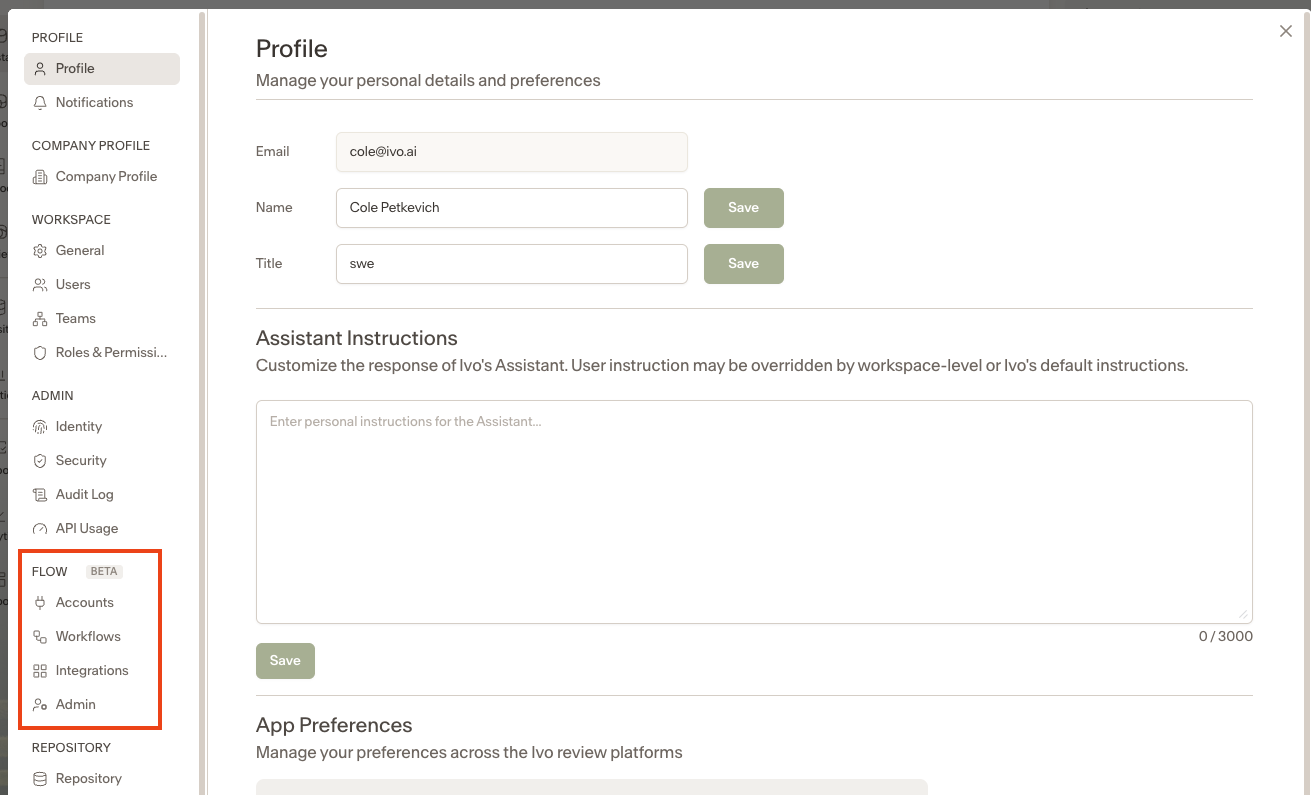
Confirm there is a Flow section in the settings menu. If you don't see one, contact your Ivo representative to have Flow enabled.
Connect the Salesforce account
Go to Settings, then Flow, then Accounts.
Click Connect, find Salesforce, and click Install.
Set Connection Type to OAuth Client Credentials.
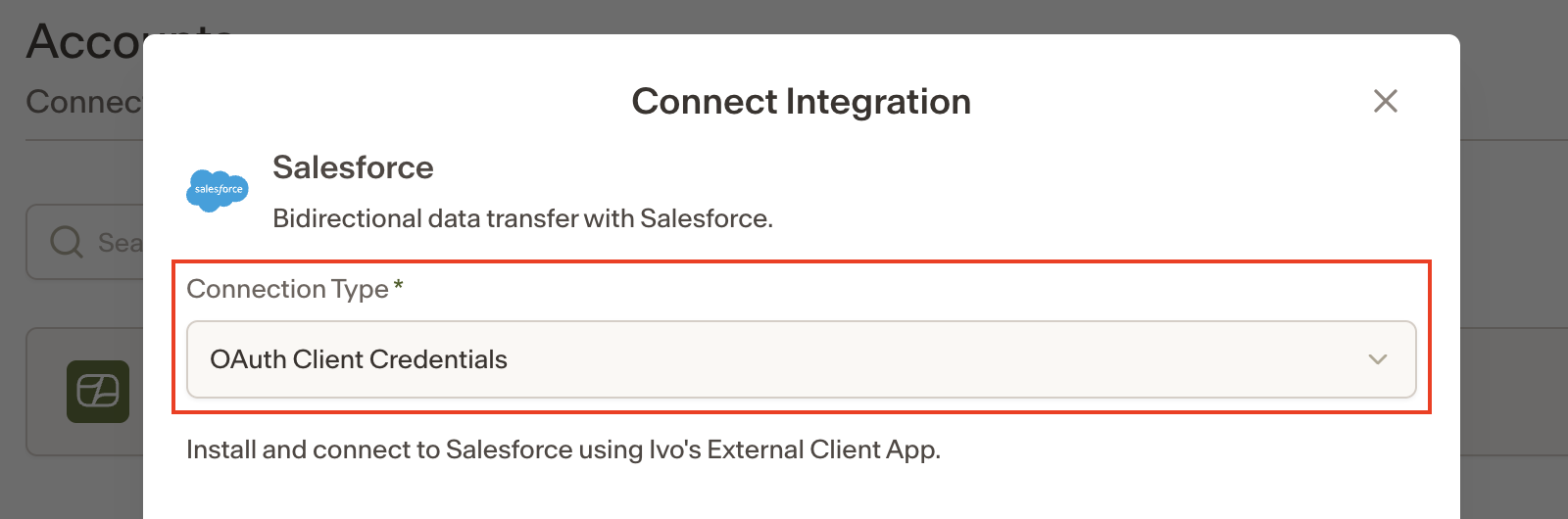
Set Environment to Production.
Set My Domain to the domain of your Salesforce org. This is everything after "https://" and before the first period in your Salesforce URL.
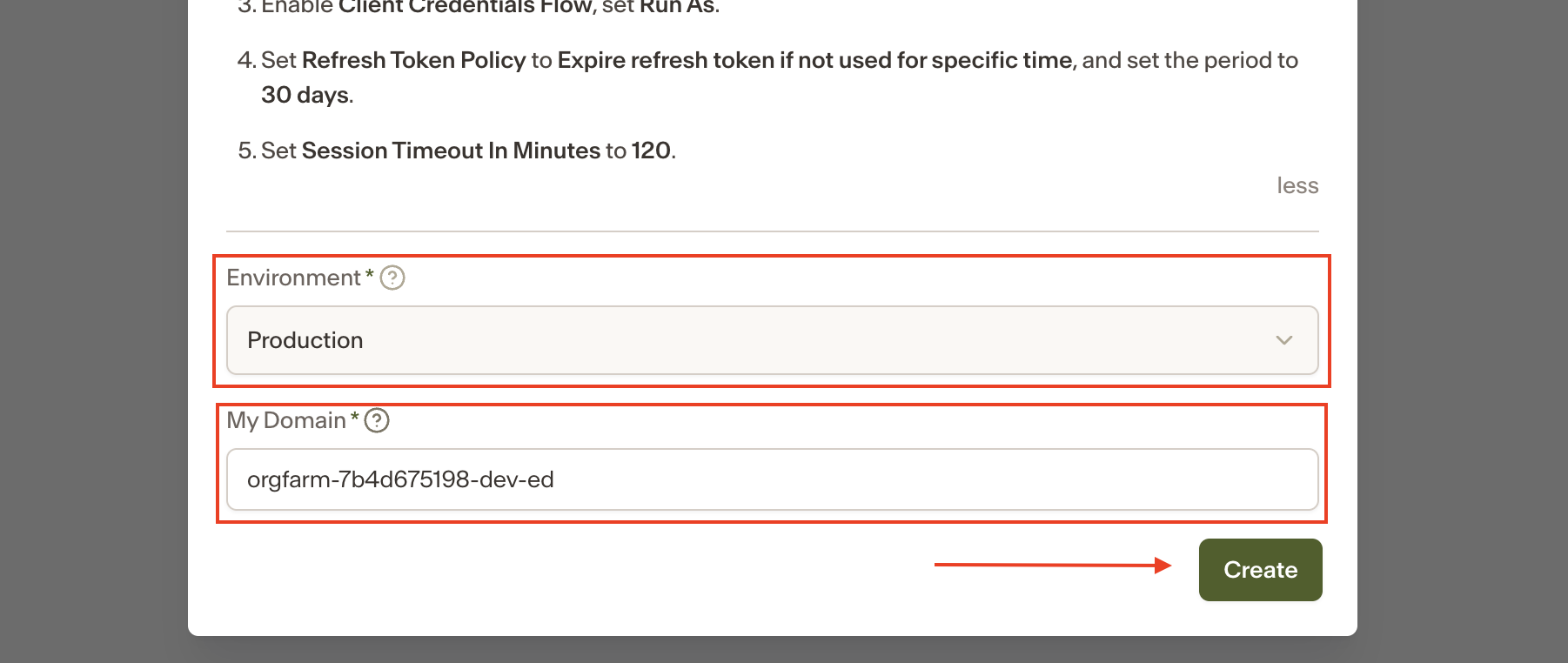
Click Create.
Log in to your Salesforce org if prompted.
Find the Salesforce account in the list, click the three dots, then click Make Public.
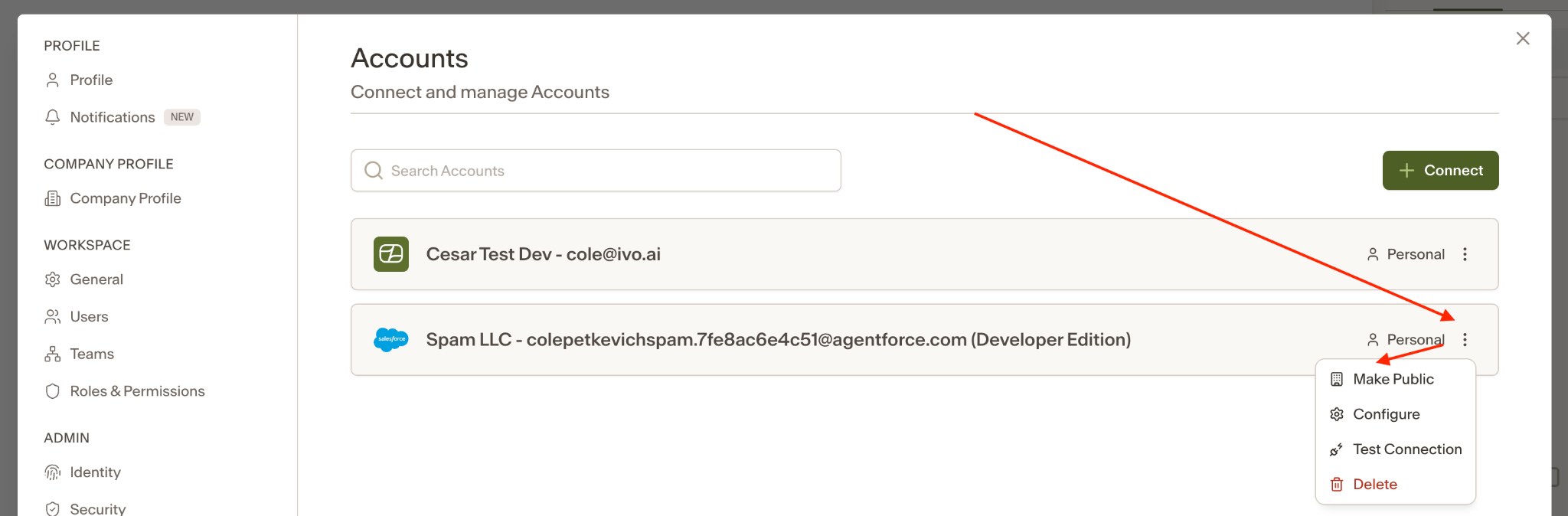
Confirm the Salesforce account shows as shared with Workspace and that its status is not flashing.
Wait up to 15 minutes for Ivo to finish connecting to Salesforce.

Test the integration
Once the connection is ready, check that linking works from a record you own.
In Salesforce, open a record you own on a page that has the Ivo component.
In the Ivo component, click Link to Matter in Ivo, then click Link.
Click the dropdown arrow in the Ivo component, select Unlink from Ivo, then click Unlink.
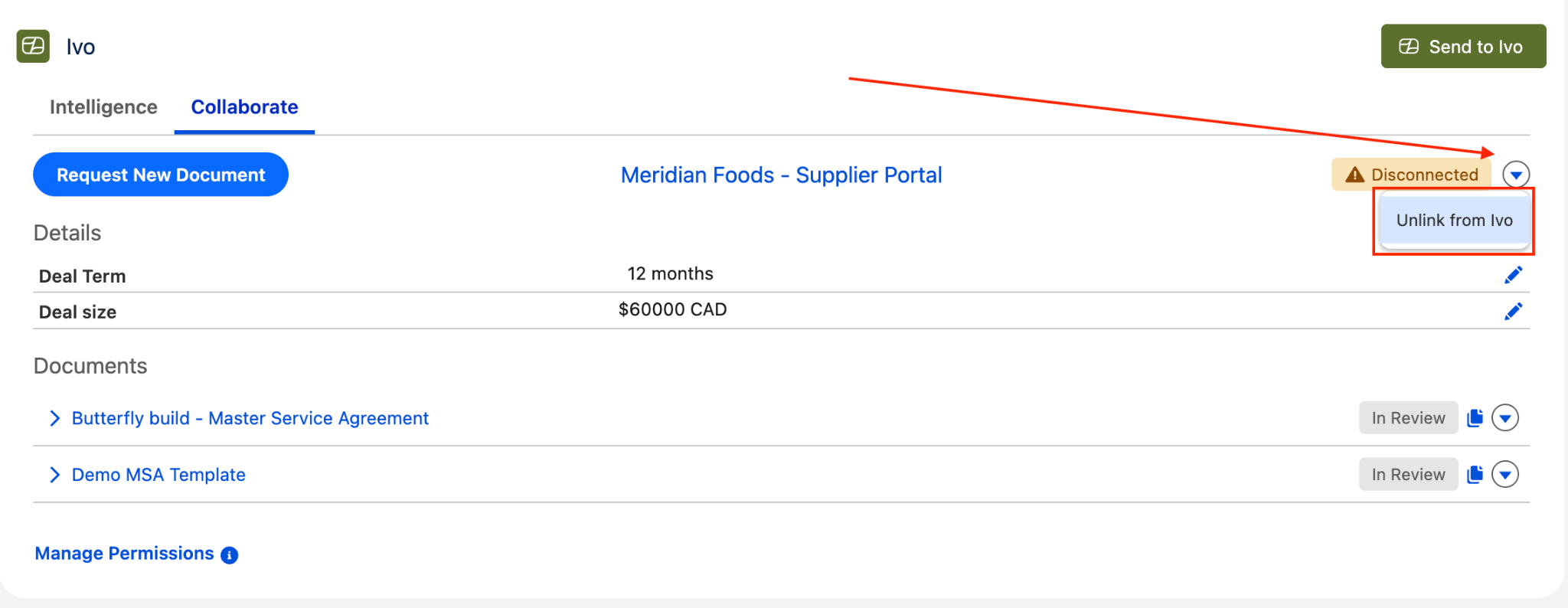
If linking and unlinking both work without reloading the page in between, the integration is set up correctly.
Notes
Collaborate only works on Salesforce records that have an Owner.
You can add the Ivo component to more than one record type. Repeat parts 3 and 4 for each one.
The Salesforce account must be shared with the workspace in Ivo. If it is left private, other users can't link records.