Saving Prompts Directly from a Conversation
Last updated: June 22, 2026
You can now ask Assistant to help you write a prompt and save it to your Prompt Library without leaving the conversation. This makes it easy to build up your library as you work, without having to switch to the Prompt Library manually.
How to save a prompt from a conversation
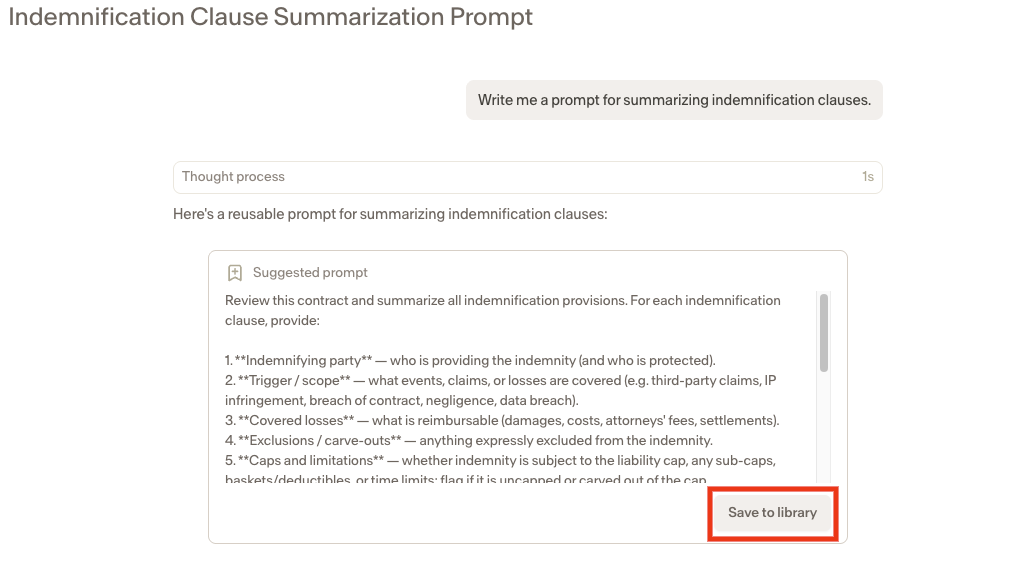
In your Assistant conversation, ask Assistant to help you write a prompt. For example:
"Write me a prompt for summarizing indemnification clauses."
"Create a prompt that asks Ivo to identify any unusual termination provisions."
Once Assistant generates a prompt you're happy with, click Save to Library
Assistant will save the prompt directly to your User Prompts in the Prompt Library, where it will be ready to use across future conversations.
Accessing your saved prompts
Once saved, your prompt will appear under User Prompts in the Prompt Library. You can access it from the Prompt Library icon in both the web app and the Word add-in.
For more on managing and using your saved prompts, see the Prompt Library article.