Showing Intake Questions on the Collaborate Home Page
Last updated: November 10, 2026
The Collaborate home page grid can show intake question answers as columns. This lets you see the information collected at intake next to each Matter, and filter and sort by it.
Add intake questions as columns
Go to the Collaborate home page.
Click Hidden Fields in the top right of the grid. The button shows how many fields are currently hidden.
Scroll to Intake Fields. Intake questions are grouped by the workflow they belong to.
Toggle on each intake question you want to show. You can use Search fields to find one quickly.
Click Confirm.
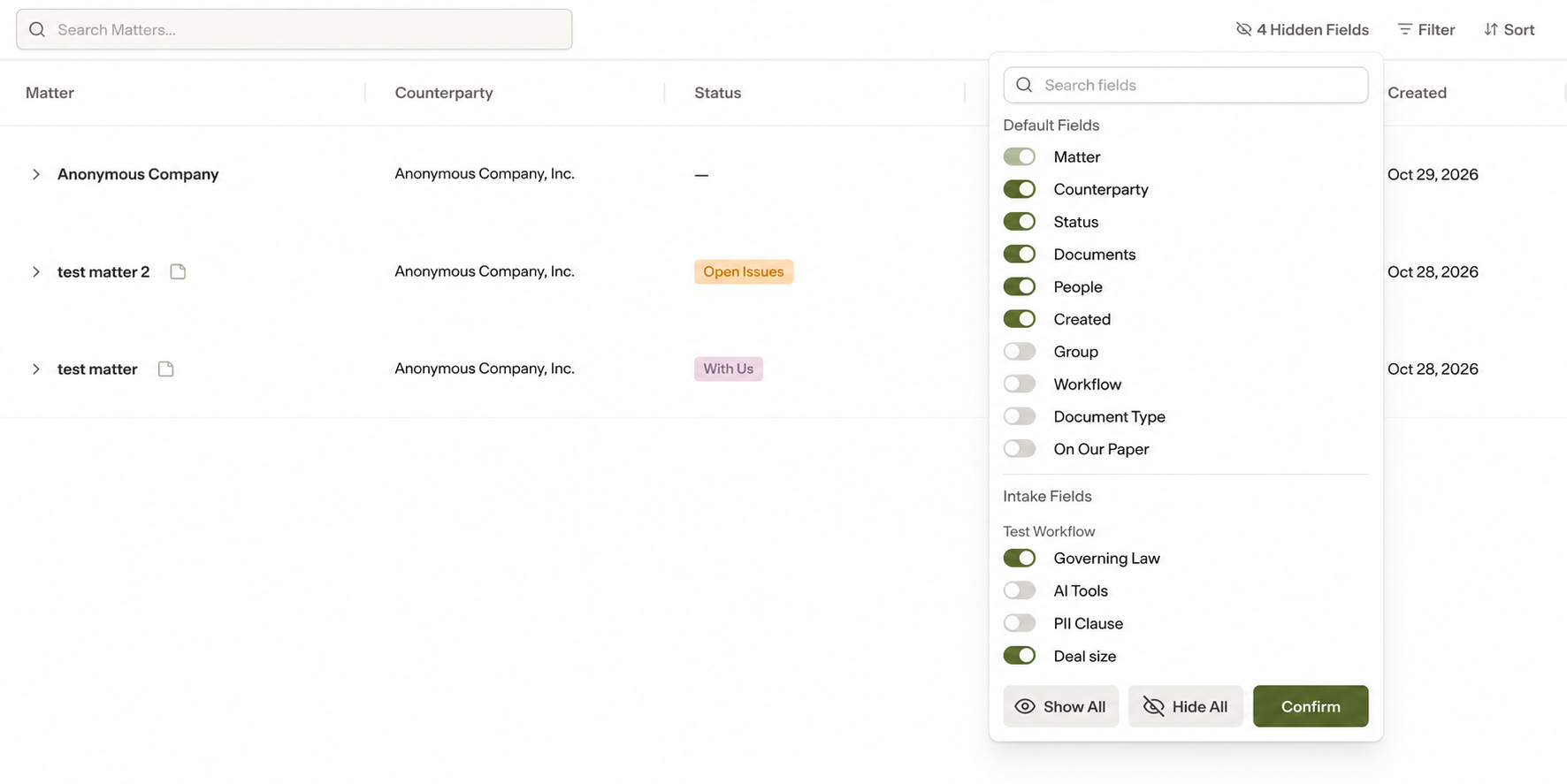
The selected questions now appear as columns in the grid. A dash is shown when there is no answer for that question.
Filter by an intake answer
Click Filter in the top right of the grid.
Choose the intake question, a condition such as Is, and the answer to match.
To narrow the results further, click Add Condition or Add Condition Group.
Click Confirm.
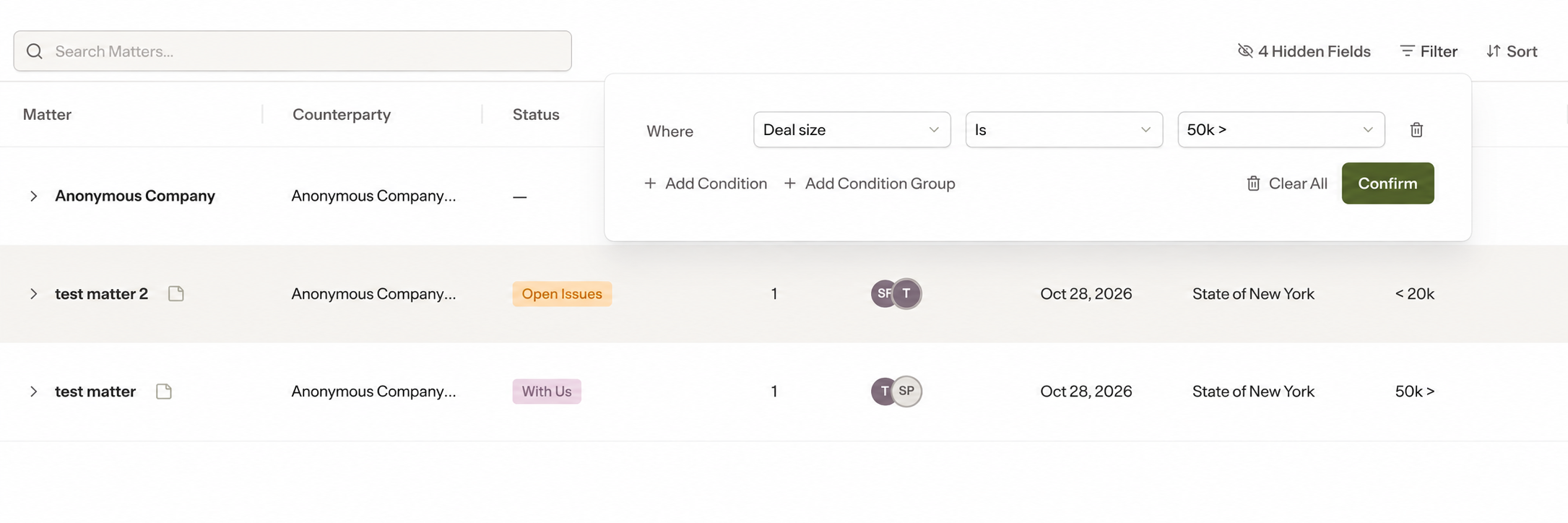
To remove your filters, open Filter and click Clear All.
Sort by an intake answer
Click Sort in the top right of the grid.
Under Sort by, choose the intake question and select Ascending or Descending.
To sort by more than one field, click Add Sort.
Click Confirm.
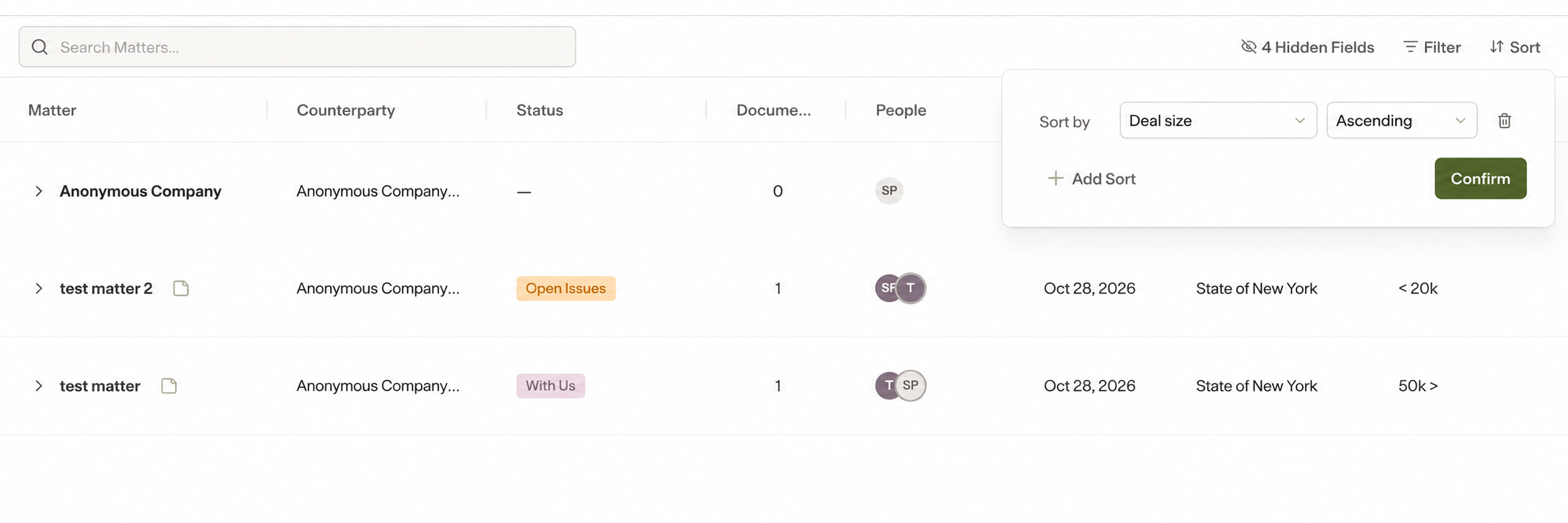
Notes
Intake questions are set up per workflow by Group Admins. See Setting Up Groups and Workflows.
The same Hidden Fields menu also controls the default columns, such as Group, Workflow, Document Type, and On Our Paper.