Using the Review feature
Last updated: August 20, 2026
The Review feature serves as a valuable tool for identifying risks and ensuring consistency within your legal team, as well as making suggestions for how contracts can be modified to satisfy the requirements that are expressed by your Review Items. By reviewing each item, Ivo can assist you in determining whether or not the Review requirement has been fulfilled, where the agreement addresses that requirement, and how the agreement can be modified to satisfy it.
To run a review:
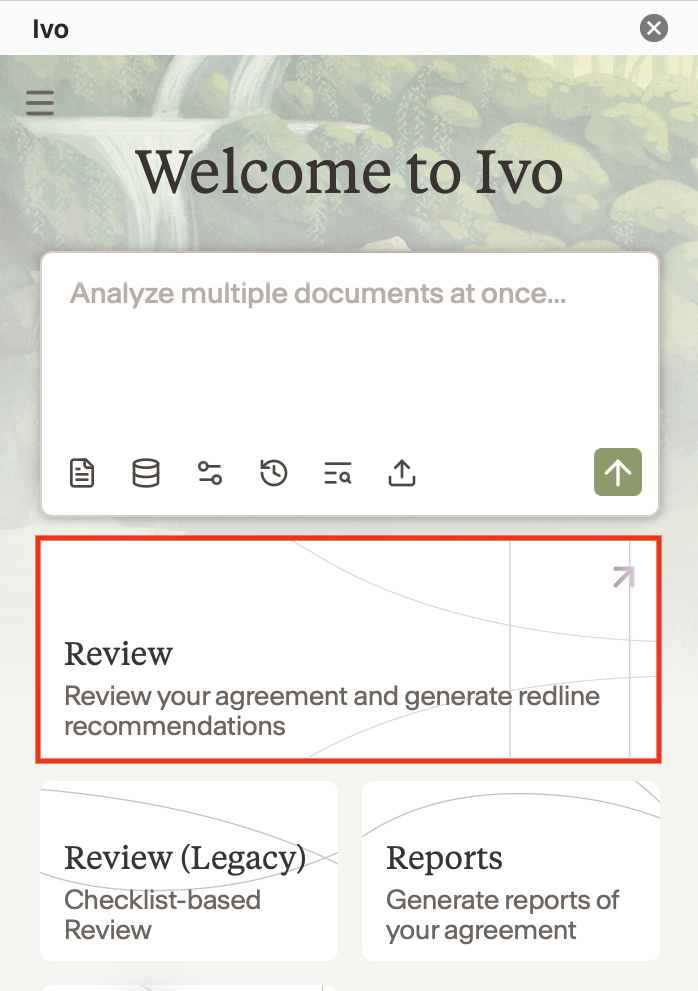
Click on Review.
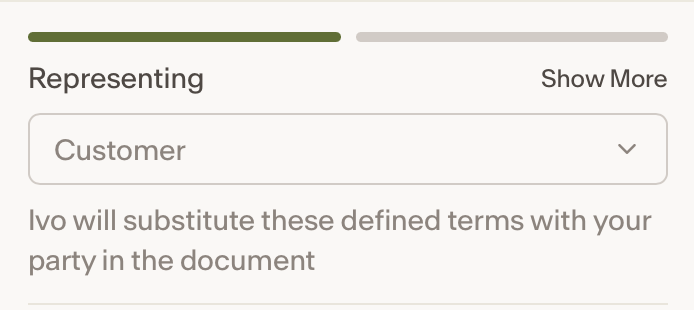
Enter the Representing Party and Counterparty if they are not automatically detected.
Choose your review method:
Playbooks
Benchmarks (Intelligence customers only)
Combination
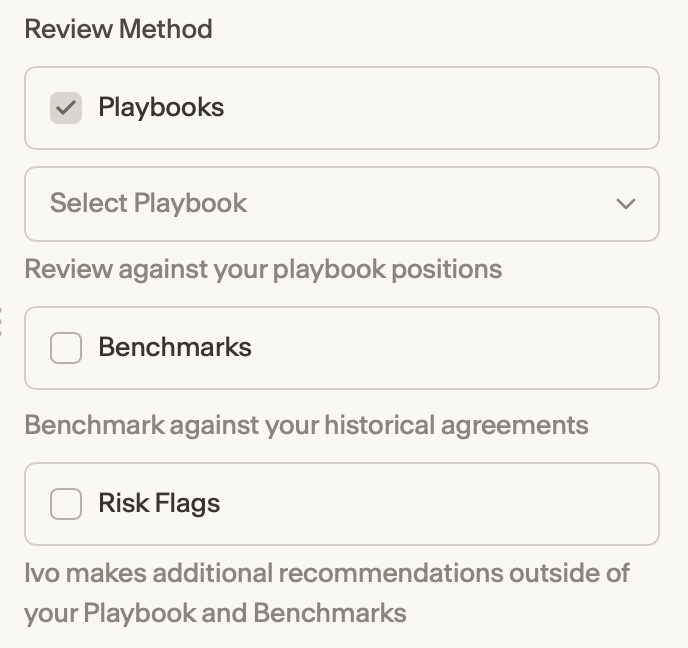
If using playbooks, select up to three playbooks to review against.
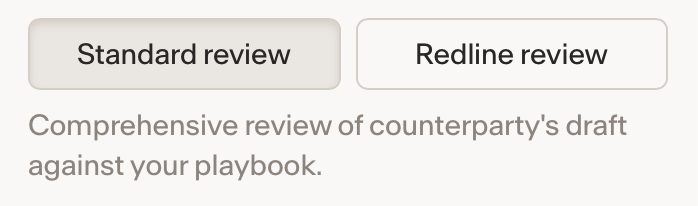
Choose either Standard Review or Redline Review.
Standard: Comprehensive review of entire document
Redline: Focuses review on counterparty's redlines
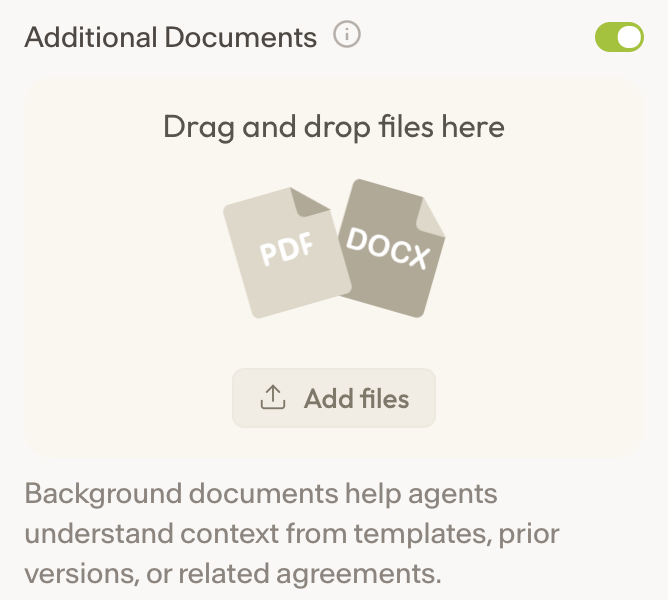
Add any additional documents if needed. This step is optional.
Click Continue to Deal Context.
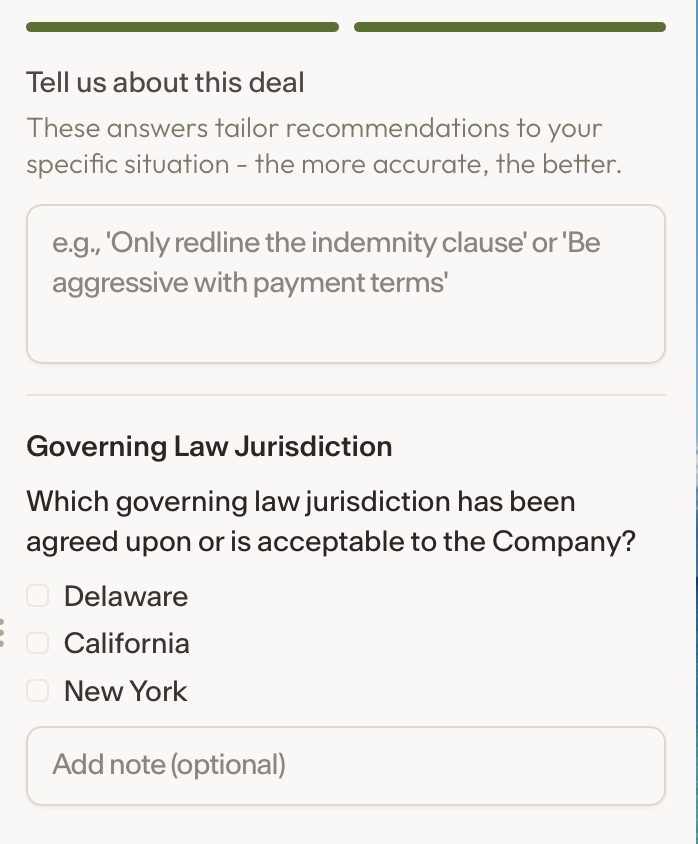
Add deal context. This is highly recommended as it helps tailor the recommendations to the contract.
Depending on the playbook(s) you selected, additional questions may appear. Answering them is optional, but it can provide more context for the review.
Click Run Review.
Review Recommendations
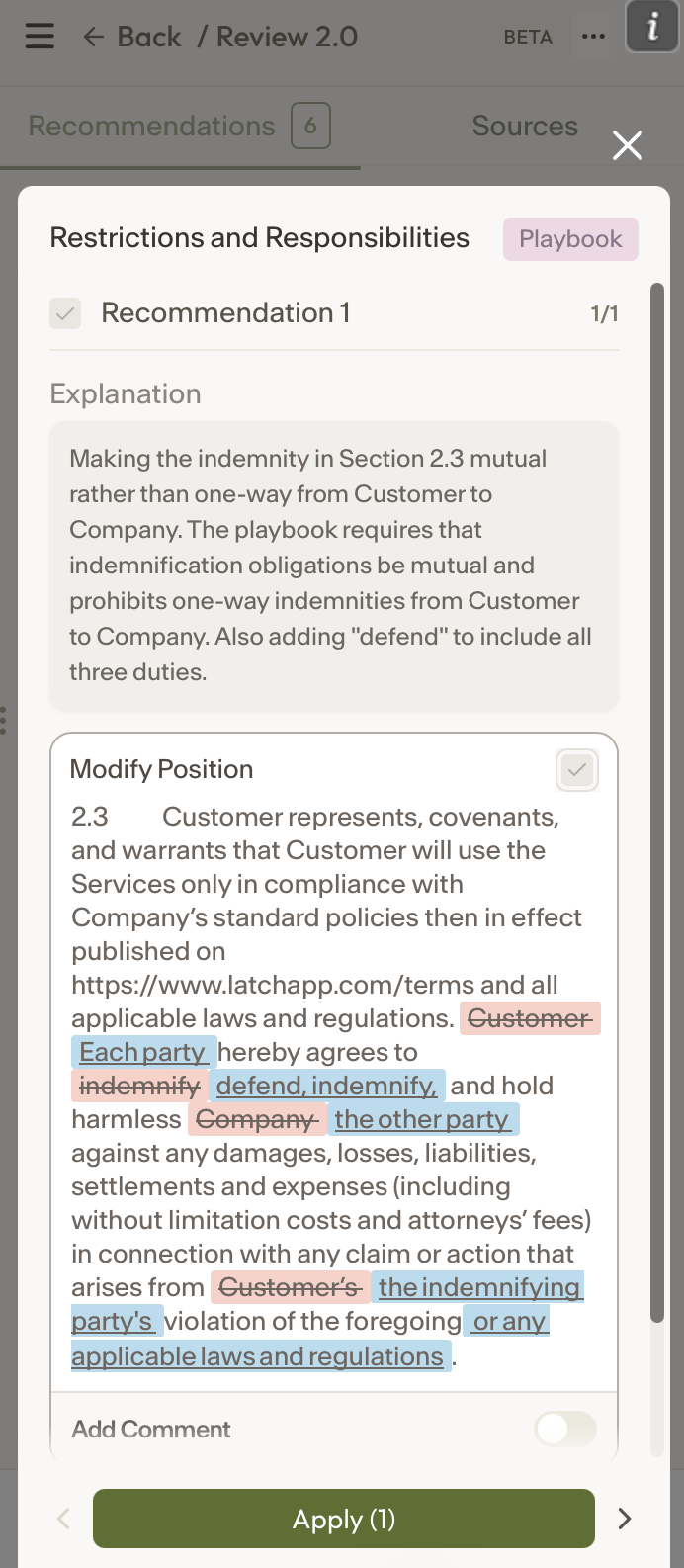
Click on a recommendation to view its details.
The Explanation section describes why the recommendation was generated.
Position provides a redline suggestion to revise the contract so it aligns with the specific requirement in your playbook.
Recommended Position Options
Within the Position window, you will see the following options, in order:
Update
Click the Update icon to modify the markup using a simple instruction.Retry
Redraft the markup using different language while still addressing the position requirement.History
View the history of changes made to this recommendation during the current session, and revert to a previous version if needed.Thumbs Down
Use the thumbs down option to report markup that appears inaccurate. This helps Engineering and Implementation improve future outputs.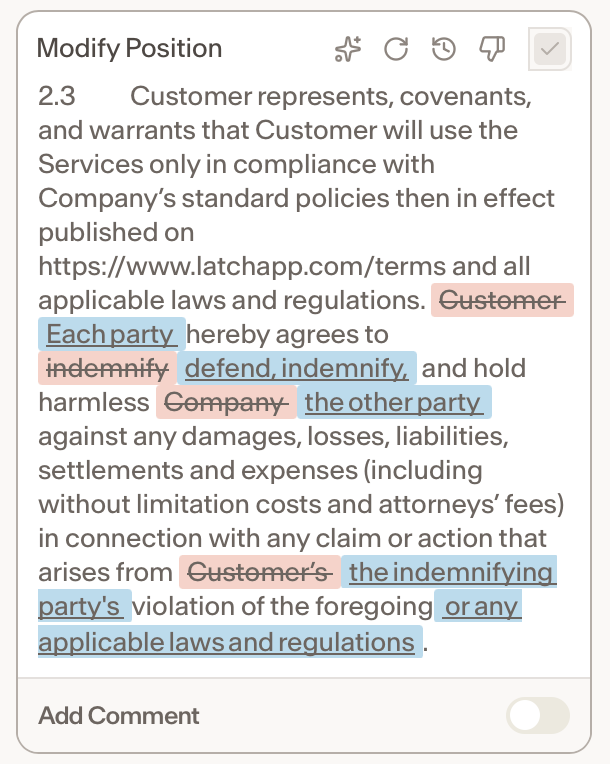
Add Comment
You can choose whether to include an automatically generated Word comment by using the toggle to the right of Add Comment.
If your playbook includes a specified comment, that comment will be used.
Otherwise, an AI-generated comment will be created to help justify the change for the counterparty during their review of the updated document.
If you want to provide instructions for the AI-generated comment, click the Update icon.
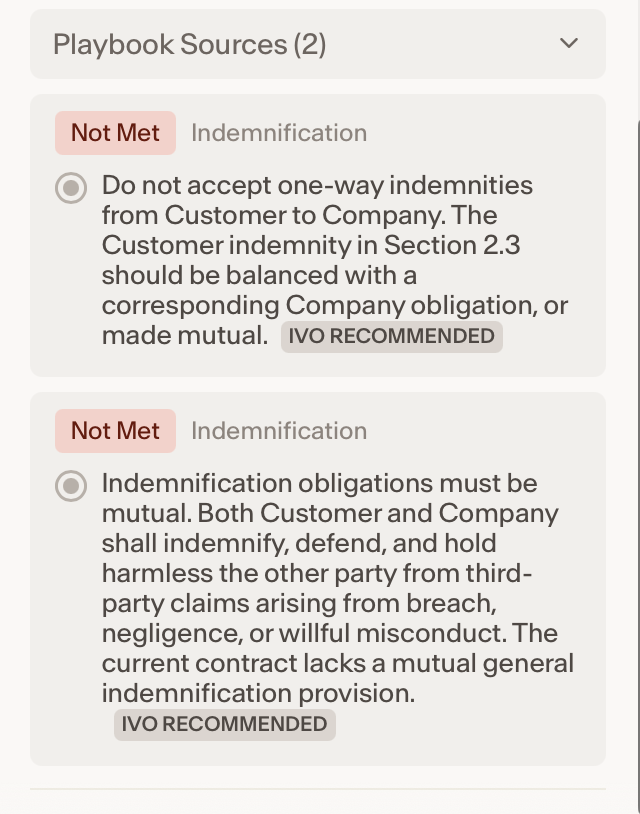
Playbook Sources
The Playbook Sources section shows where the contract did not meet specific terms in your playbook.
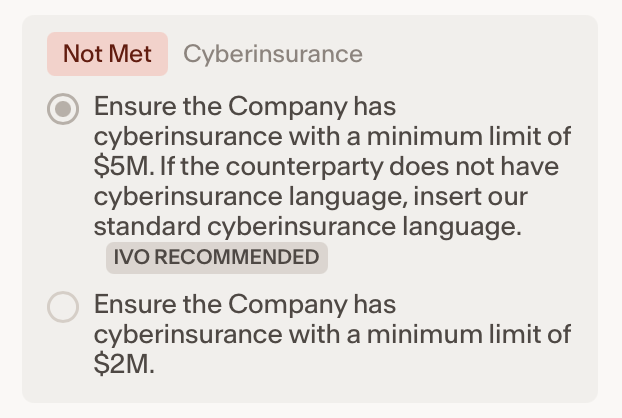
Fallbacks / Alternative Positions
To select a fallback or alternative position, choose an unselected option within the source item. This will regenerate the recommended position for that item and update any related items affected by the change.
Apply Recommendations
If the markup, and optional comment, look correct, click Apply to add them to the document.

To apply all review recommendations at once, click Apply All at the bottom of full recommendations list.

To apply all checklist items with comments, click the ^ to the right of Apply All and select Apply with comments.